This section shows the movement of the center's products. You can see how many were received, how many were sold and for what amount during the selected period. This helps control stock levels in the inventory and see which products generate the most revenue.
1. Access to the section
The "Products and Inventory" section is located under Analytics in the left sidebar. Products for this section are added in advance in Settings (Настройки), on the "Add-on sales" (Доп. продажи) tab, in the "Products" (Товары) block, and the price with the current stock is set there as well.
2. Selecting the period
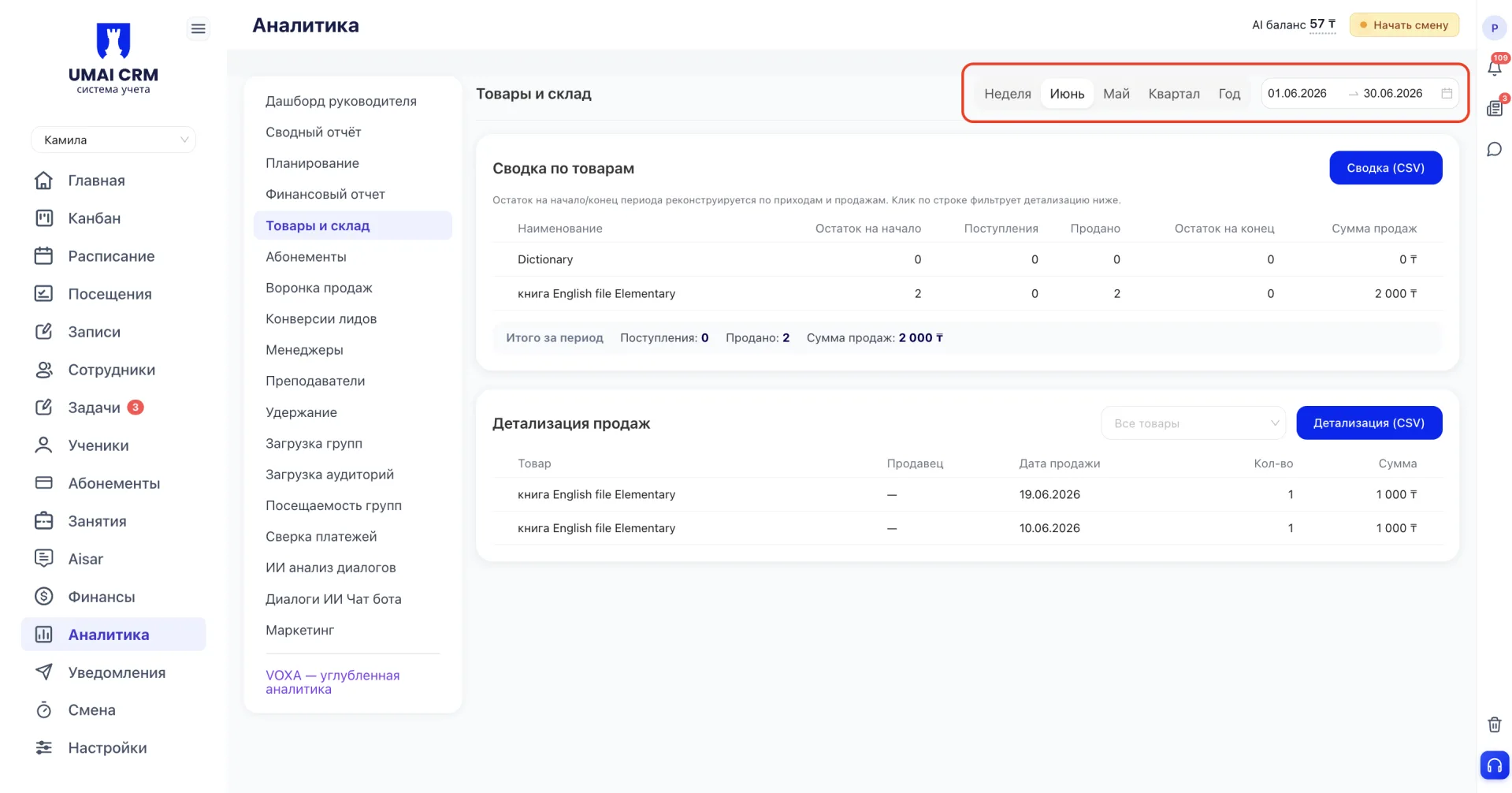
At the top of the page you set the analysis period: week, month, quarter, year, or a custom date range. After changing the period, the data in both blocks of the page recalculates automatically.
3. Products summary
The table shows stock, receipts, and sales for each product during the selected period:
- Name — the product name.
- Opening balance — how many units of the product were in stock at the start of the period.
- Receipts — how many units of the product were received during the period.
- Sold — how many units of the product were sold during the period.
- Closing balance — how many units of the product remained in stock at the end of the period.
- Sales amount — total revenue for this product during the period.
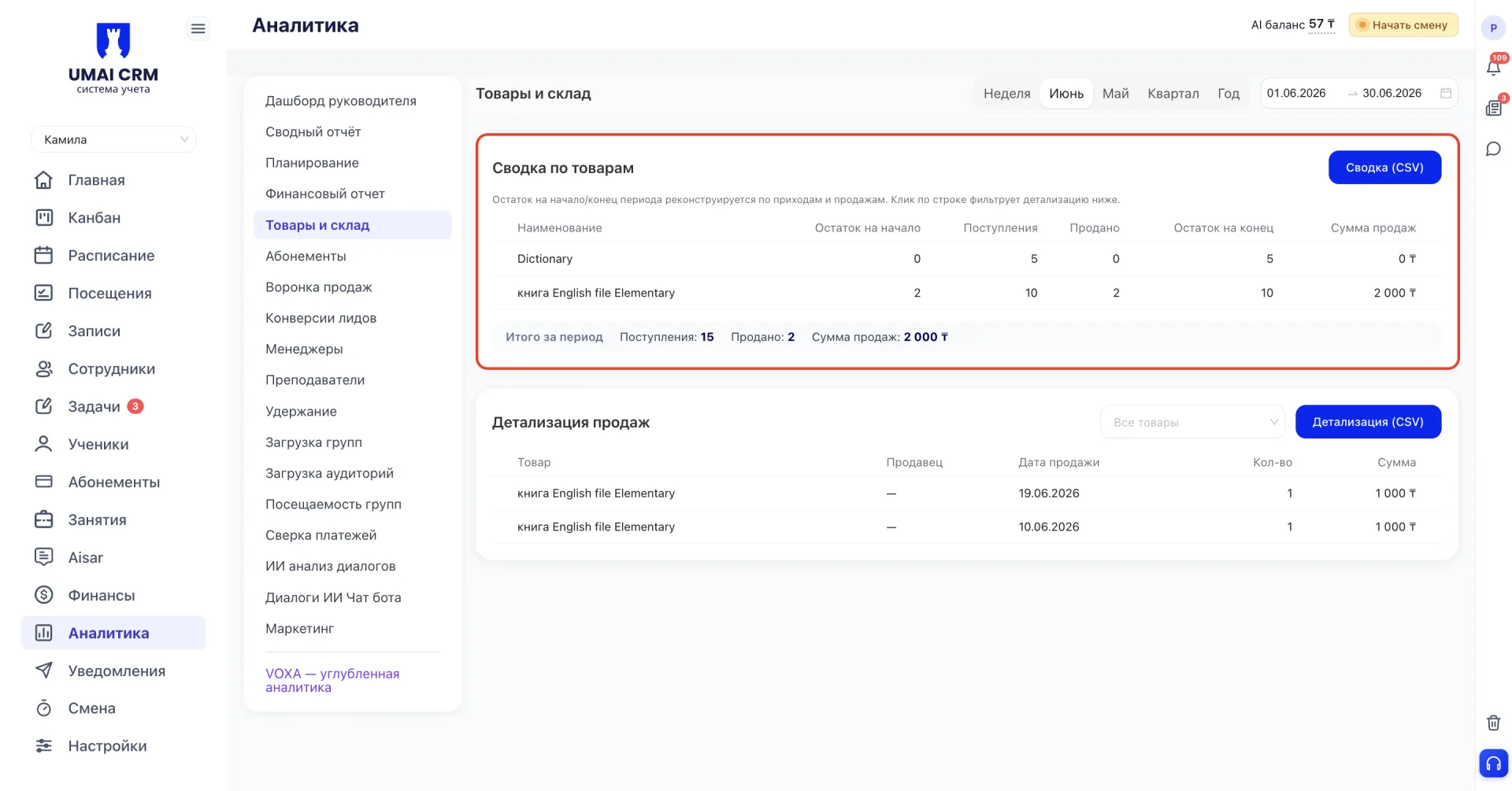
The opening and closing balances for the period are calculated automatically based on receipts and sales, and are not stored as separate values.
Below the table the line "Total for the period" displays the aggregated values for all products: total receipts quantity, sold quantity, and sales amount.
The "Summary (CSV)" (Сводка (CSV)) button in the upper right corner allows you to download this table as a file.
4. Sales details
The table shows individual sales for the selected period: which product was sold, who sold it, on which date and for what amount.
- Product — the name of the sold product.
- Seller — the employee who processed the sale.
- Sale date — the date of the specific sale.
- Qty — the number of units sold.
- Amount — the amount of this sale.
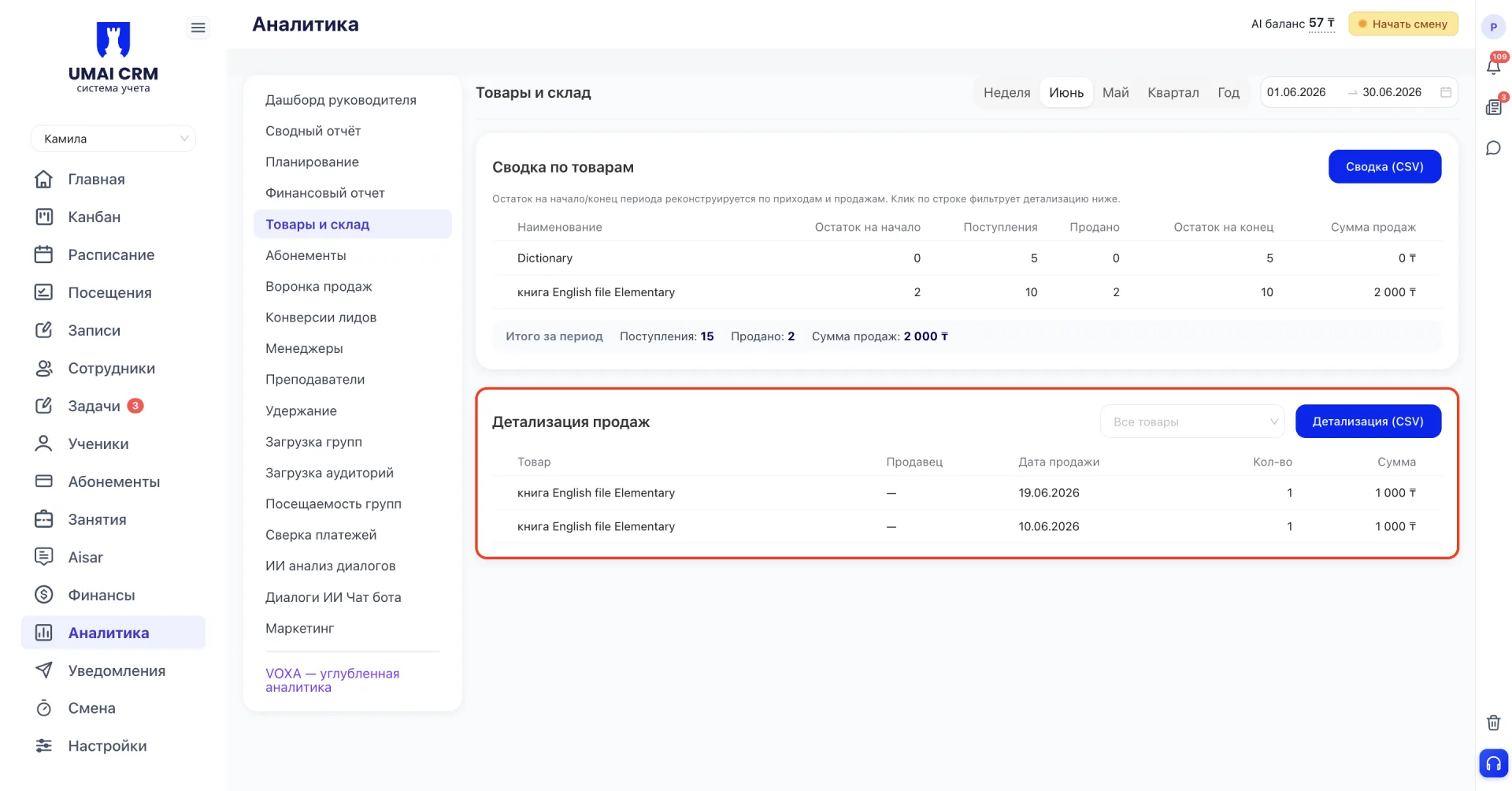
If you click on a product row in the "Products summary", the "Sales details" table will be filtered and show only sales of the selected product. The same result can be obtained via the "All products" dropdown above the table — it allows you to choose a specific product without clicking the summary.
The "Details (CSV)" (Детализация (CSV)) button allows you to download the details table as a file.
Important to note
- For a product to appear in this section, it must first be added in Settings (Настройки), on the "Add-on sales" (Доп. продажи) tab.
The opening and closing balances for the period are computed values, not separately stored numbers. They are reconstructed based on the history of receipts and sales.
- Filtering by product (by clicking a row or via the dropdown) affects only the display of the details table, not the summary.
- Both tables can be exported in CSV format for further analysis.