AI chat-bots are used for automatic correspondence with clients in Aisar. A bot can answer questions, consult, create Leads and, if necessary, work with Kanban (Канбан): change stages, fill the card and create records.
After clicking “Create bot” the settings page opens. It consists of several sections, each of which is responsible for a separate part of the bot's behavior.
The bot creation page is divided into five blocks:
- Main (Основное)
- Answers (Ответы)
- Permissions in Kanban (Права в Канбане)
- Quality assessment
- Context and prompt
Each block configures a separate logic of operation.
1. Main (Основное)
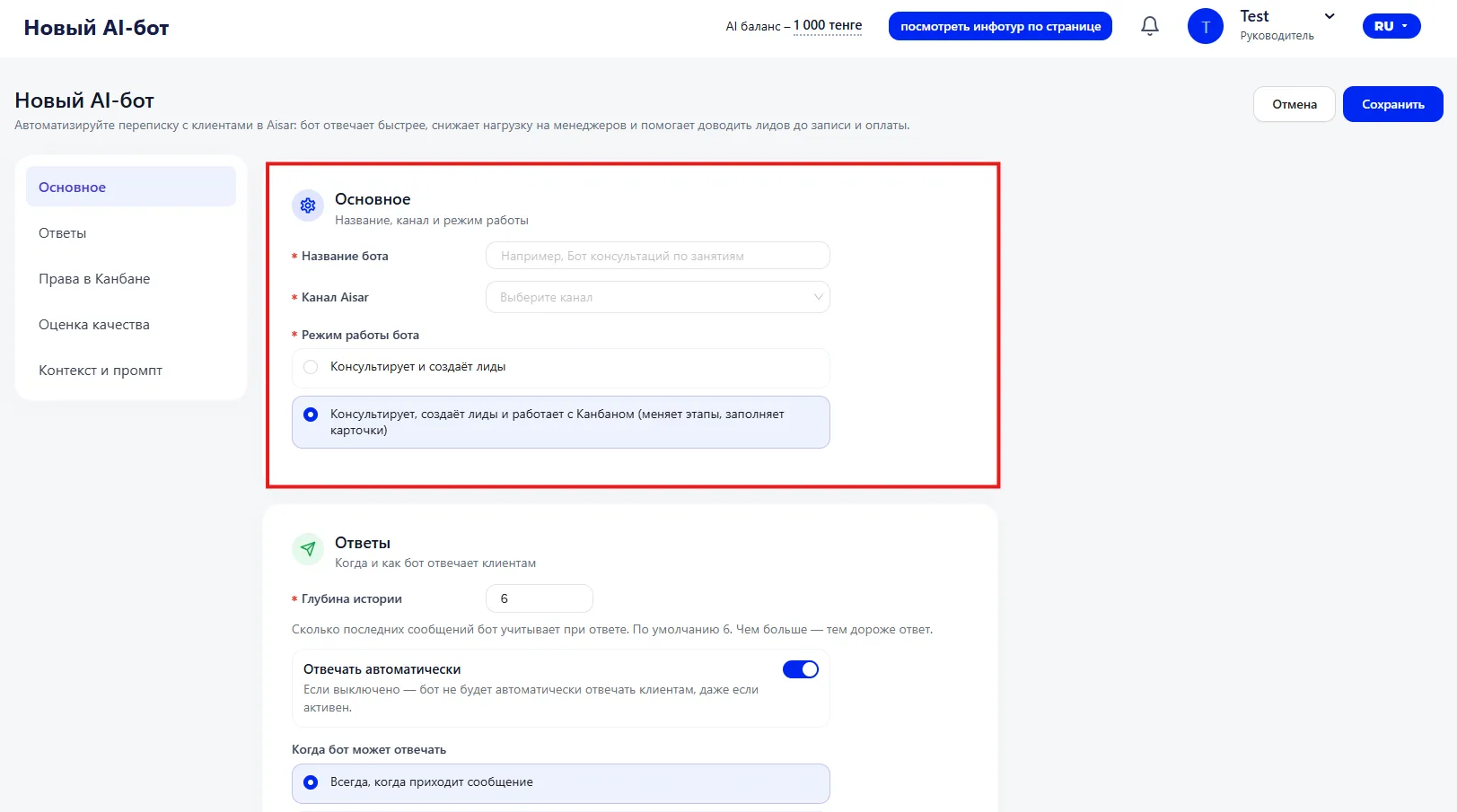
Bot name
Internal name. Used for administration. For example: “Consultation bot”, “Trial booking bot”.
Aisar channel
Select the channel in which the bot will operate. Without a selected channel the bot will not be able to reply to clients.
Bot operation mode
Two modes are available:
- Consults and creates Leads. The bot replies to clients and can create Leads, but does not manage Kanban (Канбан).
- Consults, creates Leads and works with Kanban (Канбан). Additionally the bot can: change stages, fill the card, create or reschedule problematic Classes.
2. Answers (Ответы)
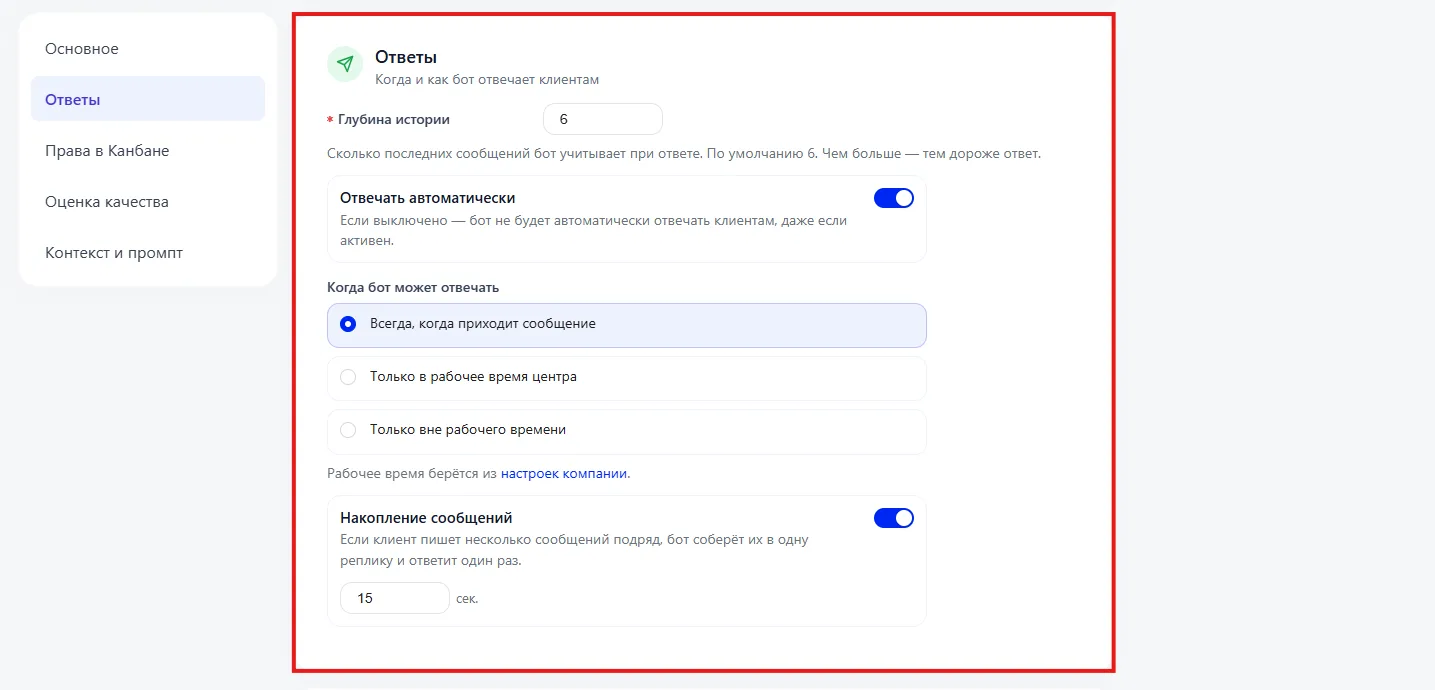
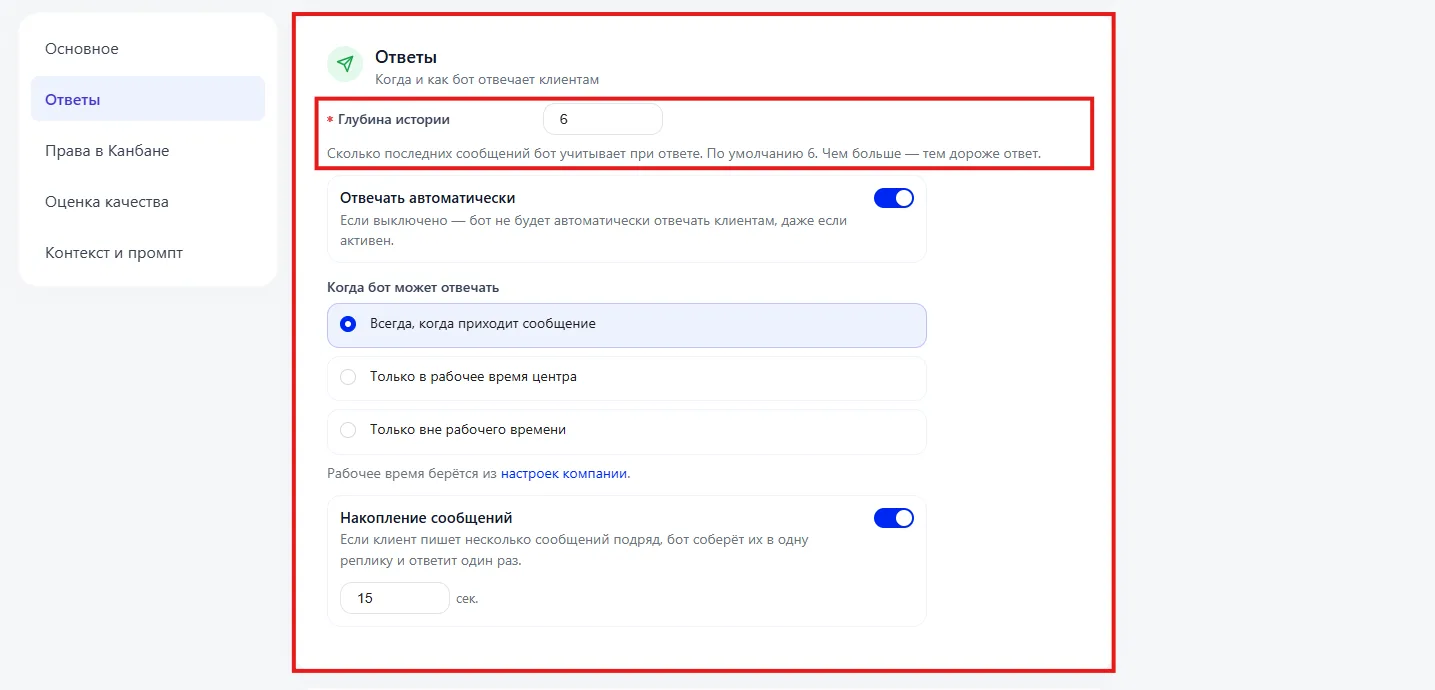
Specifies the number of recent messages the bot takes into account when forming a reply.
For example, if 6 is specified — the bot analyzes the last 6 messages of the dialogue.
The larger the value:
- the more accurately the bot understands the context,
- but the higher the processing cost.
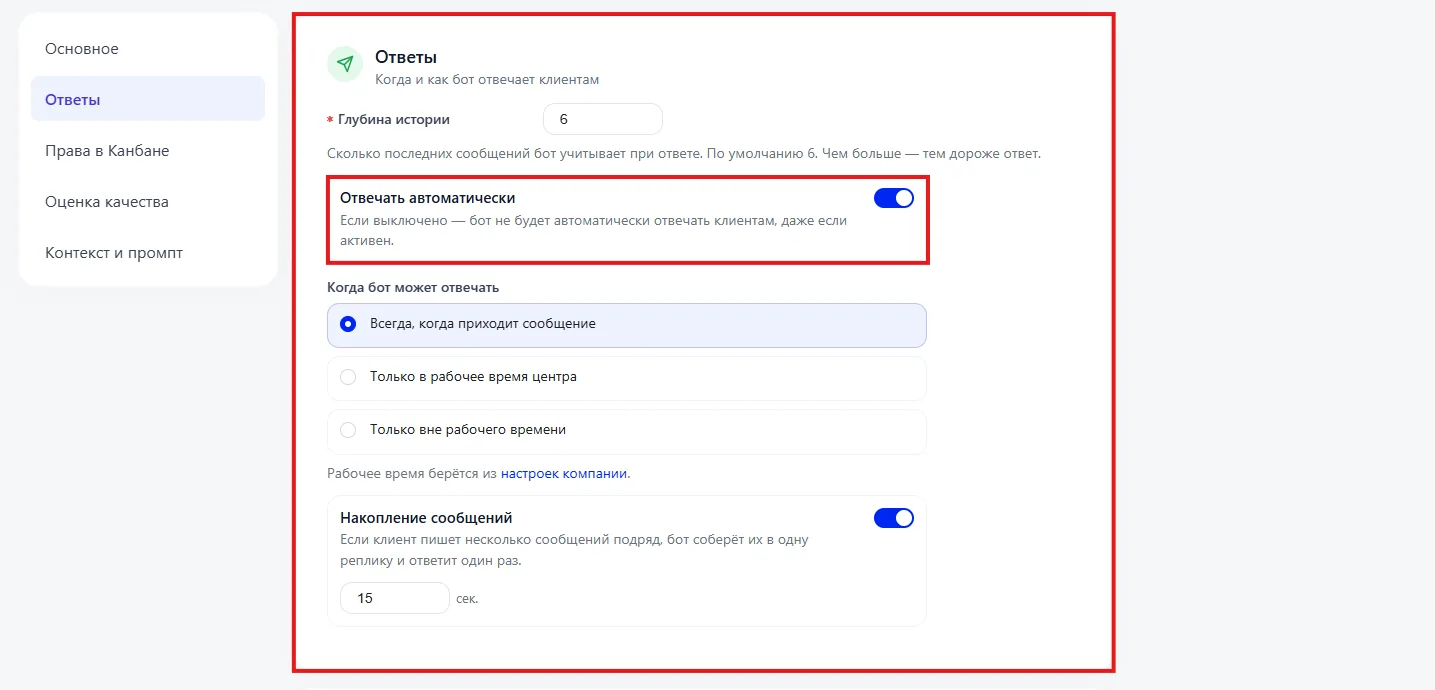
If the switch is on — the bot replies without manager
involvement.
If off — the bot is active but does not send messages automatically.
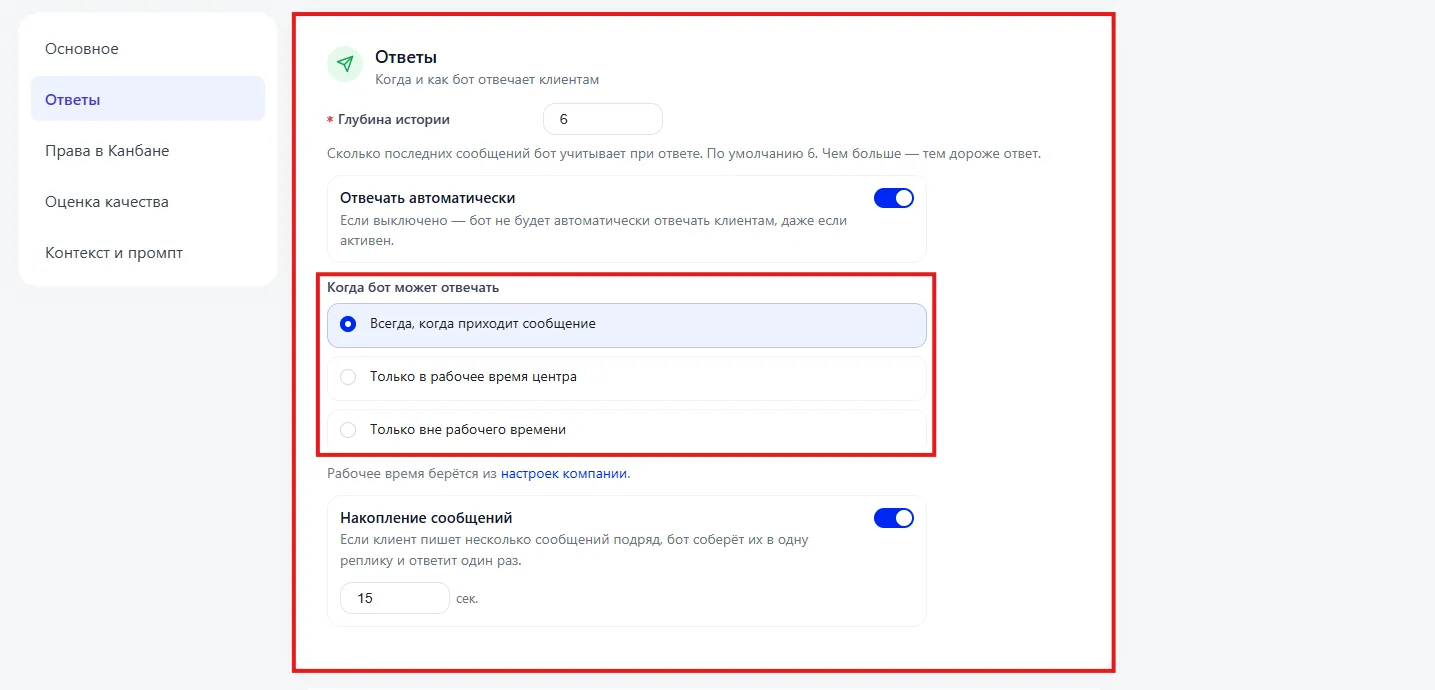
When the bot can reply
You can select one of the modes:
- Always when a message arrives
- Only during the center's working hours
- Only outside working hours
Working hours are taken from the company settings.
Message accumulation
If a client sends several messages in a row, the bot can:
- merge them,
- wait a specified number of seconds,
- reply once.
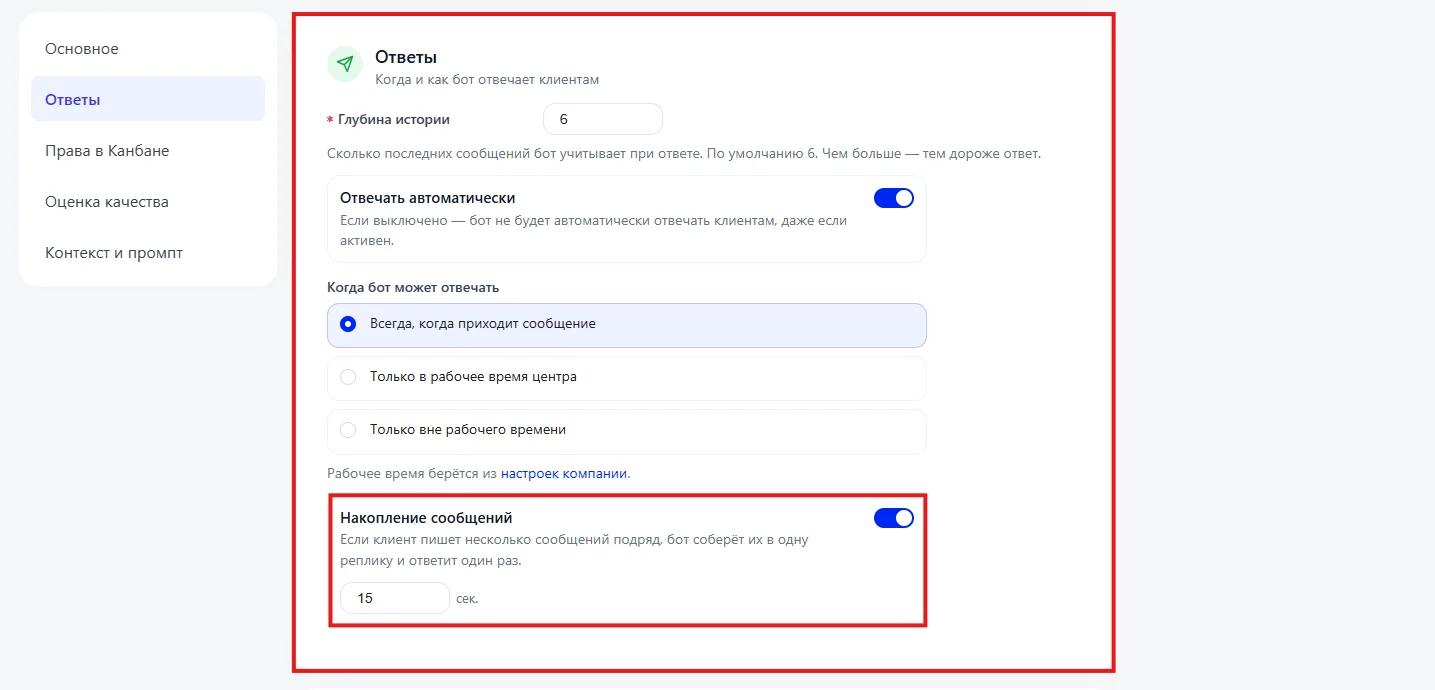
For example, with a value of 15 seconds the bot will wait 15 seconds before replying to collect all client messages into one context.
This reduces the number of unnecessary replies and makes the dialogue more natural.
3. Bot permissions in Kanban (Права бота в Канбане)
This section defines what the bot is allowed to change automatically.
You can enable:
- Change Lead stages
- Create or reschedule trial Classes
- Fill the Lead card
If the checkboxes are off — the bot will only reply in chat and will not change the Kanban (Канбан) structure.
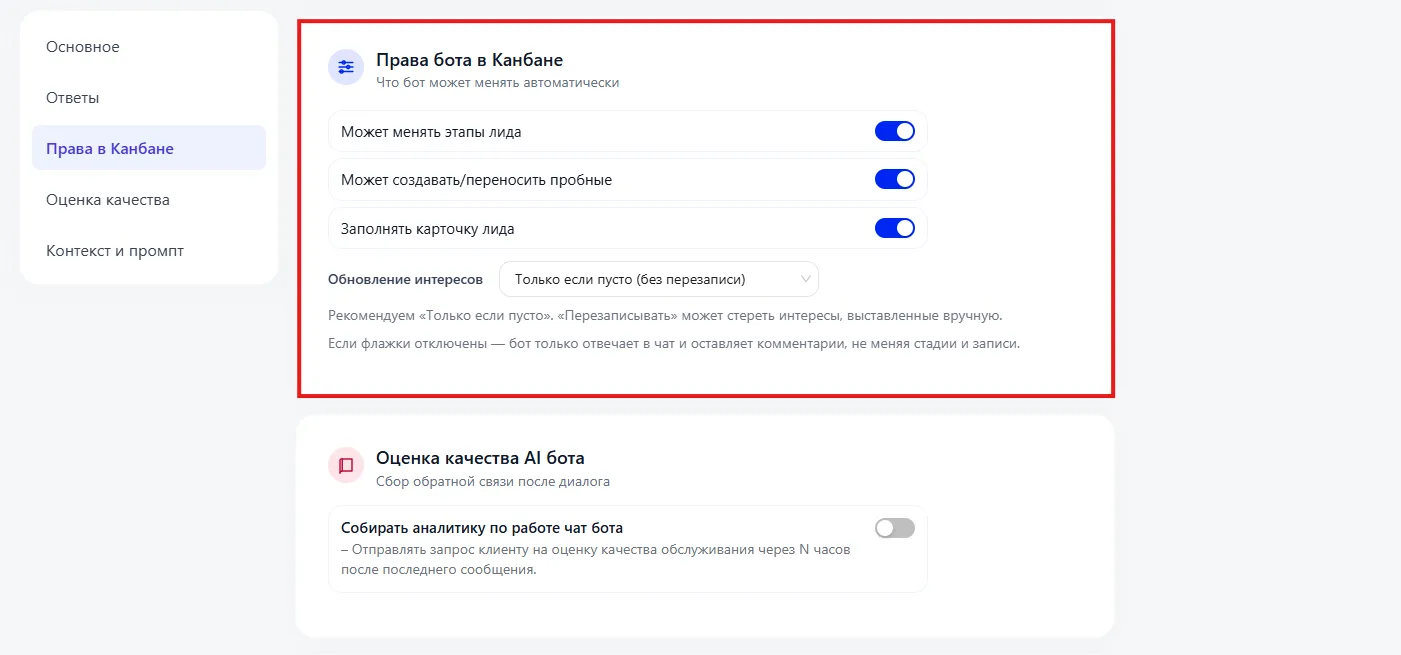
Interests update
Select the mode for updating the “Interests” field:
- Only if empty — the bot will fill the field but will not overwrite manually entered data.
- With overwrite — the bot can replace existing interests.
It is recommended to use the “Only if empty” mode to avoid losing information added by Employees.
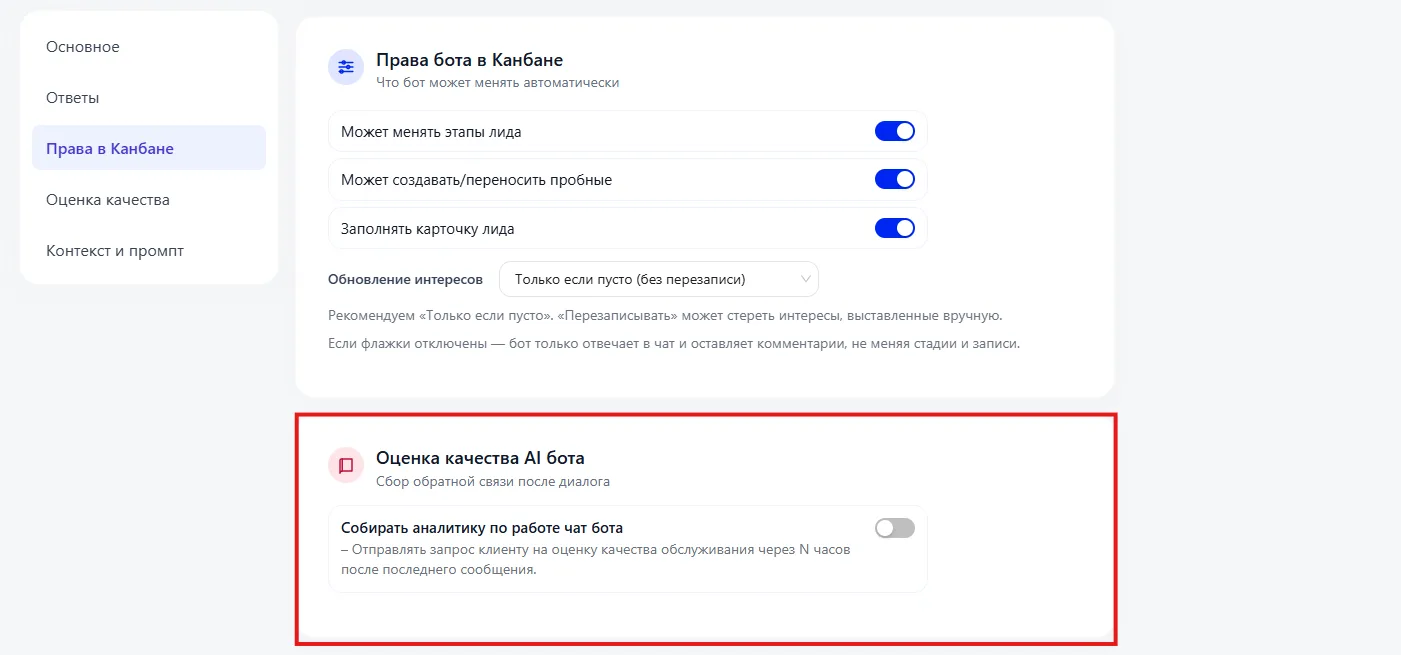
4. Quality assessment of the AI bot
This section allows collecting feedback from clients.
When enabled the system can:
- send the client a request for a rating,
- gather statistics on the bot's performance.
5. Context and prompt
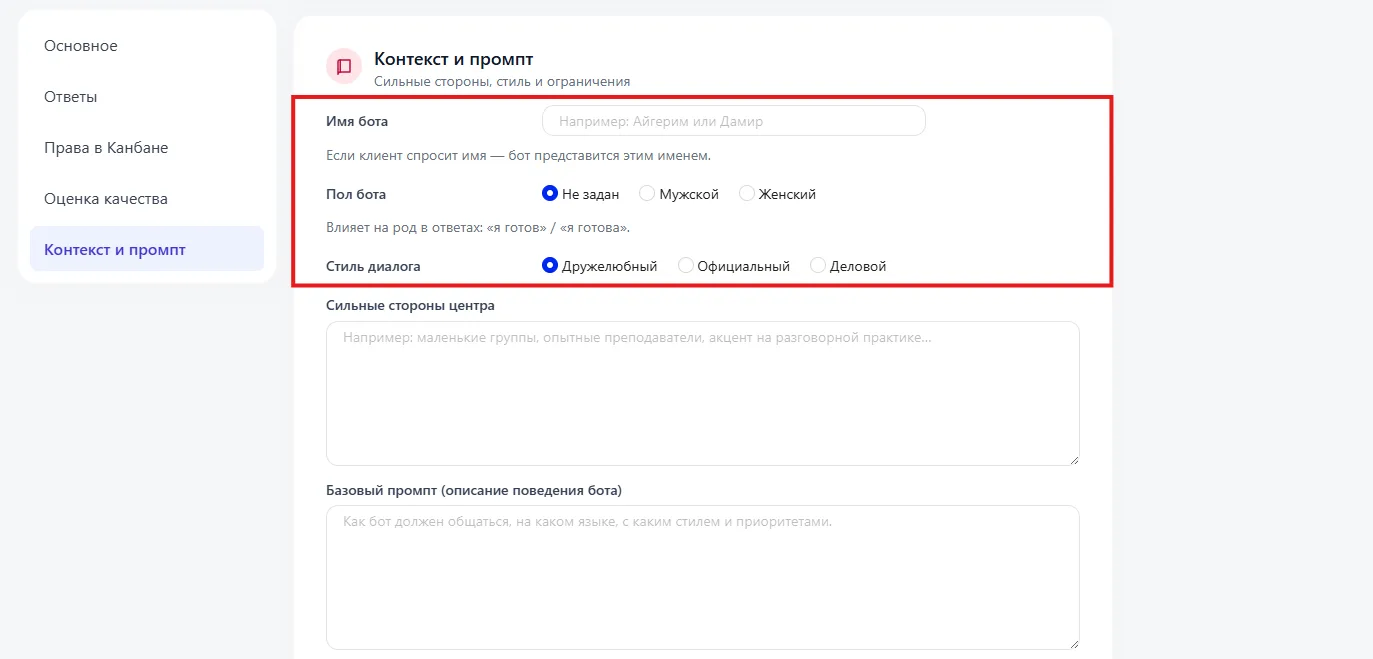
- Bot name. If a client asks for the name — the bot will introduce itself with the specified name.
- Bot gender. Affects phrasing of replies (“ready” / “ready” depending on gender in Russian — the system will adapt accordingly).
- Dialogue style. You can choose: friendly, formal, business. This parameter affects the tone of communication.
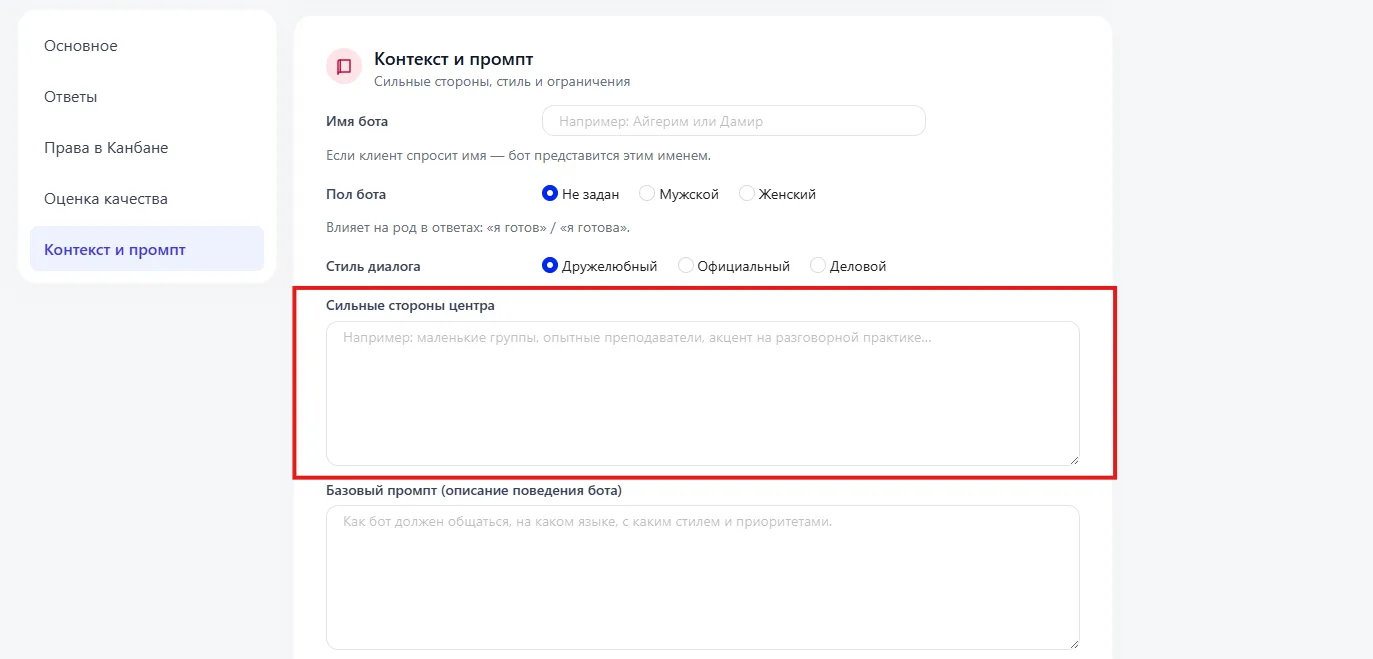
For example: small groups, experienced Teachers, convenient Schedule.
The bot will use this information in replies.
Base prompt
The main description of the bot's behavior:
- how the bot communicates,
- in which language,
- which priorities it follows,
- how it processes questions.
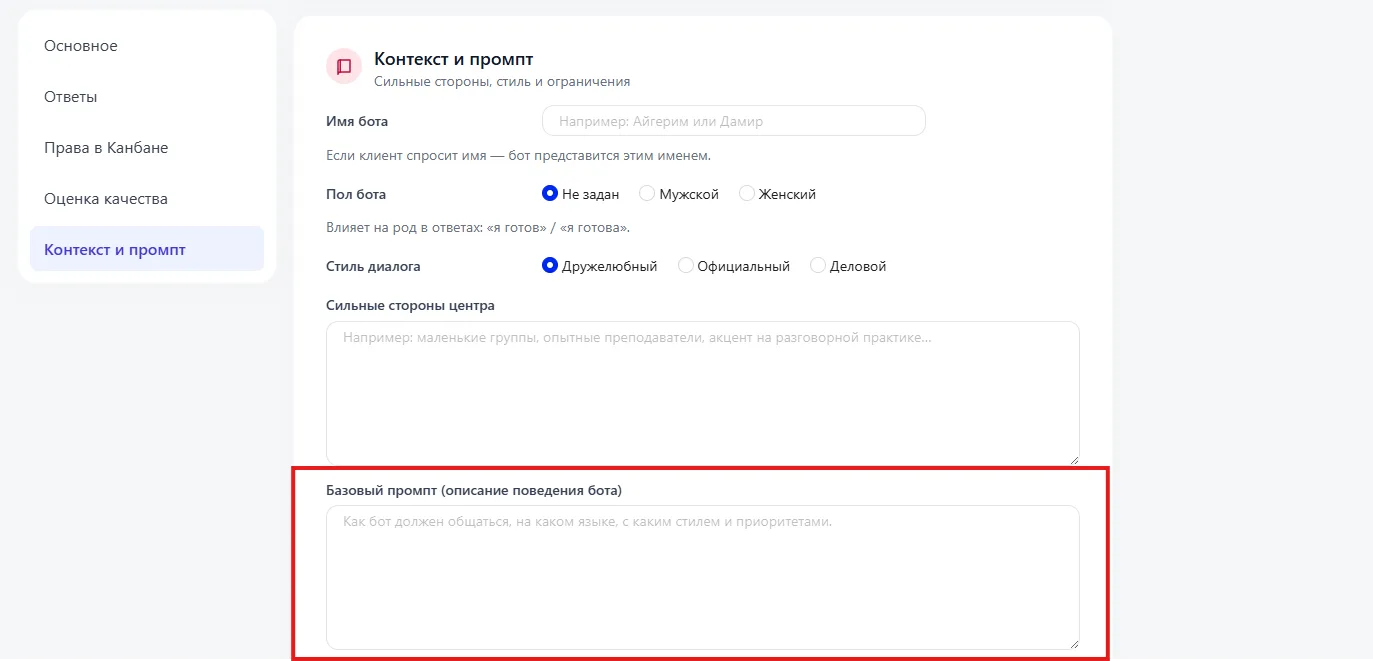
This is the main instructional text that defines the behavioral model.
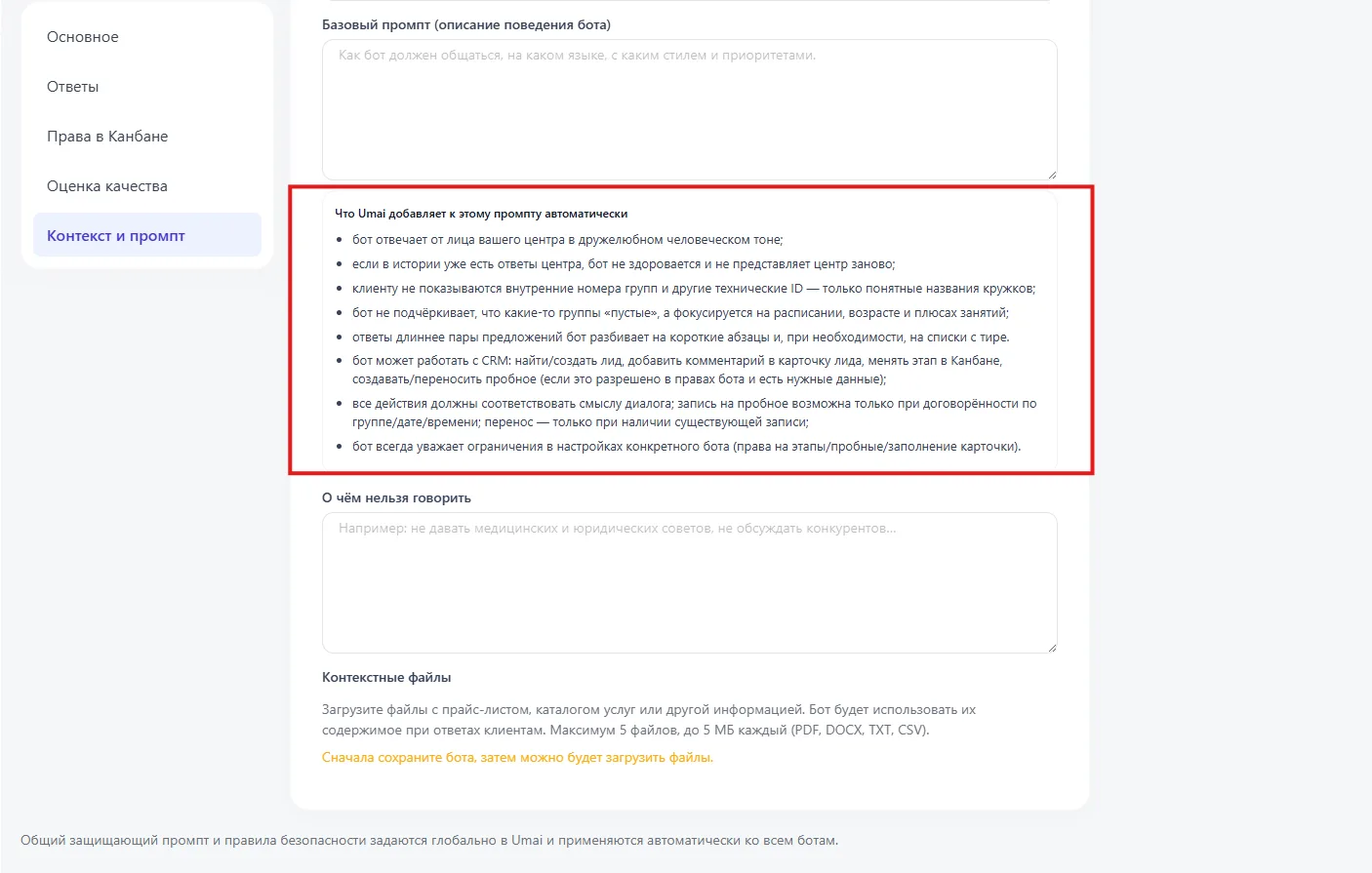
What the system adds automatically
Even if this is not specified in the prompt, the system additionally:
- replies on behalf of the center;
- does not show internal technical data to the client;
- breaks long responses into paragraphs;
- observes the permission restrictions set in the “Permissions in Kanban (Права в Канбане)” section;
- performs actions in the CRM only if allowed by the settings.
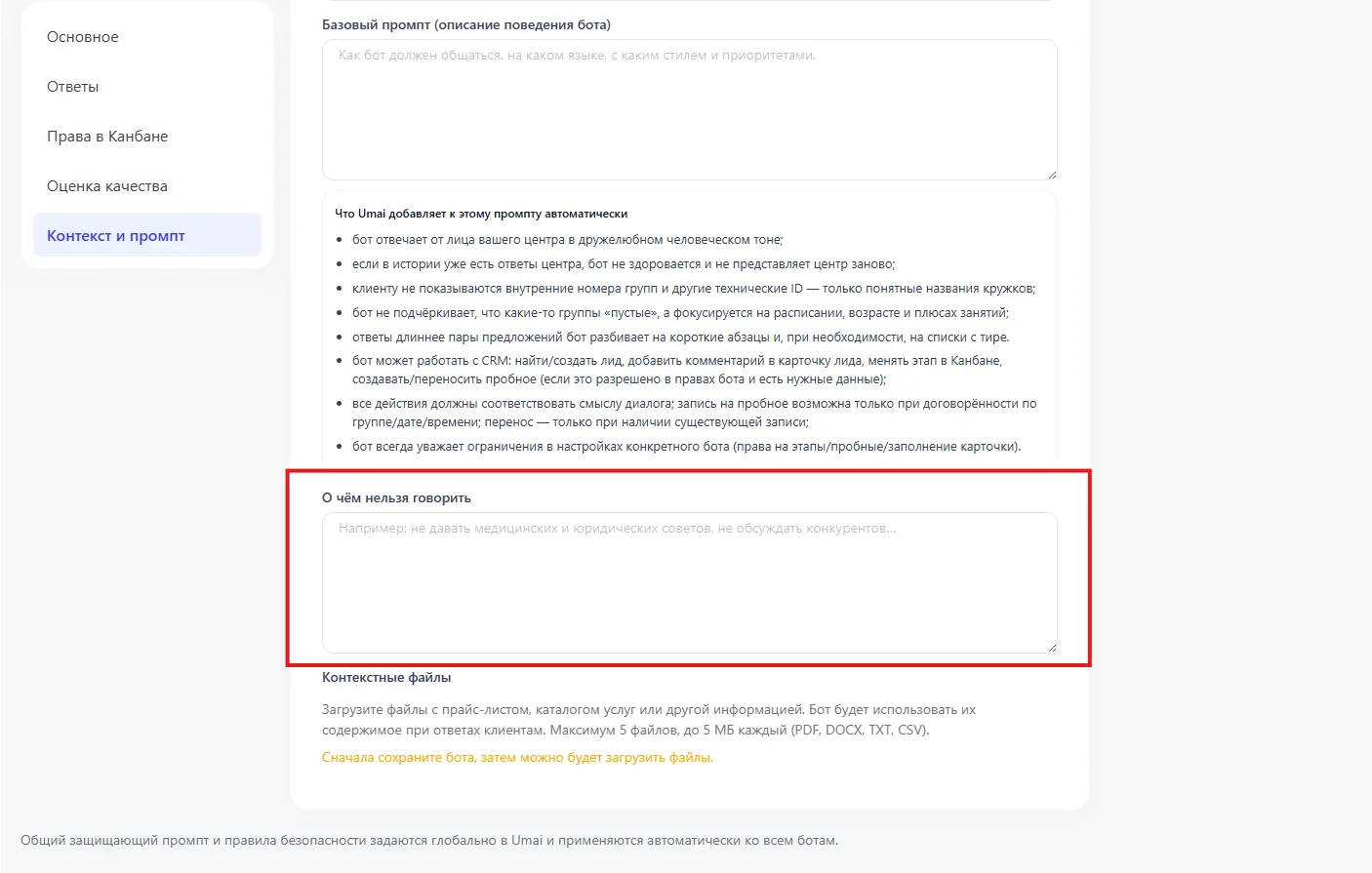
What not to talk about
You can explicitly specify prohibitions:
- do not discuss competitors,
- do not give medical or legal advice,
- do not disclose internal information.
This limits the scope of permissible answers.
Context files
The bot will use their contents when replying to clients.
You can upload files (price list, service catalog, schedule).
Restrictions:
- up to 5 files,
- up to 5 MB each,
- formats supported: PDF, DOCX, TXT, CSV.
Files can be uploaded only after saving the bot.