Main blocks:
- Section structure
- My robots
- Templates
- Creating a robot from scratch
1. Section structure
Inside there are two tabs — «Leads» and «Clients (Клиенты)». This separation is important because automation for new inquiries and for active Students is built on different logic.
Each tab contains:
- My robots — already created automations;
- Templates — ready-made scenarios that can be used as a basis;
- the "Create from scratch" button — to configure your own scenario.
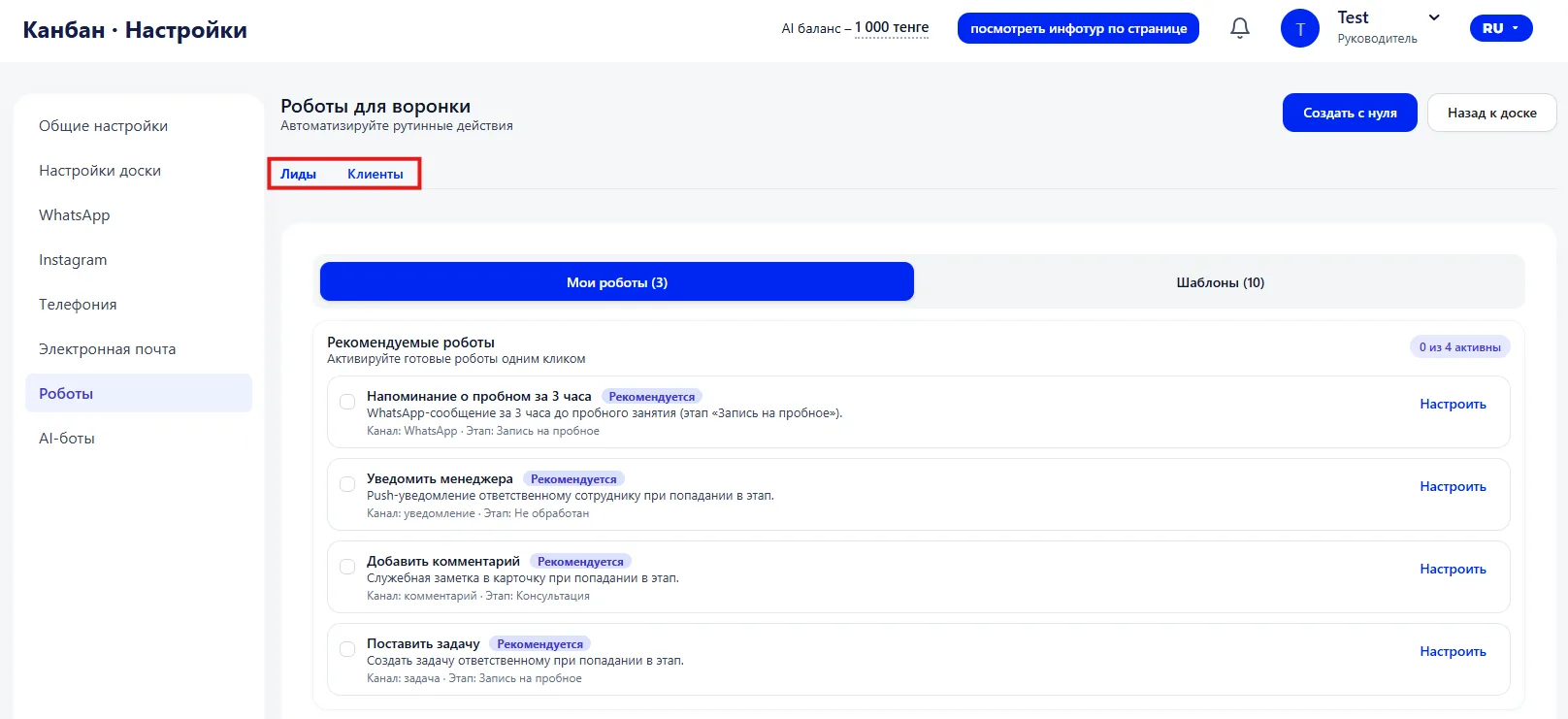
The number of templates for Leads and Clients may differ, since the processes at these stages are different.
2. My robots
In the "My robots" tab all created automations are displayed. You can see the robot name, the action channel (for example, WhatsApp), the trigger that starts it and its current status — active or off.
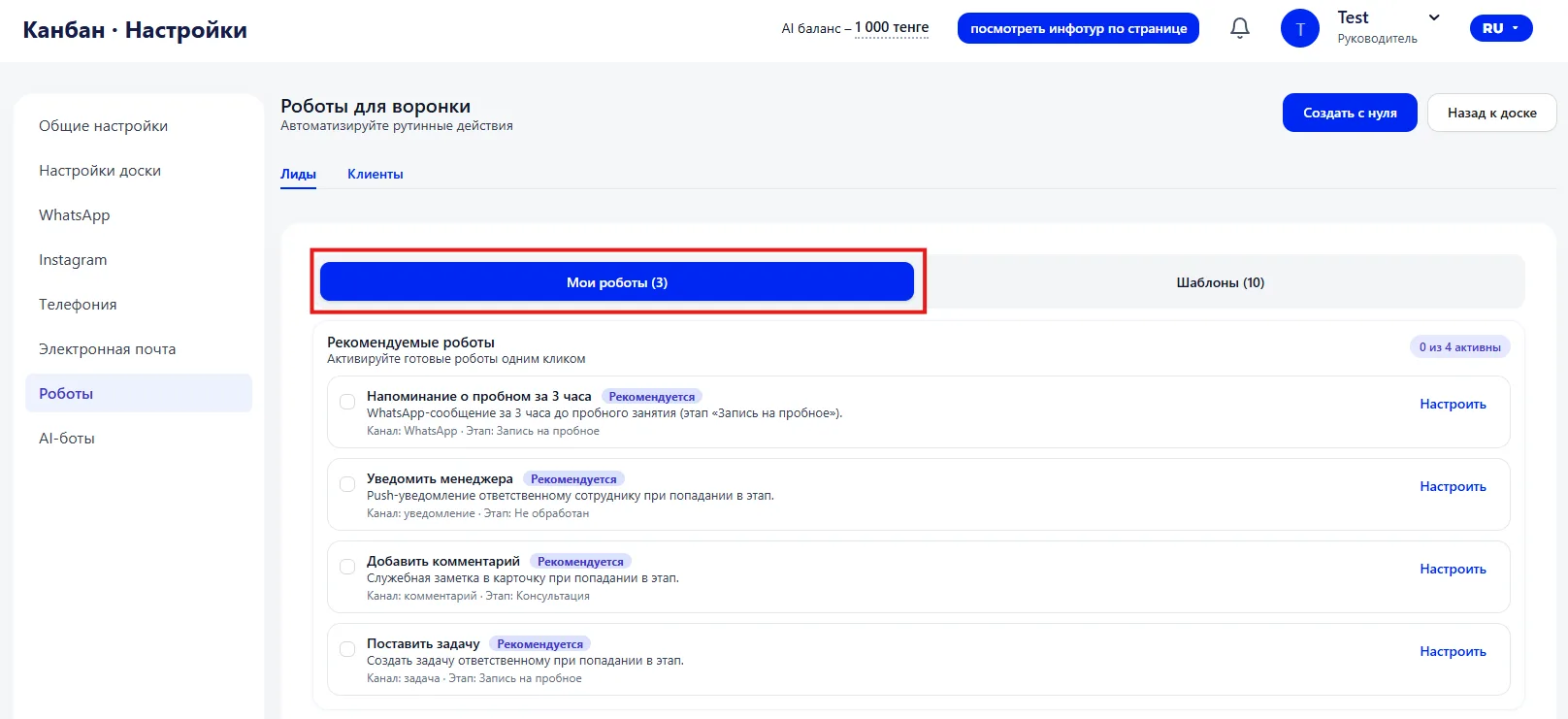
An active robot performs actions automatically when the specified condition occurs. You can edit, temporarily disable, or delete a robot.
3. Templates
Templates are ready-made automation scenarios. They allow you to quickly launch a standard process without complex setup.
For example:
- a reminder about a trial Class;
- notification to the manager about a new Lead;
- a message about the need to renew a Membership.
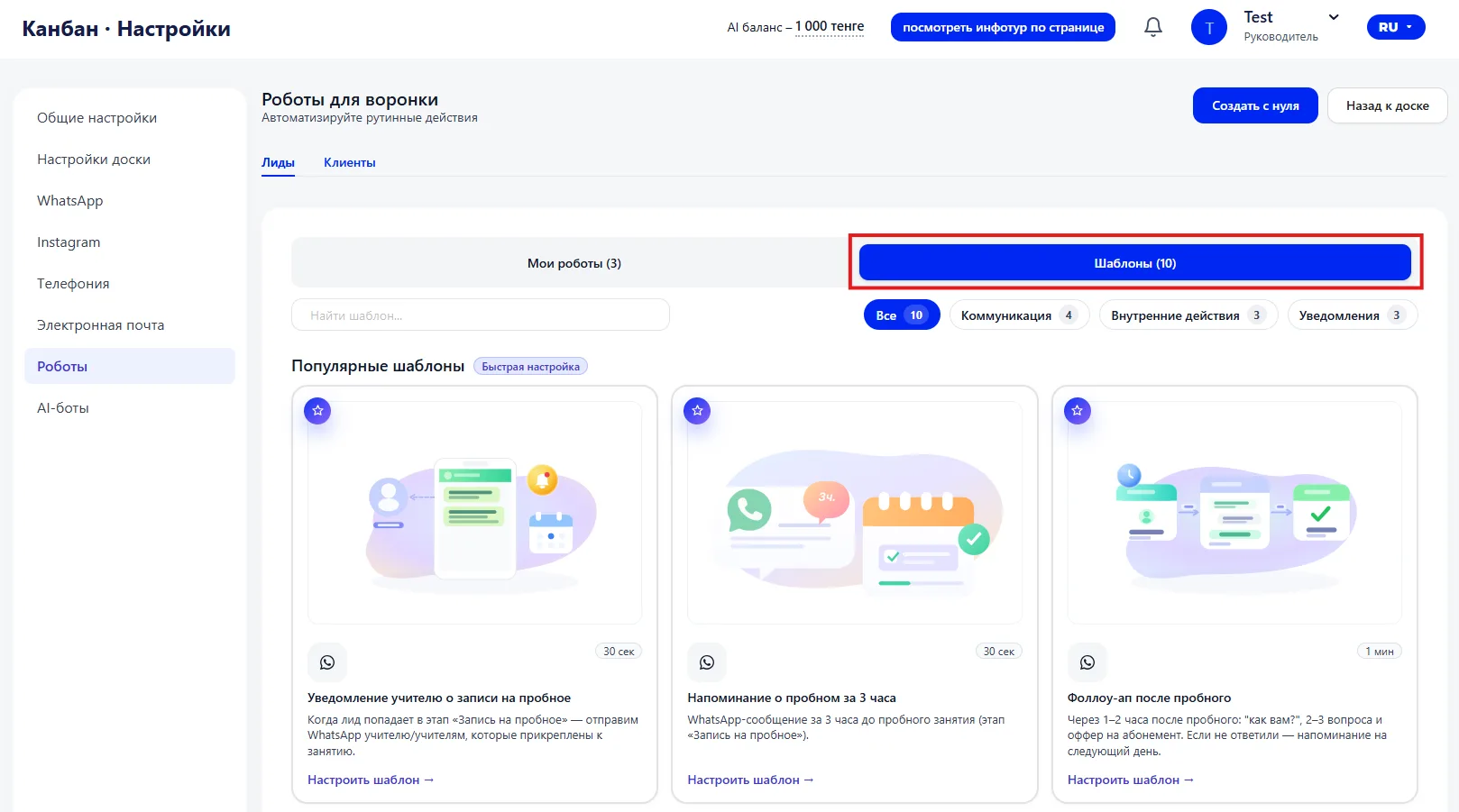
You can open a template, change the text or the trigger stage and save it as your own robot.
4. Creating a robot from scratch
The "Create from scratch" button opens the configuration form. It specifies:
- the robot name;
- when it should run (for example, on stage change or by time);
- on which stage it operates;
- what action it performs — sending a message, creating a task, adding a comment or sending a notification.
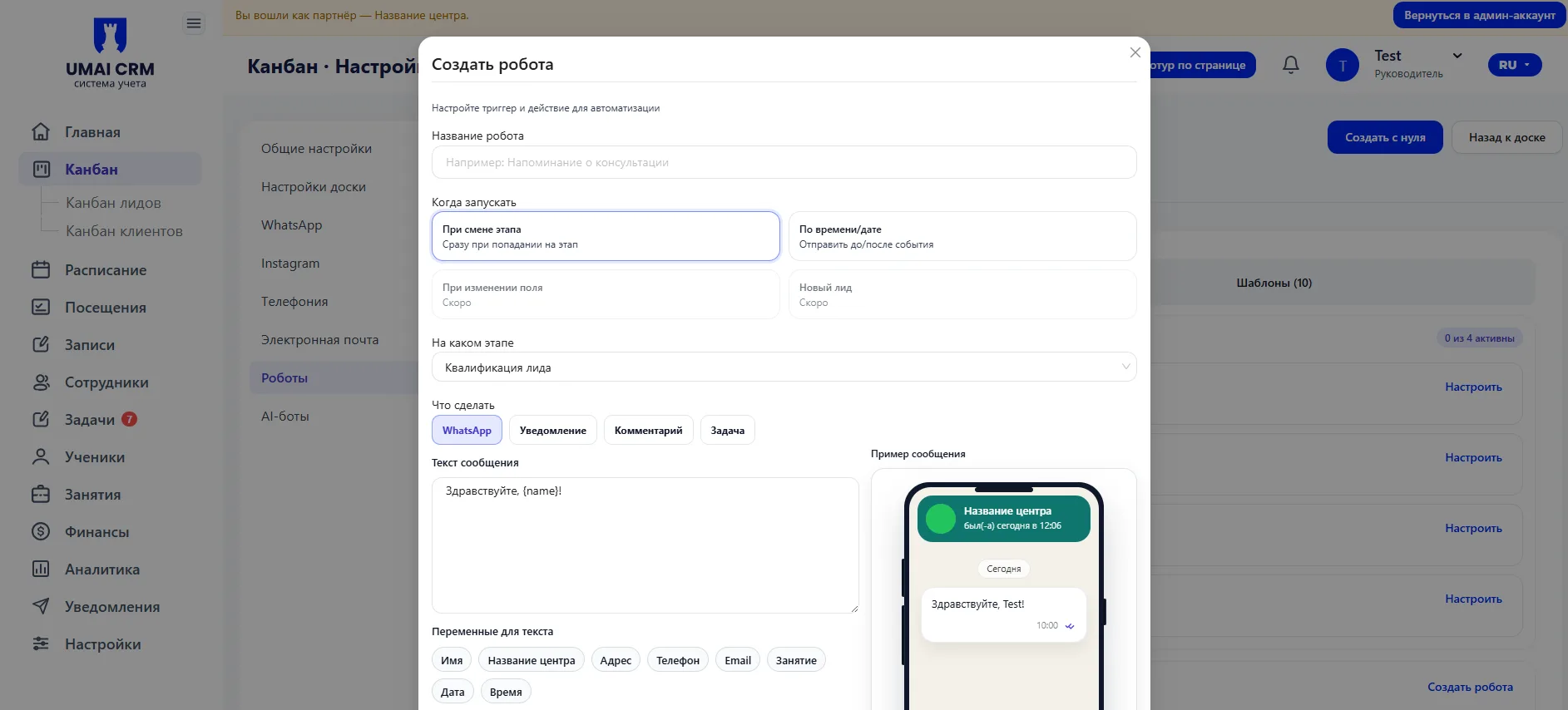
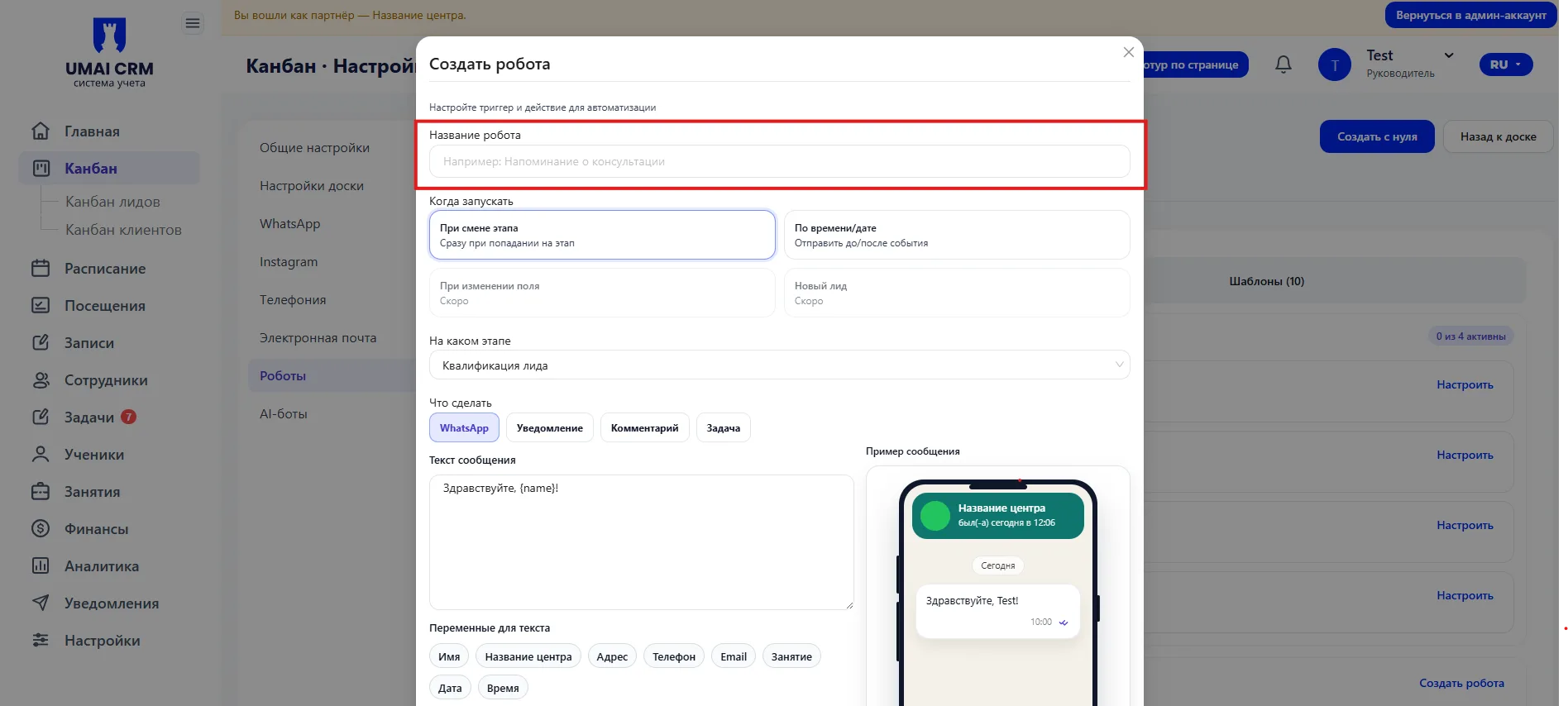
In the "Robot name" field enter an arbitrary name.
The name is used only within the system and helps to understand what the
automation is responsible for. It is recommended to use clear names, for example:
"Trial consultation reminder" or "Task for new Lead".
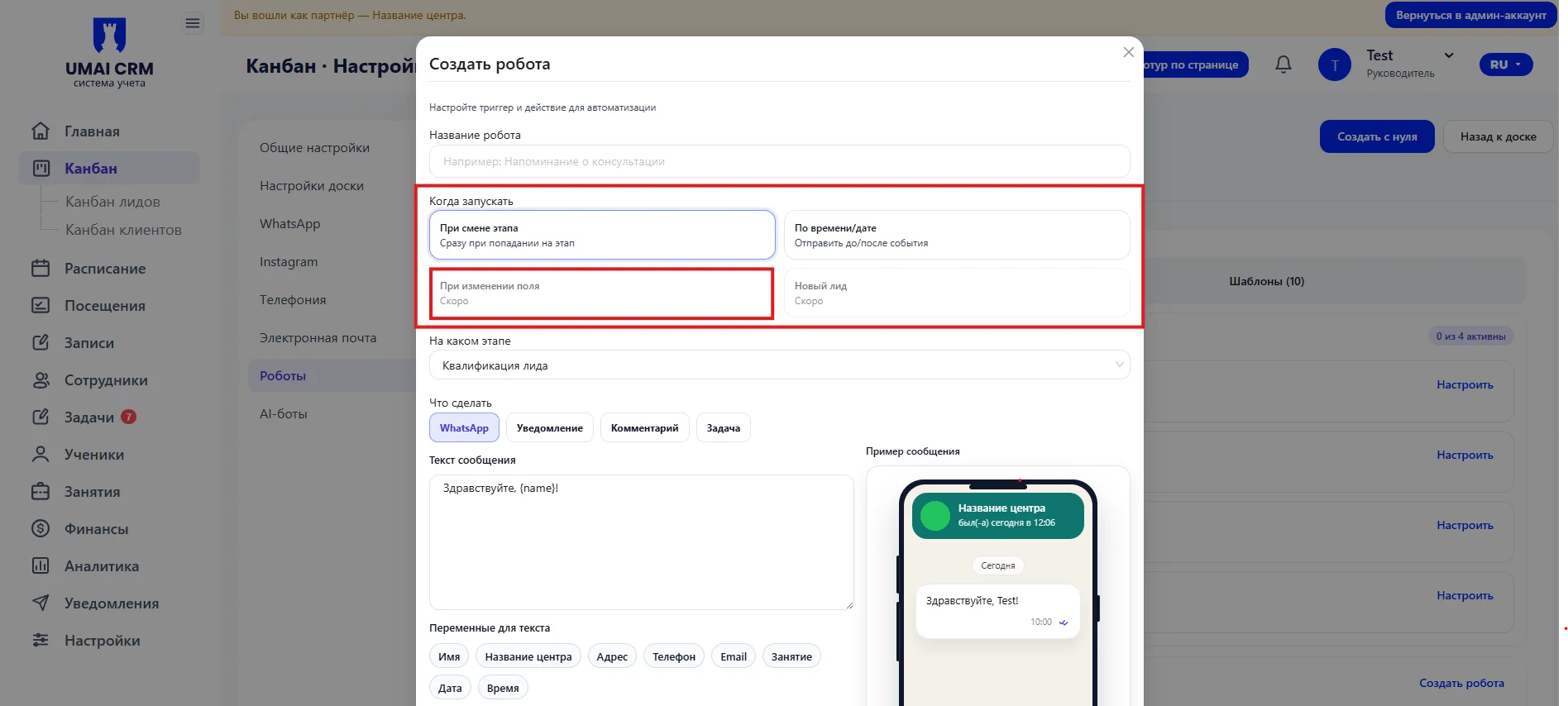
When to run
This block defines the trigger — the event on which the robot will fire.
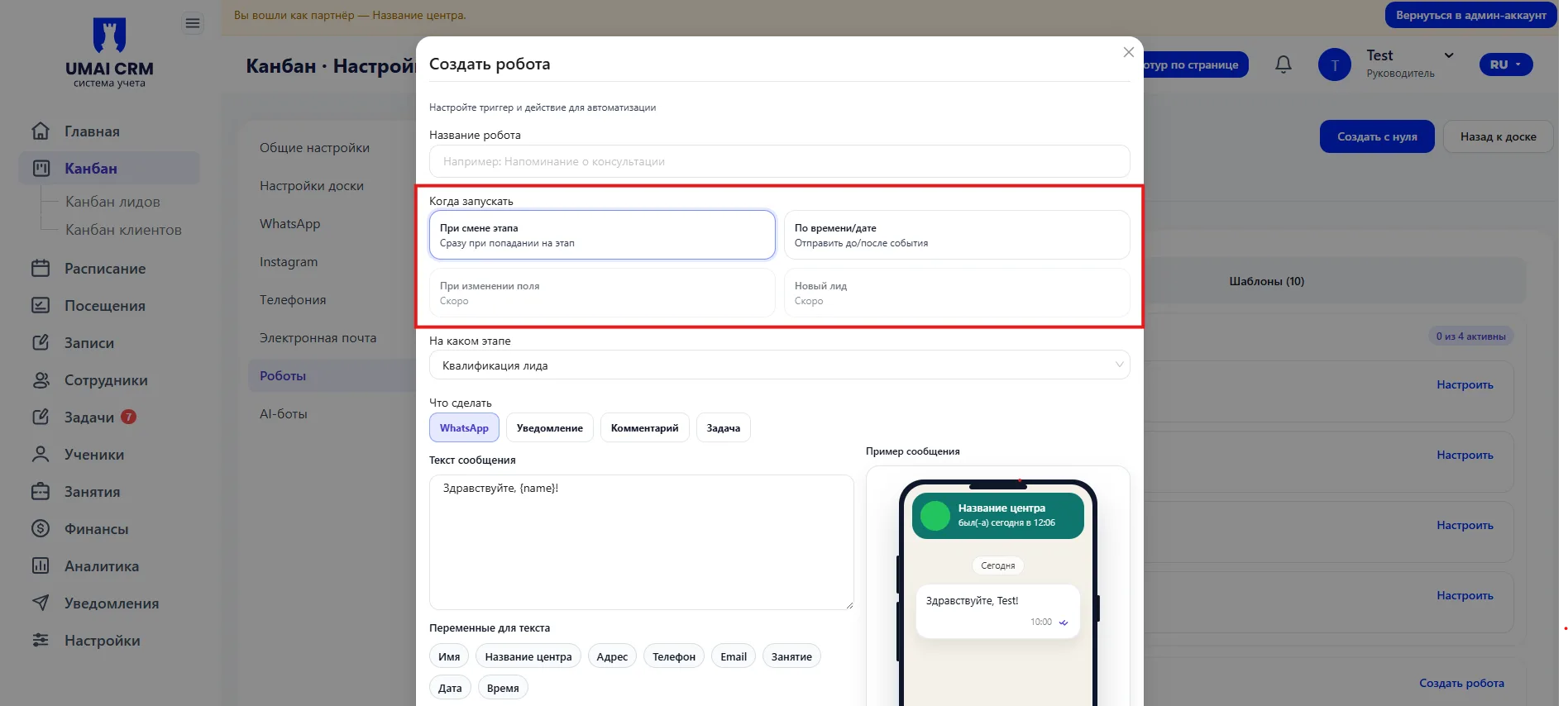
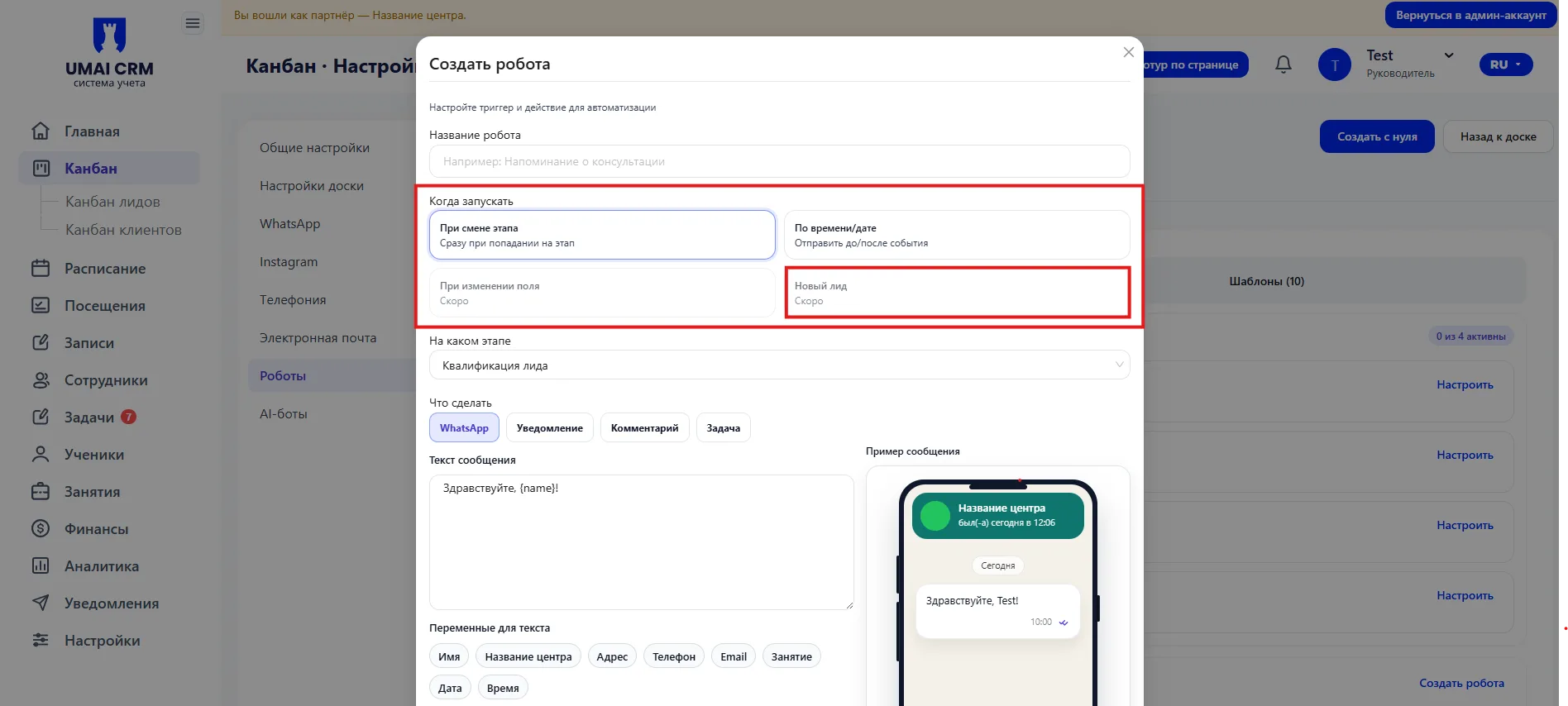
Options available: "On stage change", "By time / date", "On field change", "New Lead".
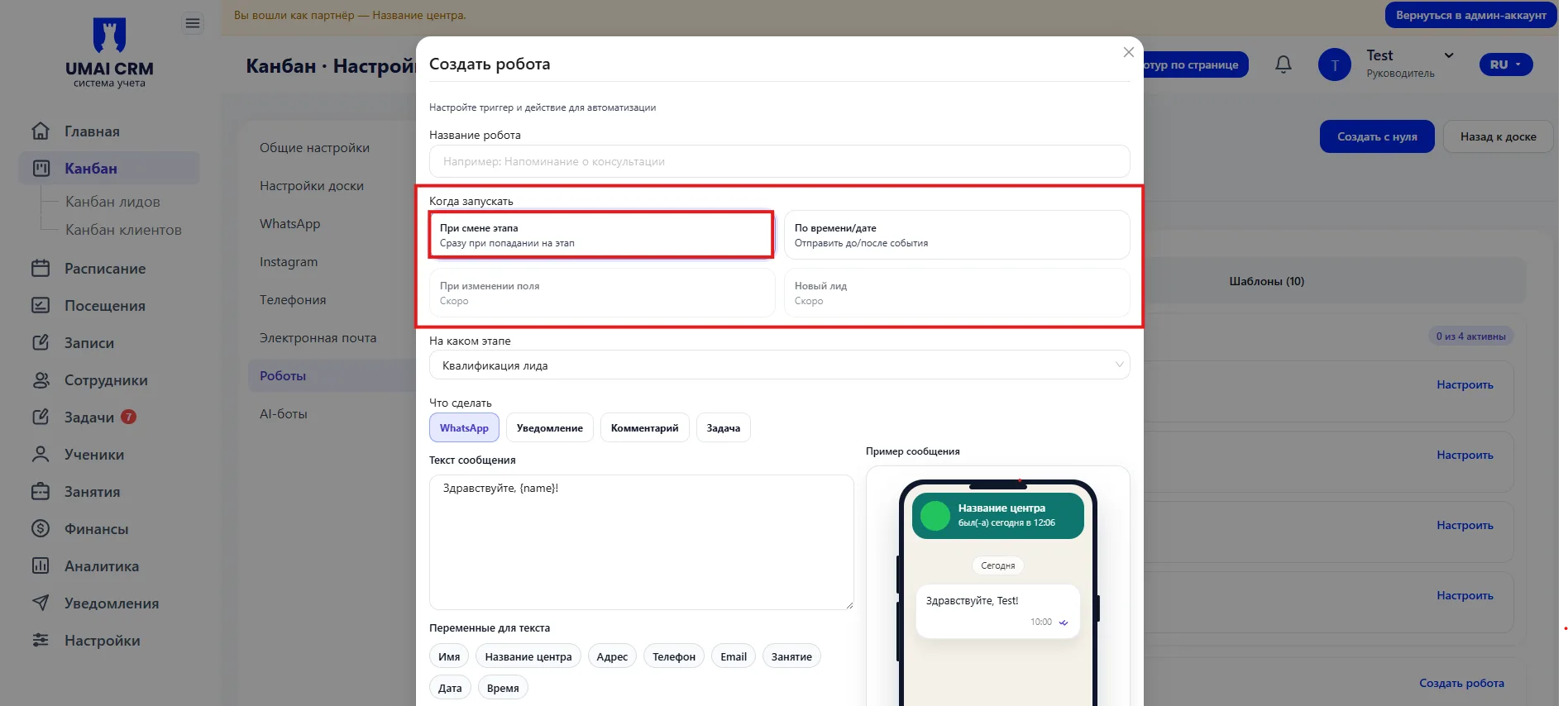
On stage change
The robot is triggered immediately when
a card reaches the selected stage.
This is the most common scenario, for example: when moving to the stage "Sign-up for a trial" send a message.
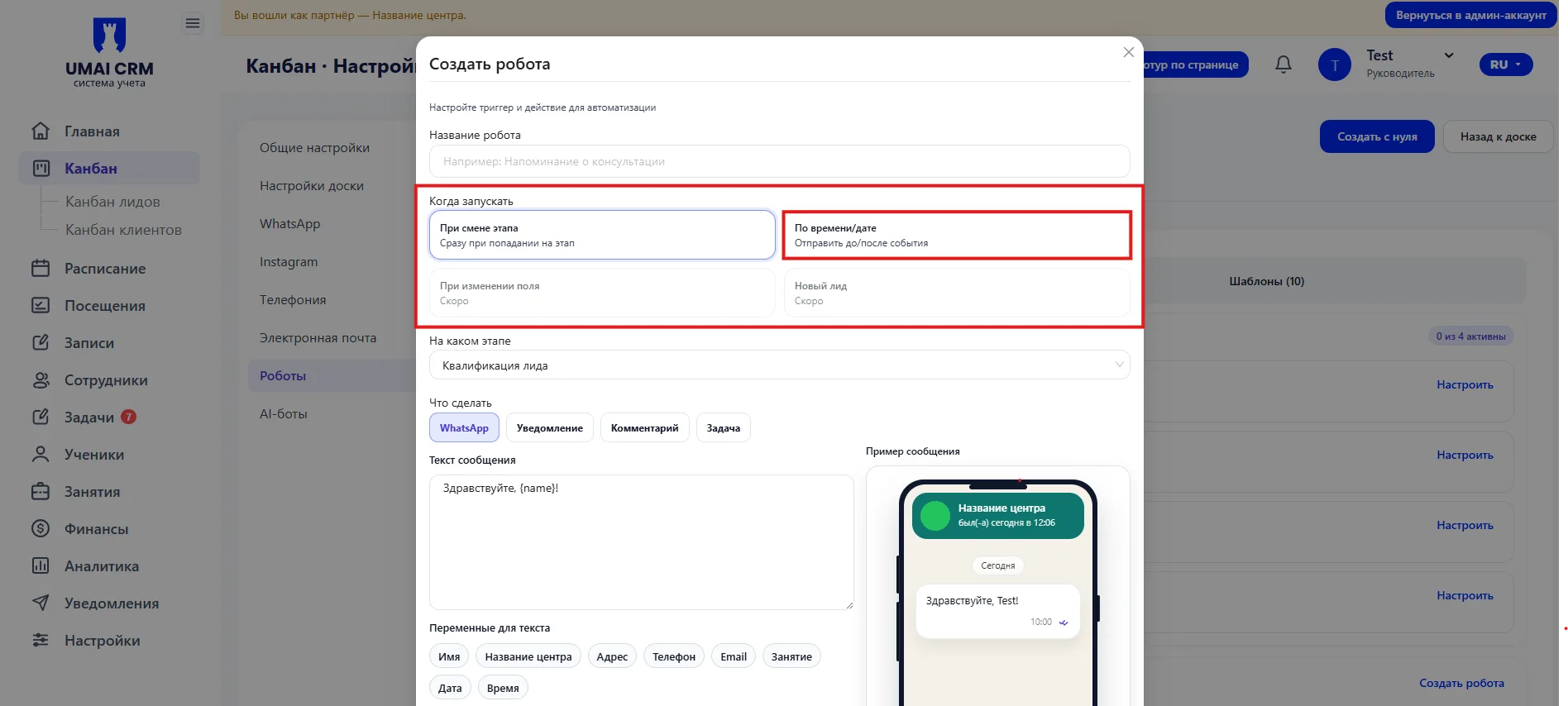
By time / date
The robot triggers before or after an event.
Suitable for reminders: 1 day before a Class, 3 hours after a stage change, and so on.
On field change
The robot triggers when a specific field in the card changes (if available in the system).
Used to react to data updates.
New Lead
The robot triggers when a new Lead is created.
Suitable for an automatic welcome message or assigning a task to the manager.
On which stage
In this field, select the funnel stage at which the robot will operate.
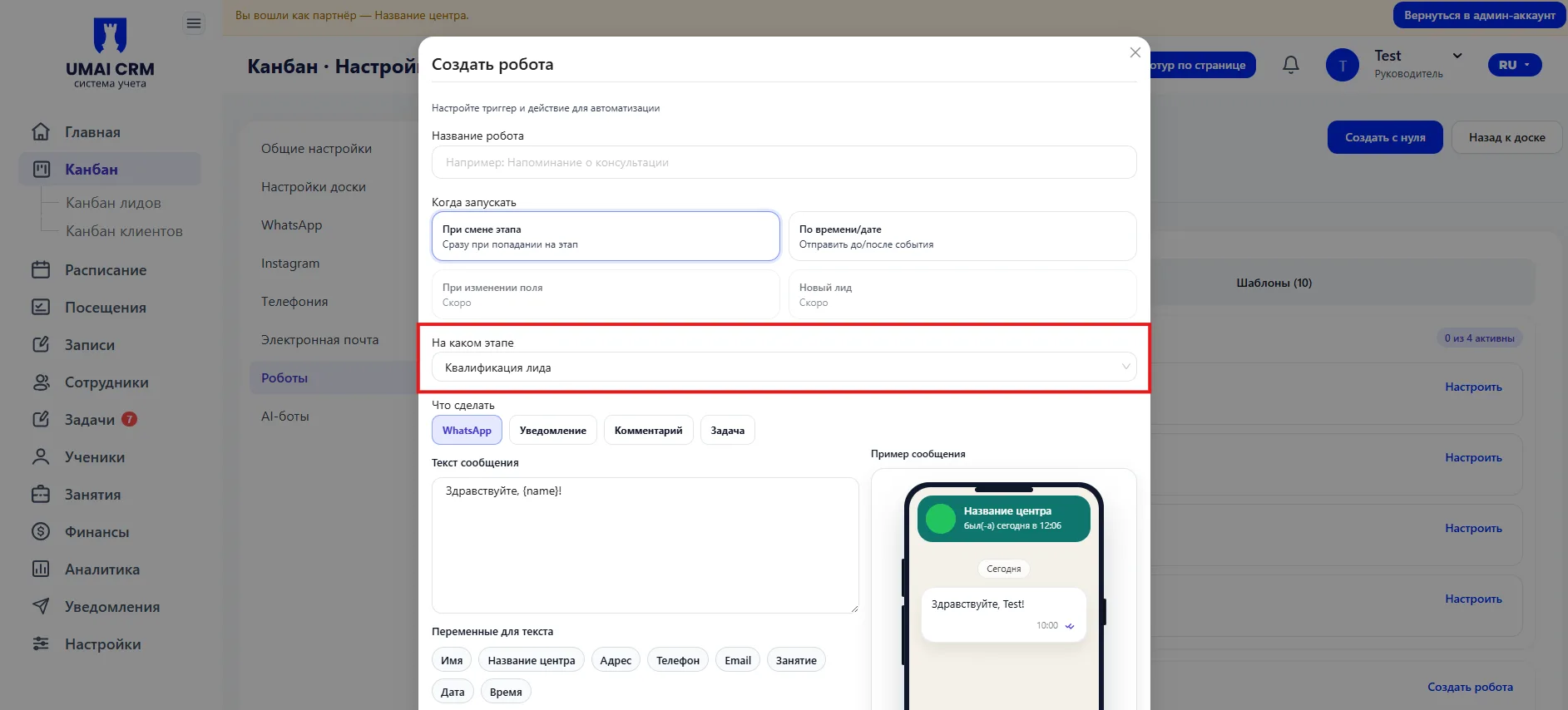
This is an additional restriction. For example, a robot can run only if the card is at the stage "Qualification of lead (Квалификация лида)". This helps to avoid unnecessary triggers.
What to do
In this block select the action that the robot will perform automatically.
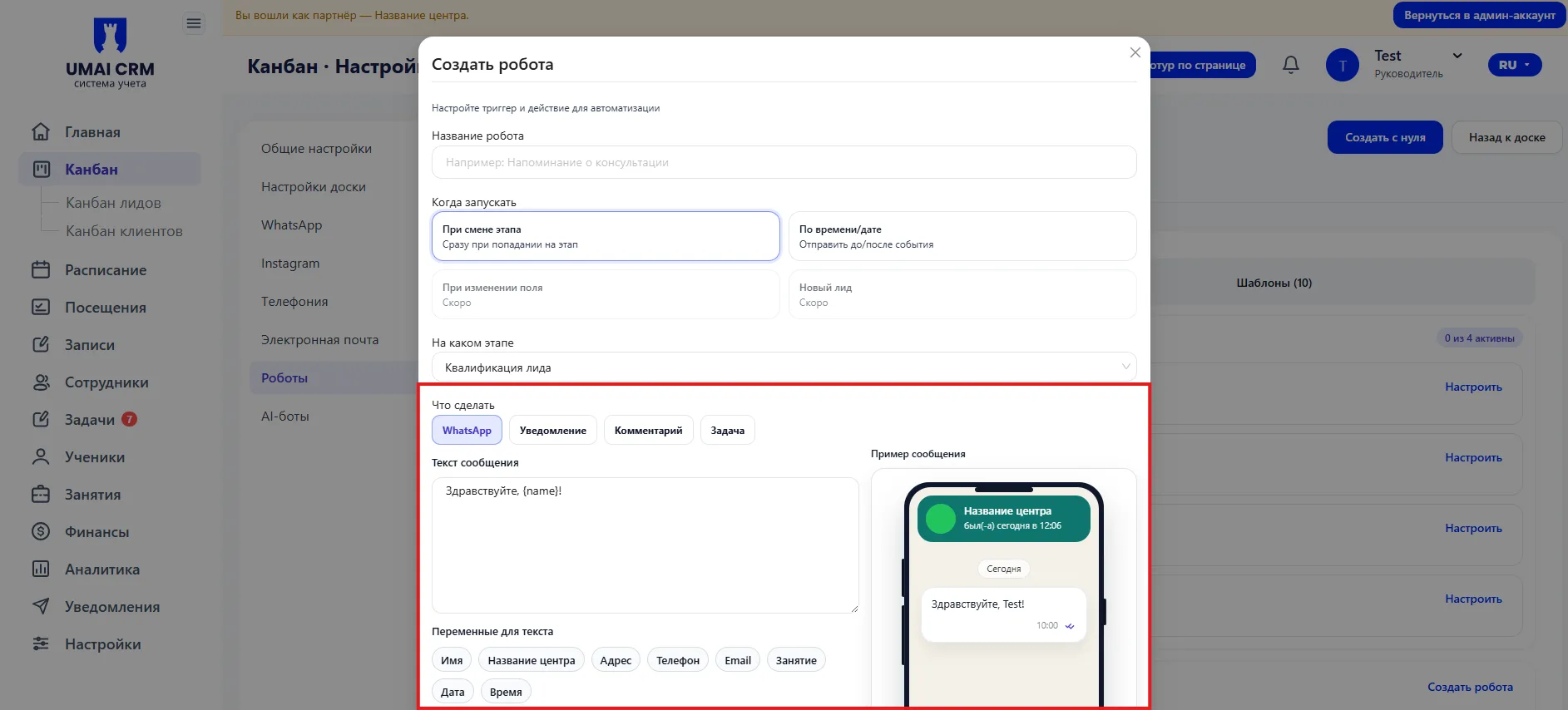
WhatsApp — sending a message to the client. After selecting it, a field appears to enter the message text.
You can use variables in the text that will automatically substitute data from the card: client name, center name, address, phone, email, Class, date and time.
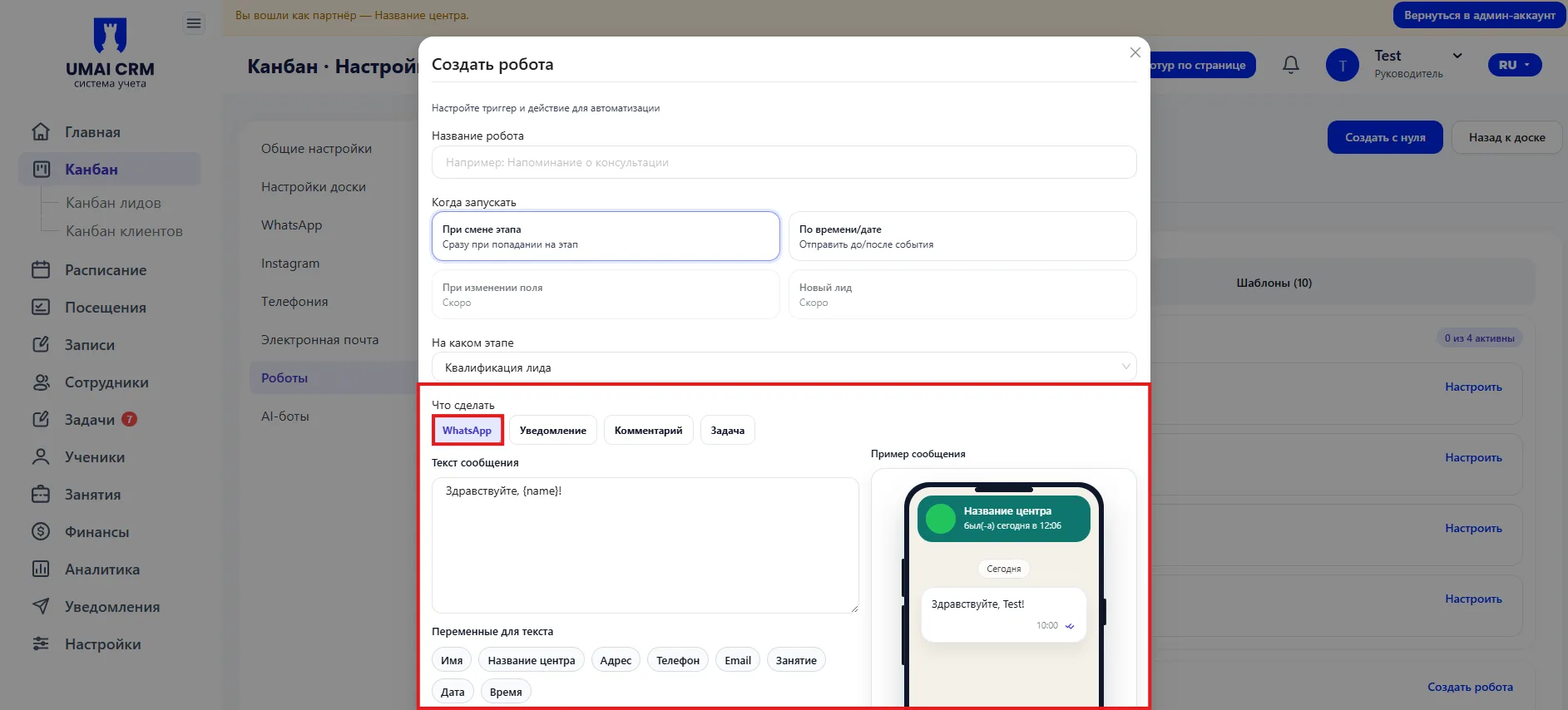
This allows sending personalized messages. For example:
"Hello, {name}! This is a reminder about the Class on {date} at {time}."
On the right a preview of the message is shown — it demonstrates how the text will look to the client in the chat.
Notification
An internal notification to an employee is used to inform the manager about an event — for example, a new Lead or an unprocessed inquiry.
Comment
Automatic addition of an internal comment to the card. Suitable for recording system events or processing stages.
Task
Creating a task for the responsible employee is used to assign a specific action — call back, confirm an appointment, send documents.
How the logic works
The robot works on a simple model: when the selected event occurs the system automatically performs the specified action. For example, if a card reaches the stage "Qualification of lead", the robot can send a welcome message or create a task for the manager.
Important to consider
- The robot starts working only after saving and activation.
- If several robots are configured for the same stage, they may trigger simultaneously.
- Incorrectly configured time triggers may lead to repeated messages.