This section is used to connect SIP telephony and enable automatic handling of calls in the CRM. After setup, incoming calls can create Leads, and repeat contacts can be merged to avoid duplicates.
Main blocks:
- Access to the section
- Sipuni integration
- Call merging
- New Lead
1. Access to the section
The section is located in the menu “Settings (Настройки)”. Next select the item “Telephony settings (Настройка телефонии)”.
2. Sipuni integration
To use telephony you need to connect the Sipuni integration. Without an active integration calls will not be passed to the CRM and Leads will not be created automatically.
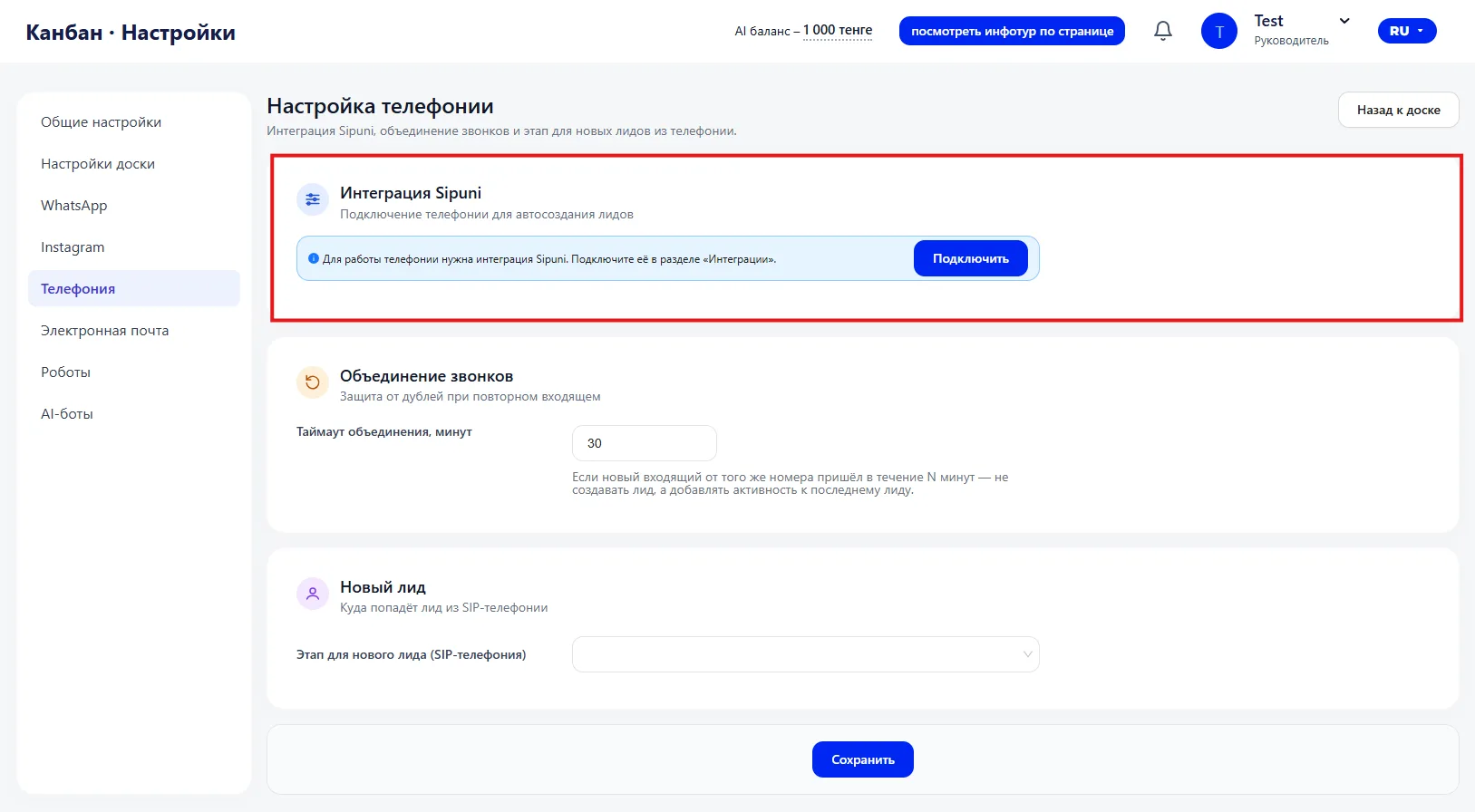
After connection the system will be able to:
- record incoming calls;
- create Leads for new numbers;
- link calls to existing cards.
3. Call merging
This block protects against creating duplicates on repeated calls.
You specify a merge timeout in minutes. If a new incoming call from the same number arrives within the specified time, the system does not create a new Lead. Instead the activity is added to the last card.
For example, if the timeout is set to 30 minutes and the client calls back after 10 minutes, a new Lead is not created. If the call arrives after the set time, the system will create a new card.
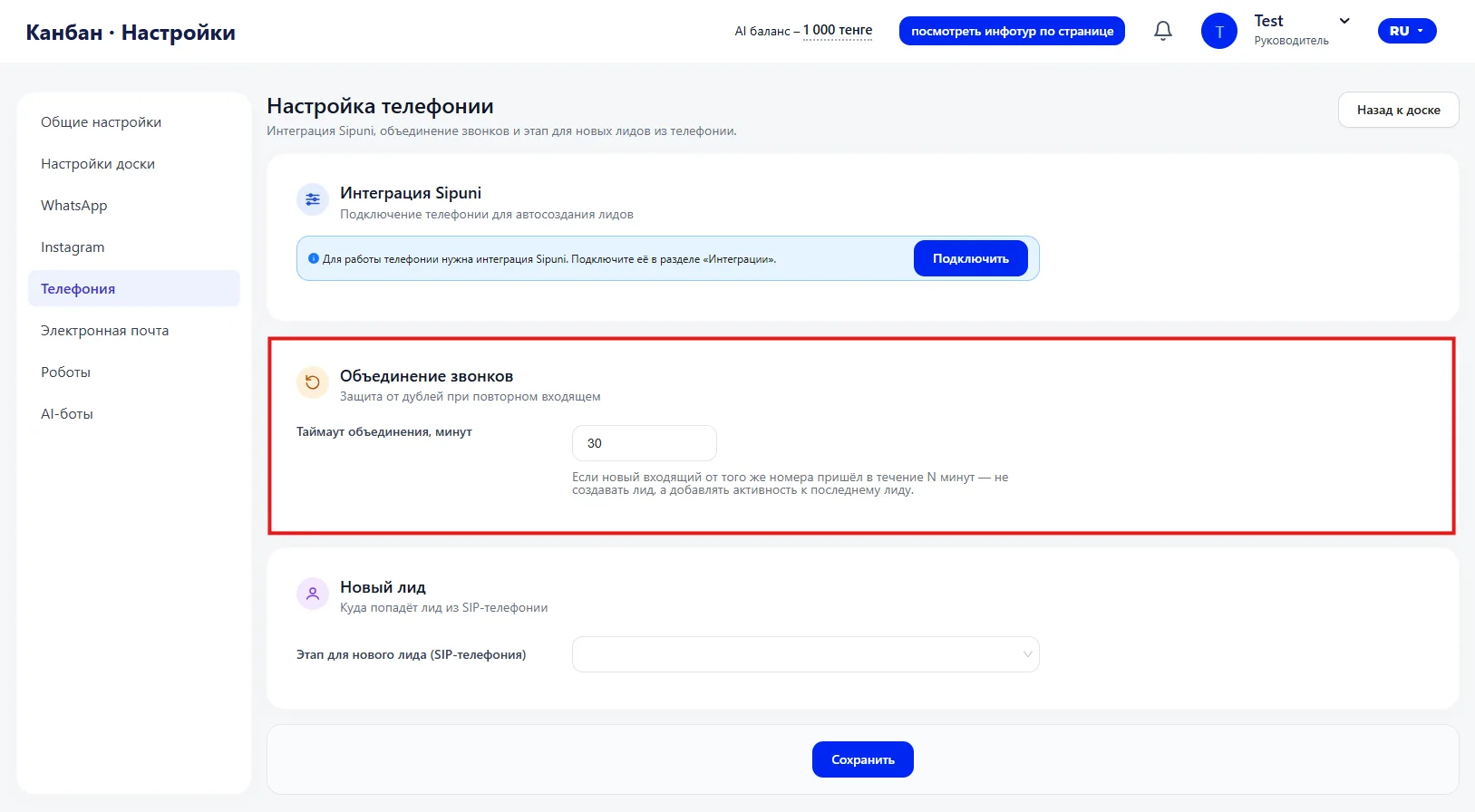
The setting allows you to:
- avoid duplicates;
- keep the Sales funnel clean;
- correctly account for repeat contacts.
4. New Lead
The setting defines the Kanban (Канбан) stage to which a Lead created through SIP telephony is automatically sent. It determines the initial step of call processing, affects funnel analytics and the distribution of workload among managers.
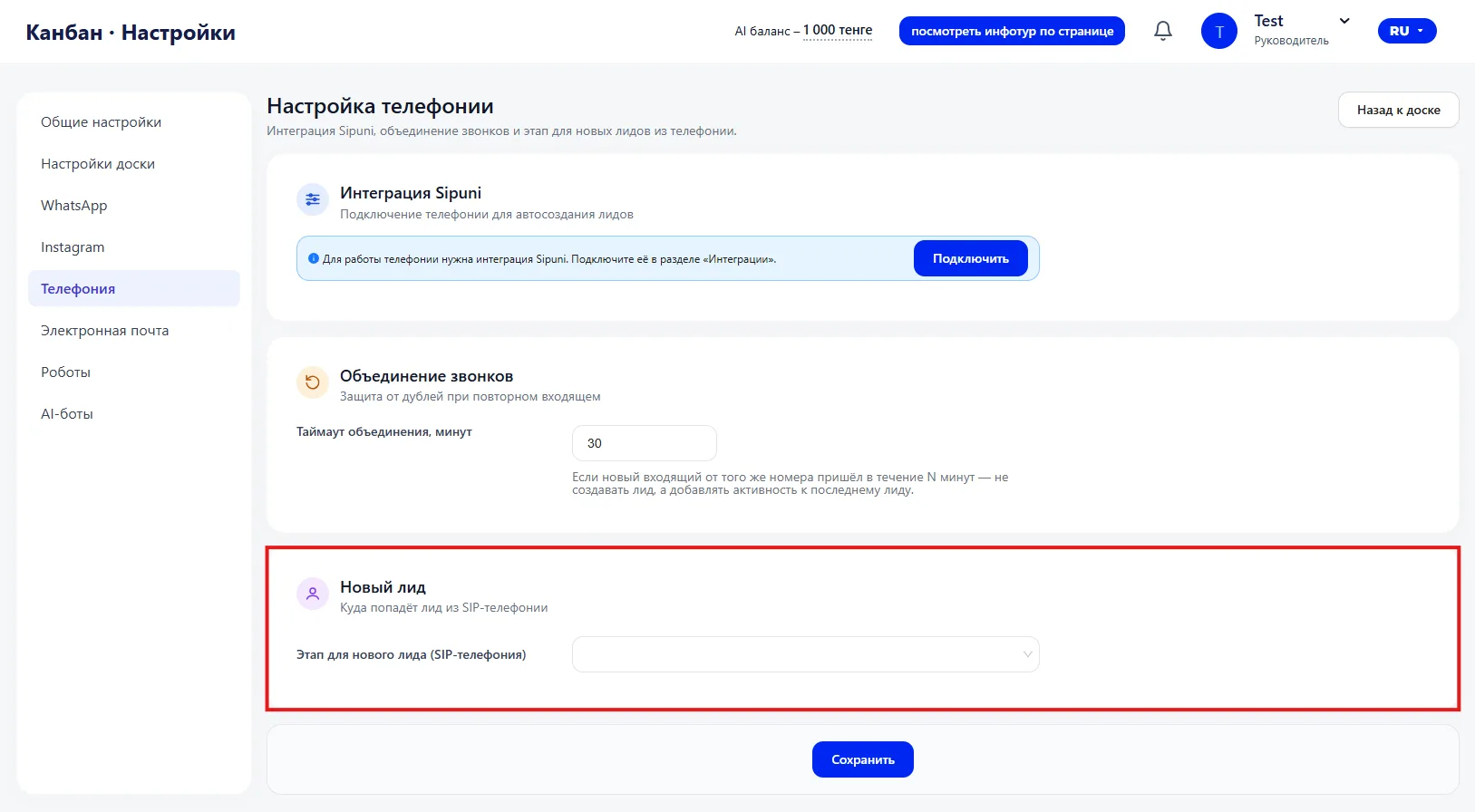
If no value is specified, the system uses the default stage for new Leads according to the general Kanban settings.
Important to note
- The Sipuni integration must be connected, otherwise telephony will not work in the CRM.
- The merge timeout directly affects the number of Leads created.
- Changes take effect only after pressing the “Save” button.