This section helps track employees' working hours and record Students' attendance. Here you can open and close a shift, see who is currently working, and manage tablet kiosks for scanning QR codes.
Main blocks:
- Access to the section
- Office QR code
- Shifts for the day
- Scanners (kiosks)
- Time sheet
- Settings
1. Access to the section
The section "Shift (Смена)" is located in the left sidebar menu and is available to all Employees.
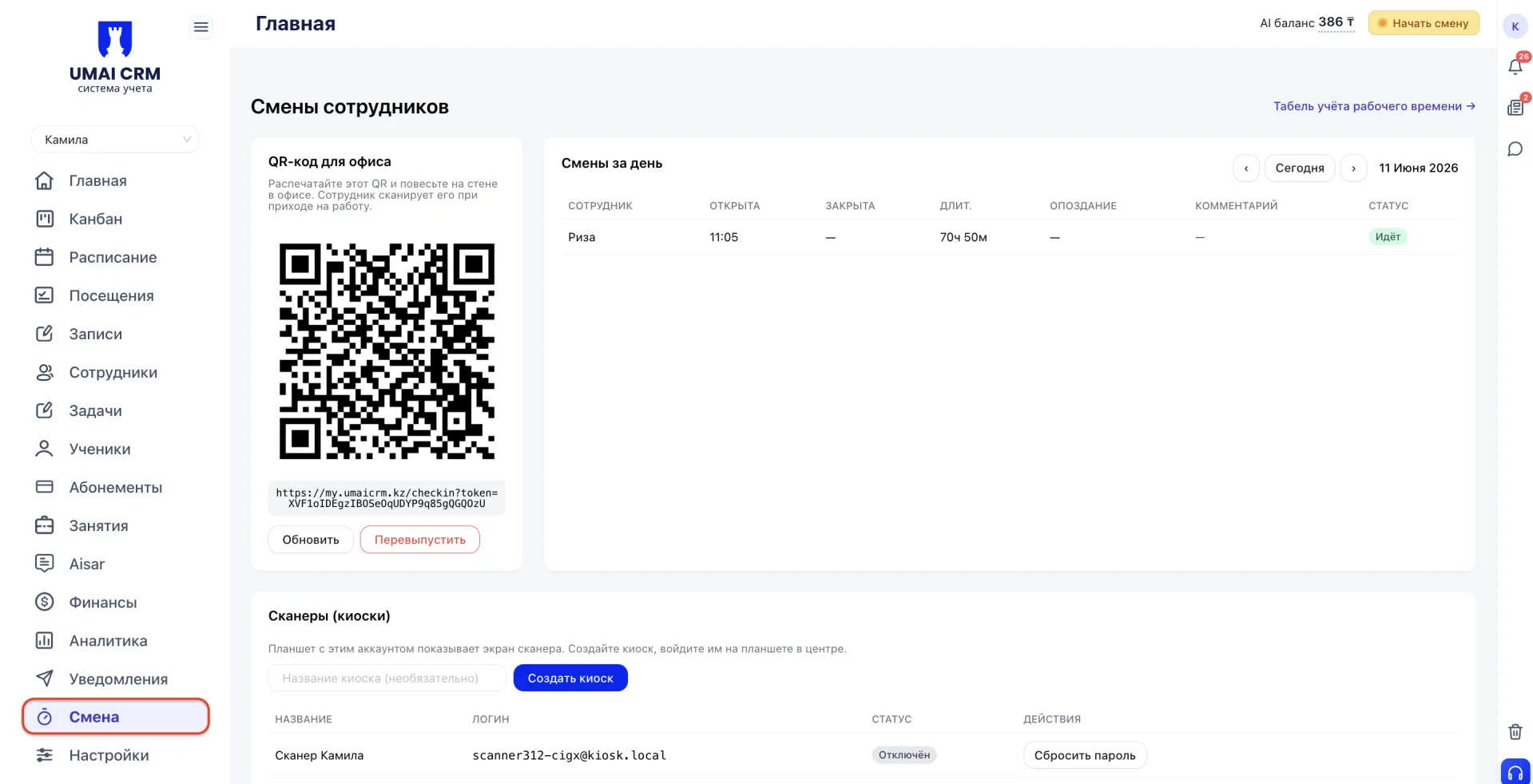
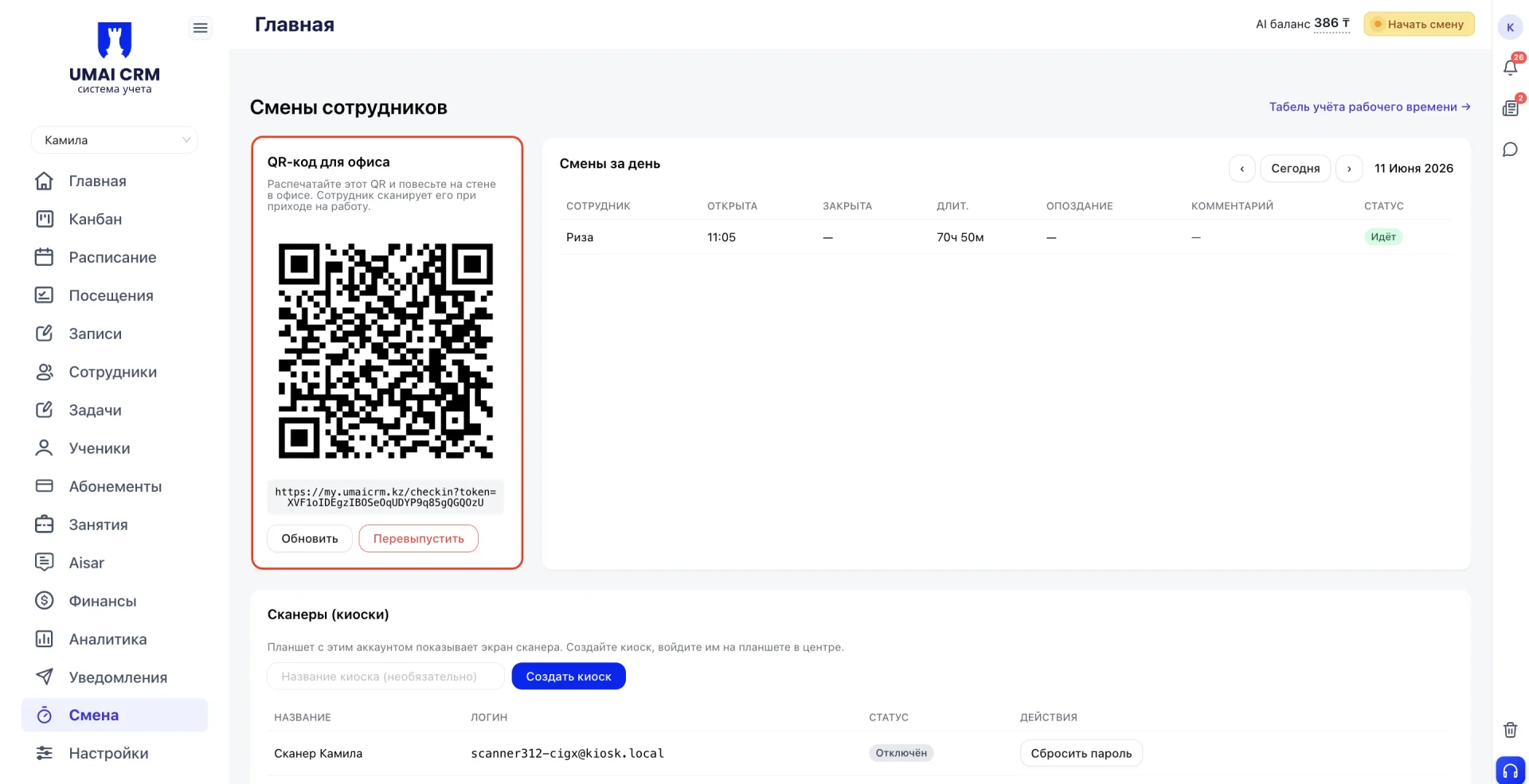
2. QR-код для офиса
The left side of the page displays an office QR code for opening a shift. It should be printed and hung on the office wall. When an employee arrives at work, they scan this code and the shift opens automatically.
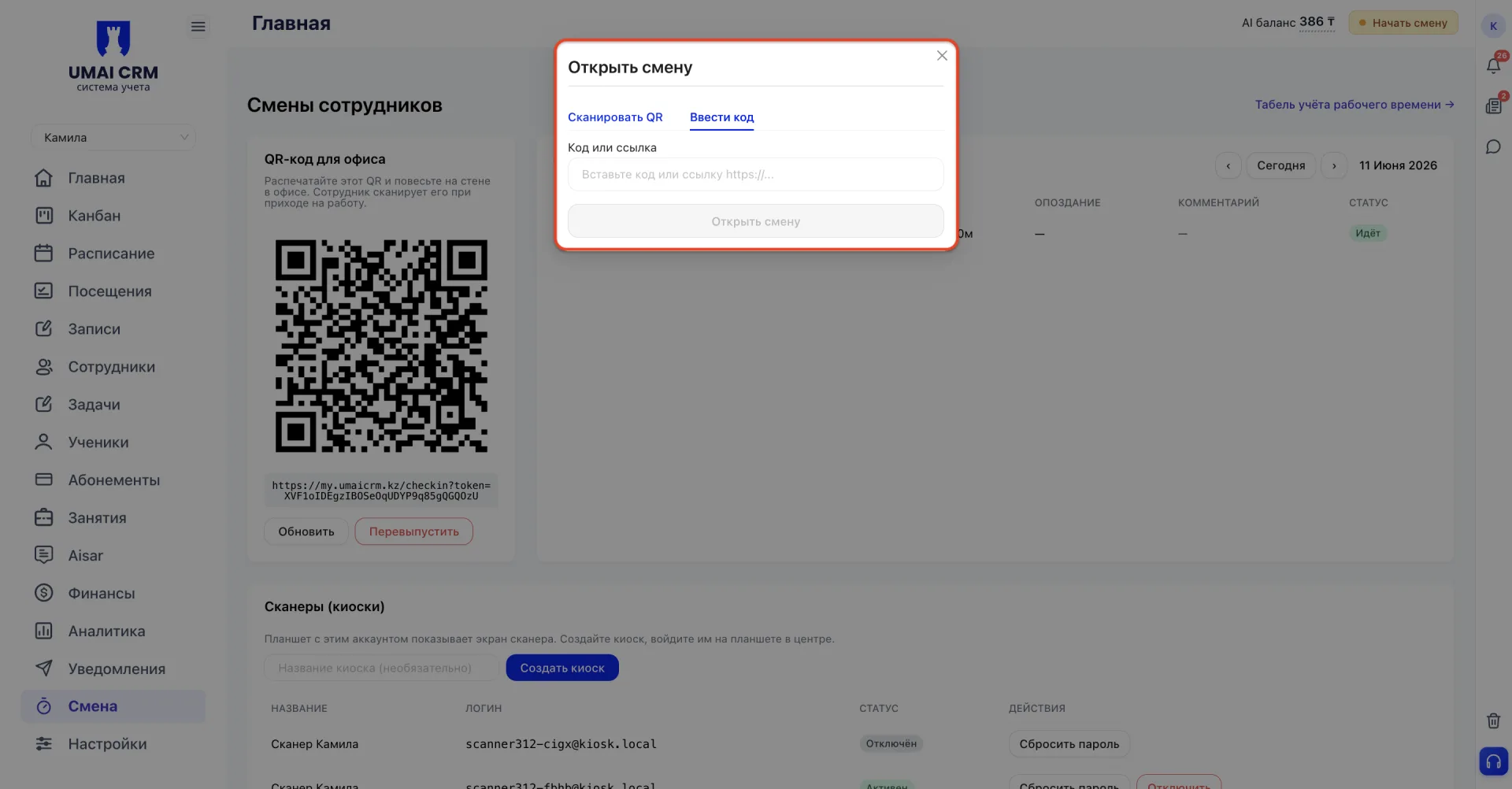
An administrator can open a shift directly in the system using the "Start shift (Начать смену)" button in the top right corner. After clicking, a window opens with two options: scan the QR code or enter the code manually.
Below the code are two buttons. "Refresh" updates the code display on the page. "Regenerate" generates a new QR code and invalidates the old one.
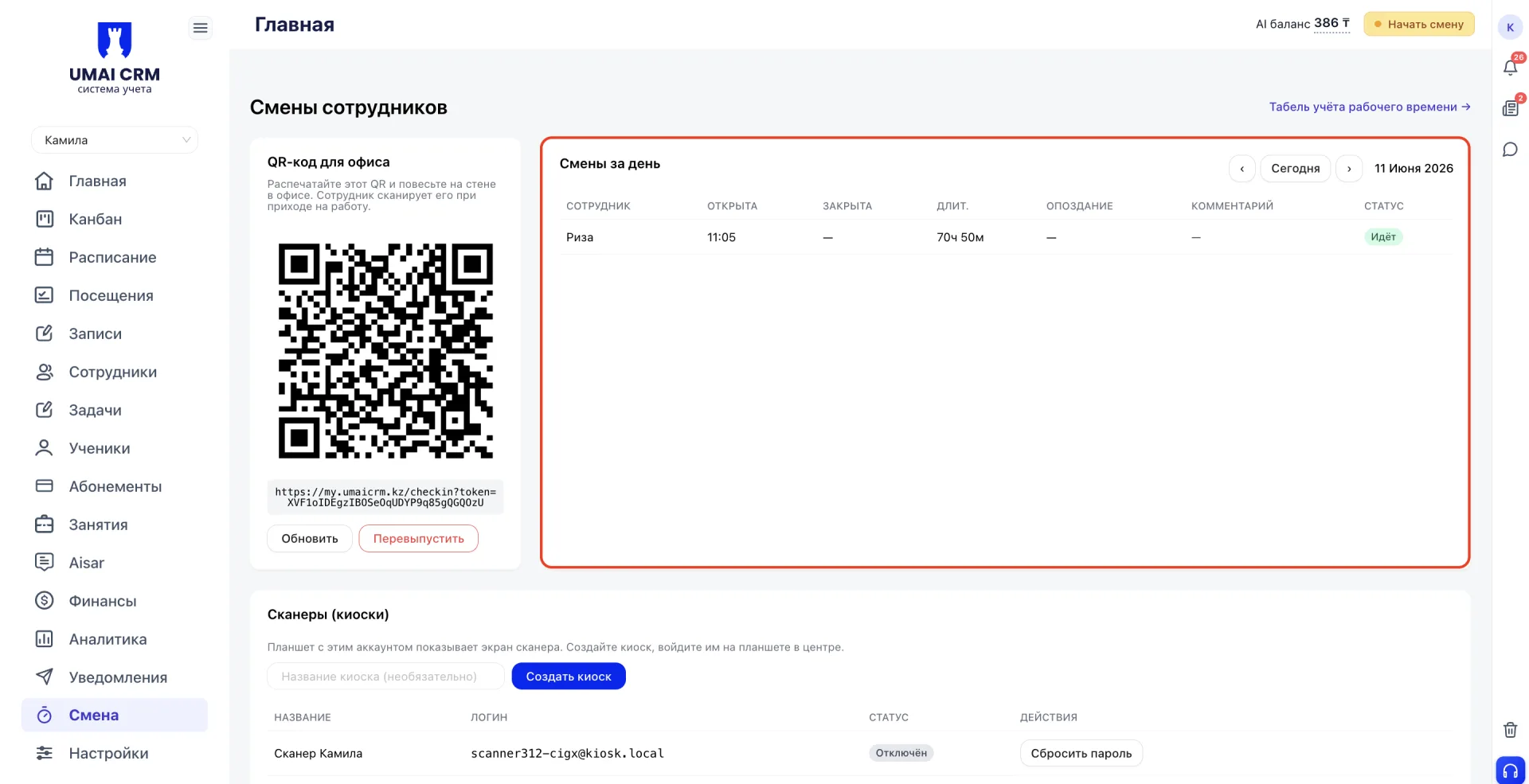
3. Shifts for the day
4. Scanners (kiosks)
The QR code for a Class is valid for 25 minutes after the scheduled start time. After that it automatically changes to the code for the next Class.
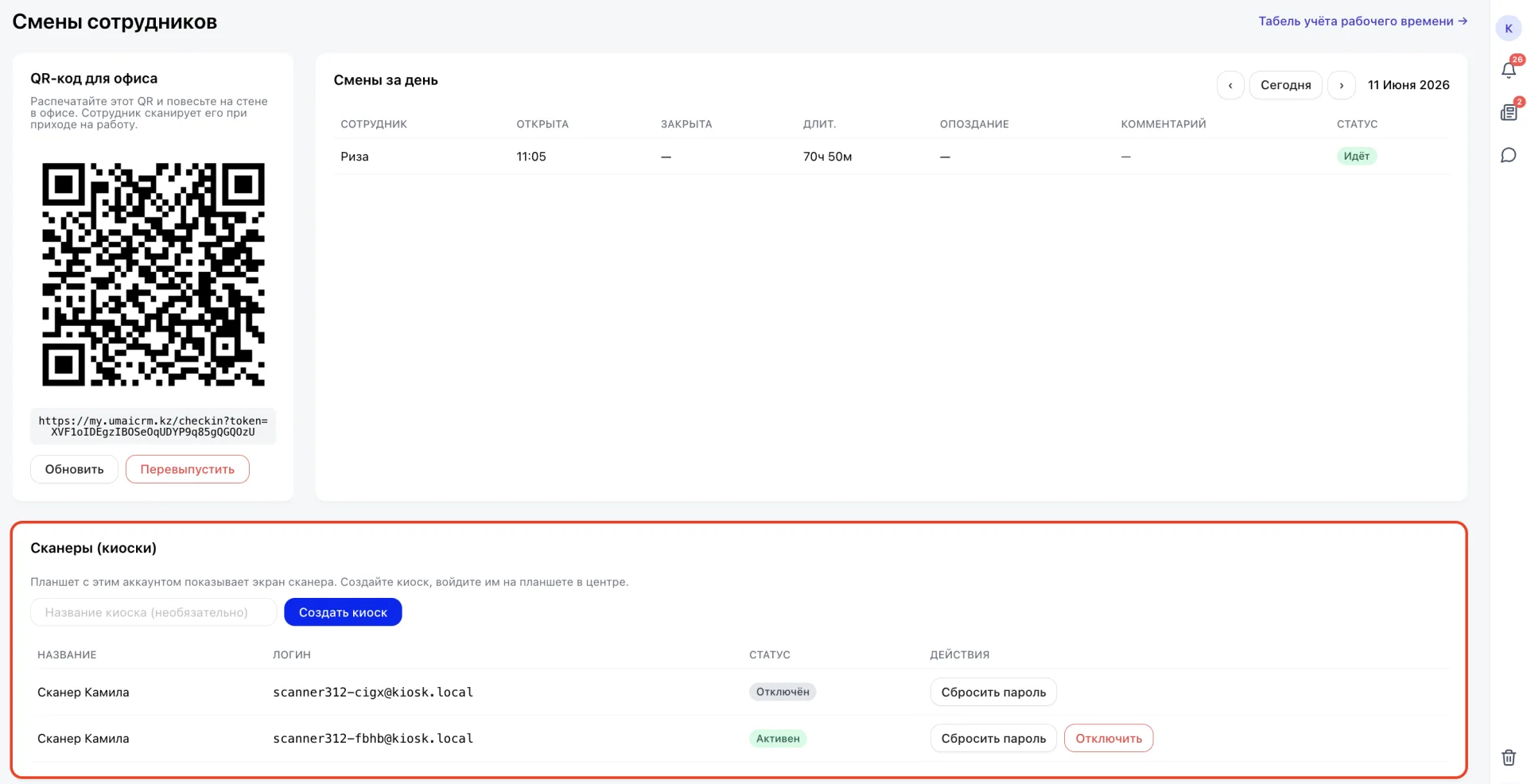
To create a kiosk, enter a name in the "Kiosk name (Название киоска)" field and click "Create kiosk". After creation, log in with this account on the tablet; it will switch to scanner mode.
The table below displays all created kiosks with name, login, status, and available actions. For each kiosk you can reset the password or disable it.
5. Time sheet
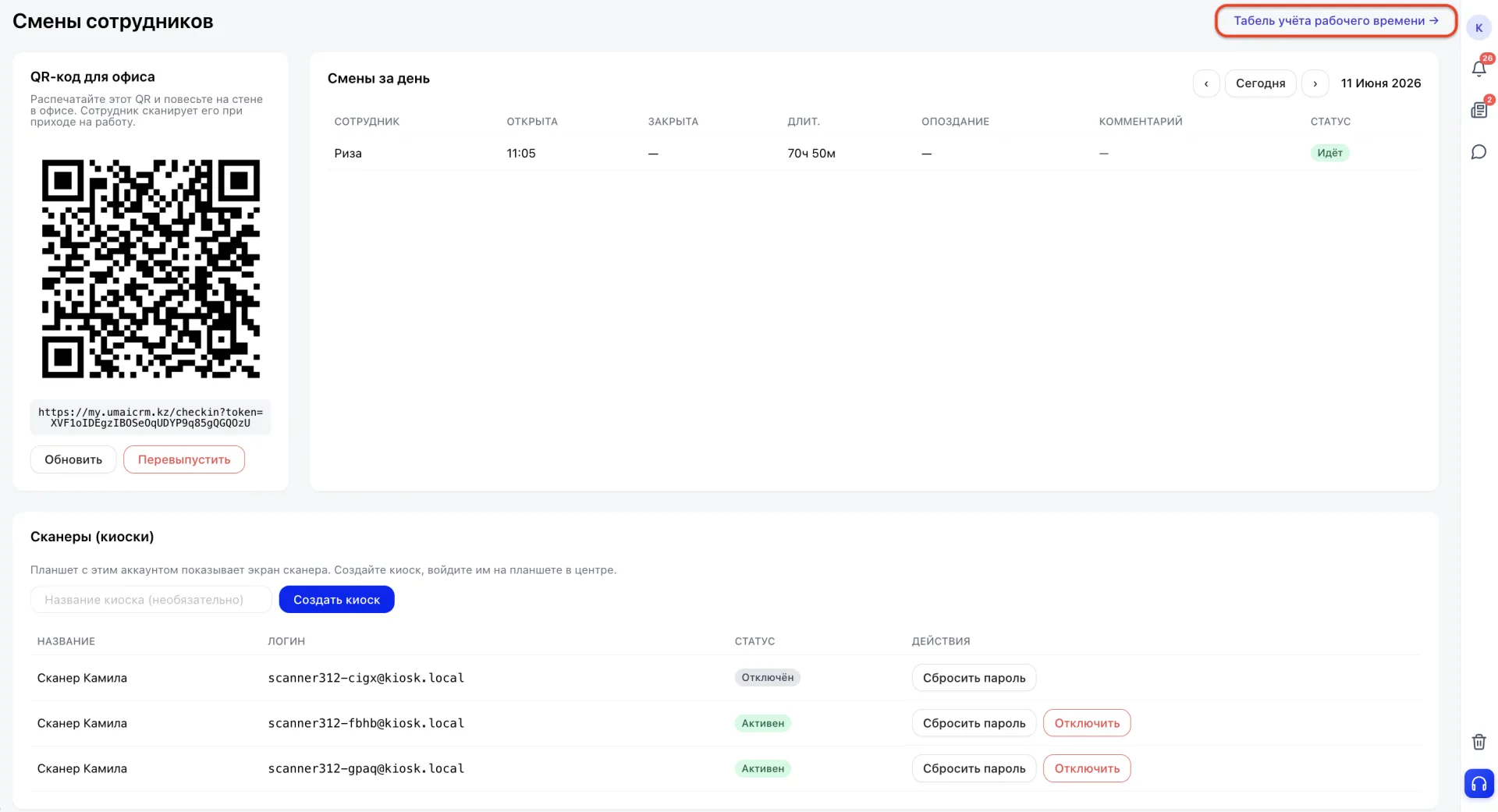
"Time sheet (Табель учёта рабочего времени)" is located in the top right corner of the page. When clicked, a separate page opens with a detailed breakdown of each employee's working time.
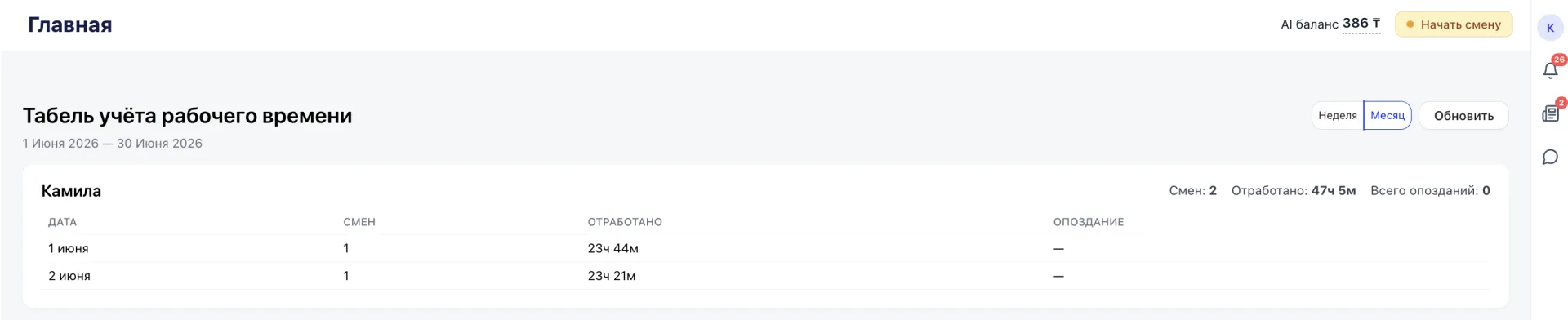
Data can be viewed by week or month; the toggle is in the top right corner. For each Employee the total number of shifts, total worked time, and number of latenesses are displayed. Below is a breakdown by date with the number of shifts, worked hours, and latenesses for each day.
6. Settings
- Working days of the week — the days the branch operates. Each day of the week is enabled or disabled with a separate toggle.
- Start and end of day — the branch's working hours used when creating the Schedule.
- Slot duration — the standard length of one Class.
- Trial lesson duration — duration of a trial Class in minutes.
- Lateness buffer — the number of minutes after the scheduled start of a shift during which arrival is not considered late.
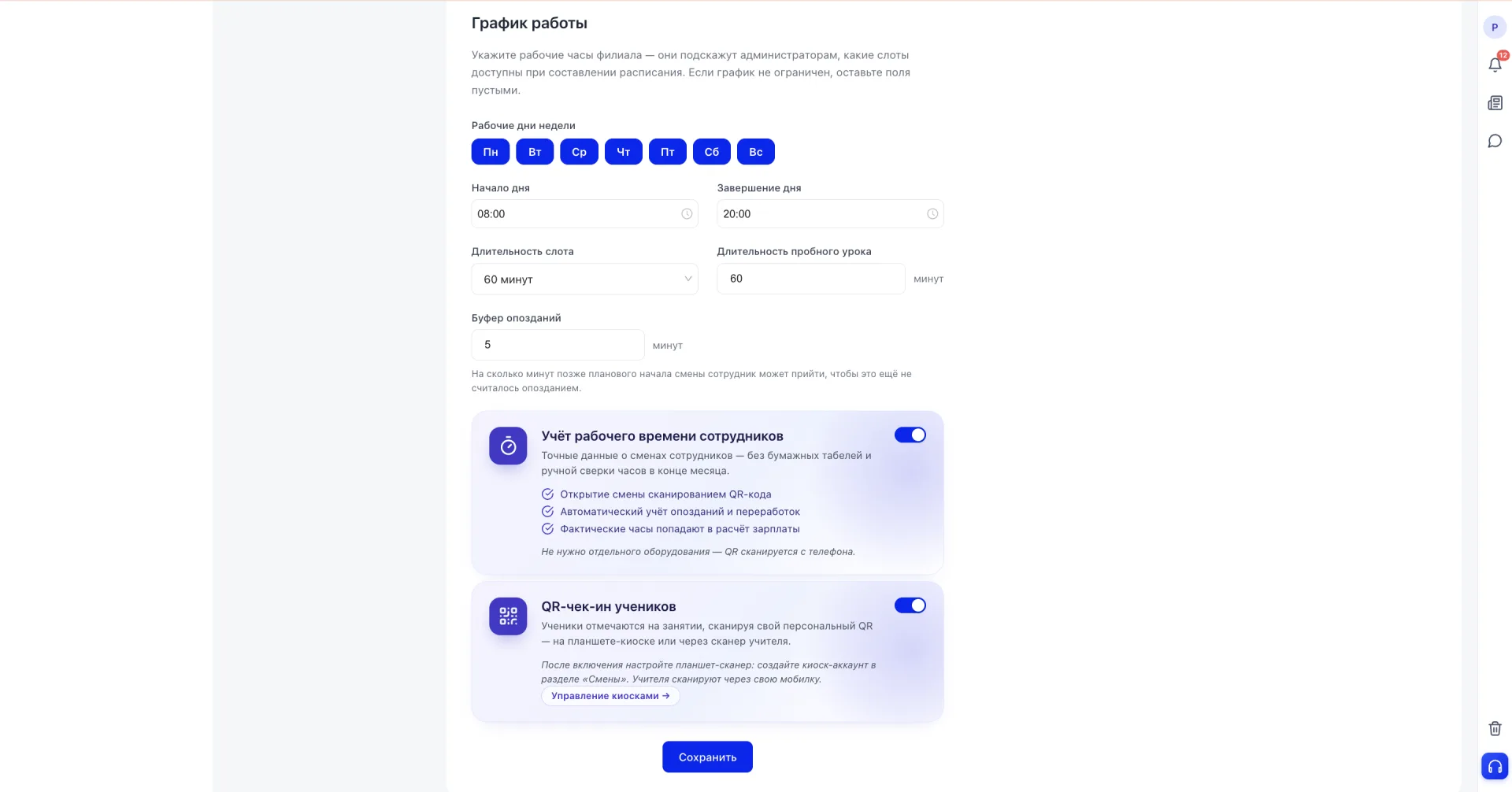
When "QR check-in for Students" is enabled, each Student gets a personal QR code in the mobile app. Upon entering a Class the Student scans their QR code and attendance is automatically recorded in the system. Scanning is available in two ways: via the tablet kiosk at the center entrance or via the Teacher's phone.
After changing settings click "Save".
Closing a shift
To finish work, click the current shift indicator in the top right corner. A panel will open showing the start time, duration, and a comment field that can be used to pass important information to the next employee.
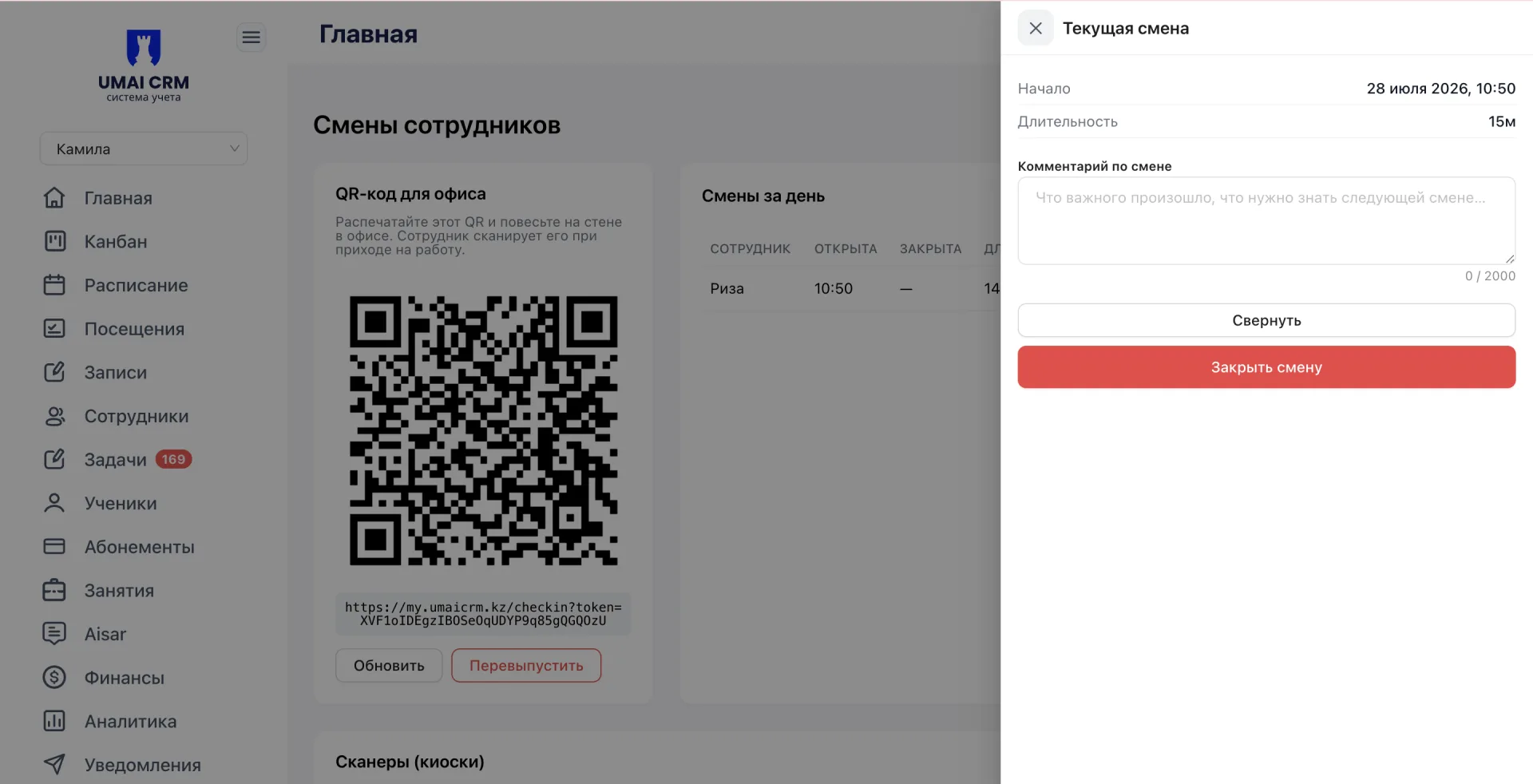
The "Close shift (Закрыть смену)" button ends the working day. The "Collapse (Свернуть)" button closes the panel without changes.
Important to note:
- The office QR code becomes invalid after regeneration. The old code must be replaced with the newly printed one.
- The QR code for a Class is valid for 25 minutes after the Class start, after which it automatically changes to the code for the next Class.
- The lateness buffer applies equally to all employees and is configured in the "Settings (Настройки)" section.
- The time sheet shows only closed shifts; the current shift with the status "In progress" will be included in the time sheet after it is closed.