The section includes the main parameters for the center's operation: company data, system parameters, working schedule, integrations with messengers and attendance settings.
Main blocks:
- Partner profile;
- Basic settings;
- Company details;
- Work schedule;
- Messengers;
- Attendance marks.
1. Partner profile
This block contains the primary information about the center. The data affects how information is displayed in the CRM, documents and reports.
Fields and their purpose:
- Profile photo - added via the pencil icon on the avatar.
- Center name — displayed in the CRM interface and in documents.
- Main direction — defines the type of the center's activities (for example, sports sections, educational courses).
- Director — the director's name used in documents and notifications.
- Corporate email — the company's primary work Email for notifications and contacts.
- Number of branches — indicates the number of active branches of the center.
- City — the center's location, affects correct time and reporting.
- Work phone — primary contact number for clients.
- Address — the legal or actual address of the center.
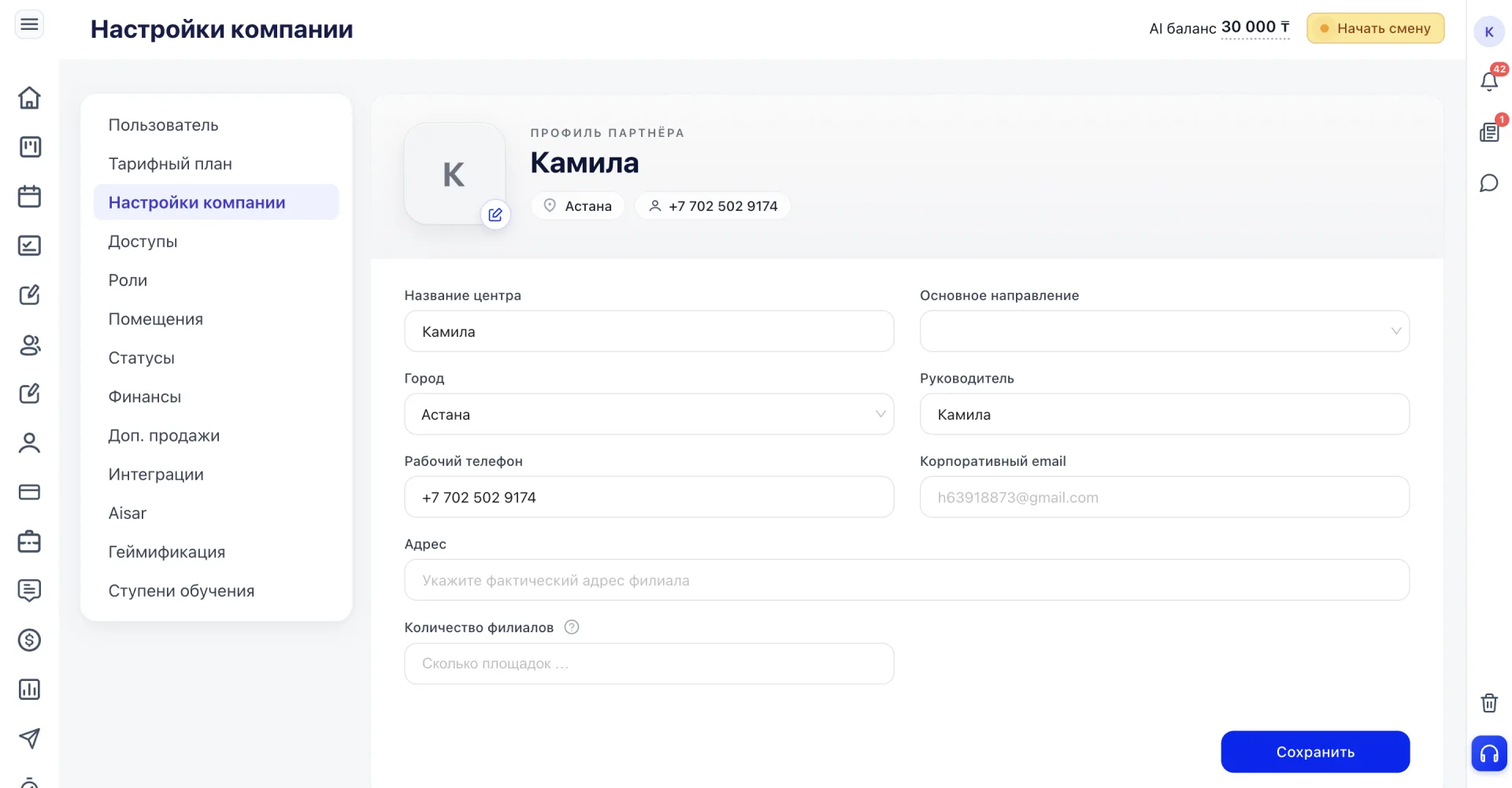
Correct data ensure the center is displayed properly across all CRM sections and in documents.
2. Basic settings
The block is intended to configure system operation and information display.
Fields:
- Settlement currency — determines in which currency prices are shown and transactions are made.
- Time zone — affects Schedule and notifications.
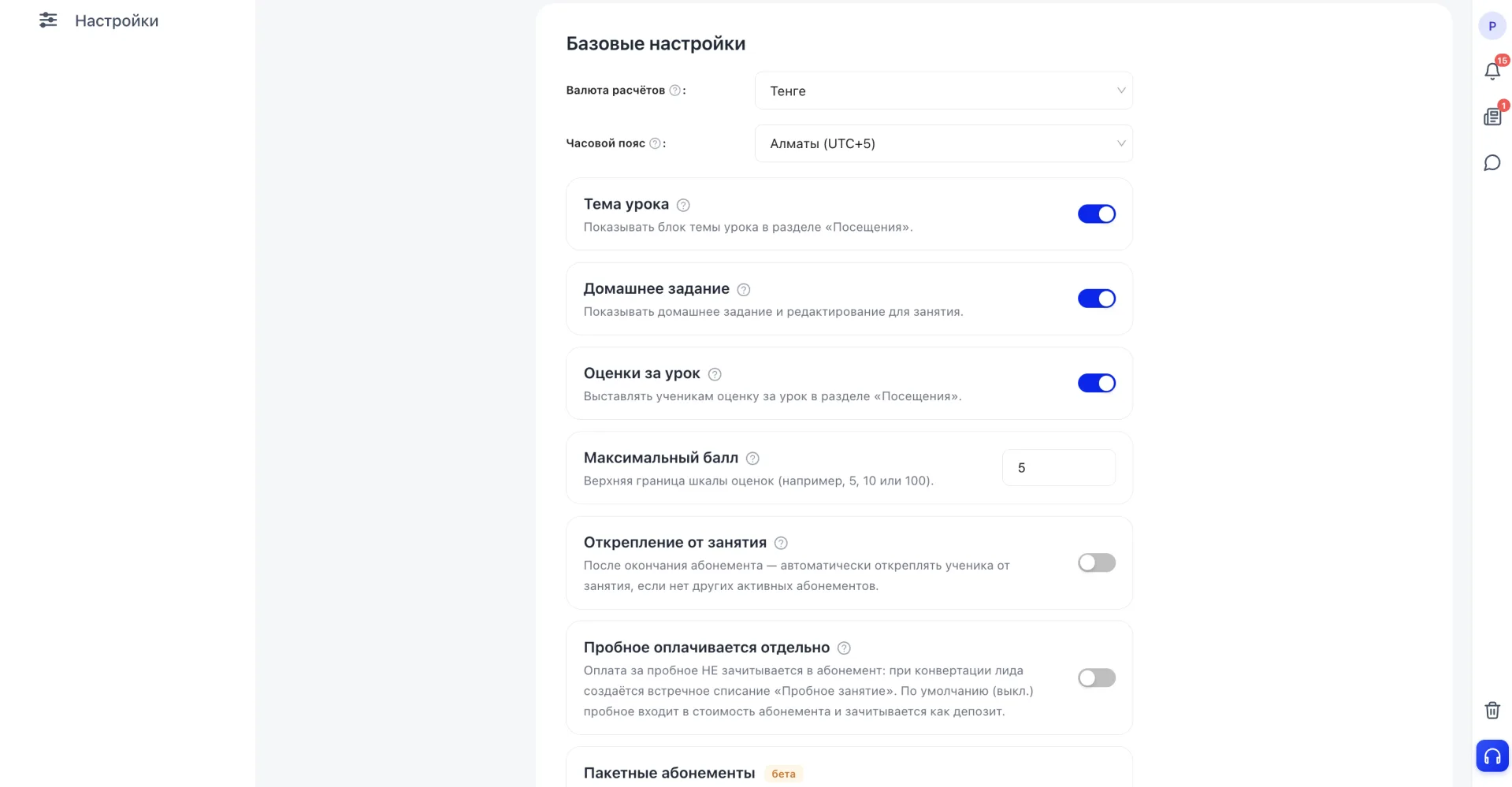
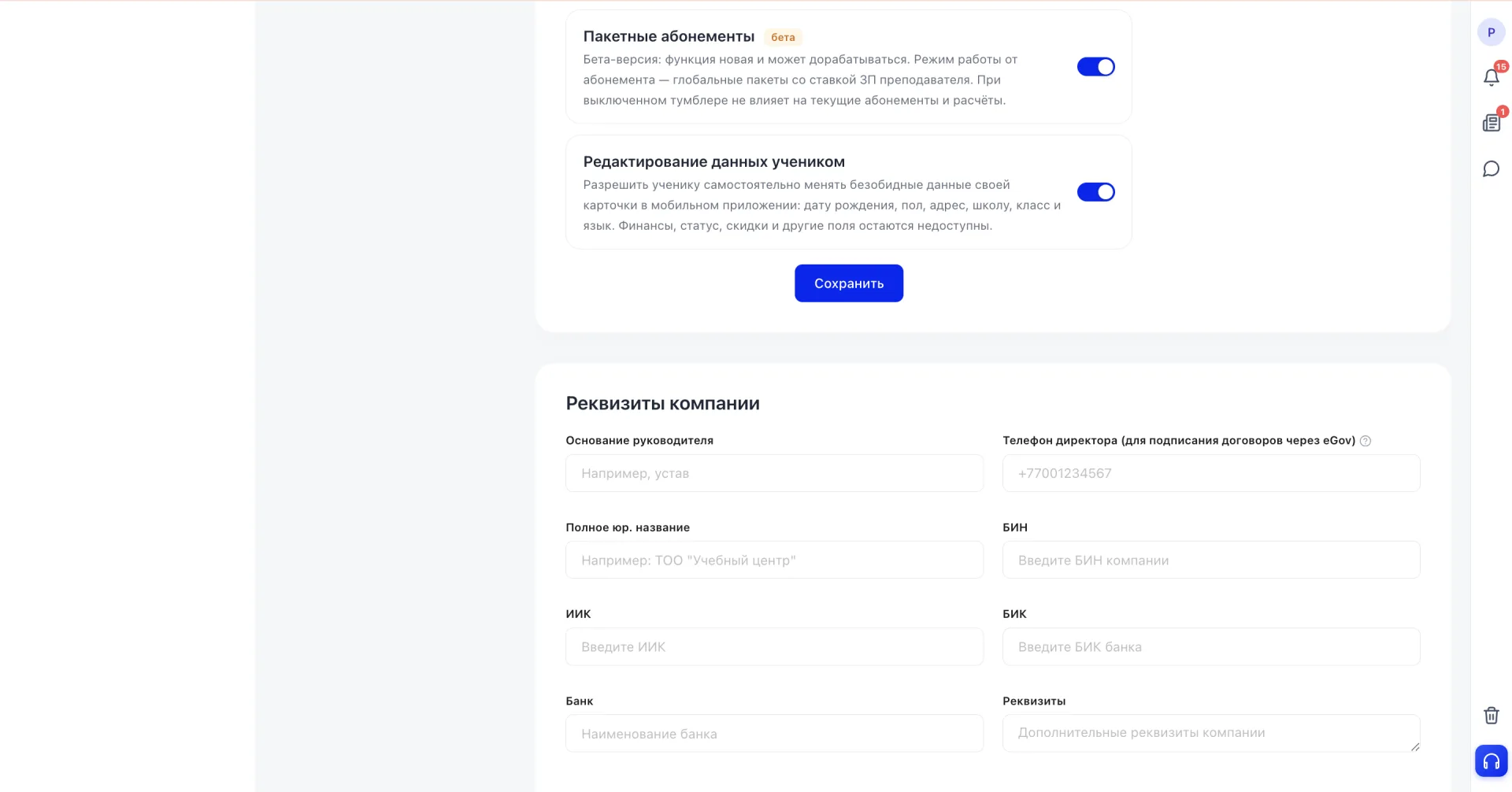
- Class topic — when enabled, the topic of each Class is displayed in the Visits section.
- Homework — when enabled, homework is displayed and becomes available for editing.
- Lesson grades — when enabled, Students can be given a grade for a lesson in the Visits section. Enabling also opens the "Maximum score" field — the upper bound of the grading scale, for example 5, 10 or 100.
Unenroll from Class — when enabled, after a Membership ends the system automatically unenrolls the Student from the Class if there are no other active Memberships.
Trial paid separately — when enabled, payment for a trial Class is not counted toward the Membership price, and when converting a Lead a separate deduction "Trial lesson" is created. If the toggle is off (default), the trial cost is included in the Membership and counted as a deposit.
Trial paid separately — when enabled, payment for a trial Class is not counted toward the Membership price, and when converting a Lead a separate deduction "Trial lesson" is created. If the toggle is off (default), the trial cost is included in the Membership and counted as a deposit.
Package Memberships (beta) — a mode of operation for Memberships: global packages with a teacher payroll rate. The feature is in beta and may be refined. When the switch is off it does not affect current Memberships and calculations.
Student data editing — when enabled, a Student can independently change harmless fields of their profile in the mobile app: birth date, gender, address, school, grade and language. Finance, status, discounts and other fields remain inaccessible.
3. Company details
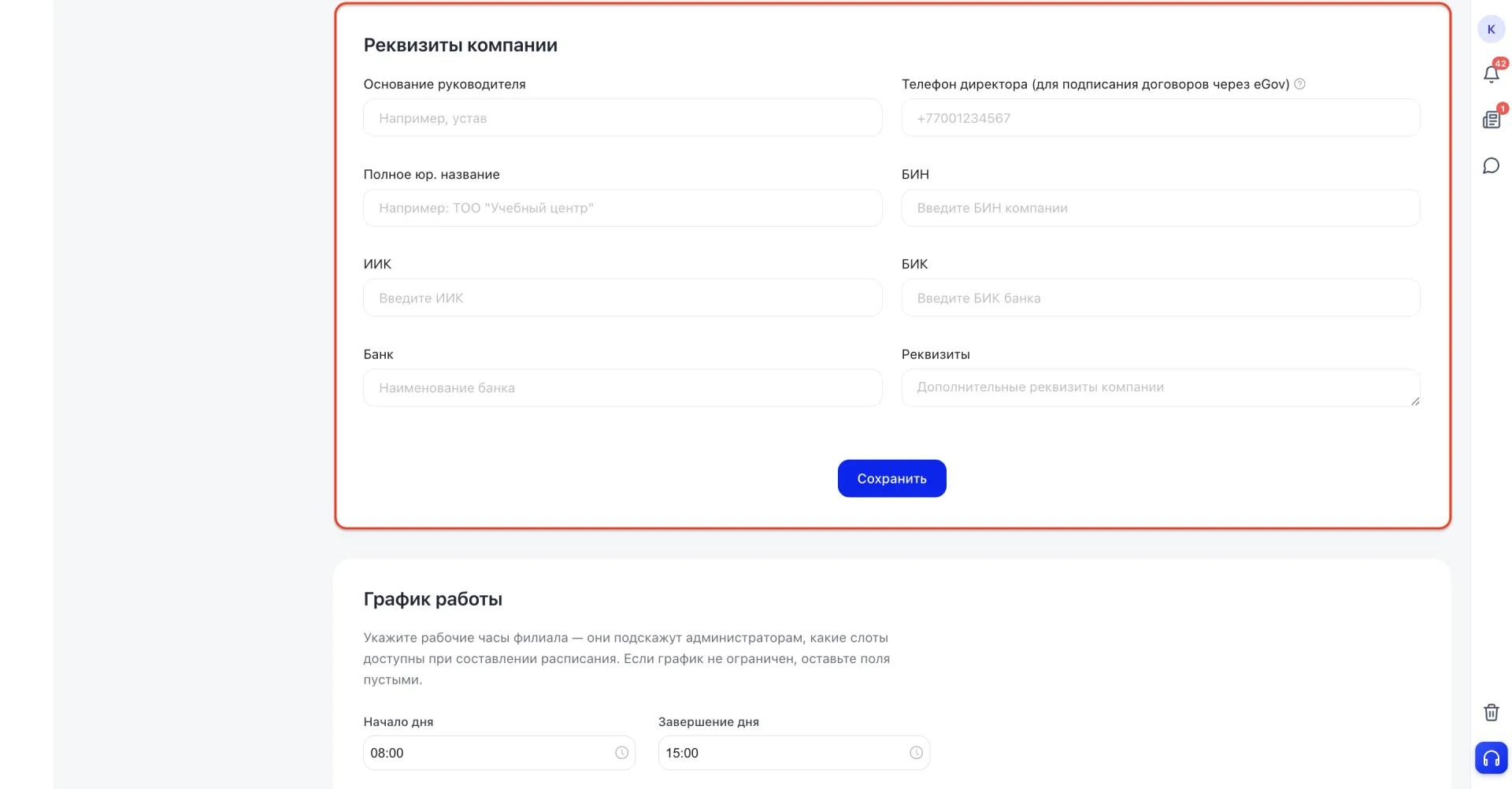
Legal company data that will be used in documents and reports.
Fields:
- Basis of the director — the document that confirms the director's authority (for example, the charter).
- Director's phone — used for signing contracts via eGov.
- Full legal name — the organization's official name, used in documents.
- Basis of the director — the document that confirms the director's authority (for example, the charter).
- BIN — business identification number.
- IIC — the company's individual code.
- BIC — bank identification code.
- Bank — the bank's name.
- Details — additional data for documents.
4. Work schedule
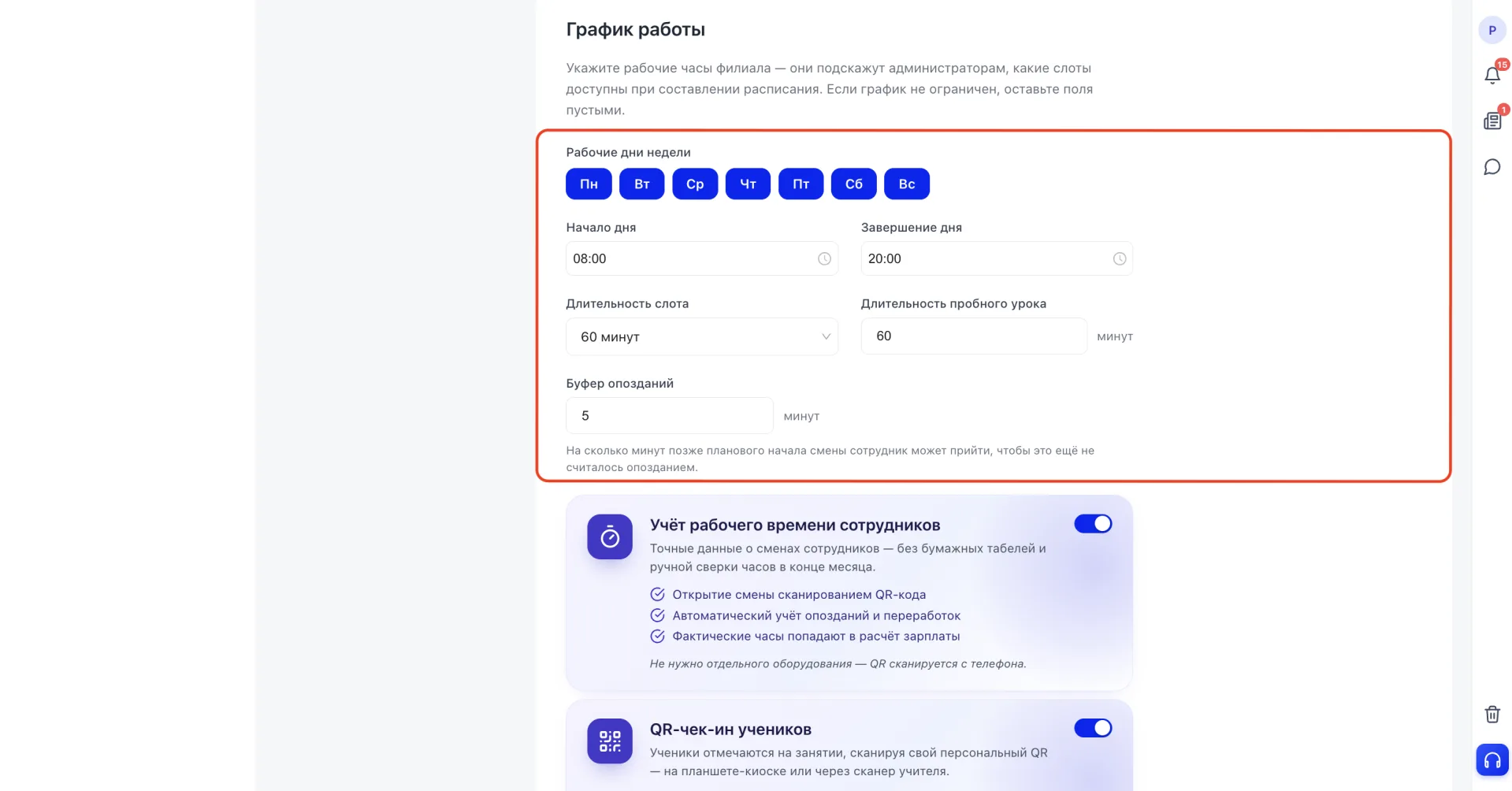
The branch's working hours are set so the system knows when Classes and notifications can be created, and to configure time tracking for Employees and Students.
Fields:
- Working days of the week — days when the branch operates and is available for Schedule creation.
- Day start — the time when the workday begins.
- Day end — the finishing time.
- Slot duration — how long one Class lasts (for example, 60 minutes).
- Trial lesson duration — how long the trial Class lasts, set separately from the regular slot duration.
- Late buffer — how many minutes after the scheduled start of the shift an Employee may arrive without it being considered late.
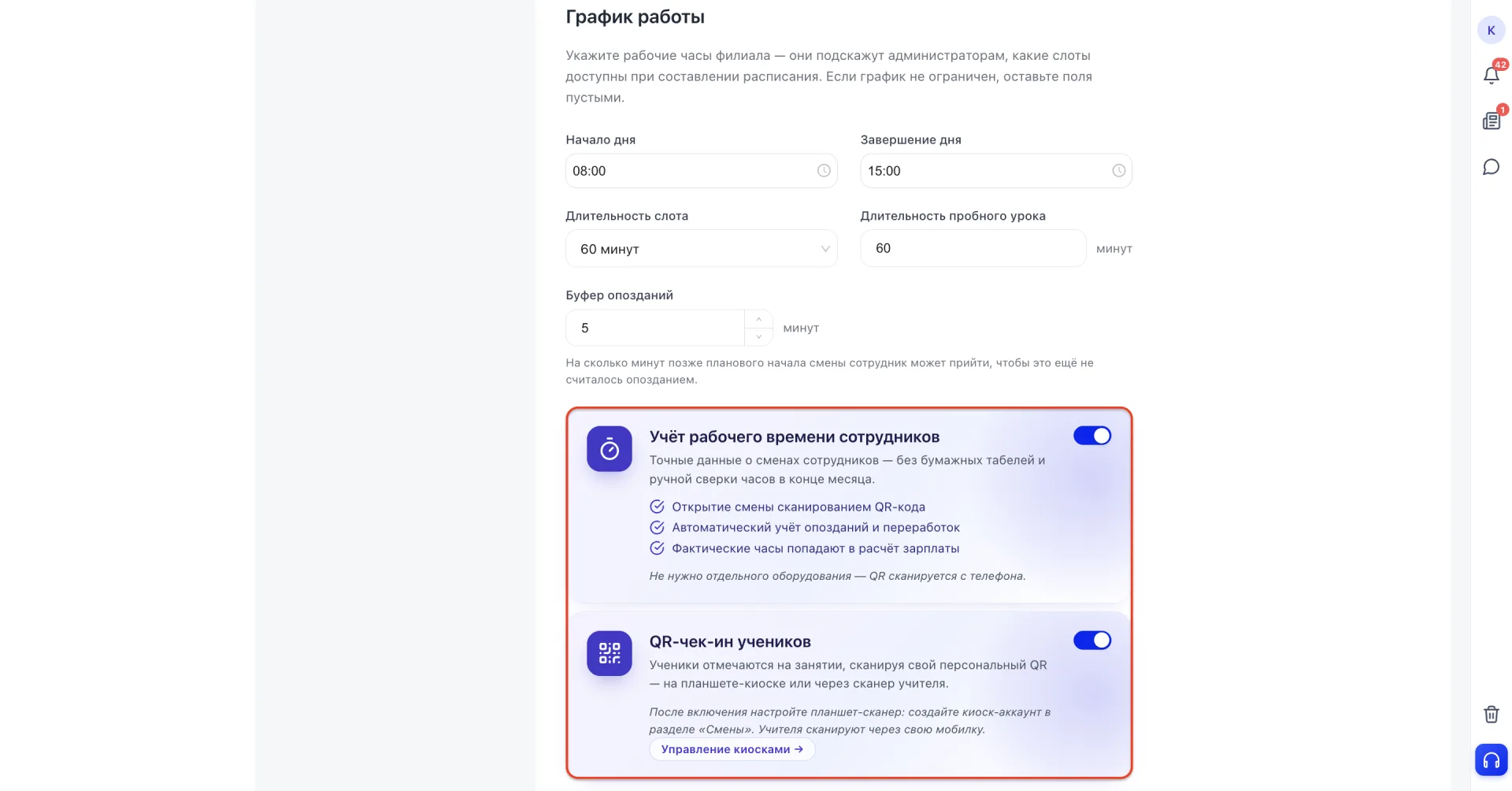
Student QR check-in — a toggle that enables marking Student attendance via a personal QR code: on a tablet kiosk or via the teacher's scanner. After enabling, the tablet-scanner is configured via a kiosk account in the "Shifts" section; codes are scanned by the teacher with a phone. The setup can be accessed with the "Manage kiosks" button.
The changed work schedule is saved with the "Save" button.
5. Messengers
Integration with a partner is connected to send mailings and notifications directly through Umai CRM.
The "Connect integration" button activates connection with the selected service.
The hint on the left reminds that before connecting the Aisar integration must be configured in the "Integrations" section: this is required to choose a channel.
Channel selection: WhatsApp (a dropdown list with available accounts).
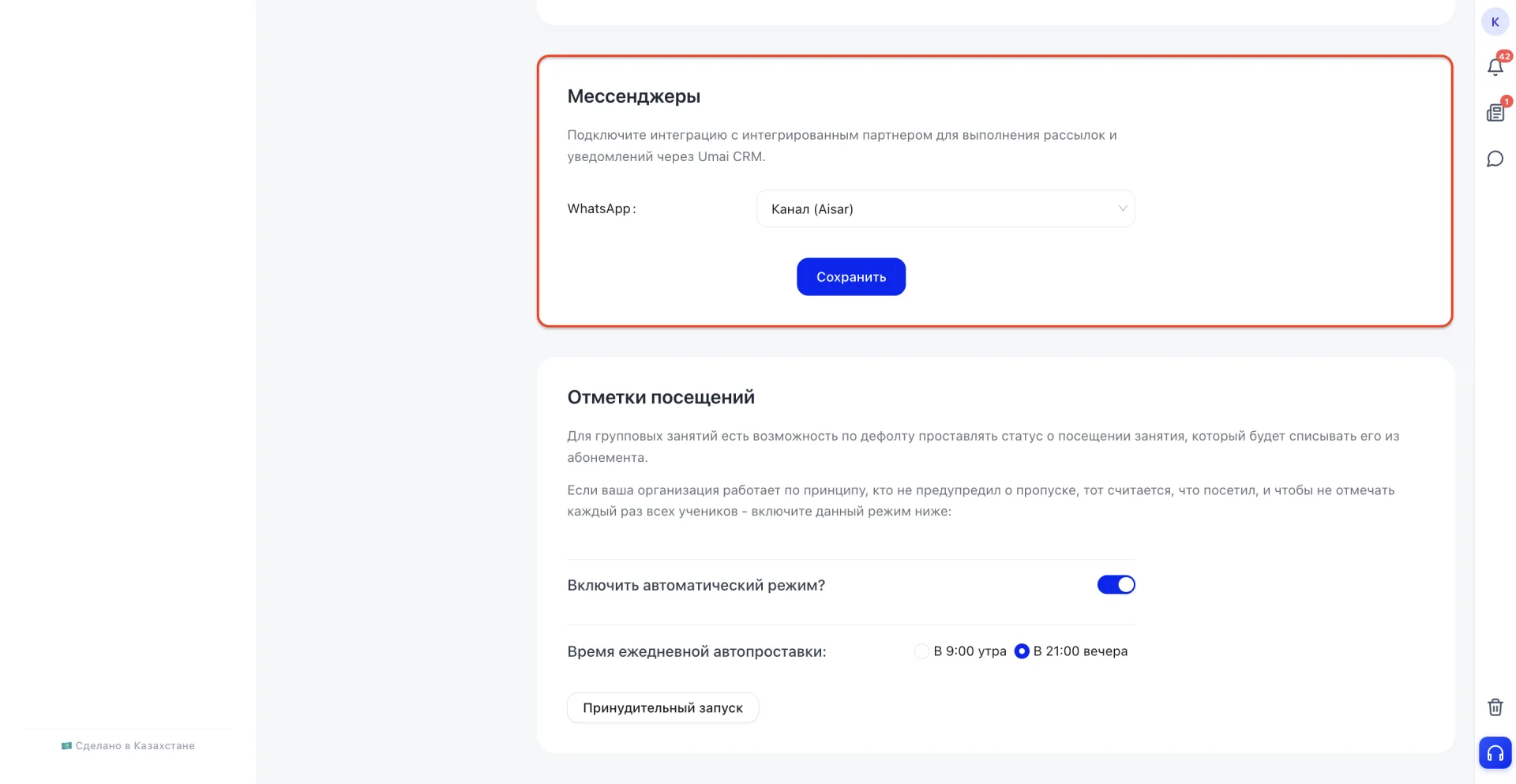
The "Save" button saves the integration settings and the selected channel.
6. Attendance marks
For group Classes an automatic attendance status marking function is available. When a status is set, the Class is automatically deducted from the Student's Membership.
If the organization follows the rule "those who did not notify of absence are counted as present," automatic mode removes the need to mark each Student manually.
Configuration parameters:
1) Enable automatic mode? (toggle).
Activates automatic marking of attendance for Students who have not been marked individually.Daily auto-marking time.
2) Daily auto-marking time.
- 09:00 — marking is performed in the morning of the next day.
- 21:00 — marking is performed in the evening of the current day.
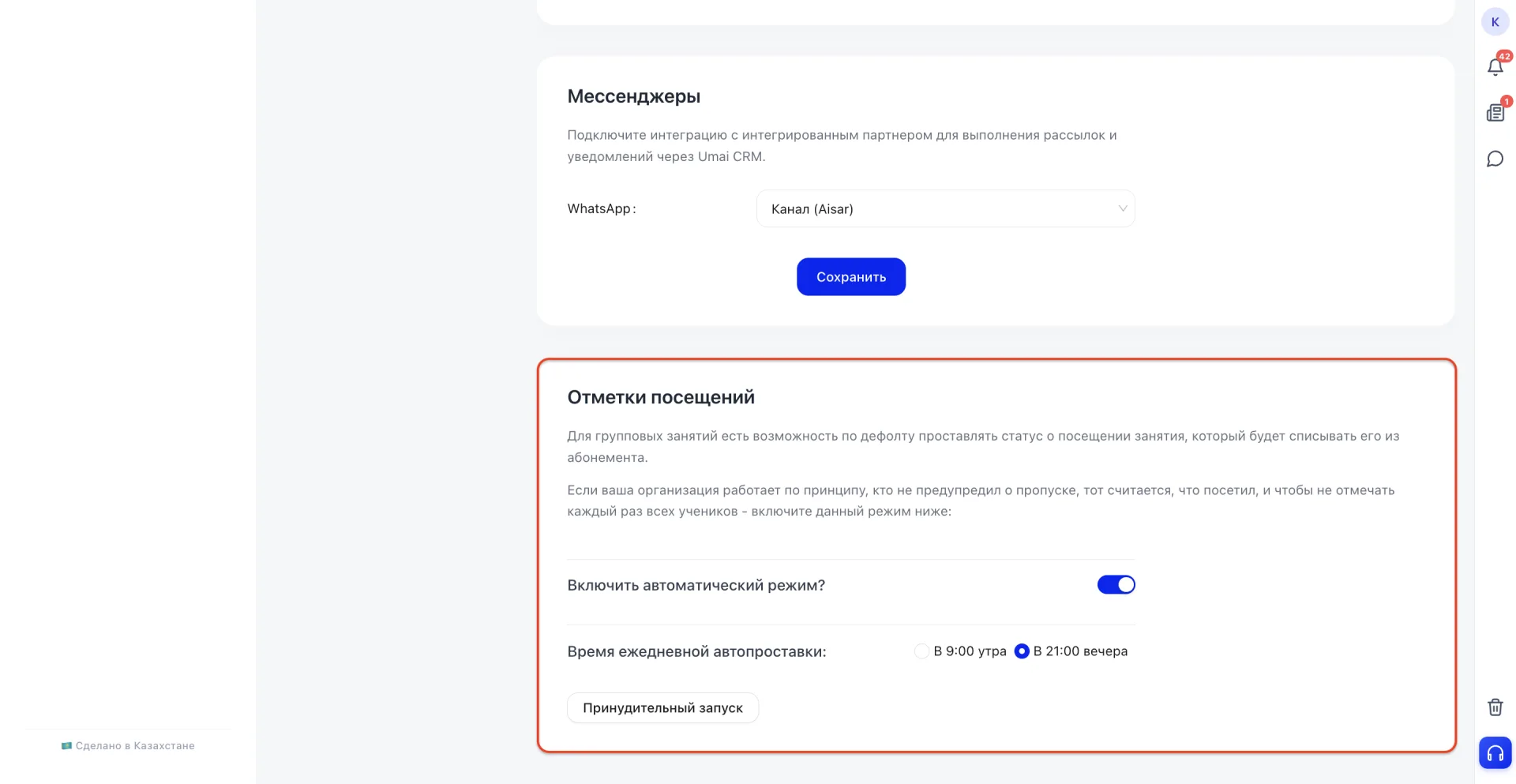
The "Forced start" button opens the "Forced start of auto-marks" window, which allows manually running automatic attendance marking for selected dates.
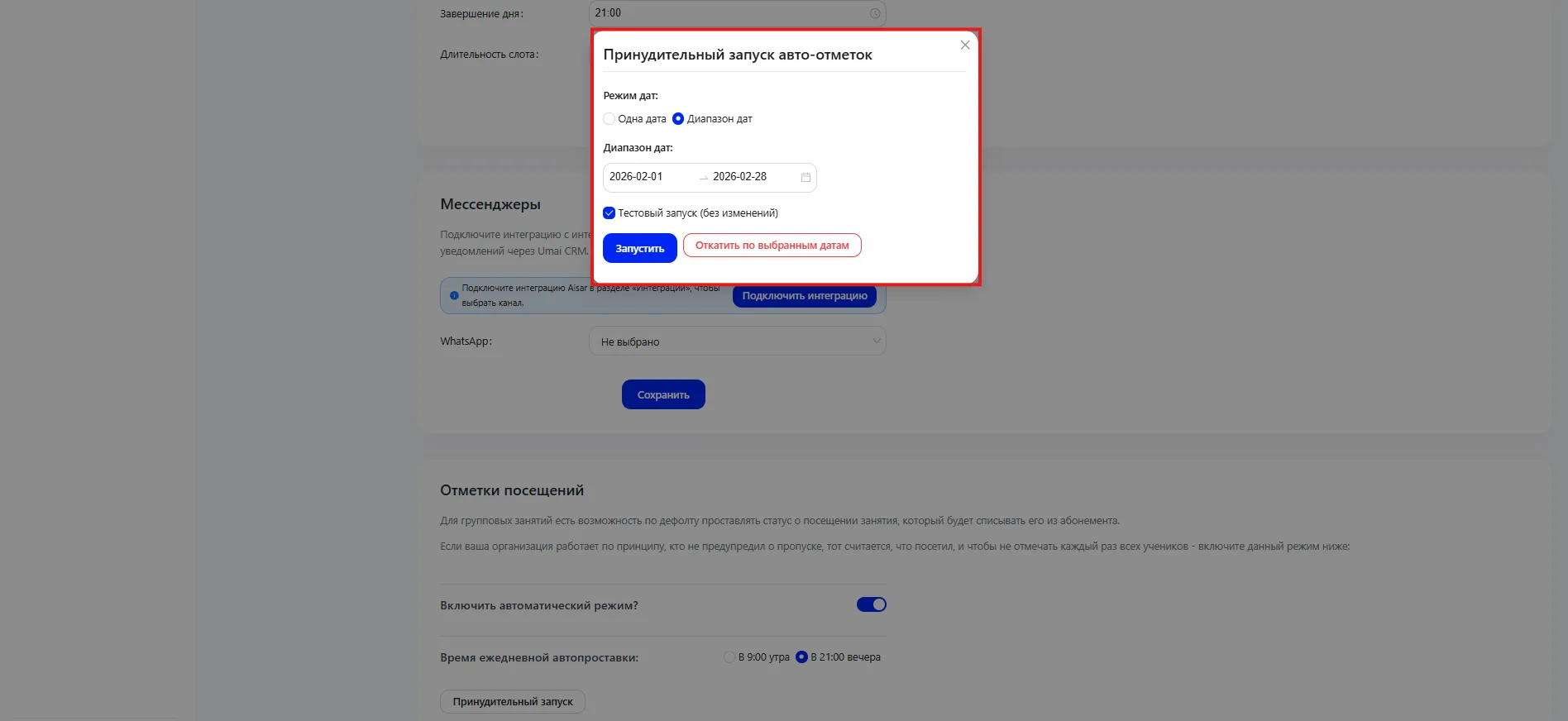
The feature is used when marks need to be applied immediately without waiting for the scheduled auto-marking time.
Window parameters:
Date mode
Determines the period for which auto-marks will be applied.
- Single date — auto-marking is performed for a specific day.
- Date range — auto-marking is performed for the selected period.
Date / date range selection.
A field to specify the day or period for which auto-marking should be executed.
Test run (no changes)
Allows checking the function without making changes to data. The system will perform a check, but actual attendance marks will not be applied.
Control buttons:
- Run — starts auto-marking of attendance for the selected dates.
- Rollback for selected dates - cancels previously performed auto-marking of attendance for the specified period.
It is necessary to provide correct center and company data, as they are used in the CRM and documents;
-
Basic settings (currency, time zone, interface language) affect the correct display of prices, Class times and the system interface;
-
Before using mailings you need to connect the messenger integration and select the desired channel.
Employee time tracking and Student QR check-in are independent functions: they are enabled separately depending on the type of control the center requires.