
The section is used to schedule client visits for trial classes, consultations, and group programs. When a booking is created it is attached to a specific lead or client and reflects the scheduled visit date.
Main blocks:
- Access to the section and filters
- Creating a new booking
- List of bookings and managing them
1. Access to the section and filters
The section is opened from the side menu “Bookings (Записи)”.
At the top of the page there are filters that control the display of the list:
- Search by name — allows you to quickly find the needed booking;
- Status (for example, “Unsorted”) — shows bookings with the selected status;
- Choose a Class — filter by a specific direction or group;
- Start and end of the period — display bookings for the selected date range of visits.
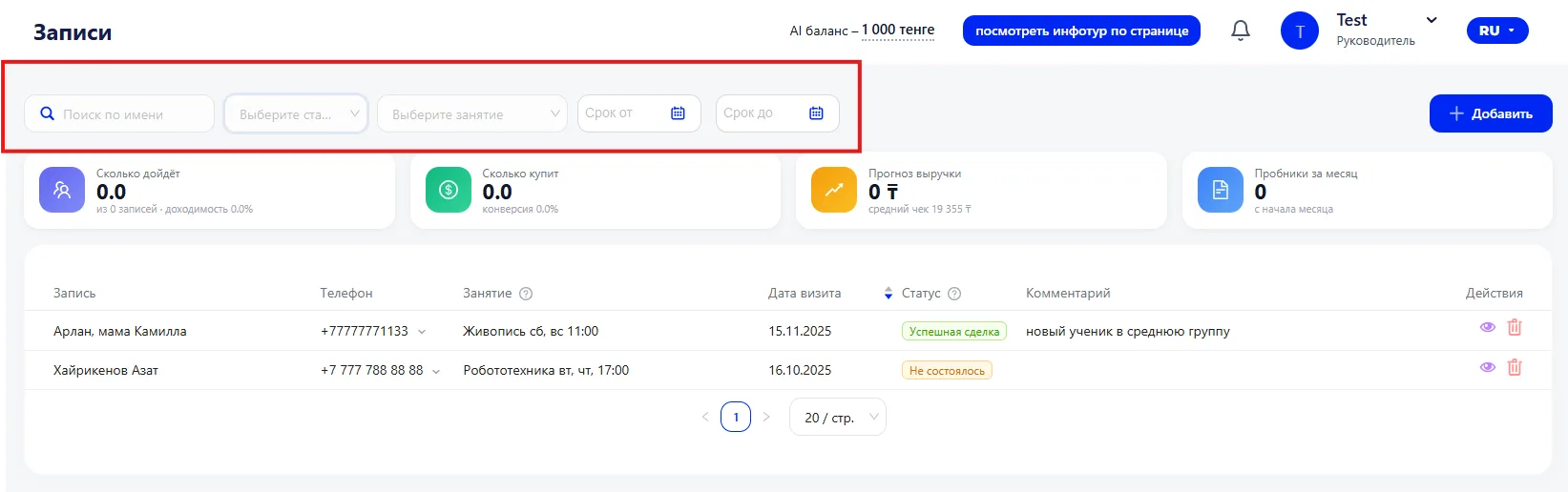
Filters only change the display of the list and do not edit the bookings themselves. If a booking is not displayed, first check the selected period and active filters.
2. Creating a new booking
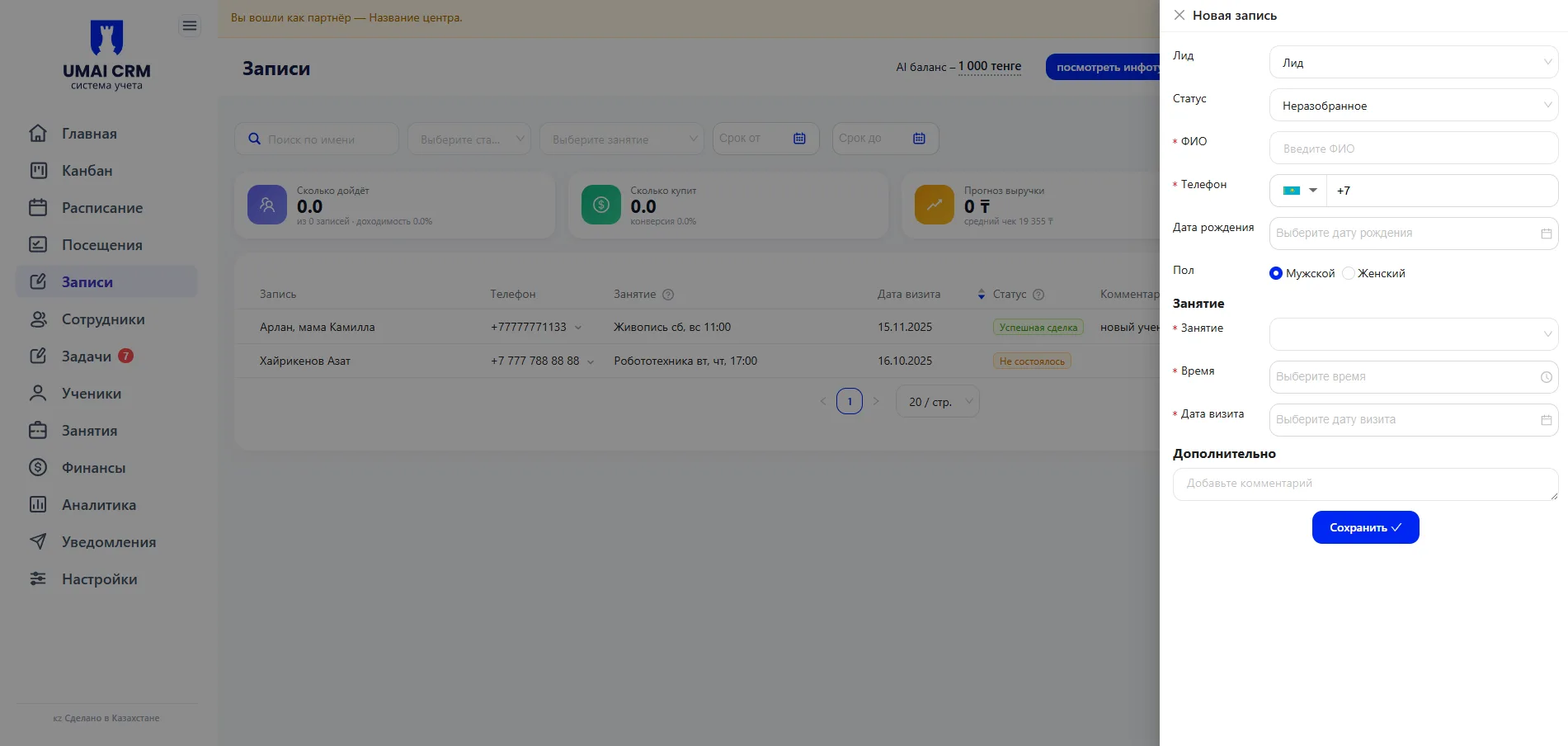
To create a new booking, click the button "+ Add" at the top of the page. A form will open where you need to fill in the details of the upcoming visit.
The form requires:
- Lead — links the booking to the lead or client card;
- Status — the current stage of processing the booking;
- Full name and phone — contact details;
- Date of birth and gender — if necessary;
- Class — direction or group;
- Date and time of the visit — when the client plans to come;
- Comment — additional clarifications.
The “Lead” field is especially important: the booking becomes part of the Lead card, and all status changes will be reflected there.
After filling out the form click “Save”. The booking will immediately appear in the general list, will be attached to the selected date and time and will remain linked to the Class and Lead. From that moment it can be confirmed, rescheduled, edited, or used for further conversion into a client.
3. List of bookings and managing them
All created bookings are displayed under the filters block as a table. The list shows:
- client name;
- phone number;
- Class;
- visit date;
- current status;
- comment.
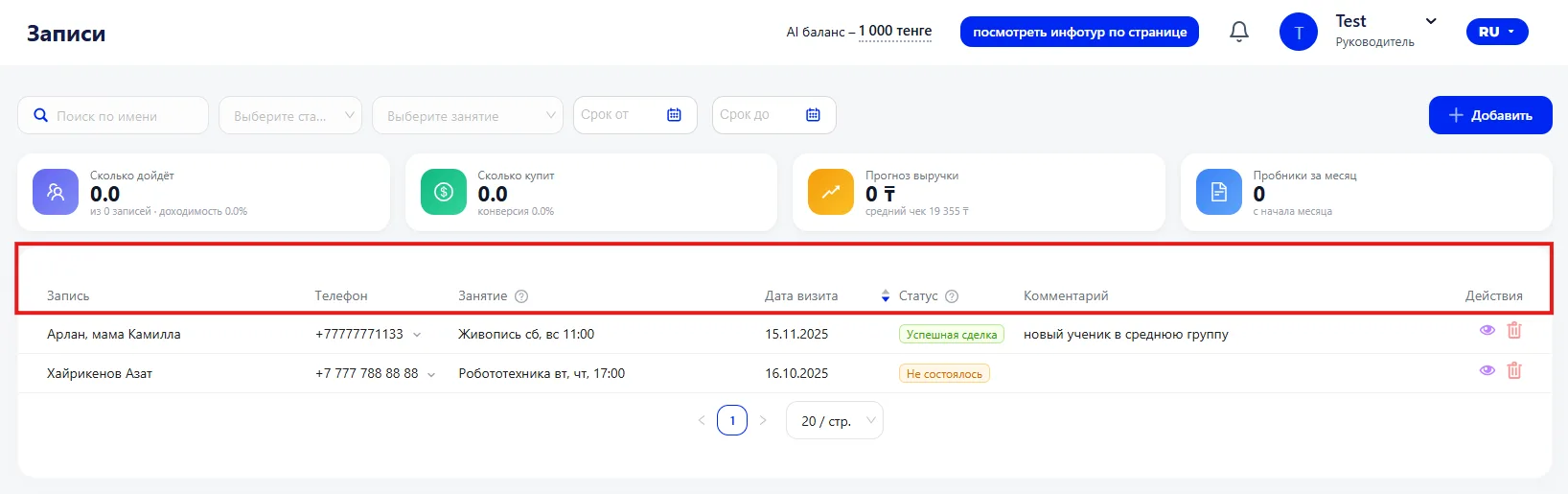
For each booking the following actions are available:
Eye icon — view details.
Opens the full booking information and allows you to make changes. After saving, the updated data is immediately displayed in the list.
Trash icon — delete the booking.
A deleted booking is removed from the list, does not participate in reports, and is not shown in the current period.
The list allows you to control all scheduled visits and promptly manage their statuses.
Important to note
- Changing the date or time moves the visit to the new date.
- Confirming a booking can affect the status of the Lead.
- When working through Kanban confirming a booking can change the deal stage.
- Deleting a booking completely cancels the recorded visit.
Before confirming it is recommended to check the correctness of the date, time, and selected Class.
Frequently asked questions
Why is the booking not displayed in the list?
Check the selected period and active filters.
Can data be changed after
saving?
Yes. Open the booking via the view button and make the changes.
What happens when a booking is
confirmed?
The visit status is updated, and when working with leads it is possible for the deal stage to change or for the lead to be converted into a client.