The client card shows all information about an active Student: Memberships, Payments, balance, and interaction history. Here renewal is managed, communication is recorded, and retention Tasks are created for the client.
Main blocks:
- Top panel of status by terms
- Left part - information about the client
- Right part - actions and history
1. Top panel of status by terms
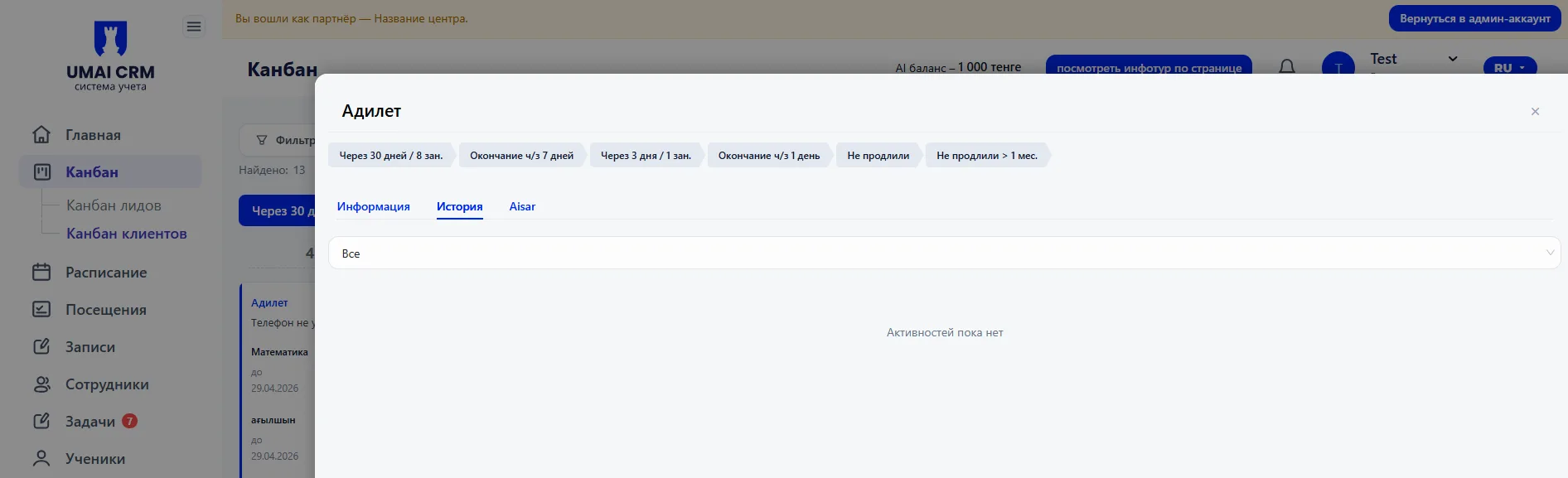
At the top, statuses related to the Membership term are displayed, for example:
- "In 30 days / 8 classes"
- "Expires in 7 days"
- "In 3 days / 1 class"
- "Expires in 1 day"
- "Not renewed"
- "Not renewed > 1 mo."
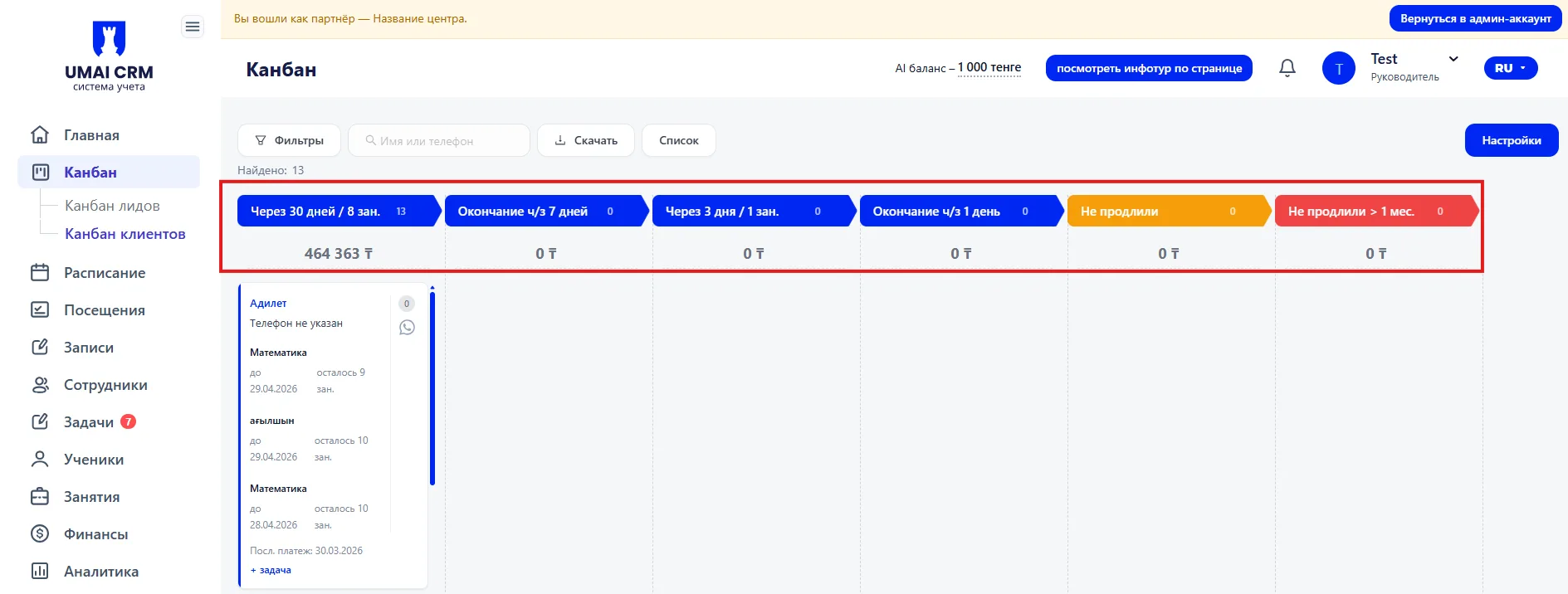
These statuses are calculated automatically based on:
- the Membership end date,
- the number of remaining classes.
You cannot change the status manually - it depends on the Membership data.
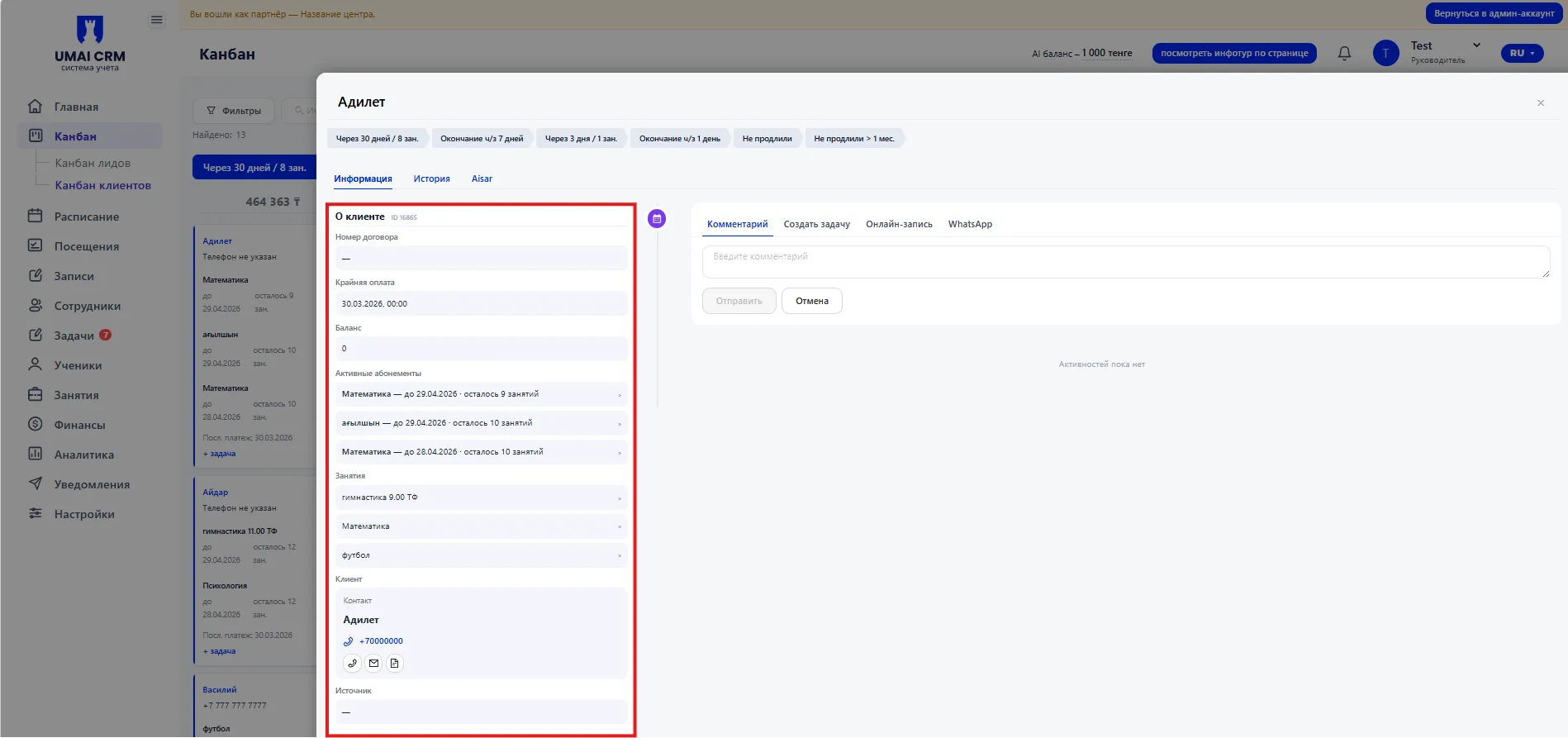
2. Left part — information about the client
Here the main information is stored:
- ID — the internal client number.
- Contract number — the number of the active contract.
- Last payment — the date of the most recent Payment. Updates after adding a Payment.
- Balance — the client's current balance.
- Active Memberships — a list of active Memberships.
- Classes — shows the client's Schedule.
- Source — where the client came from.
- Contact — name and phone number with quick contact buttons.
3. Right part — actions and history
The right side of the card is intended for recording actions and managing further work with the client.
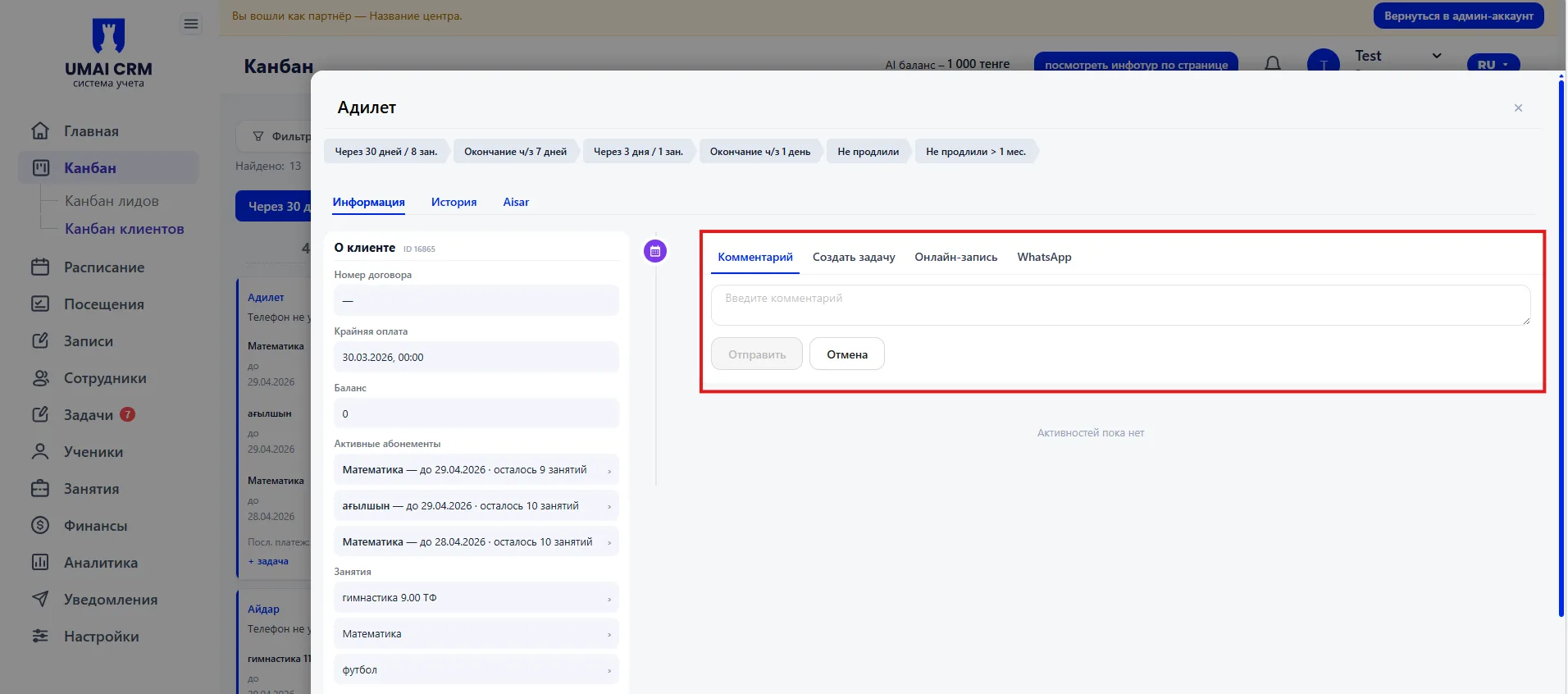
Tab "Comment" (Комментарий) is used to record communications. After a call or meeting the manager enters text and clicks "Send". The comment is saved with the date and the Employee's name and becomes part of the client's history.
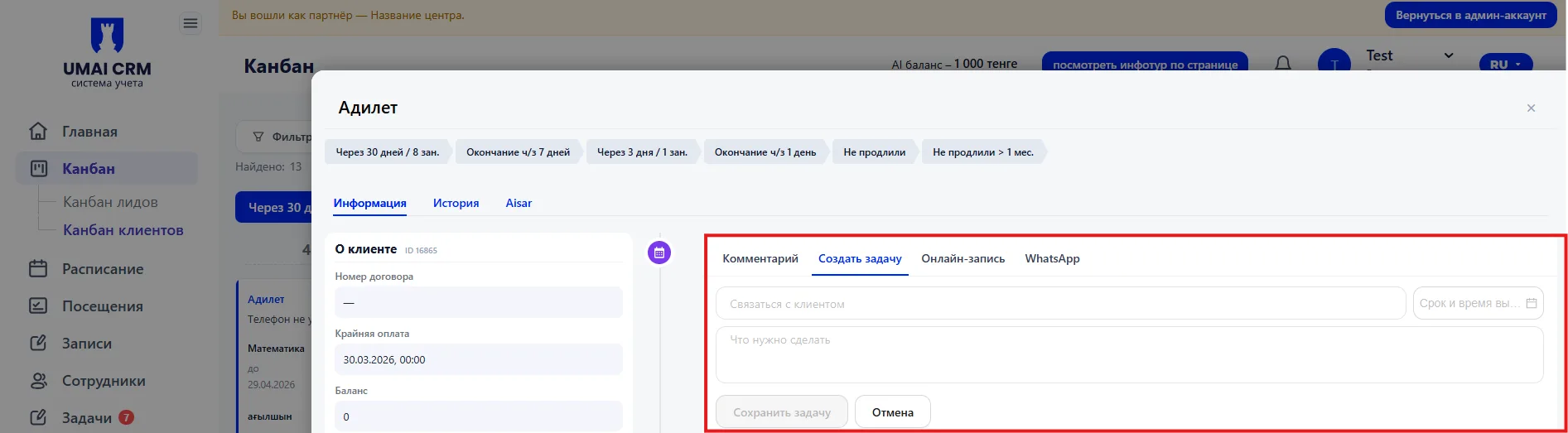
Tab "Create Task" allows planning the next step. For example, to remind about renewal or to call back on a specific day. After saving the Task appears in the "Tasks" section and is automatically linked to this client.
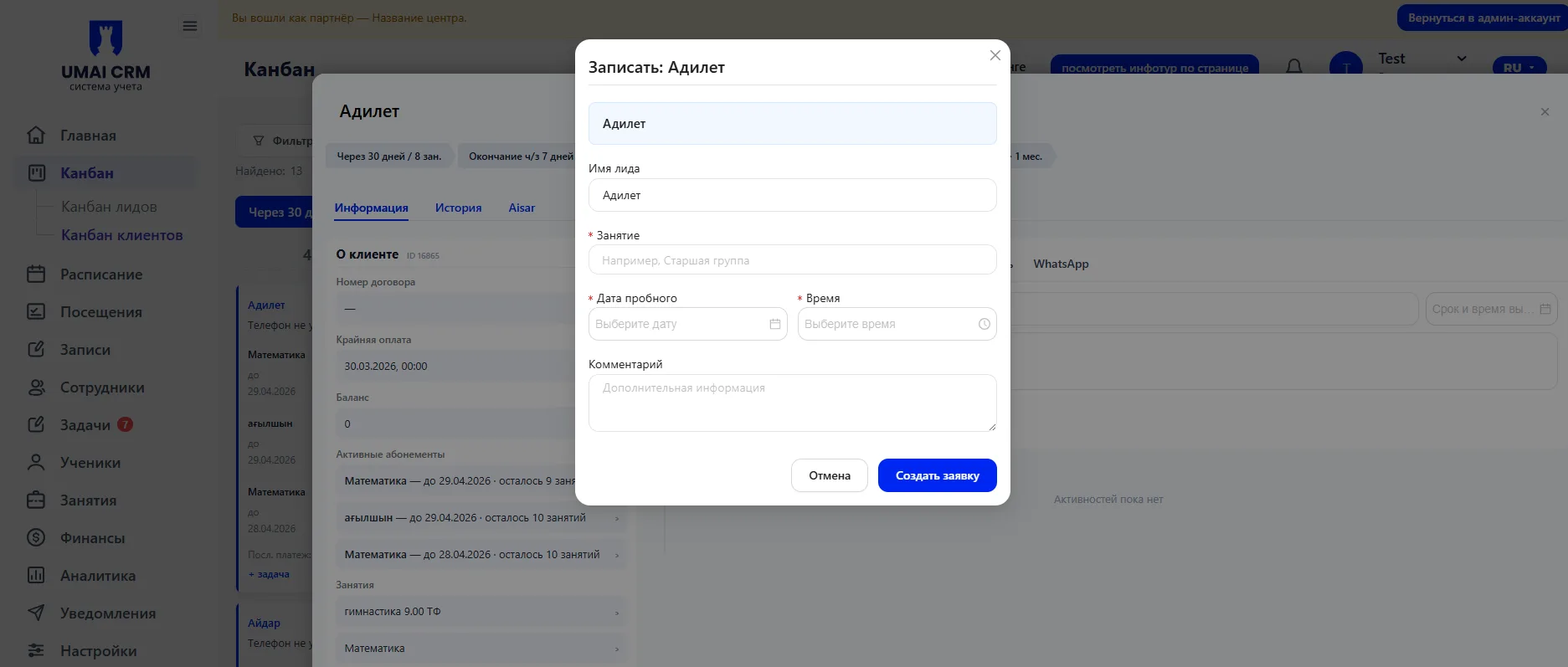
Tab "Online booking" is used to register the client for a Class. After filling out the form and clicking "Create request" the booking is added to the system and recorded in the client's history.
Tab "History" shows the complete chronological record of changes. Renewals, Payments, comments, Tasks and other actions are displayed here. Using this tab you can restore the entire course of work with the client.
Important to consider
- The statuses in the top panel are related to the Membership term and the number of remaining classes. They allow you to quickly understand when the client's classes are ending or when a renewal is required.
- All client actions — Payments, comments, Tasks and bookings are recorded in the "History" tab. This tab allows you to reconstruct the sequence of work with the Student.
- Tasks created in the "Create Task" tab automatically appear in the "Tasks" section and remain linked to the client's card.