
The section shows movement of Leads through stages of the Sales funnel. It helps you see the current status of each deal, control managers' work and analyze conversion.
Main blocks:
- Selection of Kanban type
- Data display controls
- Kanban settings
- Working with processes
- Multi-funnels
1. Selection of Kanban type
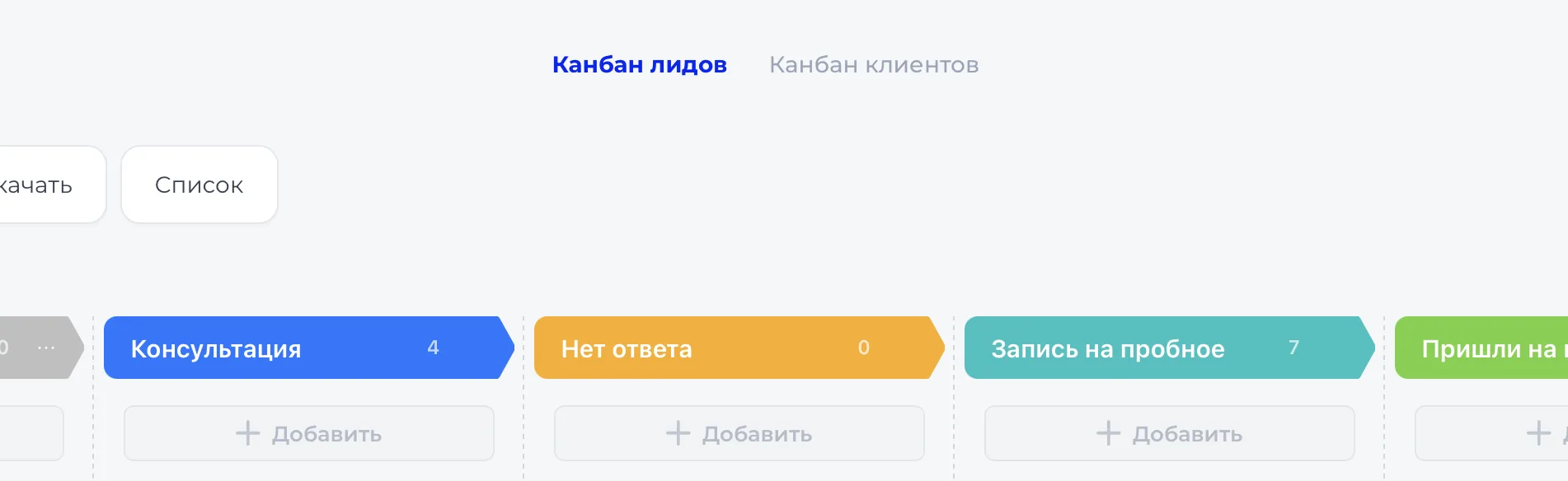
At the top of the page there are two board types:
- «Канбан лидов» - for working with new inquiries;
- «Канбан клиентов» - for managing existing clients.
2. Data display controls
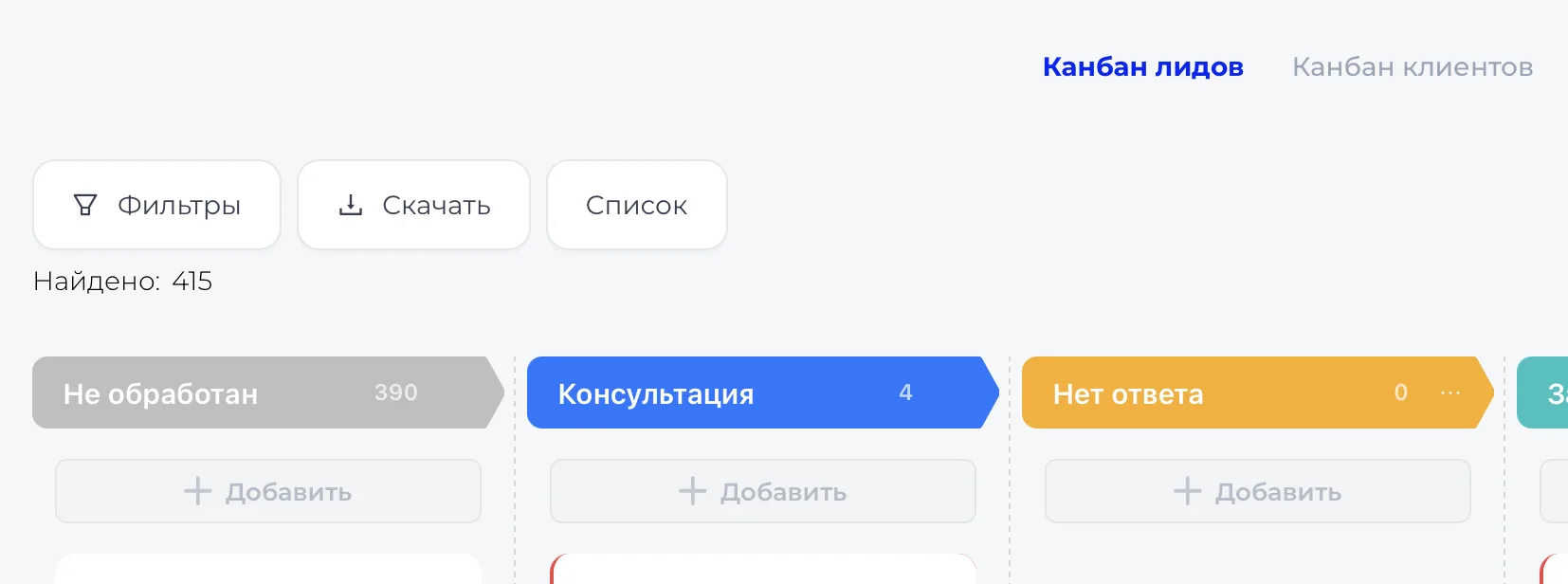
On the left are tools for working with data:
- Filters — allow you to select records by search, creation date, or funnel stages
- Download — export data in .csv format.
- List — switch to table view, where all records of the selected Kanban are visible.
These functions help quickly find the needed records and work with data more efficiently.
3. Kanban settings
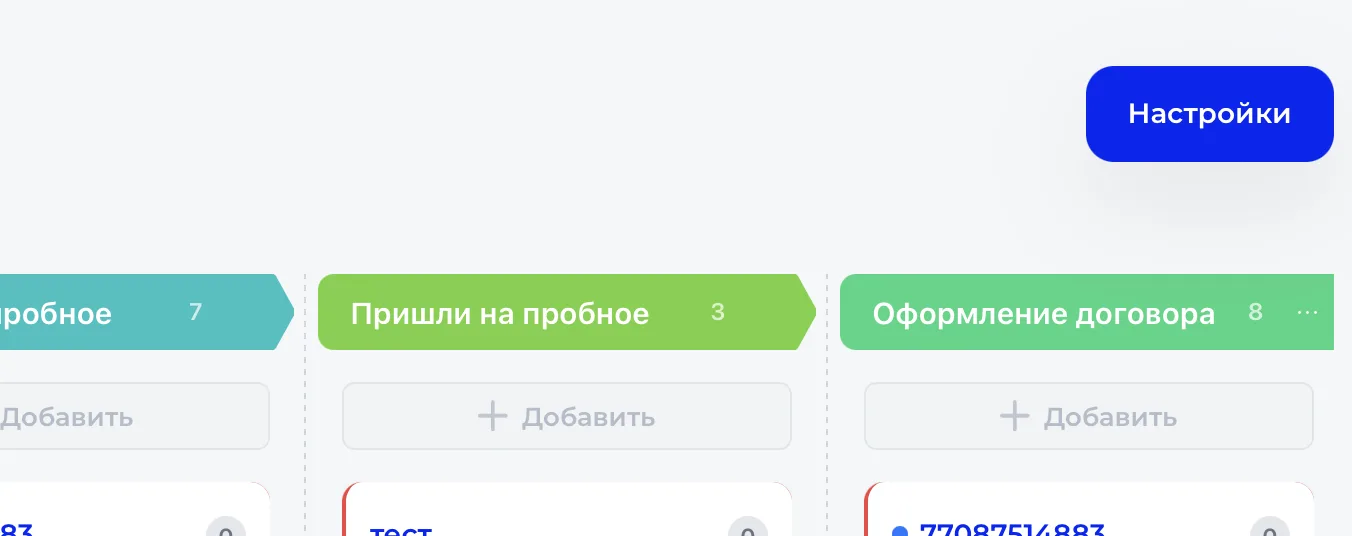
Below these elements is the Kanban board itself, where cards are distributed by funnel stages and show the current status of work with inquiries and clients. By moving them, you record the client's movement through the process.
4. Working with processes
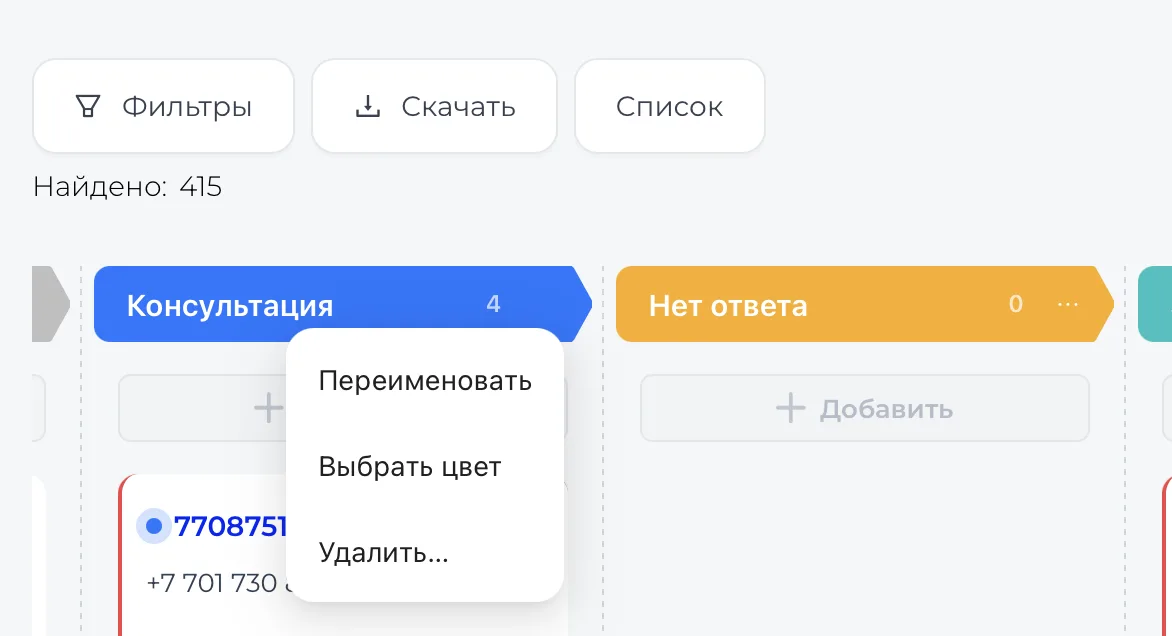
When hovering over a created process, three dots appear on the right. Clicking them opens a small menu with actions:
- Rename
- Choose color
- Delete
This allows you to flexibly configure the structure for your tasks or delete an unnecessary process.
5. Multi-funnels
In the Kanban (Канбан) you can create several funnels and configure each for its own scenario: separately for different sources, directions, or managers. Each funnel has its own stages and settings.
How to create a new funnel
Go to Kanban (Канбан) → Settings → Funnels. Here you will see a list of all center funnels with the name, number of stages, Leads and the status of the main funnel.
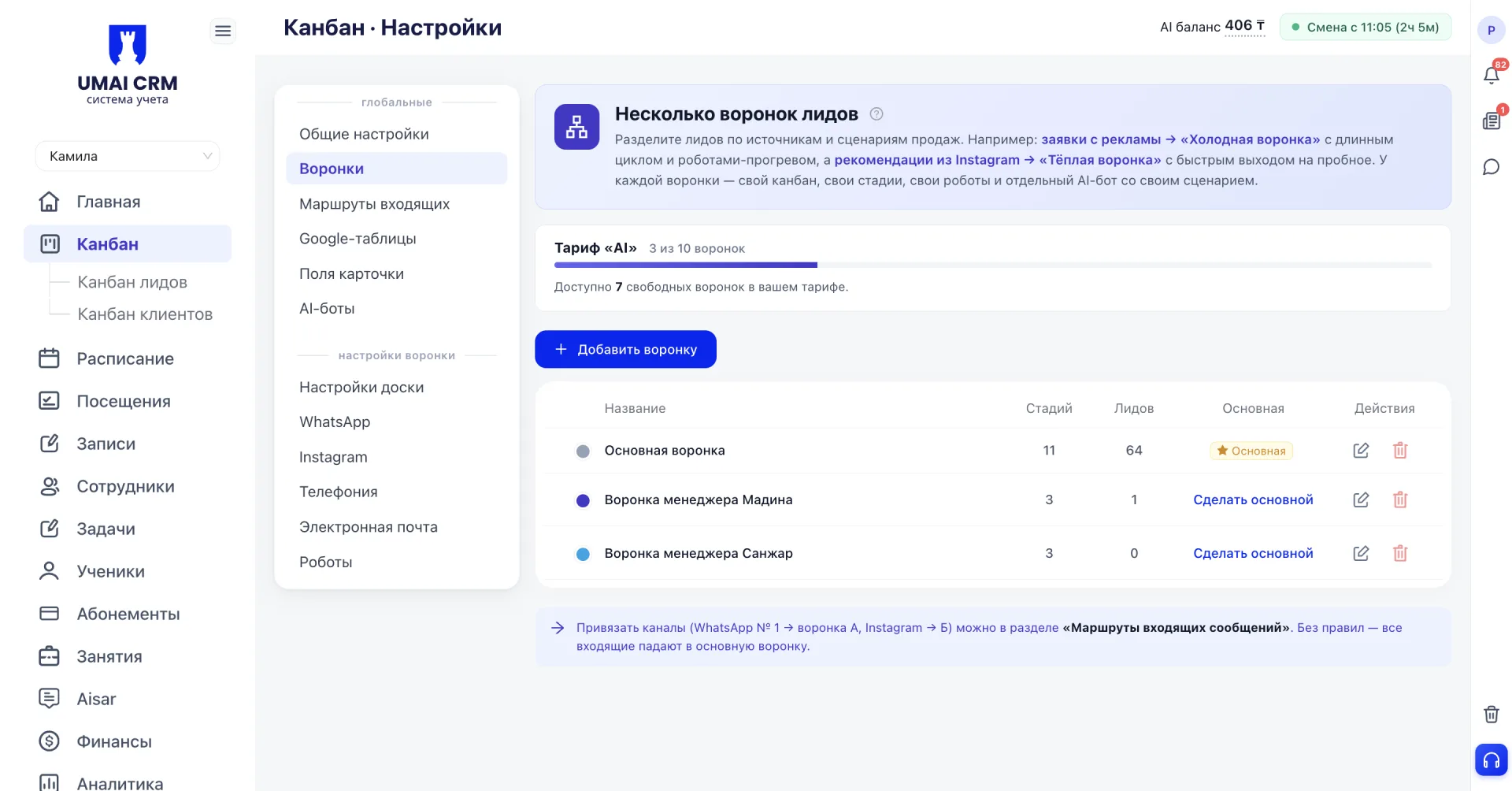
Click «+ Add funnel» and fill out the form: specify the name, choose a color for visual distinction in the list and, if necessary, restrict access by specifying specific Employees in the "Employees with access" field. If left empty, the funnel will be visible to everyone.
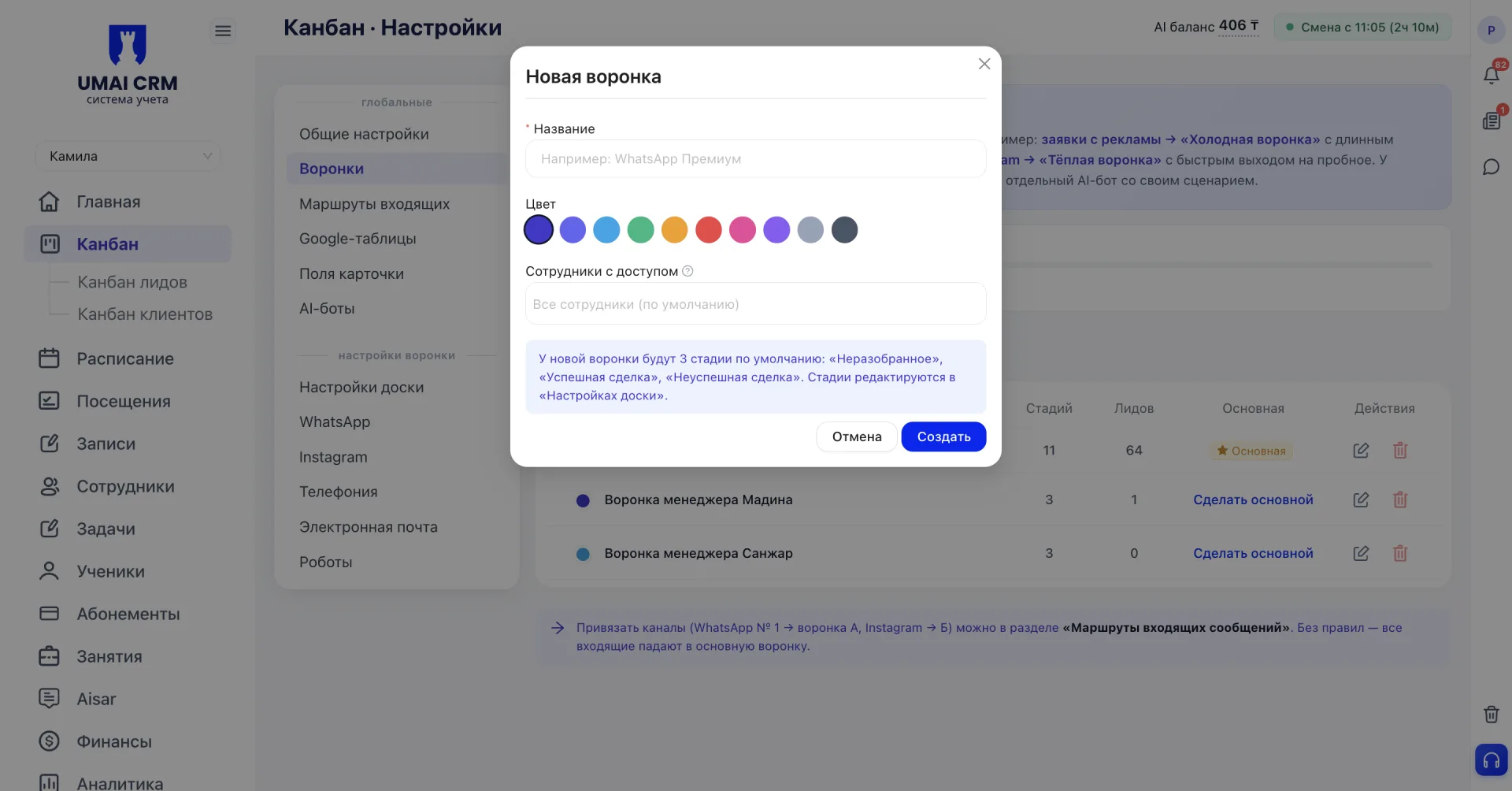
After clicking «Create» the funnel will appear in the list with three default stages: «Неразобранное», «Успешная сделка» and «Неуспешная сделка». Stages can be changed in the "Board settings" section.
Switching between funnels
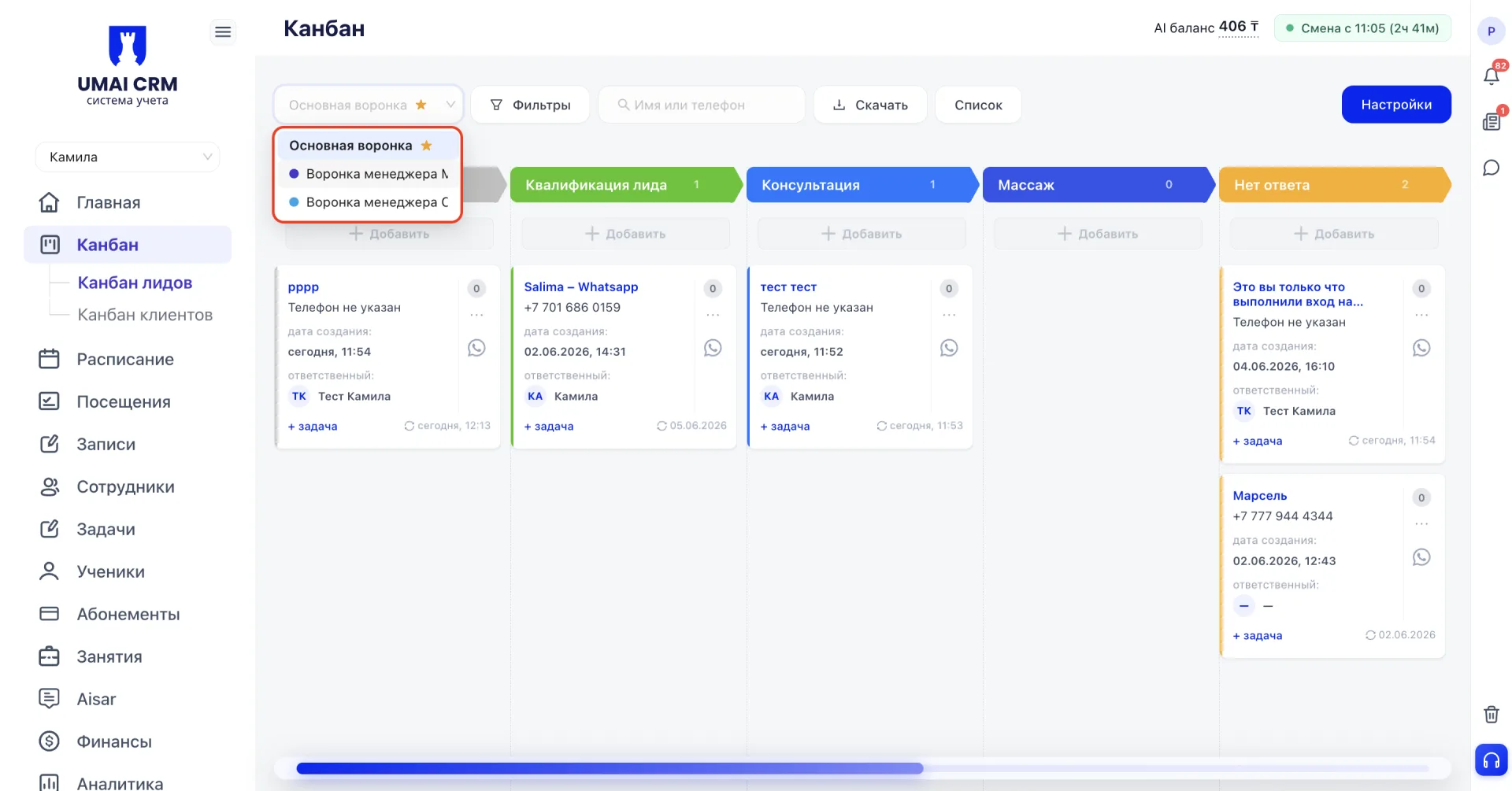
On the Kanban board in the top left corner there is a dropdown with funnels. The main funnel is marked with a star; all incoming Leads that do not have a route set go into it. To change the main one, click "Make main" next to the desired funnel in the list. You can bind a channel to a specific funnel in the "Incoming messages routes" section.
Board settings
Each funnel is configured independently. At the top of the "Board settings" page it shows which funnel you are editing; all changes apply only to it.
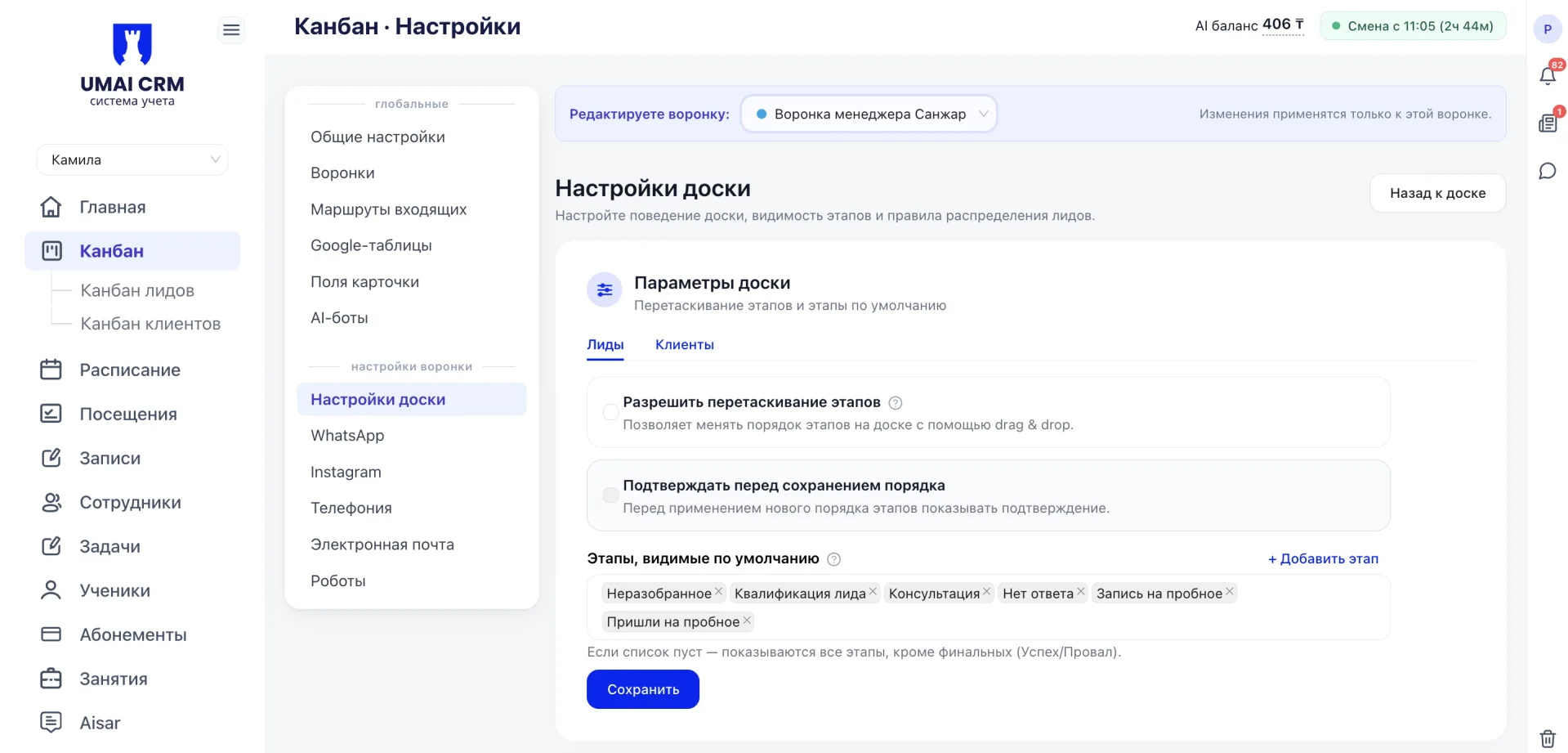
Here you configure board behavior. You can allow dragging stages and enable confirmation before saving the new order. In the "Stages visible by default" field select which stages are shown when opening the board. If the list is left empty, all stages except the final ones will be shown.
Lead distribution
In the board settings you specify how new Leads are assigned to managers. With even distribution the system automatically assigns Leads in rotation among selected Employees. With manual distribution each new Lead will require manual assignment, but you can specify a default responsible person.
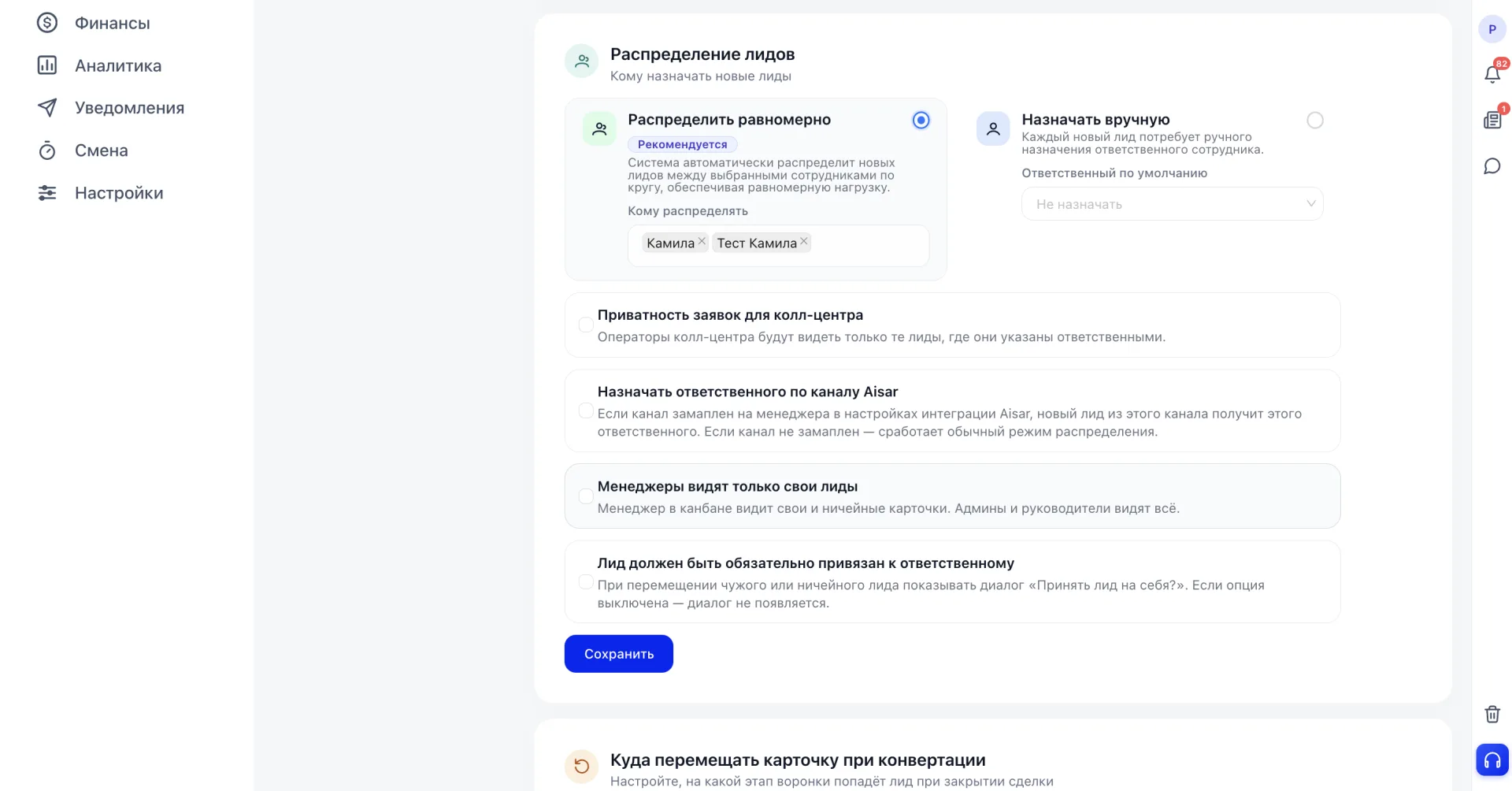
Additionally you can enable:
- Privacy of applications for the call center — operators see only those Leads where they are assigned as responsible.
- Assign responsible by Aisar channel — a Lead from the channel will automatically get the manager assigned to that channel in Aisar settings.
- Managers see only their Leads — a manager sees their own and unassigned cards; administrators and supervisors see everything.
- A Lead must be necessarily bound to a responsible person — when moving someone else's or an unassigned Lead the system will show the dialog "Take the Lead upon yourself?".
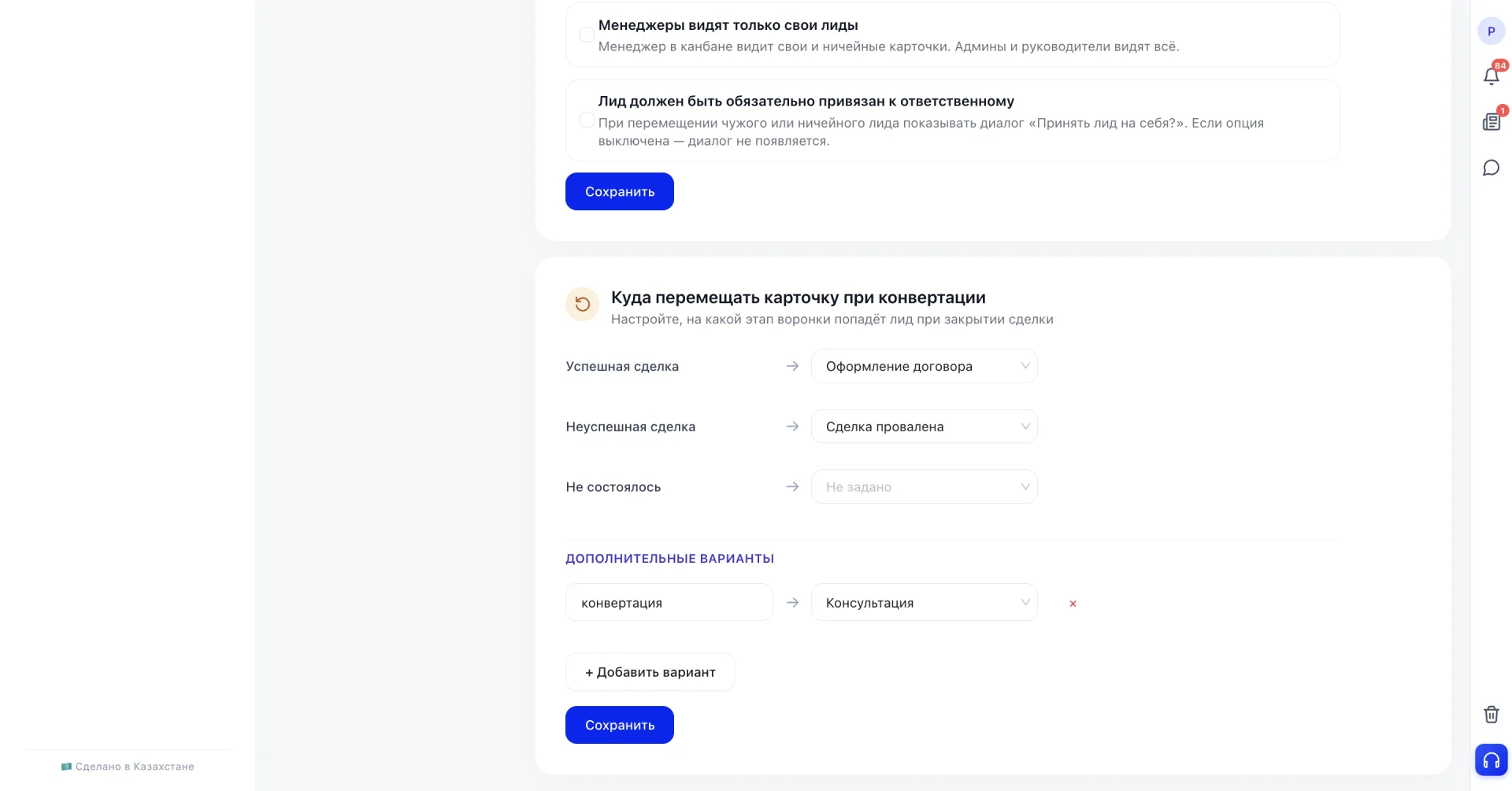
Where to move the card upon conversion
Here you configure which stage the Lead will go to when the deal is closed. For a successful deal, an unsuccessful one, and the "Did not happen" option you can specify separate stages. Additional options can be added via "+ Add option" if needed. After configuring, click "Save".
Now you are familiar with the main elements of the Kanban (Канбан) and its capabilities. The section gathers all inquiries in one place and shows at which stage each Lead is located. Multi-funnels allow you to split this flow into different scenarios and assign responsible managers. This way no inquiry is lost, and the team's work remains manageable.