The card shows the lead's full path within the center. It shows who is handling the client, what stage the deal is at and which actions have already been completed. The change history allows you to reconstruct the entire workflow.
1. Stage panel (top)
At the top are buttons with the stages
of the sales funnel:
“Квалификация лида”, “Консультация”, “Экскурсия”, “Оформление договора” and
others.
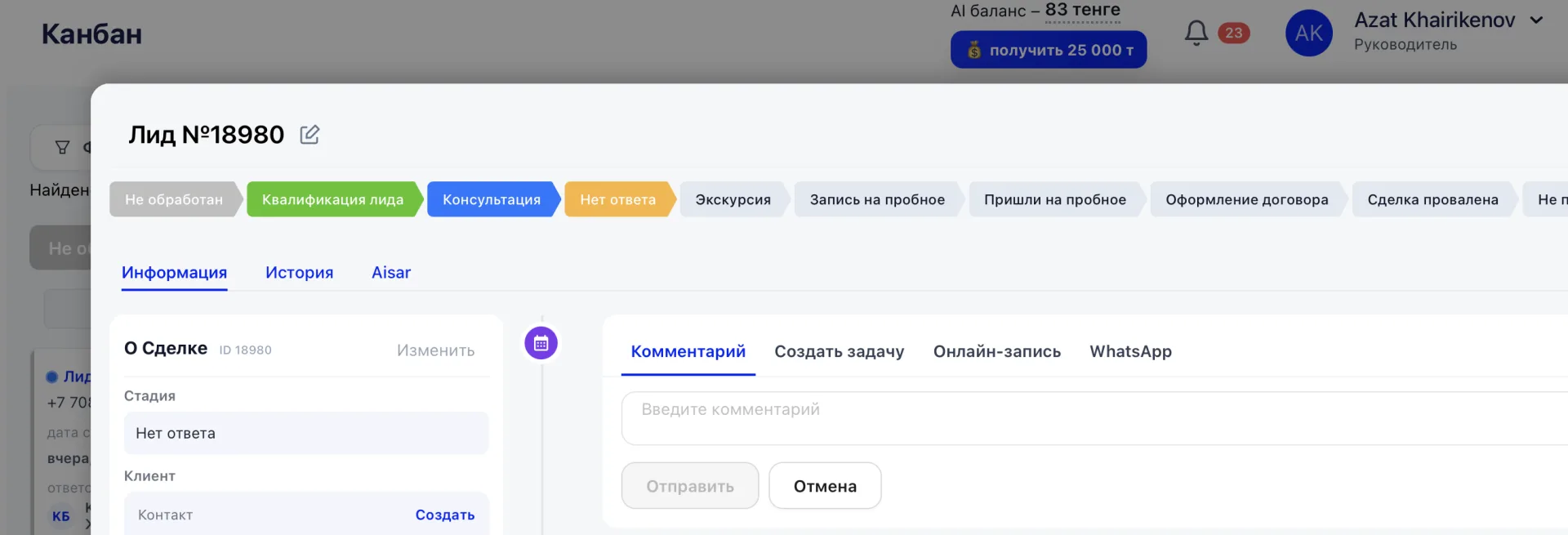
If you click another stage:
- the stage will change immediately,
- the card will move to the corresponding Kanban column,
- a record will appear in the “История” tab,
- sales funnel analytics will be updated.
2. Left side — main data
- The left side of the card contains key data about the deal:
- ID — the internal deal number in the system.
- Stage — the current step of working with the client.
- Responsible — the employee who is handling this client.
- What they were interested in — the direction or service that interests the client.
- Lead temperature — the level of the client's interest.
- Source — where the client came from: advertising, Instagram, recommendation and other channels.
- Creation date — when the deal was added to the system.
- Client — name and phone number.
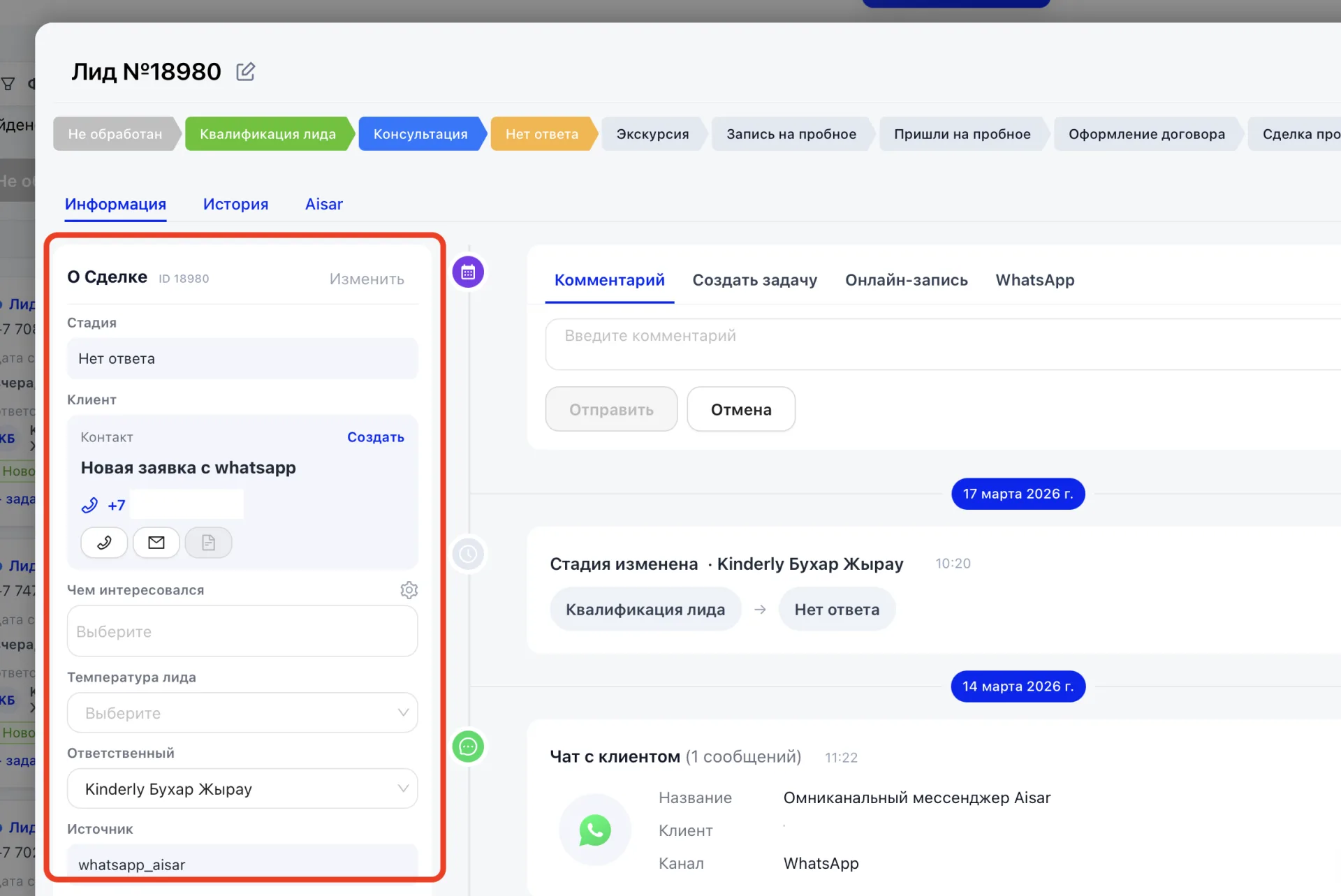
To change these details, click the “Изменить” button in the upper corner of the left side of the card. After saving, the updated information will be displayed in the card immediately and will be taken into account in reports.
3. Right side - deal work
The right side of the card is used for current work on the deal. Here the manager records communication, plans next steps, and tracks the change history.
Tab “Комментарий” is intended for recording the results of calls and meetings. After entering text and clicking “Отправить” the comment is saved with the date and employee name and added to the overall deal history. This forms the chronology of communication with the client.
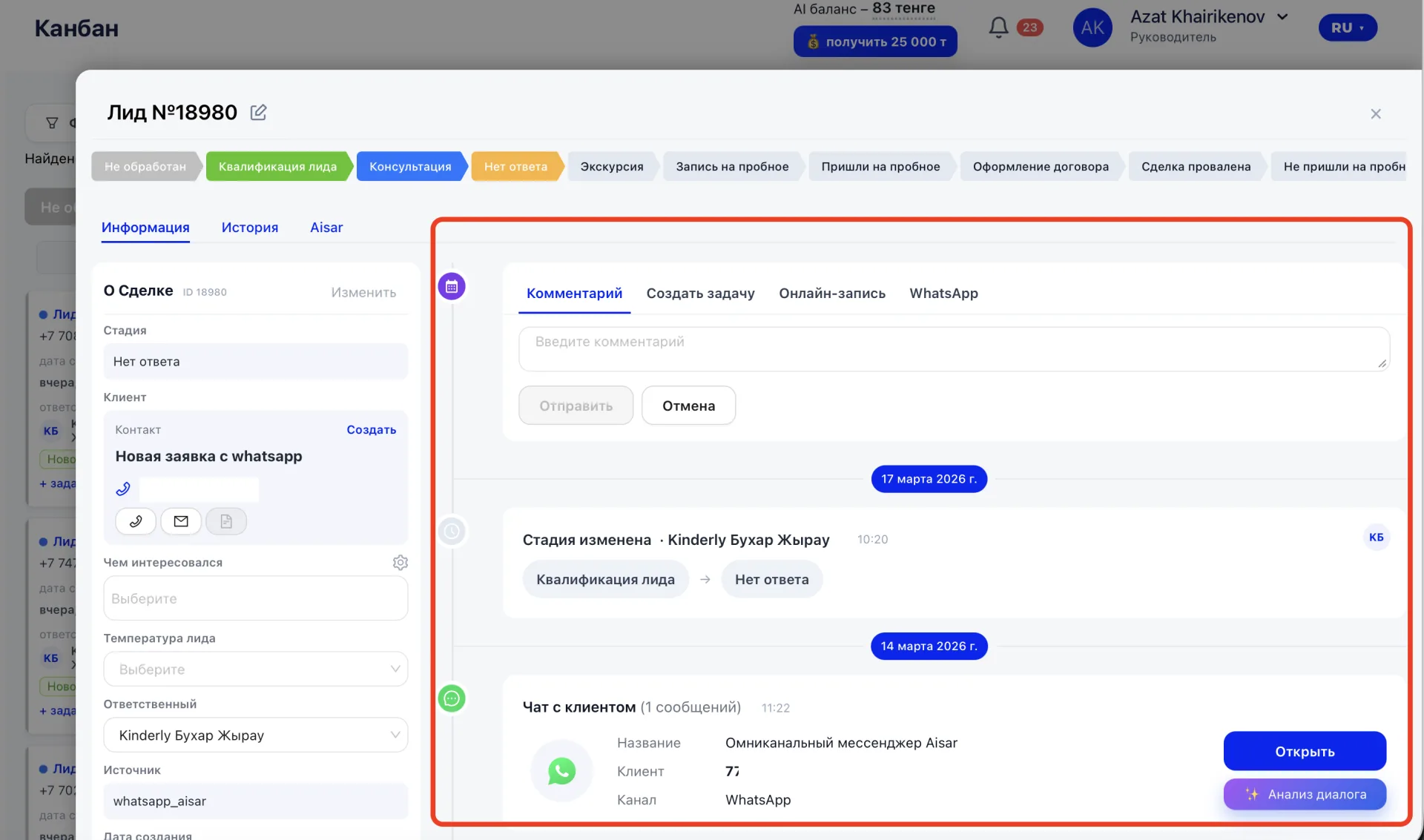
Tab “Создать задачу” allows planning further actions. After saving the task appears in the “Tasks” section, is automatically linked to this deal, and the responsible employee sees it in their list.
Tab “Онлайн-запись” is used to register the client for a Class. Select the Class, date and time, then click “Создать заявку”. The booking is created in the system, the action is recorded in the history, and the deal stage may change automatically if this is configured in settings.
Tab “История” shows all changes related to the deal: stage changes, comments, created tasks and bookings for Classes. To understand what happened with the client and which actions have already been completed, just open this tab.