This section allows you to use game elements in teaching. Students can earn points, stickers, and exchange accumulated coins for goods in the shop. This helps increase motivation and engagement in Classes.
Main blocks:
- Settings (Настройки)
- Points (Баллы)
- Stickers (Стикеры)
- Shop (Магазин)
- Rating (Рейтинг)
1.Settings (Настройки)
The following parameters are available:
- Points and rating — allows Teachers to award Students points for various actions. The Students' rating is formed based on these points.
- Stickers — virtual rewards that are given to Students for achievements, activity, or good results.
- Shop (Магазин) — Students can exchange accumulated coins for goods or bonuses.
- Leaderboard table — shows the Students' rating. The rating can be formed within a Group or across the entire school.
- Reset rating at the beginning of the month — on the 1st of the month the monthly points are reset, and the new month starts from zero for everyone. The "all-time" points are preserved.
- Coin denominations — a list of available coin values that a Teacher can award to Students.
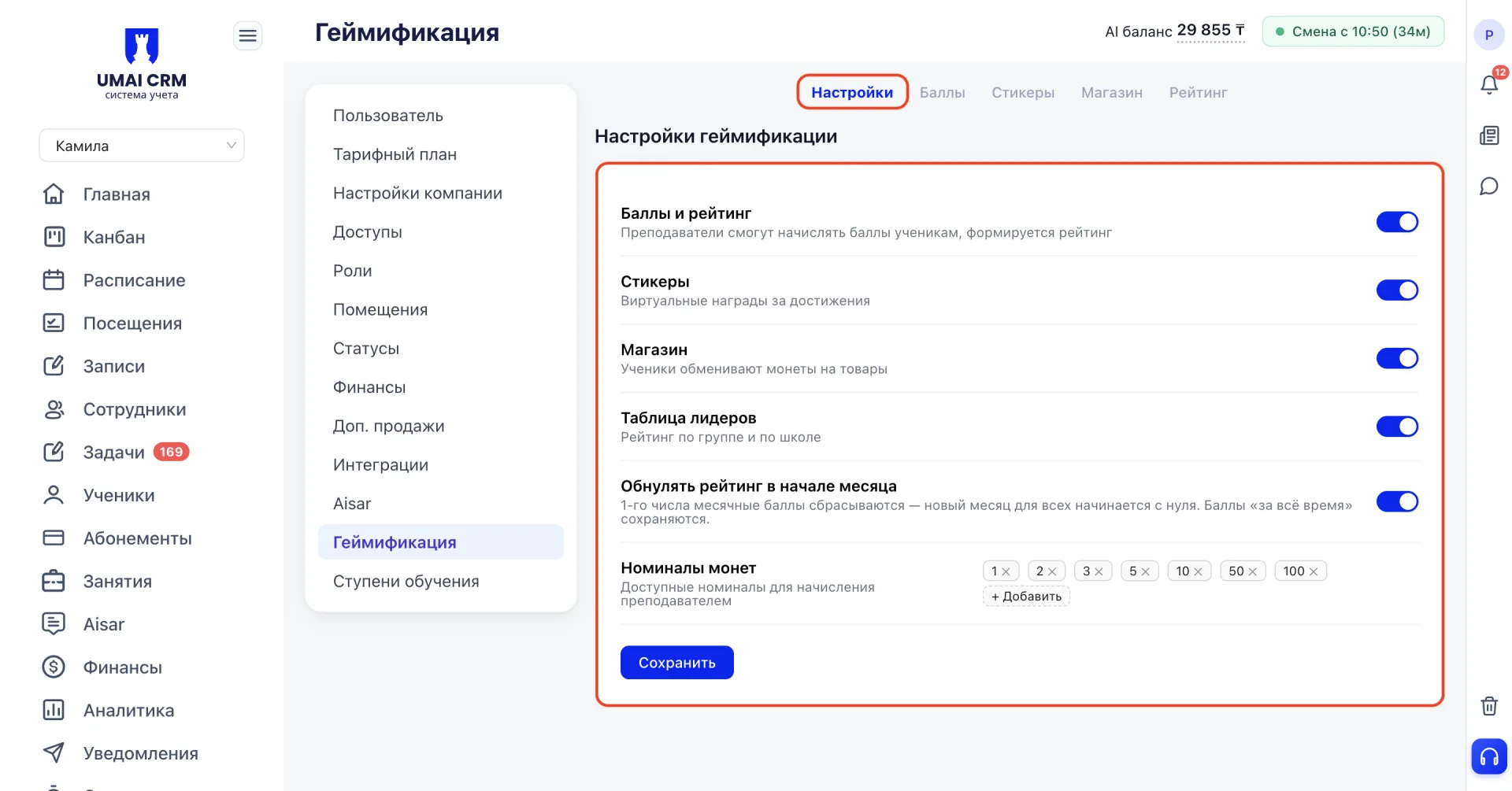
If the toggle is off, the corresponding gamification element will not be available in the system.
2. Points (Баллы)
The block defines which actions Students receive or lose points for. Points are of two types:
- Positive — increase the Student's total number of points.
- Negative — decrease the Student's total number of points.
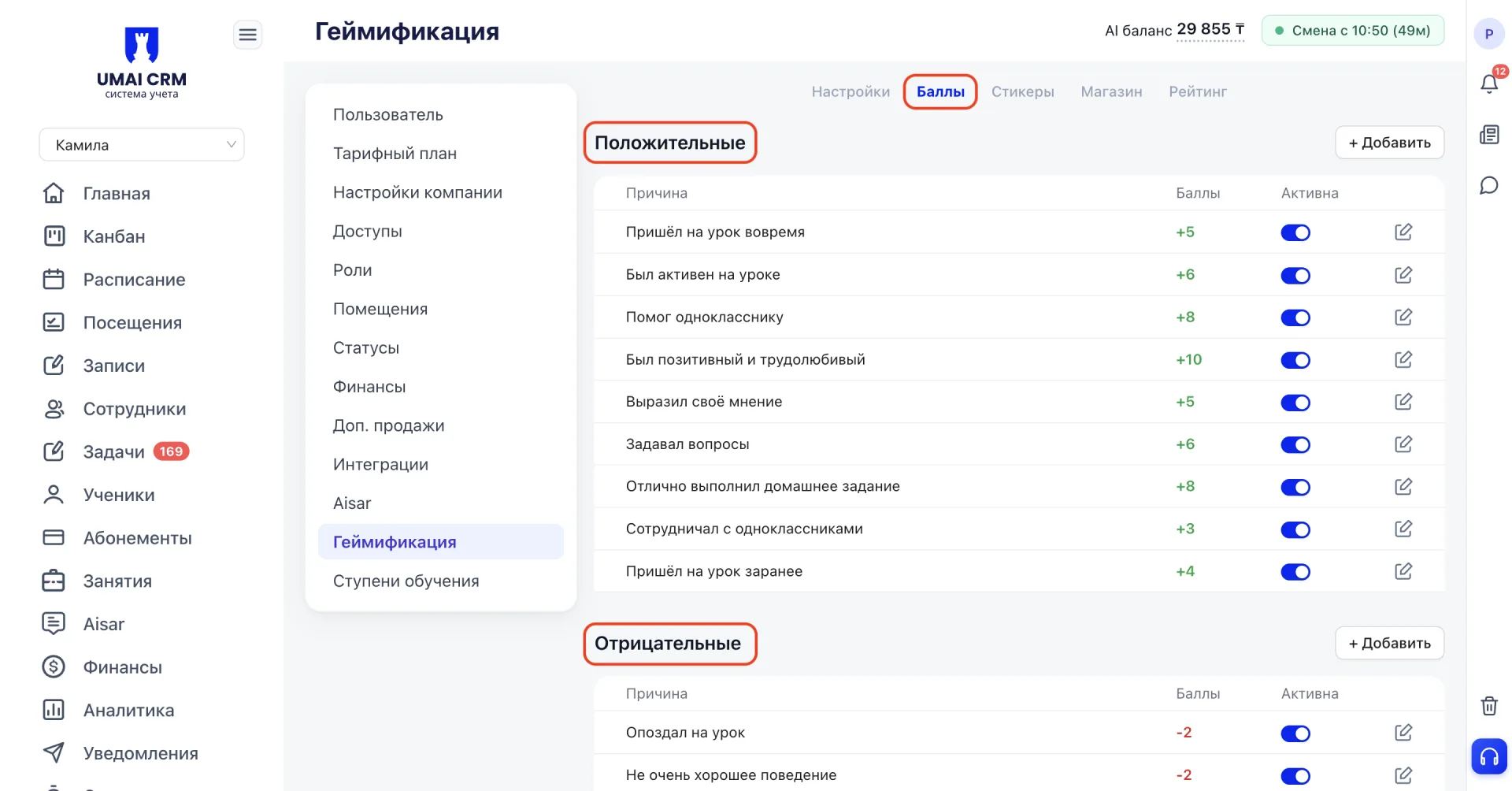
This allows you to encourage activity and correct undesirable behavior.
Adding a new action
To create a points rule, click the "Добавить" button and fill in the fields:
- Title — the reason for awarding points. For example: homework completed.
- Points — the number of points that will be added or deducted.
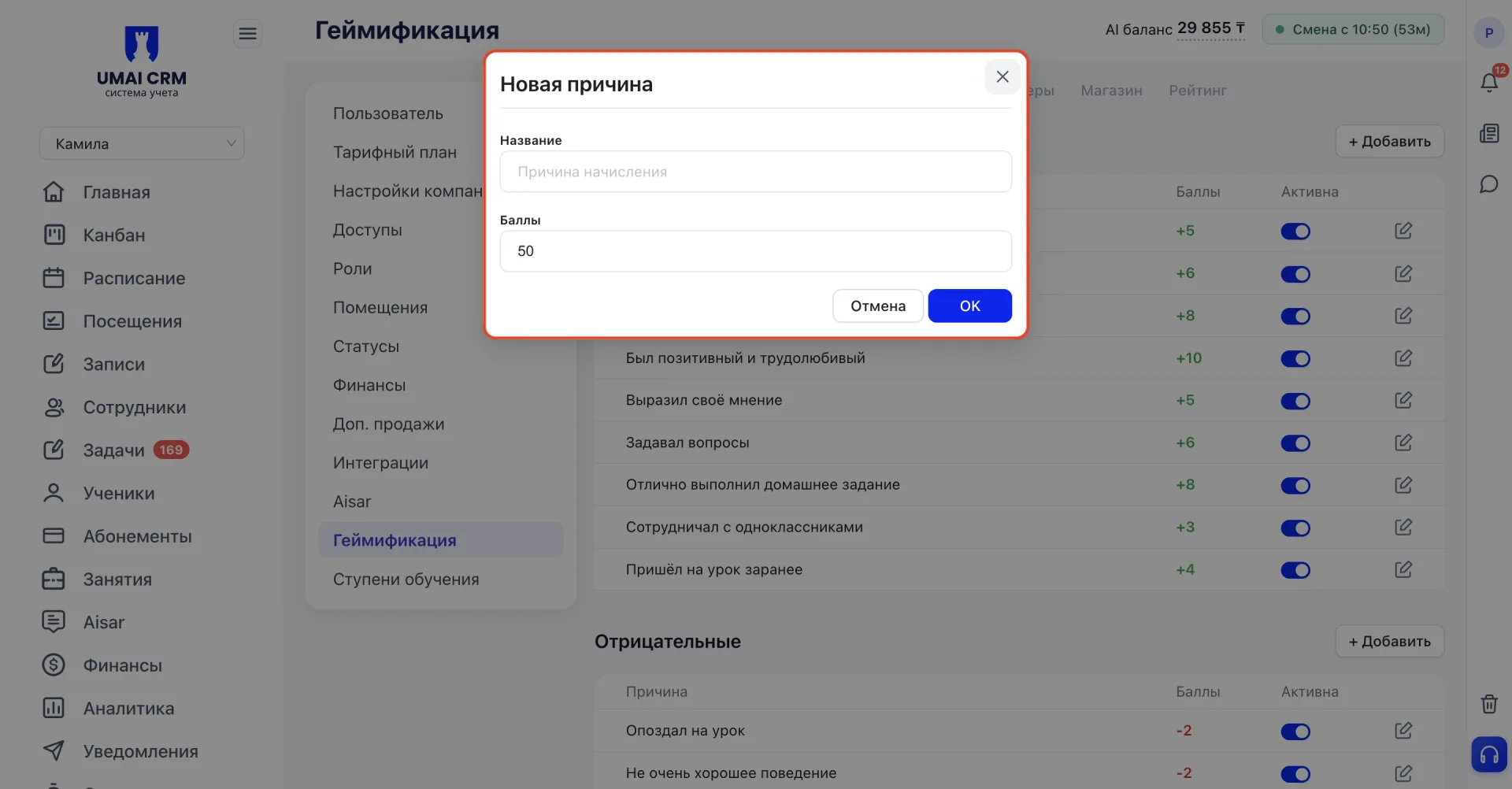
After saving, the action will appear in the list and will be available to Teachers when awarding points to Students.
3. Stickers (Стикеры)
Stickers are visual rewards that are given to Students for achievements.
Each sticker can be accompanied by awarding points.
Stickers help make the reward system more visual and understandable for Students
Sticker categories
Before adding rewards, you must create a category that defines what the stickers are awarded for. A single category can contain several stickers.
Examples of categories:
- Activity in class
- Homework
- Achievements
- Events
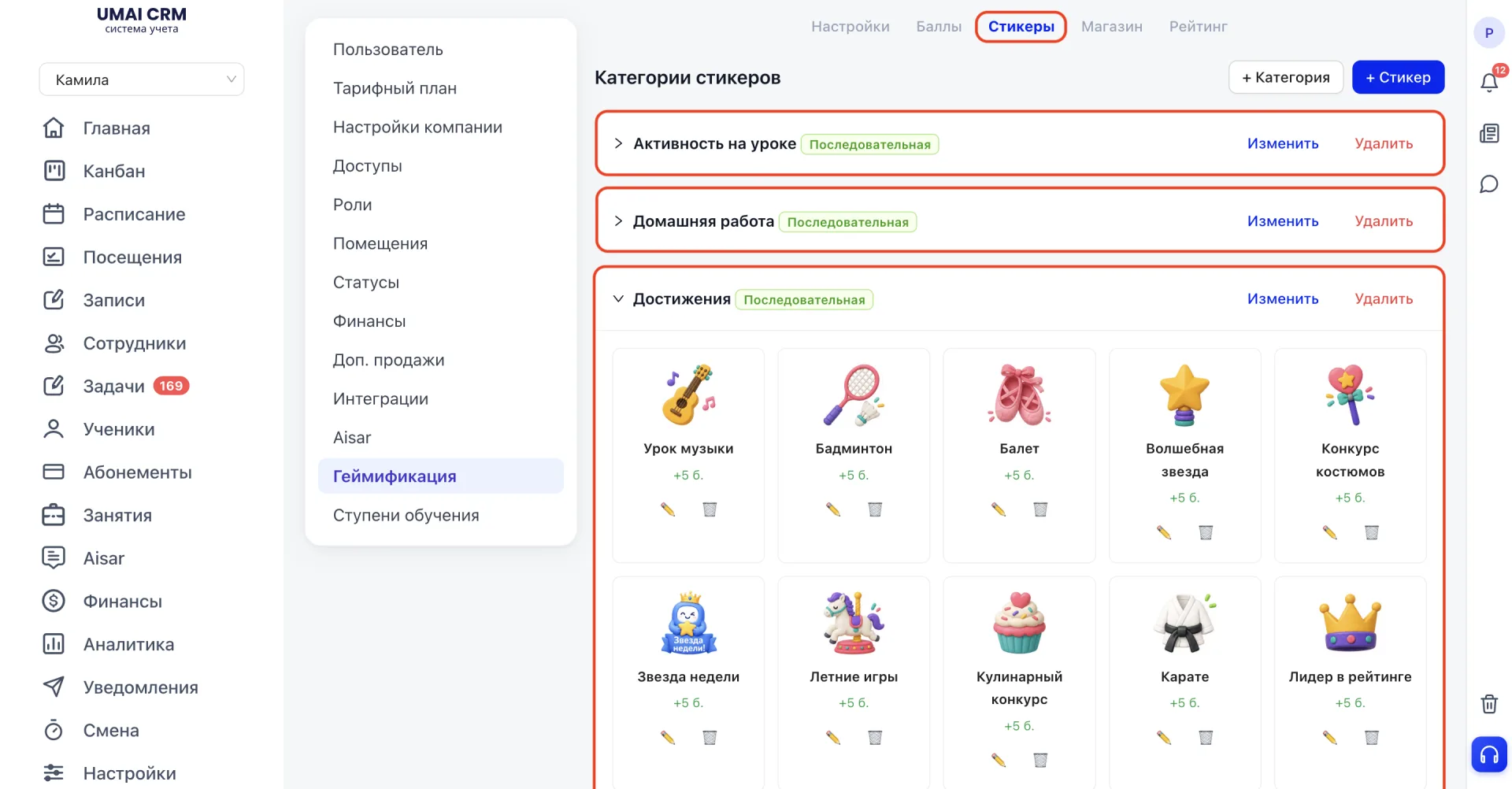
Ways to issue stickers
For each sticker category you can configure the issuance method. This is done with the "Sequential issuance" toggle in the category create or edit form.
If the toggle is on, stickers from this category are issued sequentially: the system automatically gives the Student the next sticker in order from the category.
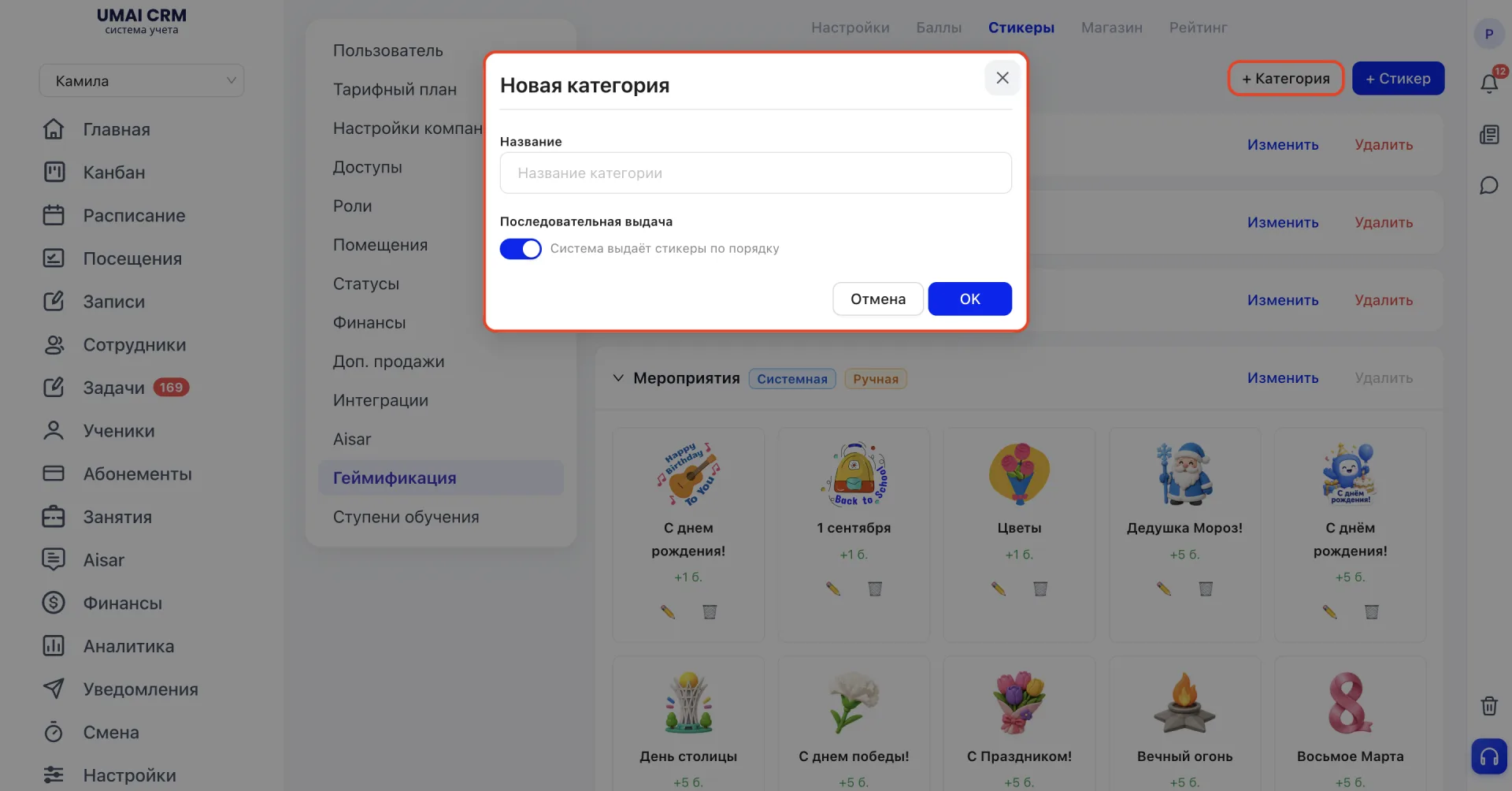
If the toggle is off, issuance becomes manual: the Teacher independently chooses which sticker to give to the Student.
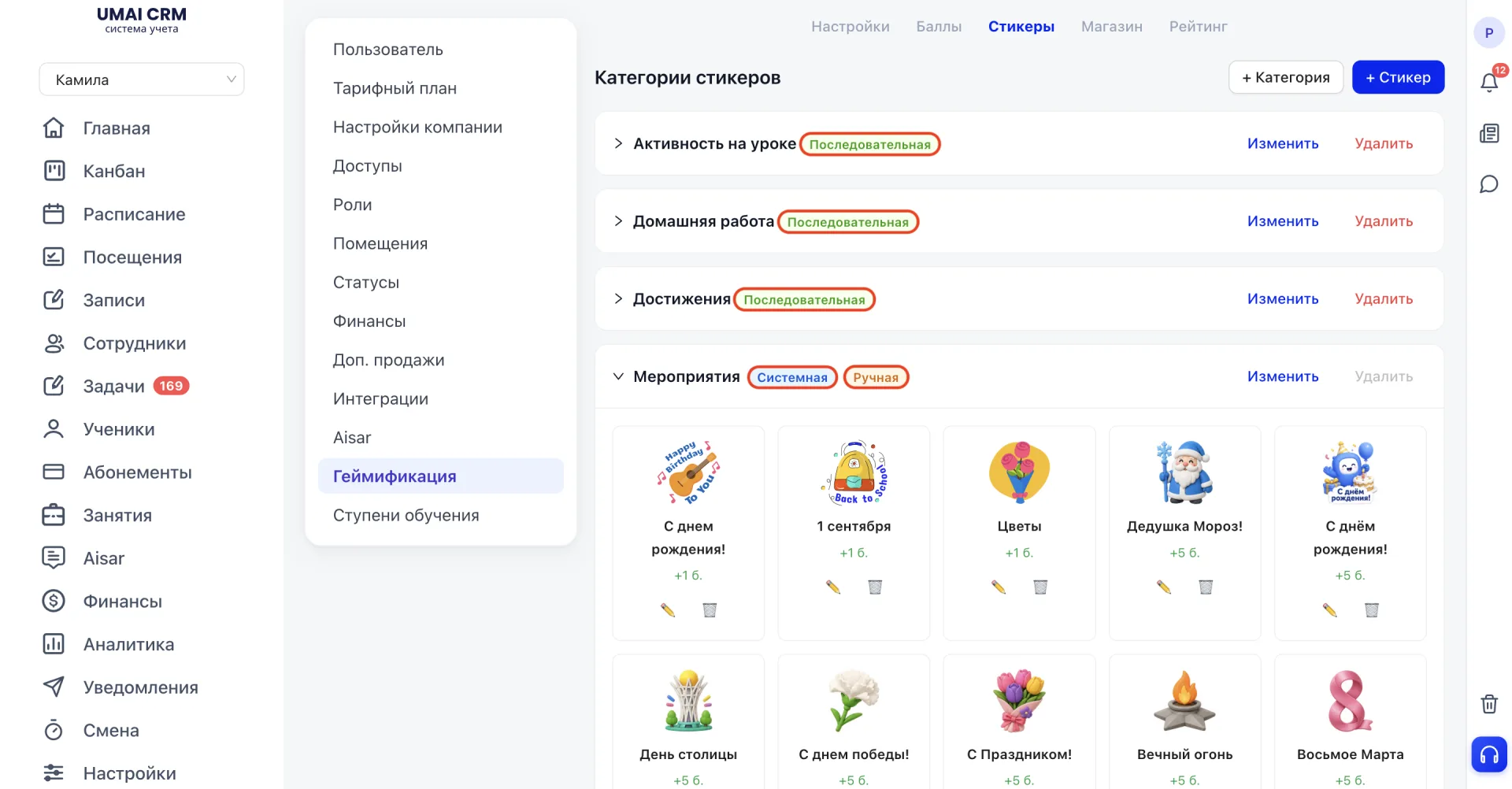
The chosen method is displayed as a tag next to the category name in the general list.
Adding a sticker
After creating a category you can add the sticker itself.
You need to fill in the following fields:
- Title — the sticker title.
- Description — a short text that the Student will see.
- Image — the image that will be displayed as the sticker.
- Points for the sticker — the number of points the Student will receive together with the sticker.
- Category — select the category to which the sticker will belong.
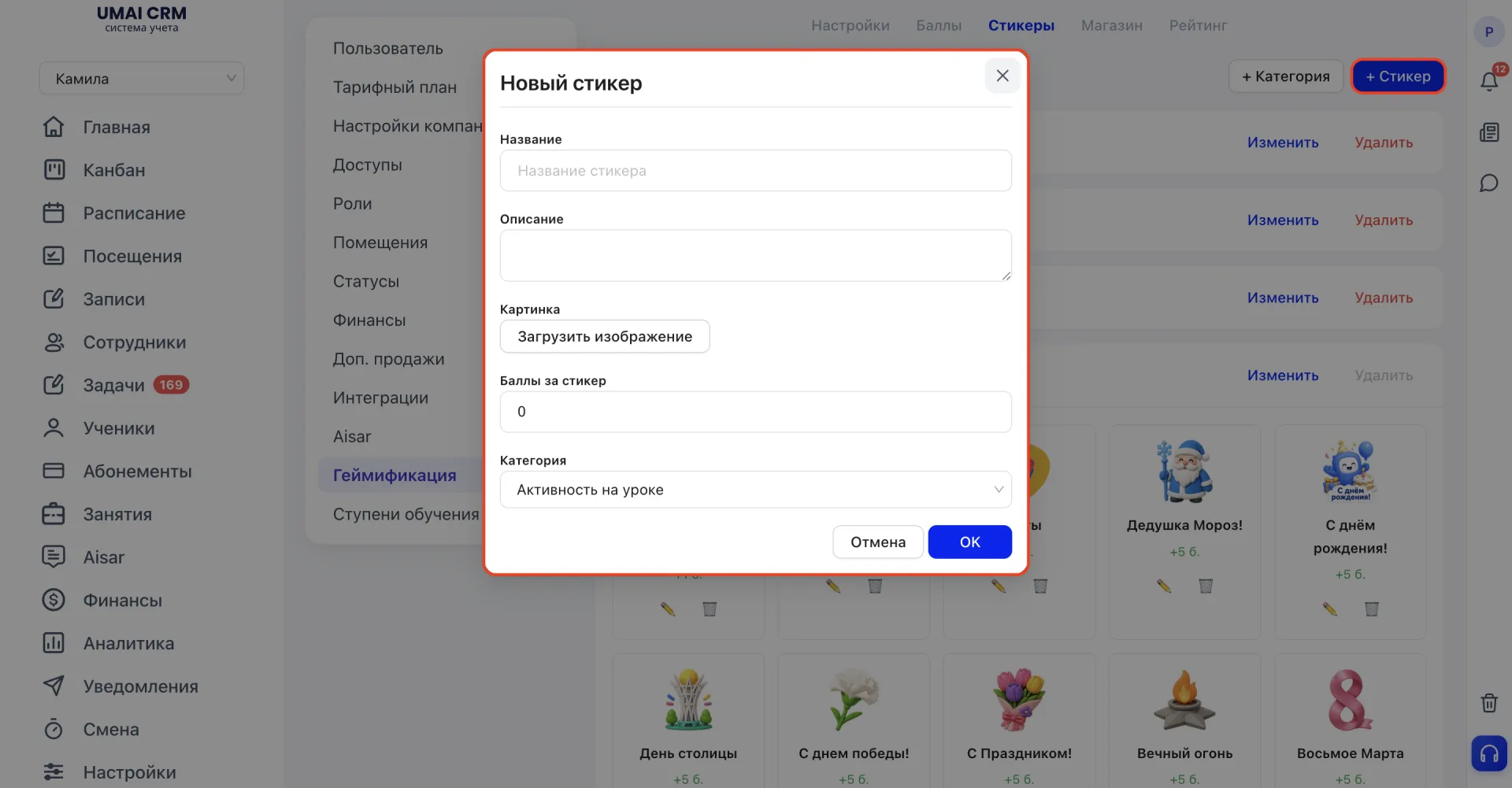
After adding, the sticker will appear in the list. Edit and delete actions are available for each sticker. Points are also awarded for stickers.
4. Shop (Магазин)
Students can exchange accumulated coins for goods or bonuses. The section consists of two parts:
- Products
- Student orders
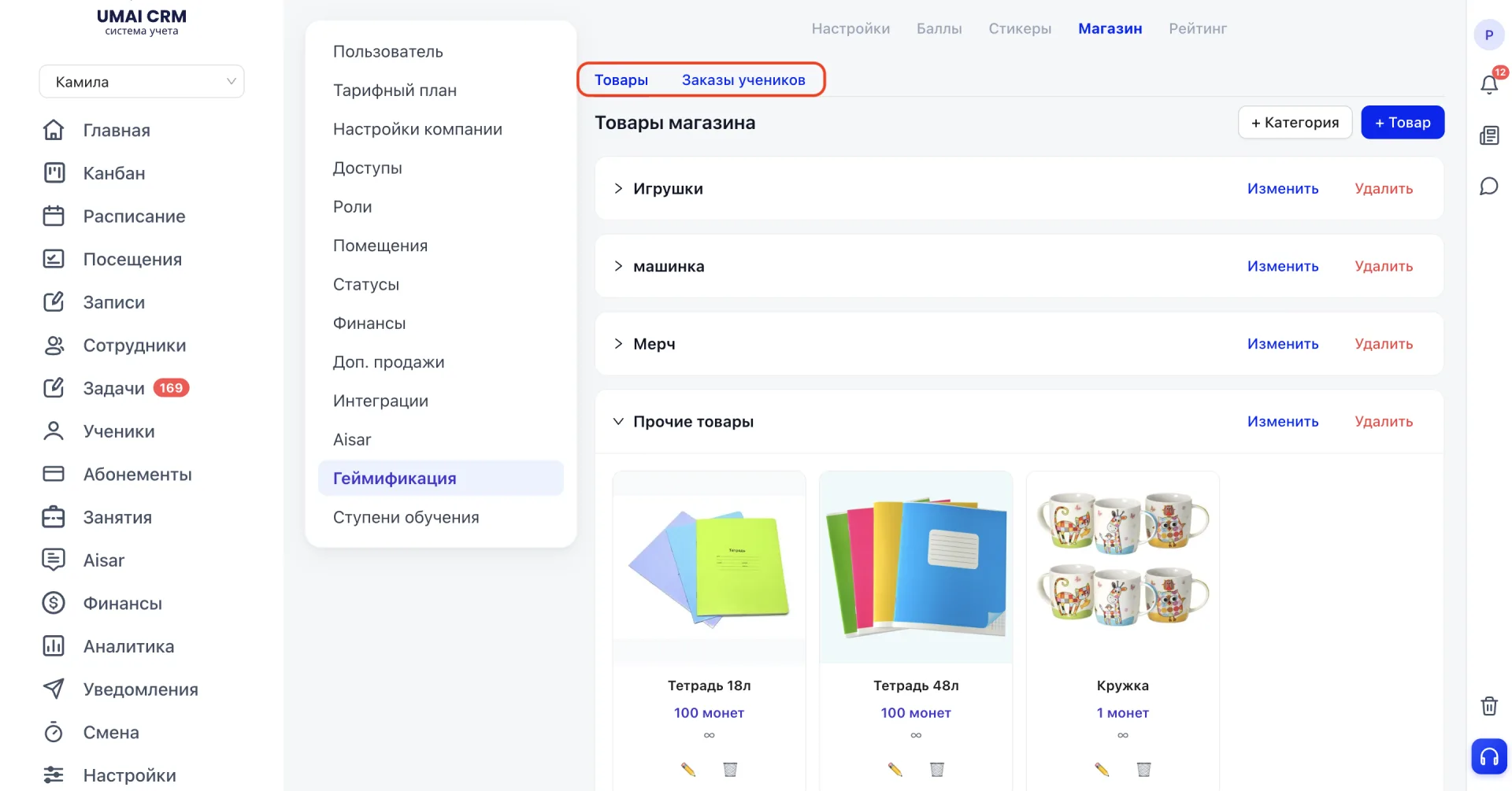
This block is where products that Students can purchase for coins are created.
To add a new product, click the "+Товар" button and fill in the following fields:
- Title — the product name.
- Description — a brief description of the product or bonus.
- Photo — product image.
- Price (coins) — the number of coins required to purchase.
- Stock — the number of available items. If the field is left empty — the product will be available without limits.
- Category - the product category.
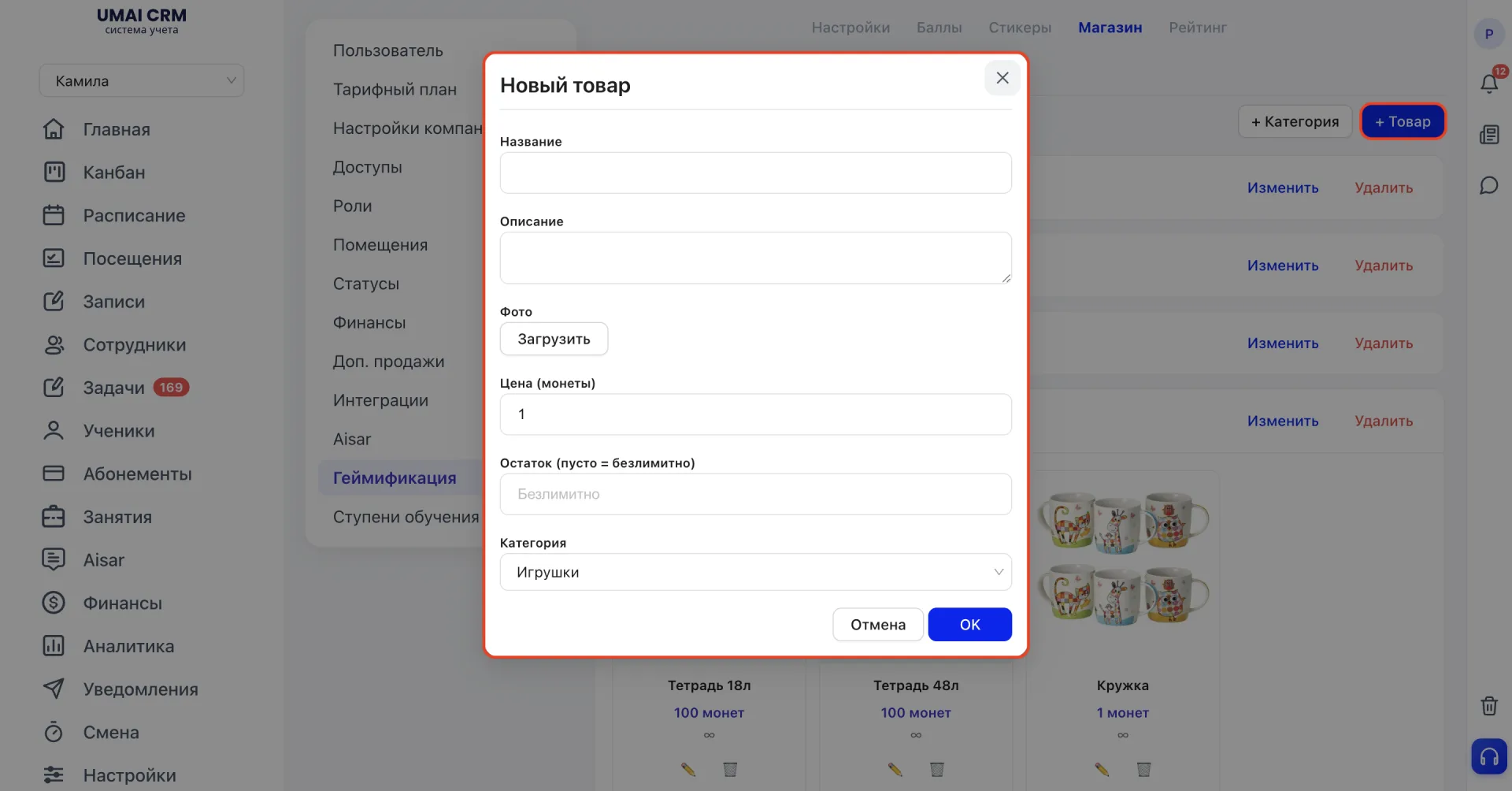
If the required category does not exist, you must first create a category and then add the product.
The main part of the page is presented as a table that contains the following columns:
- Student — the name of the Student who placed the order.
- Product — the name of the product chosen in the shop.
- Price — the number of coins that were deducted for the purchase.
- Status — the current status of the order. It shows whether the order has been processed or is pending.
- Date — the date the order was placed by the Student.
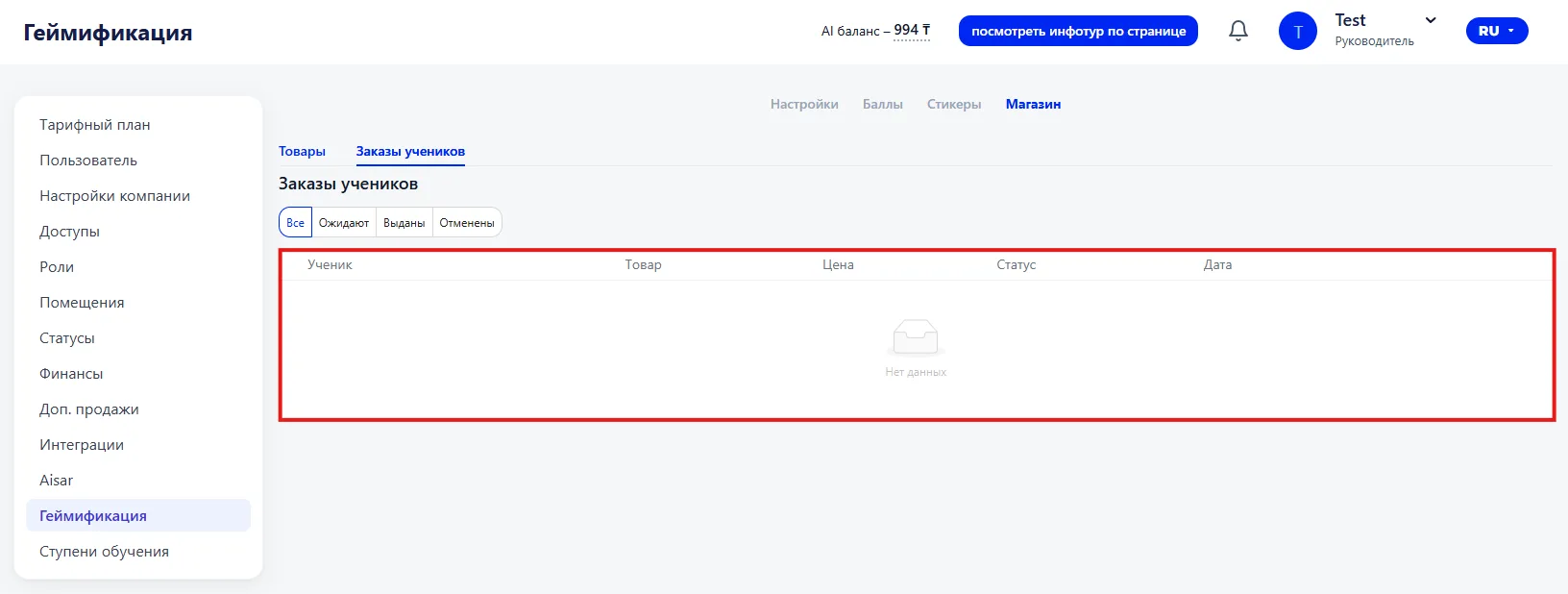
For viewing convenience, orders can be filtered by status. The following options are available:
- All — shows all orders regardless of their state.
- Pending — orders that were placed by Students but not yet issued.
- Issued — orders that have already been processed and handed over to Students.
- Cancelled — orders that were cancelled and not issued.
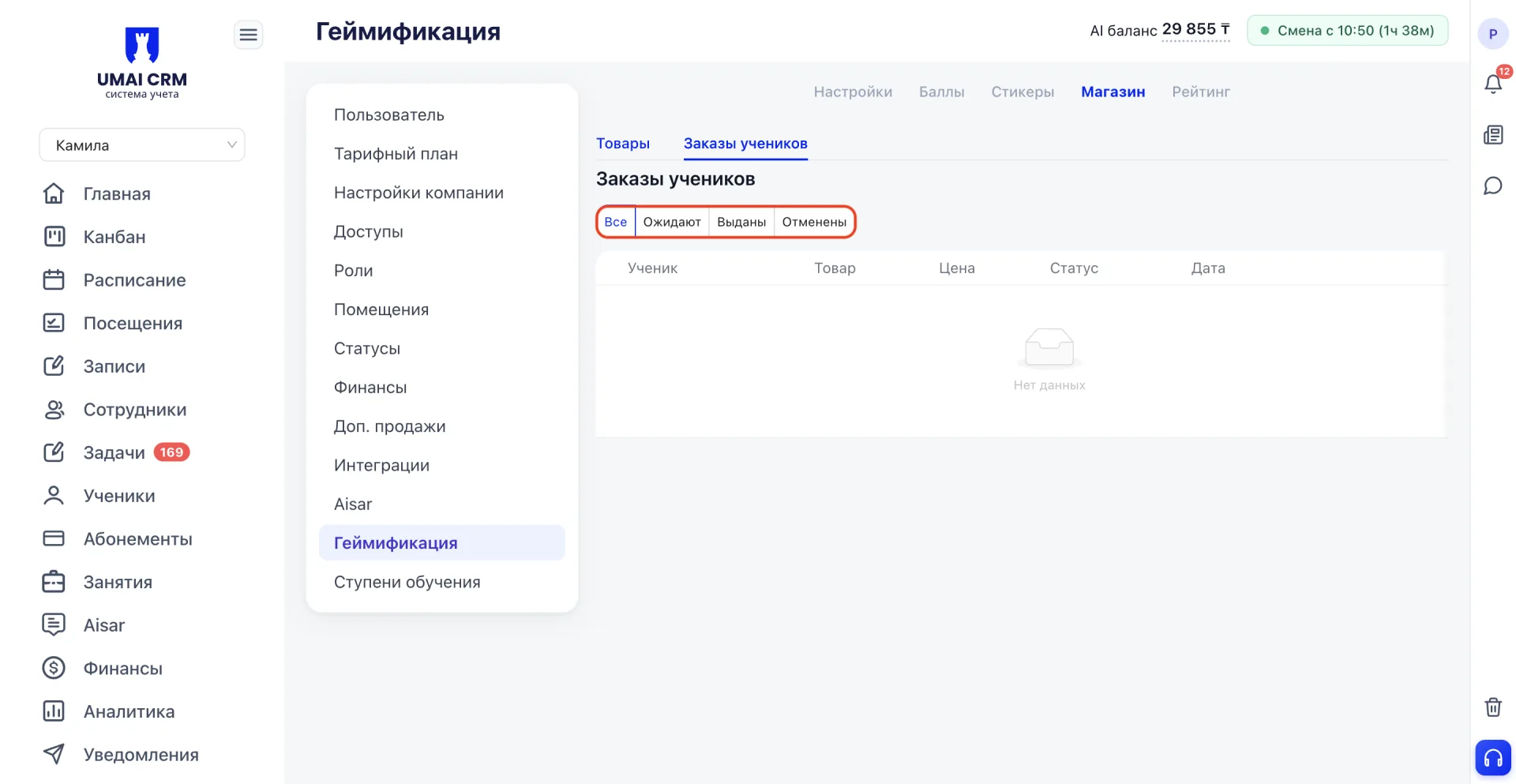
Filtering allows you to quickly find new requests and track the fulfillment of shop orders.
5. Rating (Рейтинг)
The section shows Students' ranking based on accumulated points, coins, and stickers. The rating helps Students see their progress and compare results with others.
How the data in the table is formed
- Points — pulled from the "Points (Баллы)" block: each award or deduction that a Teacher gives to a Student is immediately reflected in their position in the rating.
- Coins — show how many coins the Student currently has in their balance. This is the remainder after all purchases in the "Shop (Магазин)". If a Student has already bought something, the spent coins are not counted in the rating, and the "Coins" column shows only the available amount for new purchases.
- Stickers — the number of stickers awarded to the Student from the "Stickers (Стикеры)" block. They affect the rating only quantitatively (by count), not via points for the sticker — points for the sticker are already included in the total "Points" column.
Display filters
The "Whole school" or "By group" filter changes the data scope: either all Students of the school are compared, or only Students within one Group. This affects a Student's position because the same Student can be first in their Group but occupy a lower place in the overall school rating.
The "For month" or "All time" filter changes the period of points accounting. Here the connection with the "Reset rating at the beginning of the month" setting from the "Settings (Настройки)" block is important: if it is enabled, on the 1st the monthly points are reset, and the "For month" filter starts counting again from zero, while "All time" continues accumulating points without reset. If the setting is disabled, both filters will show the same growing values.
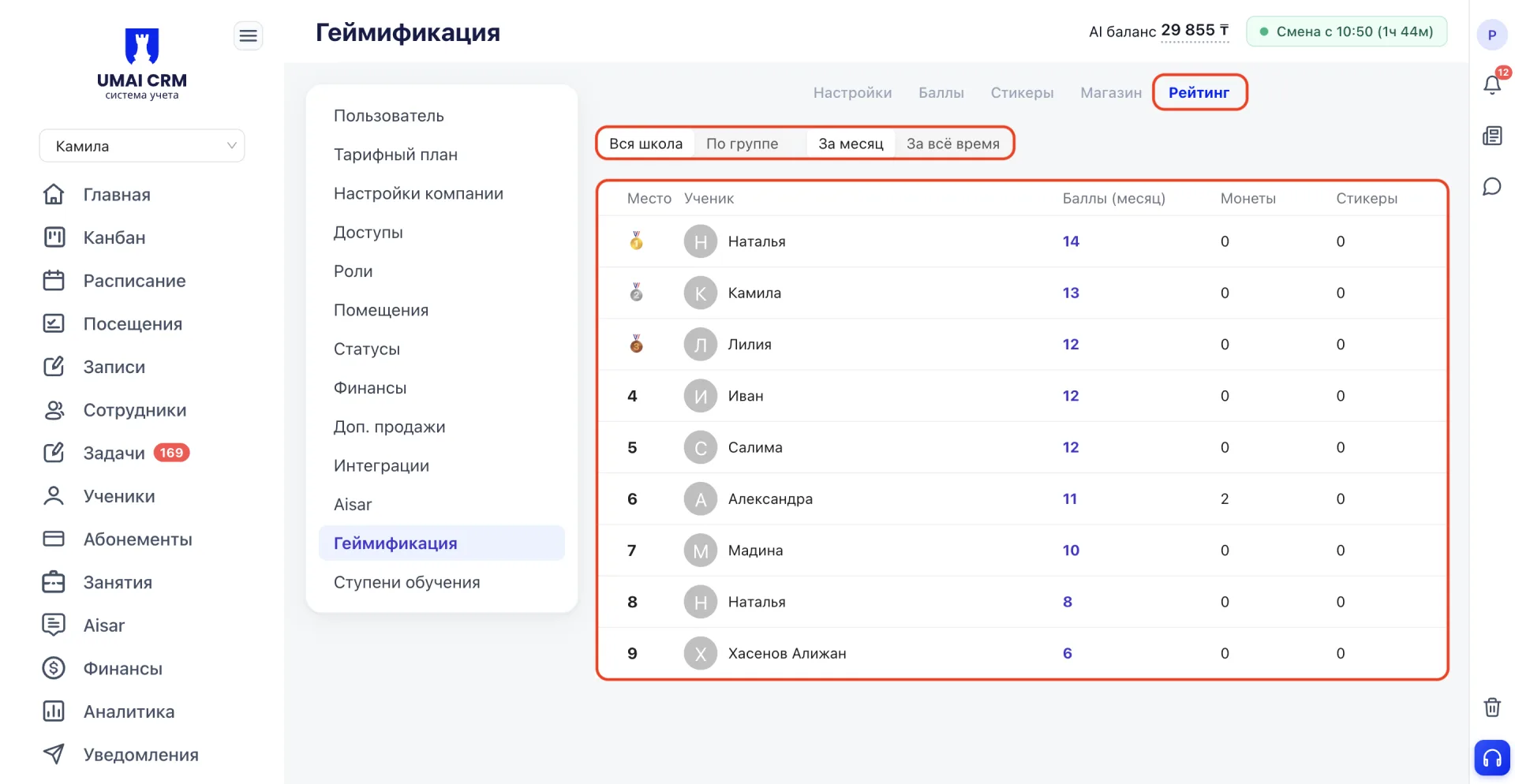
Filters can be combined to get the desired data slice, for example "By group" + "For month".
Rating table
The main part of the page is presented as a table with the following columns:
- Place — the Student's position in the rating. The top three places are marked with medals.
- Student — the Student's name.
- Points (month) — the number of points earned by the Student for the selected period.
- Coins — the number of coins accumulated by the Student and available for exchange in the shop.
- Stickers — the number of stickers received by the Student.
The table is automatically sorted by descending points, which allows you to immediately see the rating leaders.
Important to consider
- Points and stickers directly affect the overall Students' rating. Any award or deduction is immediately reflected in the Student's position in the table.
- Stickers can additionally grant points if this is specified in the sticker settings. In that case these points automatically go into the total "Points" column in the rating and are not accounted separately.
- The rating is a derived section. It does not contain its own awarding settings, but only displays data from the "Points (Баллы)", "Stickers (Стикеры)", and "Shop (Магазин)" blocks. If the required function is disabled in the "Settings (Настройки)" section, the corresponding gamification element will not work and its data will not appear in the rating.
- Resetting the rating at the beginning of the month only affects the "For month" filter. The "All time" accumulations are never reset. This should be taken into account when handling questions like "why did the monthly points disappear, but the overall remained".
- The "Coins" column in the rating shows the current balance, not the total amount of coins earned over all time. If a Student earned 20 coins and spent 15 on a product in the "Shop (Магазин)", the rating will display the remainder, i.e. 5.
- The price of products in the shop should correspond to the number of coins that Students can realistically earn, otherwise accumulated coins will have no uses and Student motivation to collect them will decrease.
- If two or more Students have the same number of points, the order between them is determined automatically by the system using additional criteria, for example by the time of award, and is not set manually.