The section consolidates all center memberships in one place and lets you see who is signed up for which Classes, how many visits remain, when the validity period ends, and the total amount of Memberships issued. This helps control payments, track active clients, and work with debts.
Main blocks:
- Access to the section
- Tabs «Memberships» and «Packages (Пакеты)»
- Summary line
- Search and filters
- Table column settings
- Grouping mode
- Membership statuses
- Memberships table
- Tab «Packages (Пакеты)»
- Issuing a Membership
- Membership card
1. Access to the section
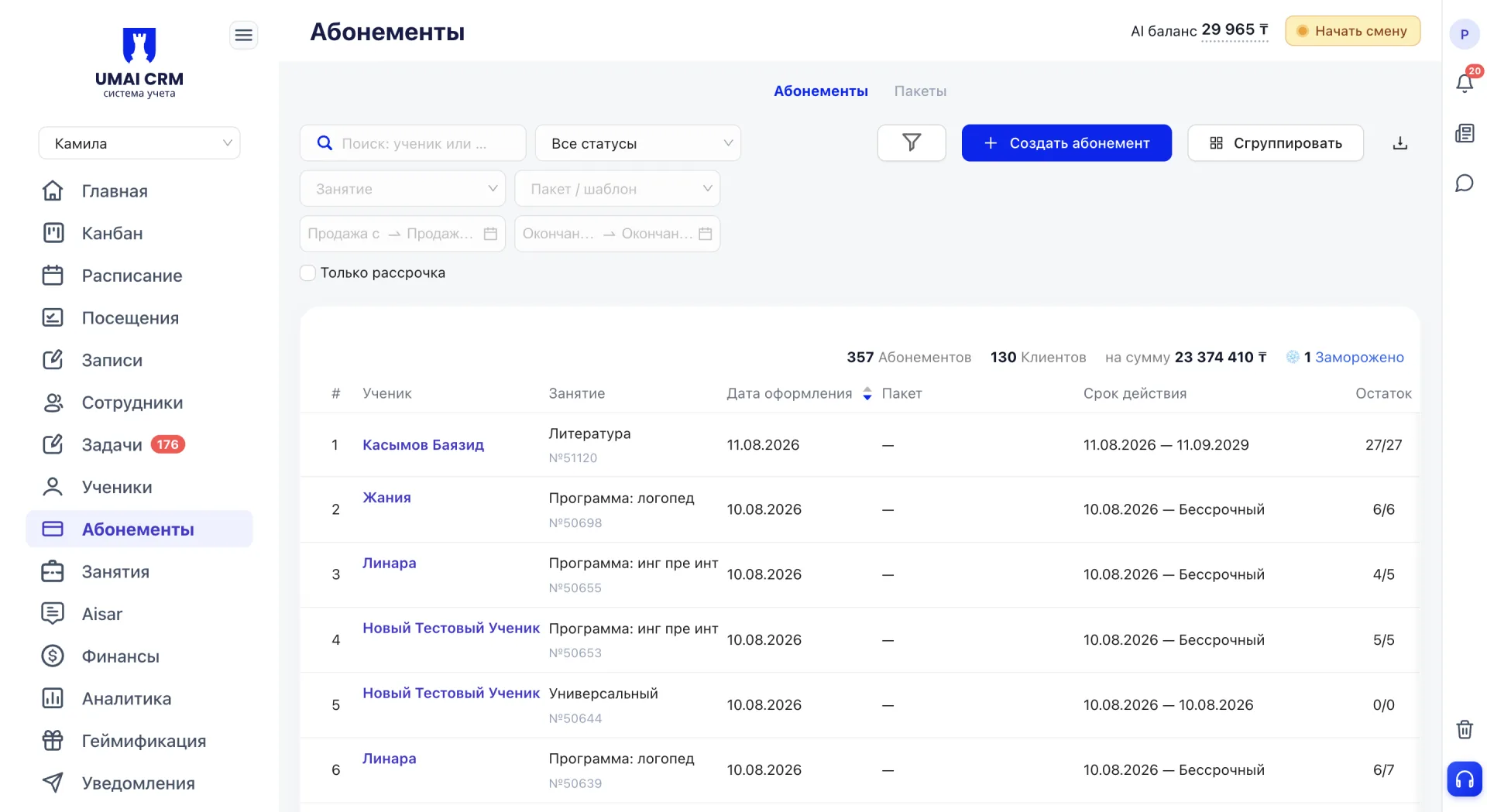
The «Memberships» section is located in the left sidebar menu. After navigating there, a table with all center Memberships will open.
2. Tabs «Memberships» and «Packages (Пакеты)»
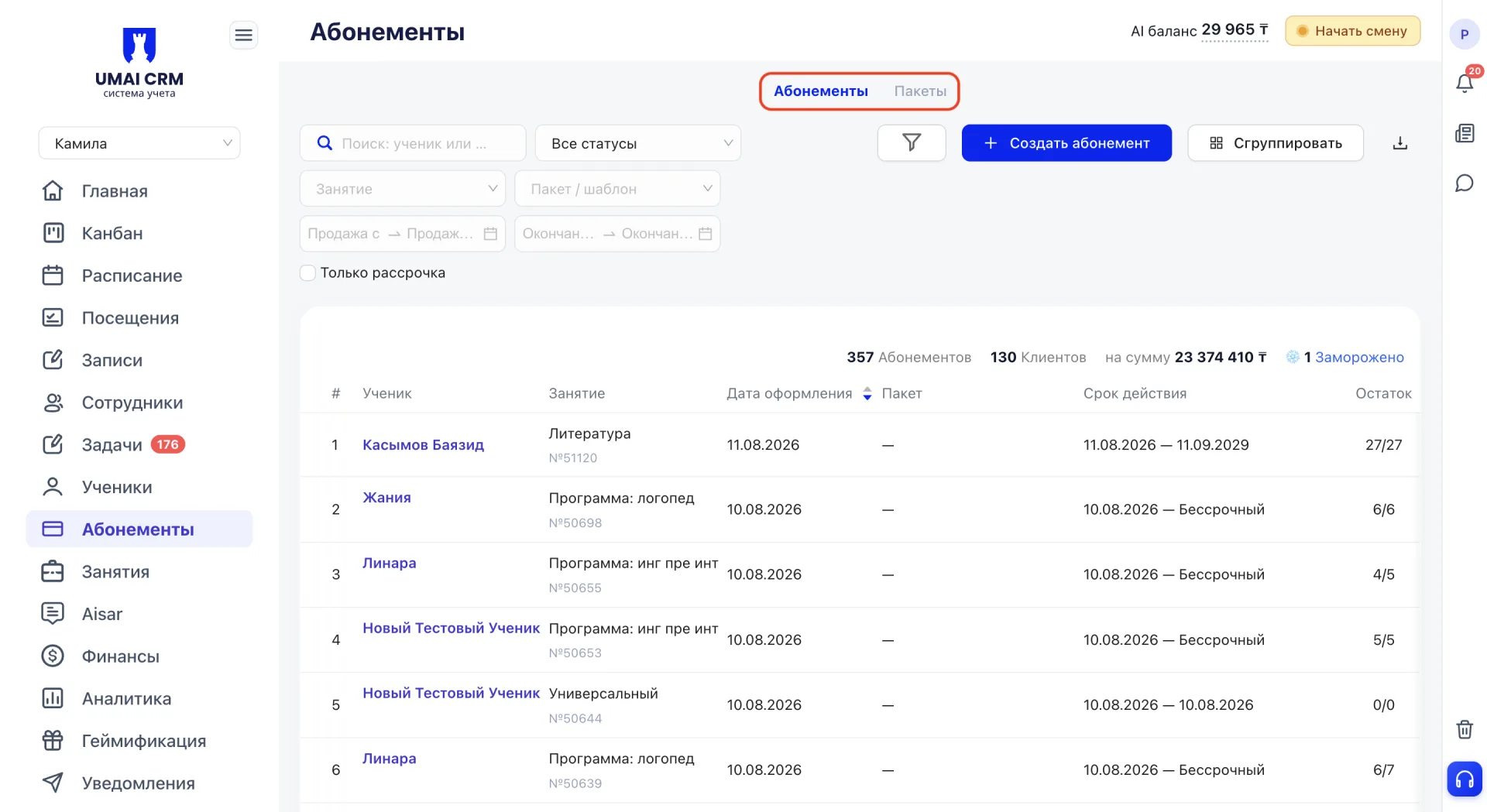
The page consists of two tabs. The «Memberships» tab opens by default and contains a list of all issued Memberships. The «Packages (Пакеты)» tab contains global Membership templates that can be used when issuing a Membership so you don't have to fill in parameters manually each time. Working with the «Packages (Пакеты)» tab is described in block 9.
3. Summary line
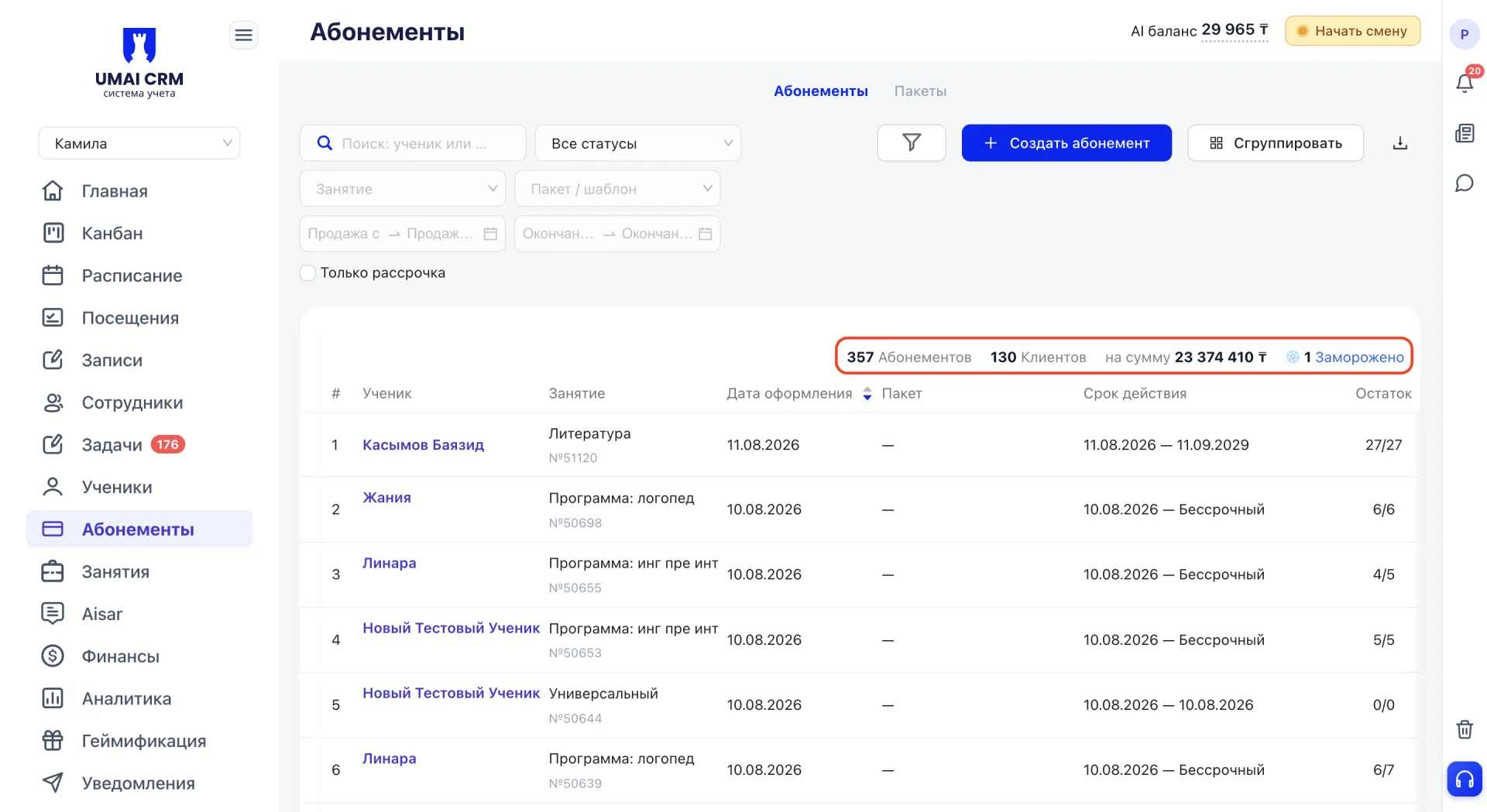
At the top of the table, overall statistics for all Memberships are displayed. It updates automatically and reflects the current state of the data considering the applied filters.
Number of Memberships — the total number of records in the system.
Clients — how many unique Students have at least one Membership.
Total amount — the total cost of all Memberships.
Frozen — the number of Memberships that are currently frozen.
4. Search and filters
Above the table are tools that help quickly find the needed Memberships.
Search — a field for searching by Student name or phone number. Useful when you need to check a specific client's Memberships.
All statuses — a dropdown to filter by Membership status.
Available values:
- Active — Memberships that are currently in effect
- Completed — used up or expired by date
- Frozen — temporarily suspended
- Future freeze — Memberships that have a freeze scheduled
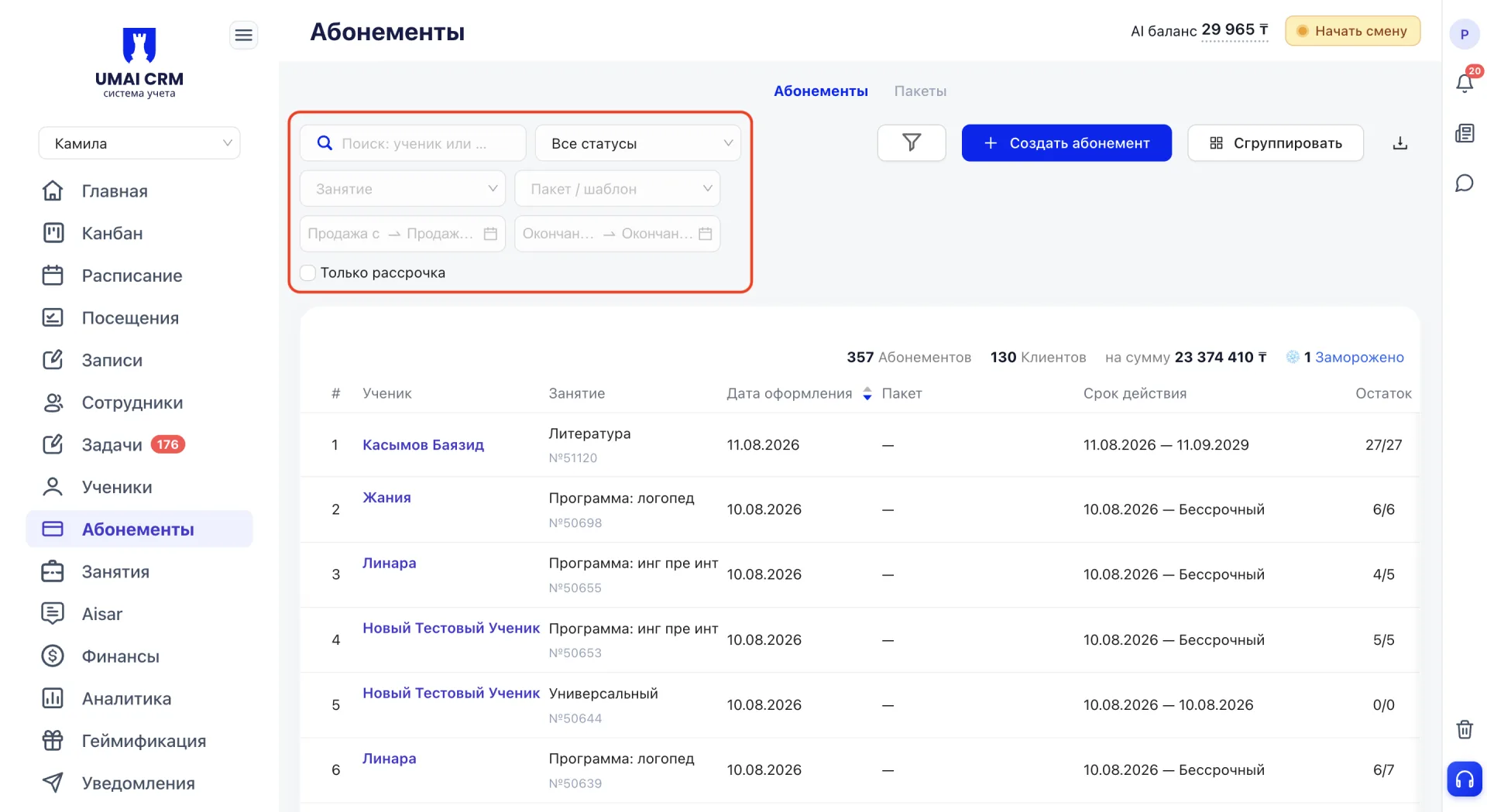
Class — a filter by Class name. Shows only Memberships issued for the selected Class.
Package / template — a filter for Memberships issued based on a specific package.
Sale from / to — a filter by Membership issue date. Helps find records for the desired period.
End from / to — a filter by end date. Useful for finding Memberships that will expire soon.
Only installment — a checkbox that shows only Memberships issued on installment.
All filters affect only the display of the list; the data in the system is not changed.
5. Table column settings
The funnel icon button next to the filters opens the list of table columns that can be toggled: #, Student, Class, Issue date, Package, Validity period, Remaining, Price, Status, Comment. This allows you to customize the table for your tasks by hiding unnecessary data.
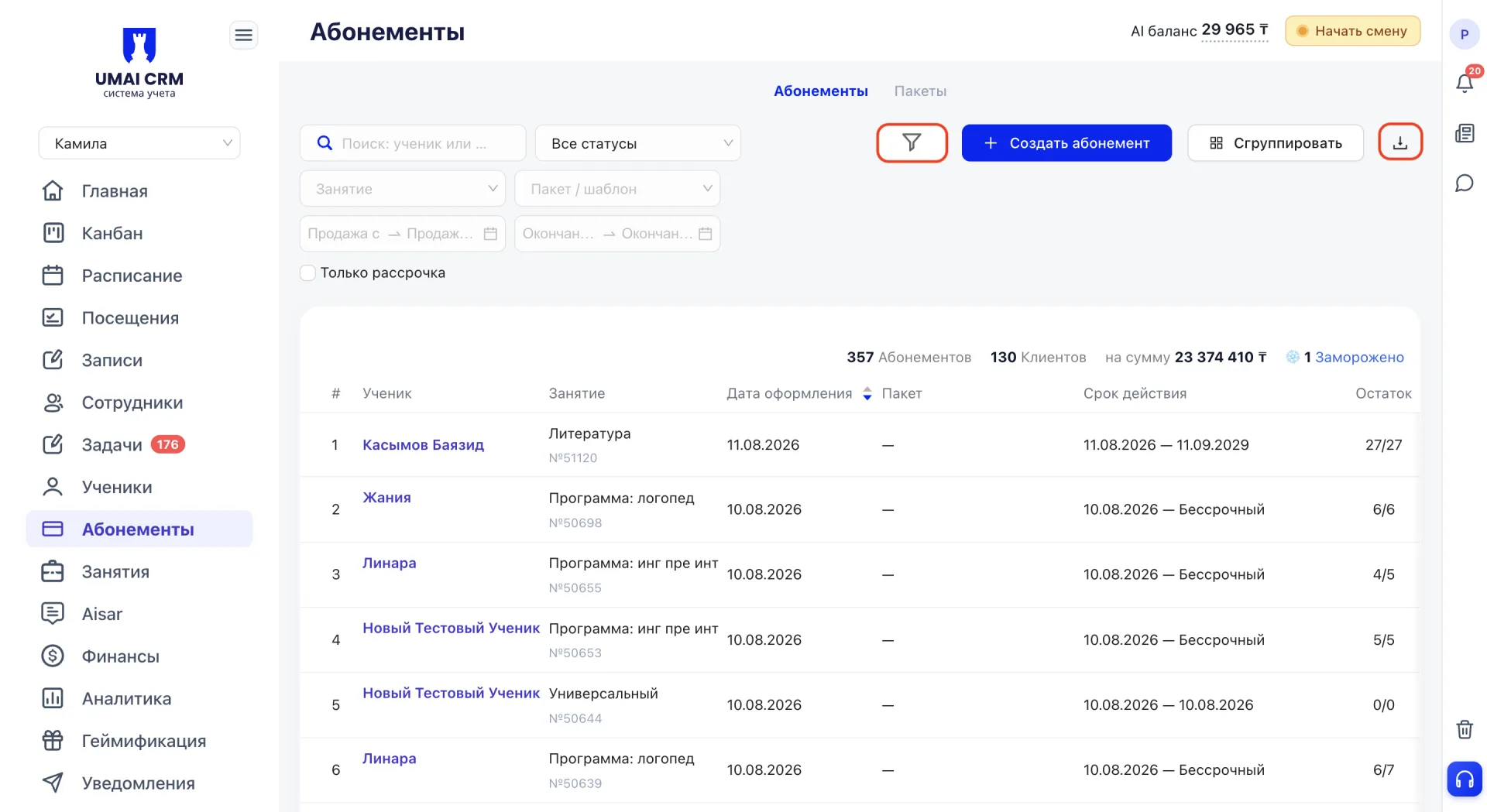
The download icon button next to “Group” exports the list of Memberships.
6. Grouping mode
The "Group" button in the top right corner switches the table to an alternative view. Memberships are grouped by Classes, and a total amount is shown for each Class. Inside a group you can expand the list and see individual Memberships broken down by months of issue.
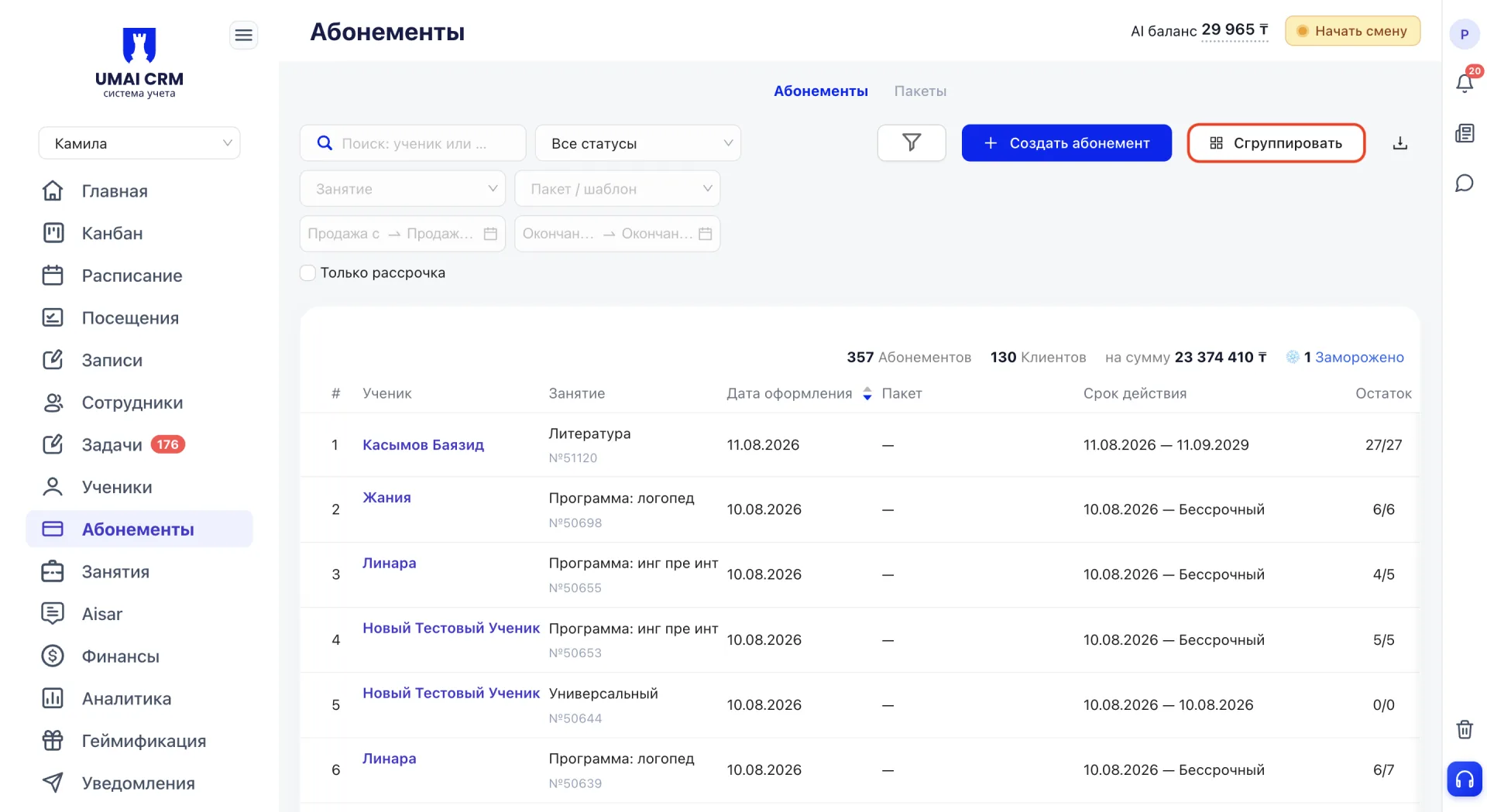
This mode is useful when you need to assess the workload of a specific direction or check how many Students paid for a Class during a certain period.
7. Membership statuses
Status shows the current state of a Membership and whether visits can be attended under it.
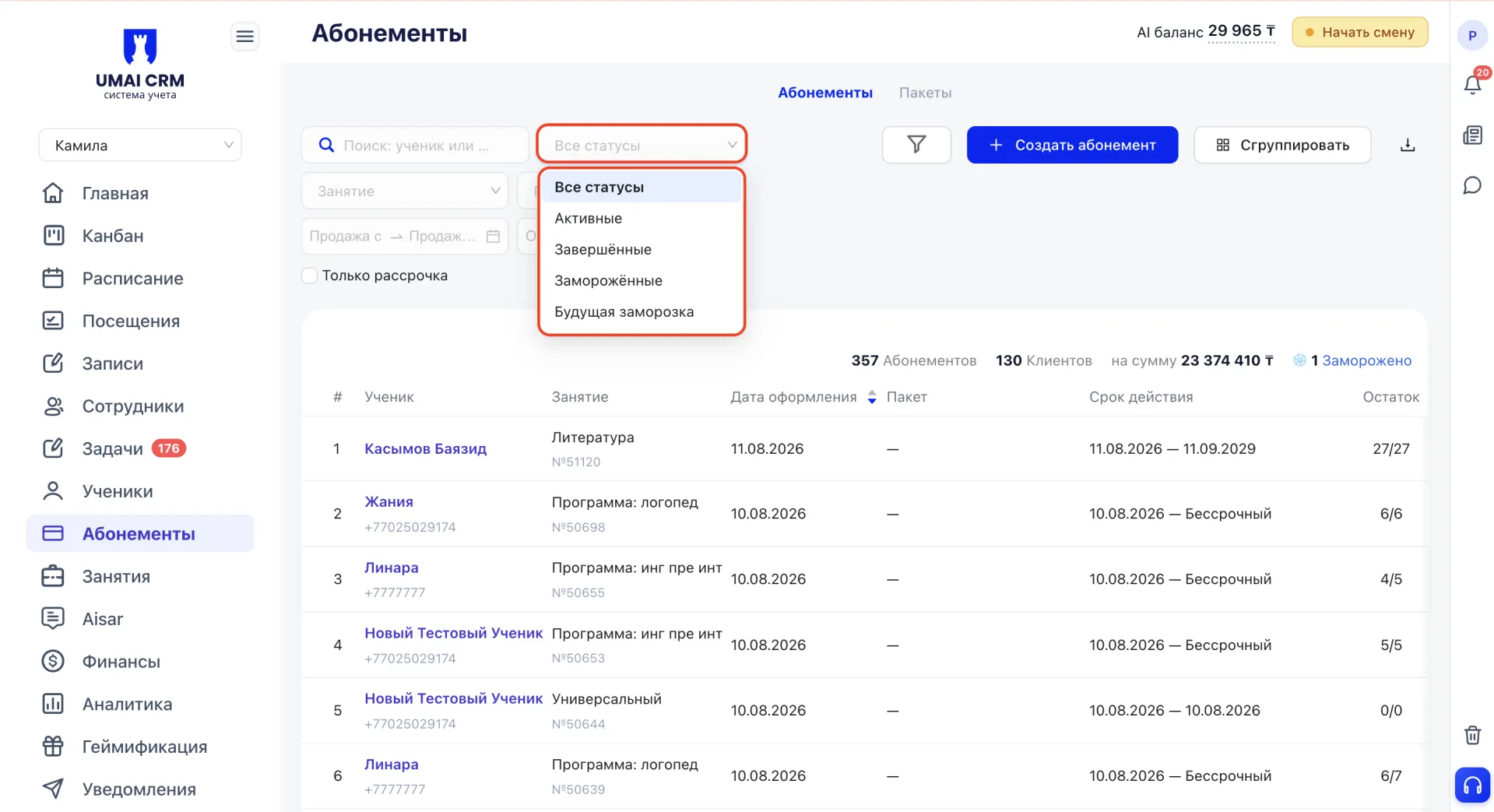
Active — the Membership is valid; visits are deducted in the normal mode.
Active + Auto-renew — the Membership is valid, and after expiration the system will automatically create a new one with the same parameters, charging the cost from the Student's balance.
Completed — all visits are used or the validity period has expired.
Frozen — the Membership is temporarily suspended; visits are not deducted.
Refund — a refund has been issued for the Membership.
8. Memberships table
In the standard mode, the table shows one Membership per row. Each row contains the following data:
- # — sequential record number.
- Student — the Student's name and phone. Clicking opens the Student card.
- Class — the Class name and Membership number.
- Package - the package-template name if the Membership was issued based on it.
- Issue date — when the Membership was created.
- Validity period — the period during which the Membership is active. If the end date is not specified, “Unlimited” is shown. If a freeze is active on the Membership, a tag with the freeze end date is displayed under the validity period.
- Remaining — the number of remaining sessions out of the total, e.g. “5/12”.
- Price — the cost of the Membership.
- Status — the current state of the Membership.
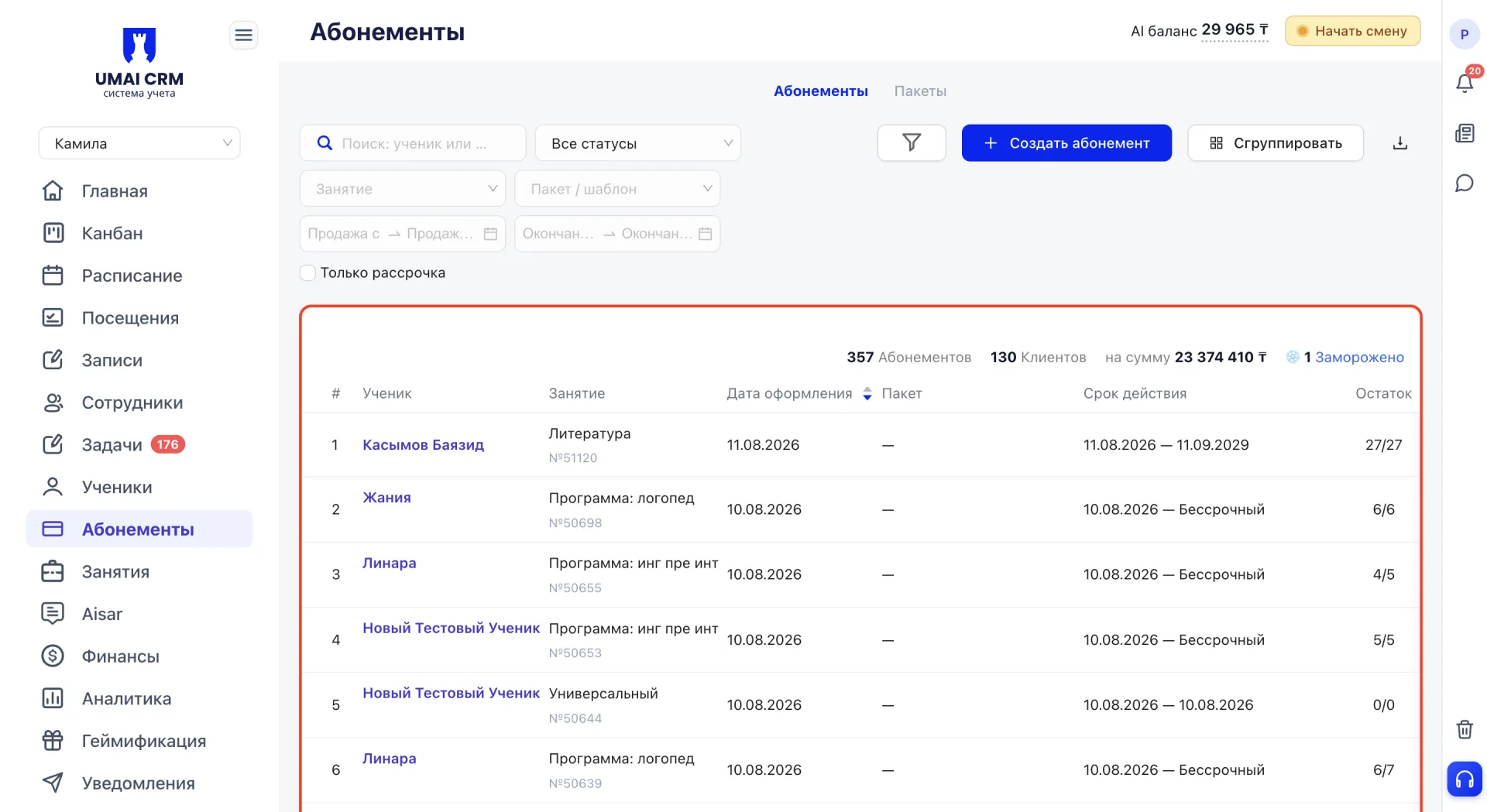
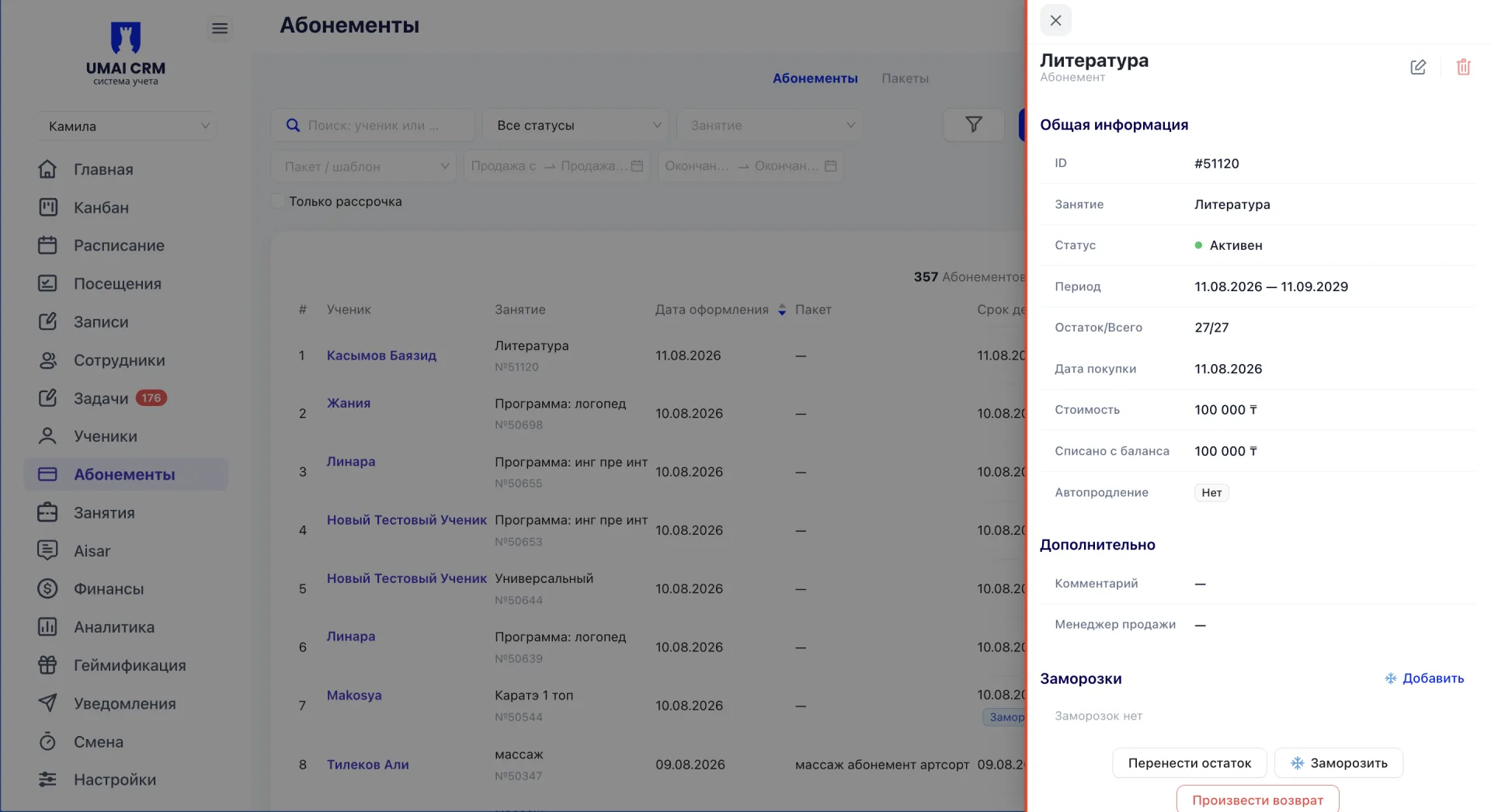
To open detailed information, click the row; a panel with the Membership card will slide out on the right.
9. Tab «Packages (Пакеты)»
The «Packages (Пакеты)» tab contains global package-templates with the Teacher salary rate. Packages are not tied to a specific Class and can be issued for any group.
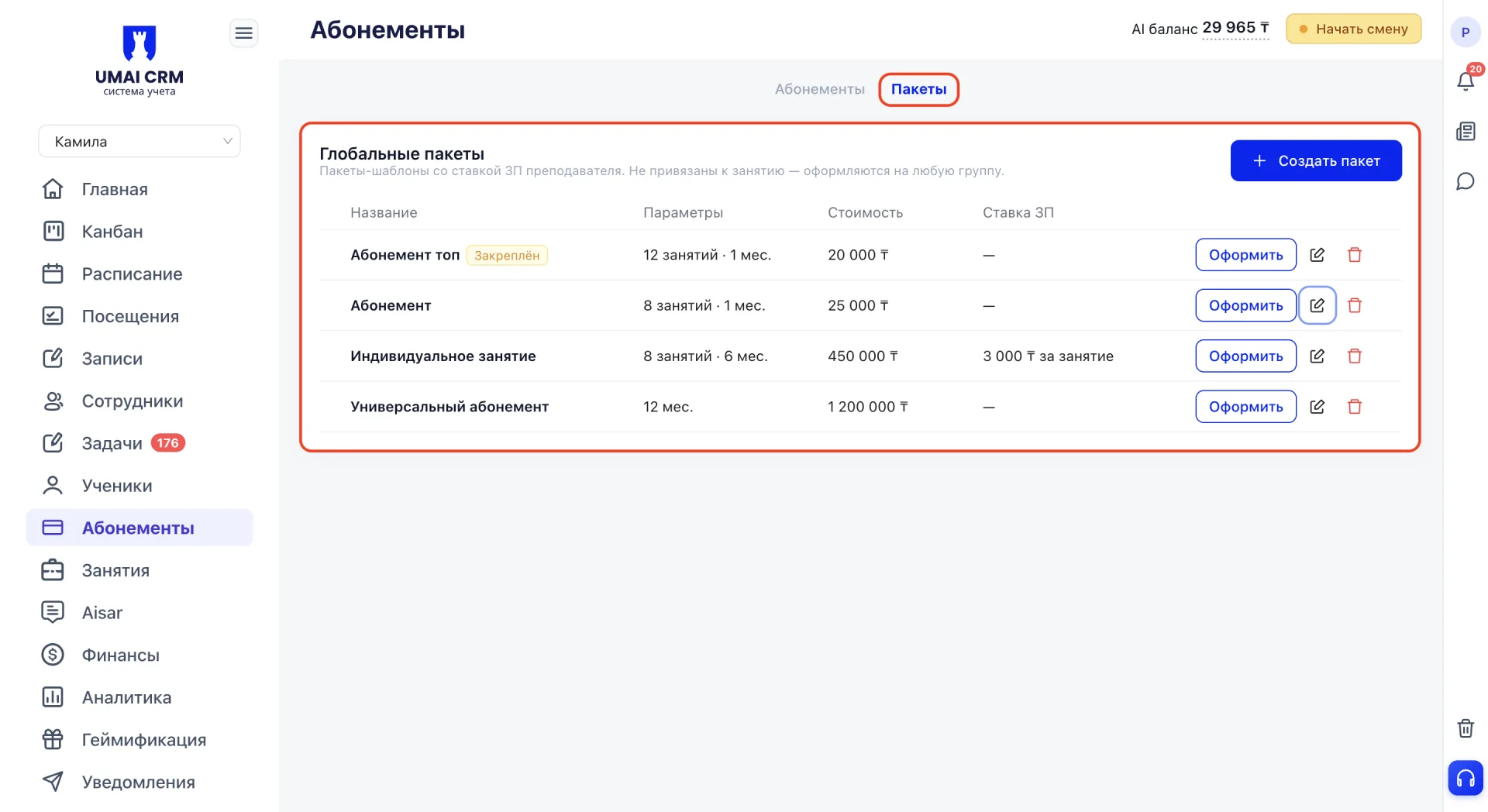
The packages table shows the name, parameters (number of sessions and validity period), price, and Teacher salary rate for each package. A package can be issued directly from this table with the "Issue" button, edited with the pencil icon, or deleted with the trash icon.
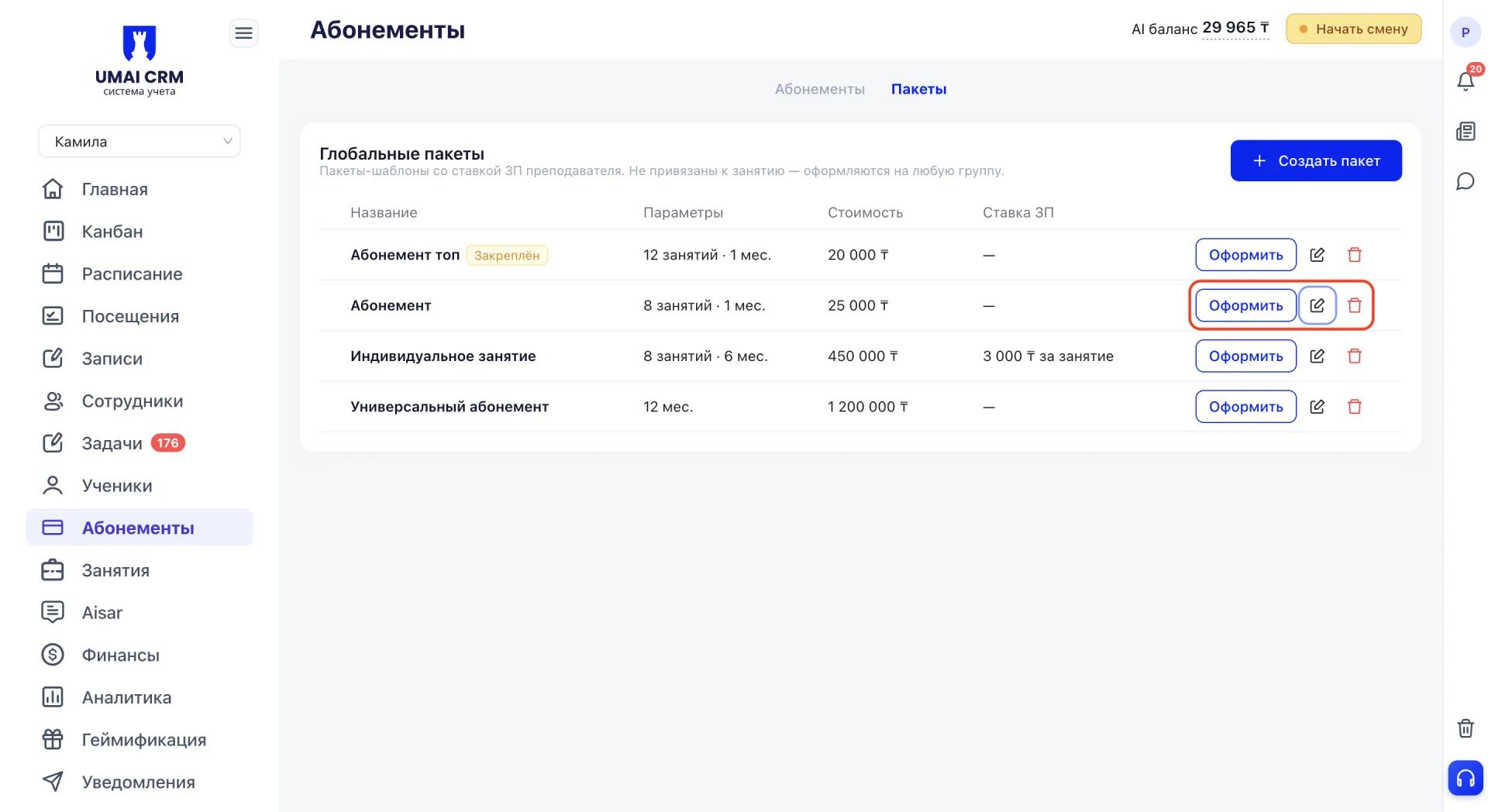
To create a new package, click "+ Create package".
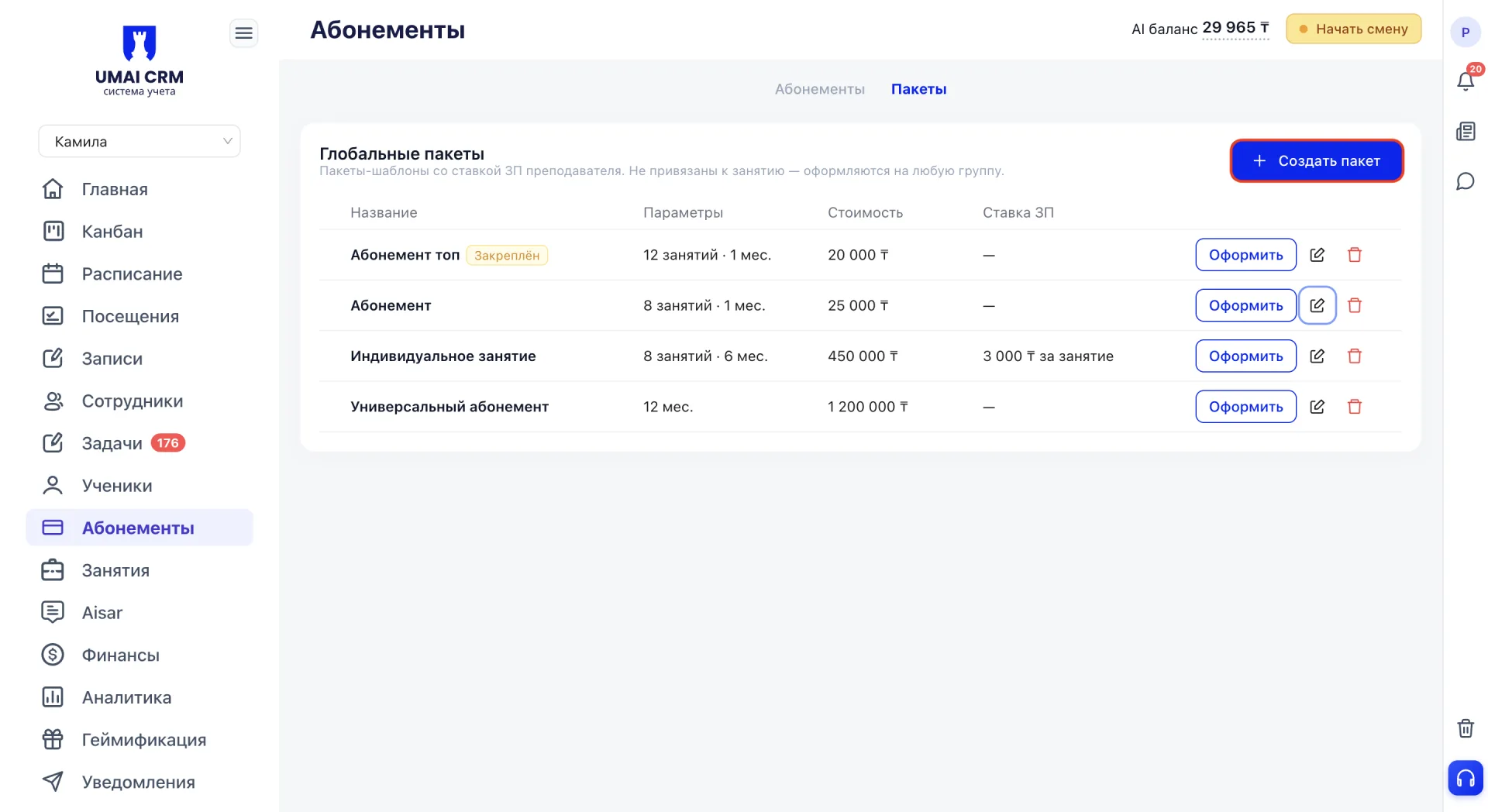
The form requires:
- Package name.
- Membership type — Single session or Multiple sessions.
- Number of sessions and Duration (months) — at least one of these fields must be filled. You can make a package without a session limit (leave duration empty) or without a term when the number of sessions is specified (leave number empty).
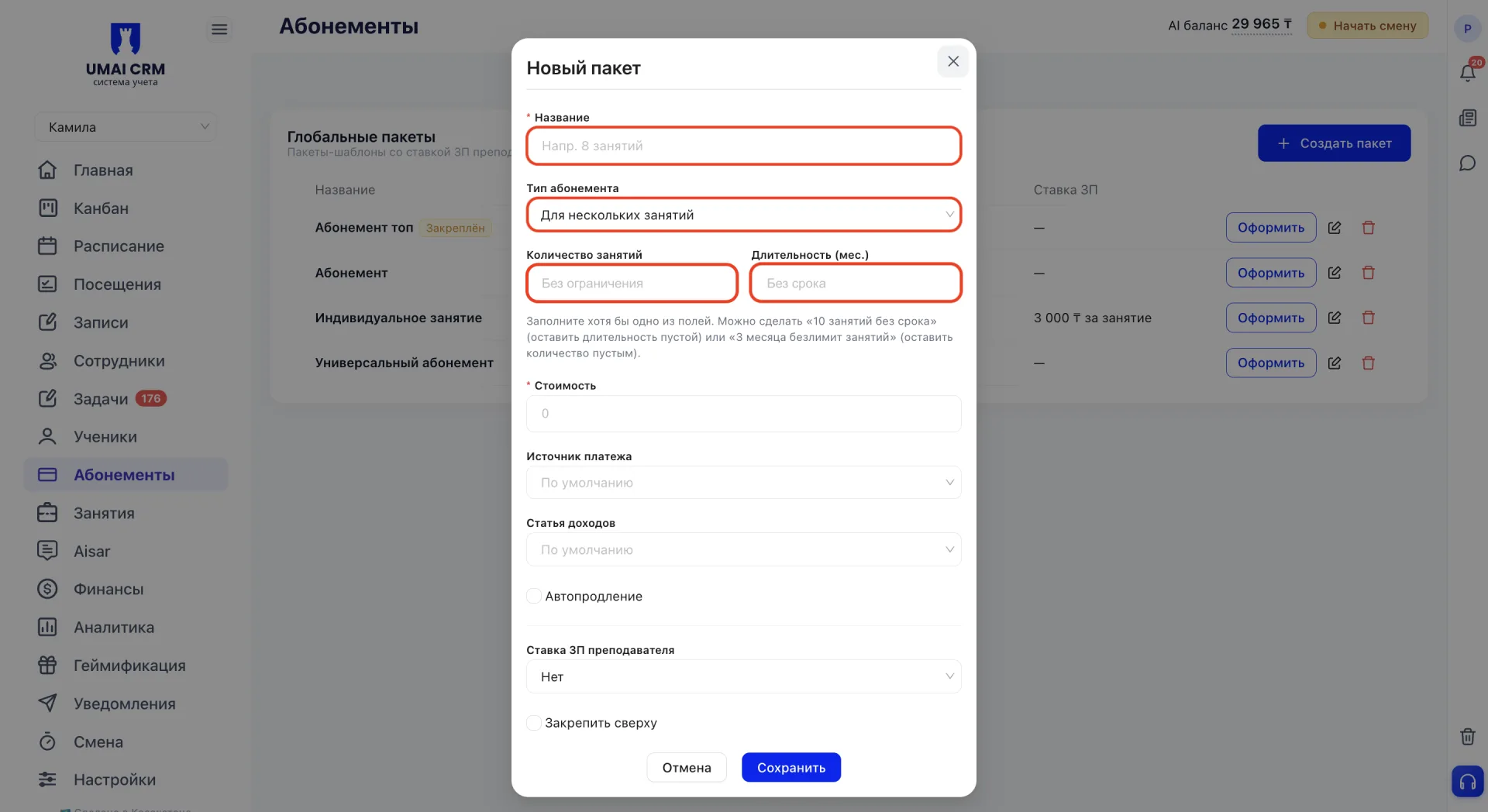
- Price — required field.
- Payment source — the method by which payment is made: bank transfer, cash, card payment via terminal, Kaspi QR or Halyk.
- Income item — the income category to which the payment belongs. Income items are created in advance in the «Finance» section and then appear in the dropdown list.
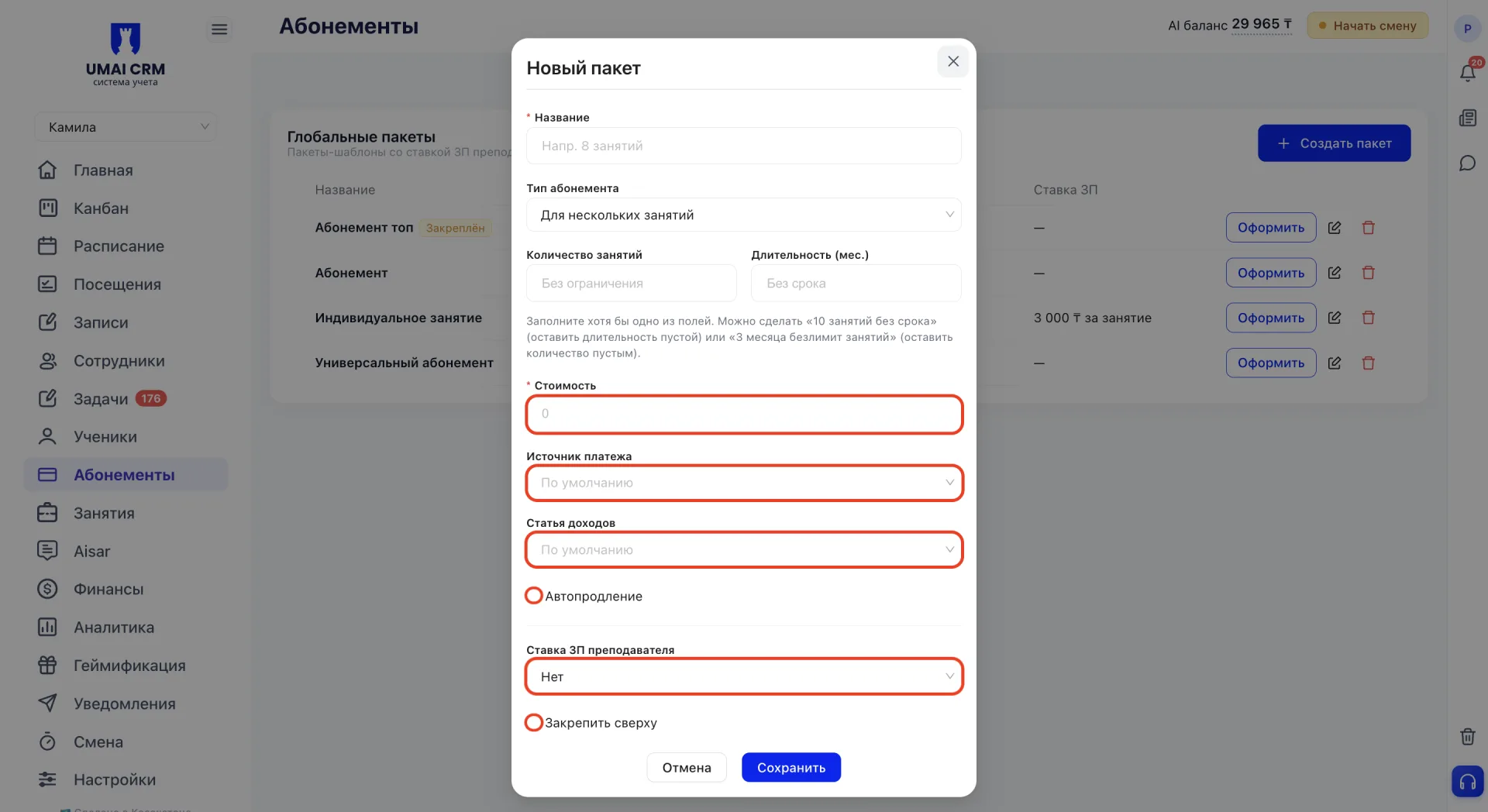
- Auto-renew — a checkbox enabling automatic renewal of Memberships issued under this package.
- Teacher salary rate — the method of calculating the Teacher's pay for sessions under this package: none, fixed per session, or percentage.
- Pin to top — a checkbox that pins the package to the top of the list.
After completing the form, click "Save".
10. Issuing a Membership
A Membership can be issued in two ways: through the Student card or directly from the «Memberships» section.
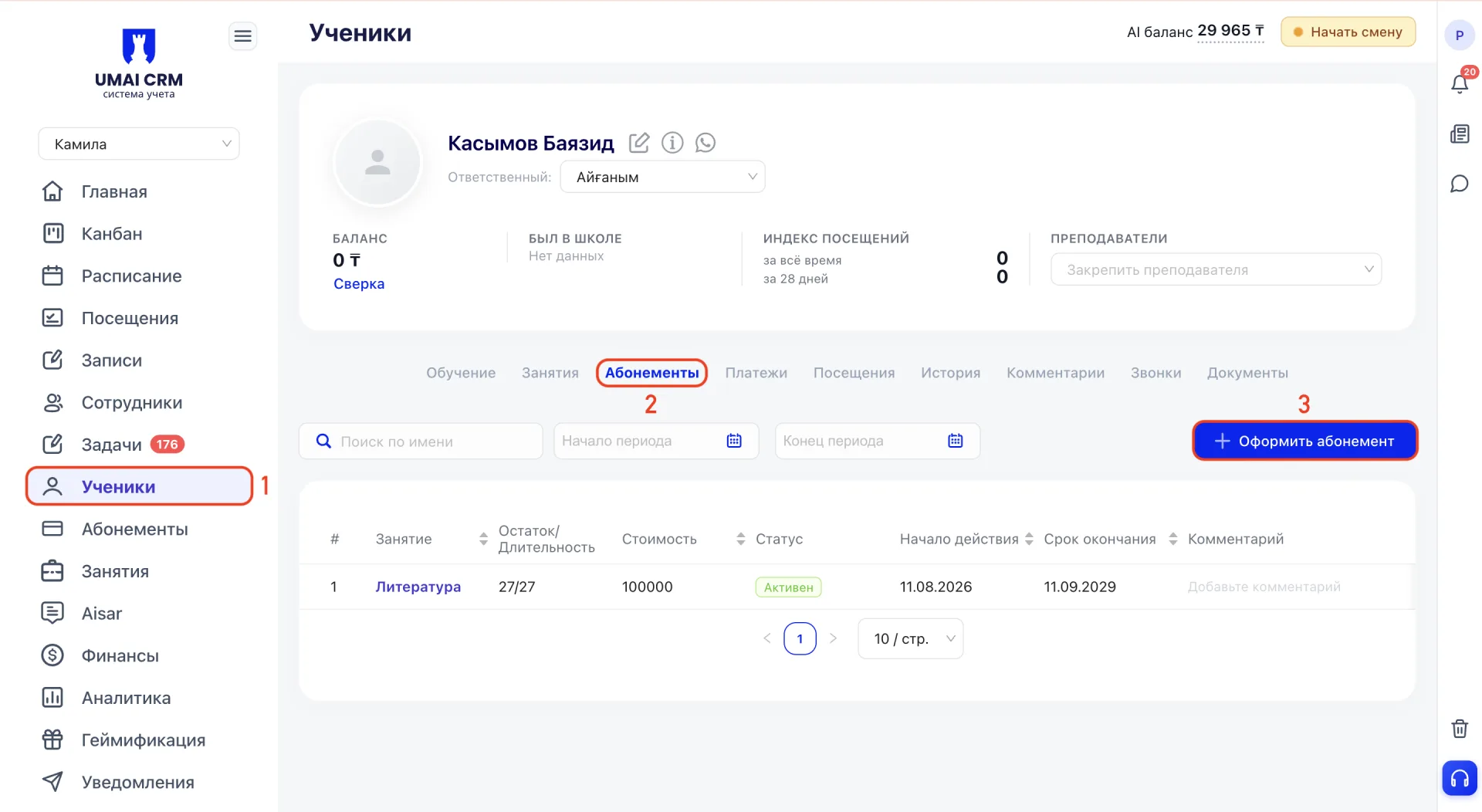
To issue a Membership through the Student card, go to the «Students» section, open the card of the required person, open the «Memberships» tab and click the "+ Issue Membership" button in the top right corner.
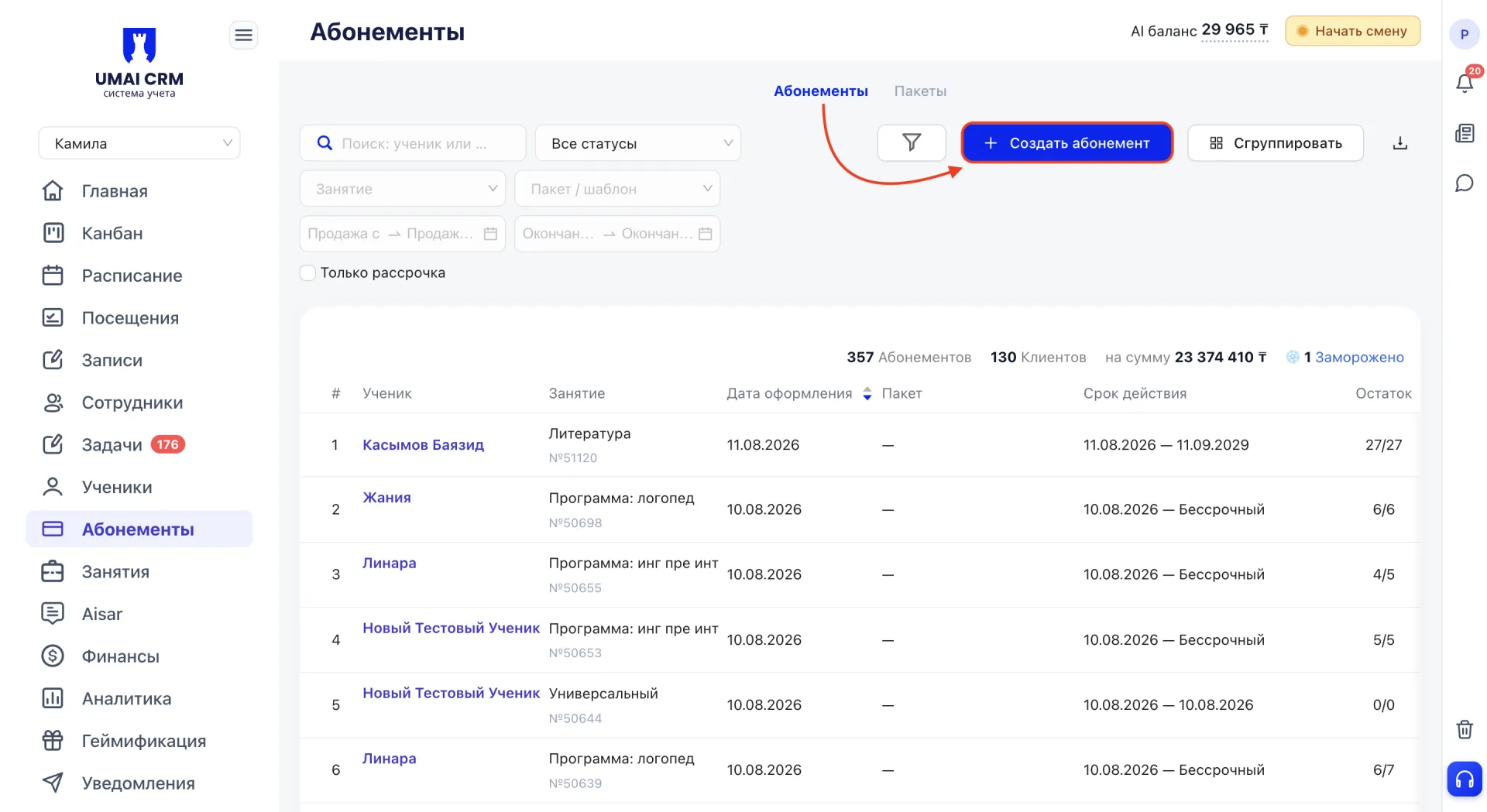
To issue a Membership from the general section, click the "+ Create Membership" button in the top right corner of the «Memberships» page.
In both cases a form with the parameters of the new Membership will open, divided into numbered blocks.
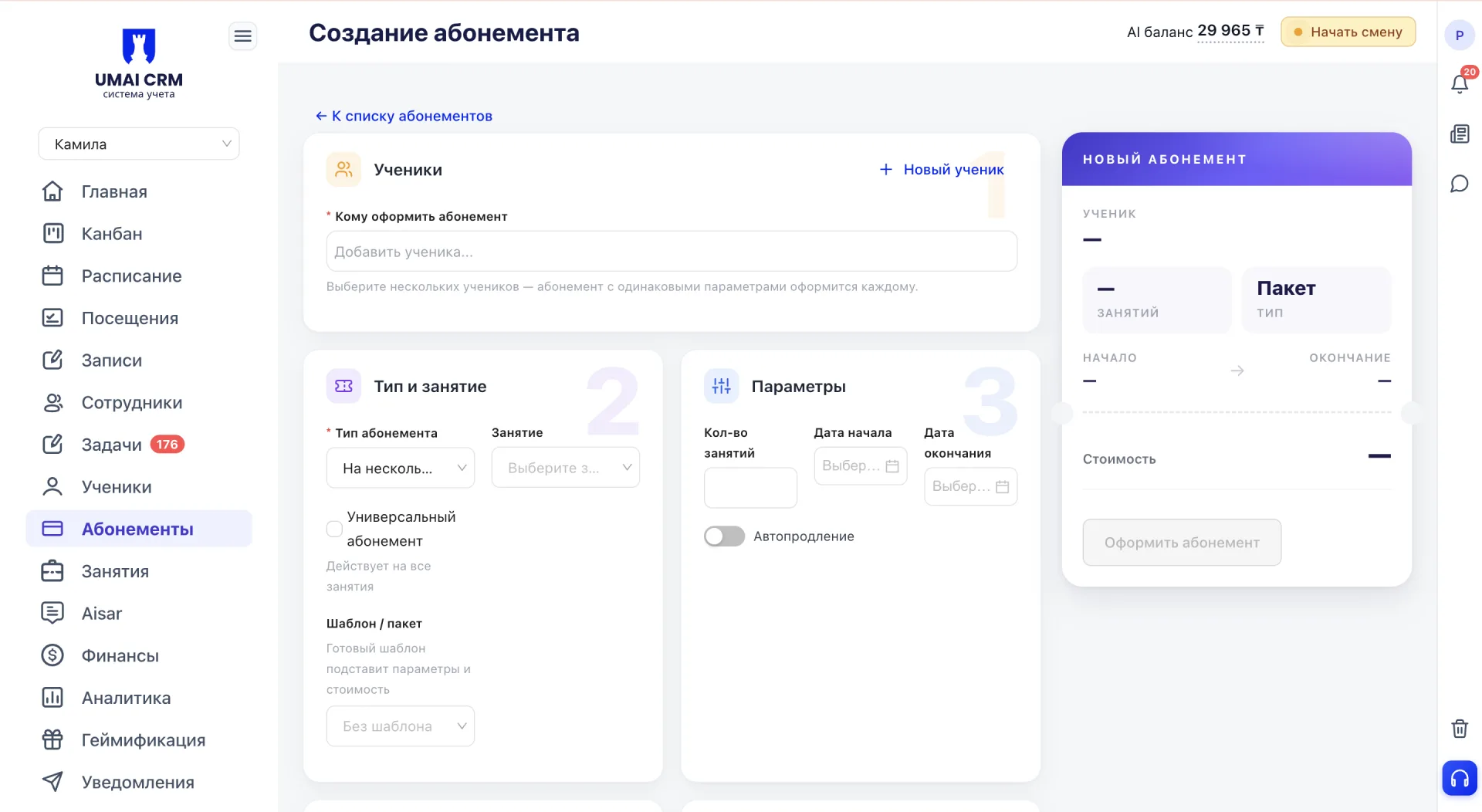
On the right of the form a preview panel "New Membership" is displayed, which updates as the form is filled and shows the Student, Membership parameters and the final price.
1. Students
In the field "To whom to issue the Membership" you can select one Student or several at once. If multiple Students are selected, the form switches to bulk issuance mode. A Membership with identical parameters will be created for each selected Student.
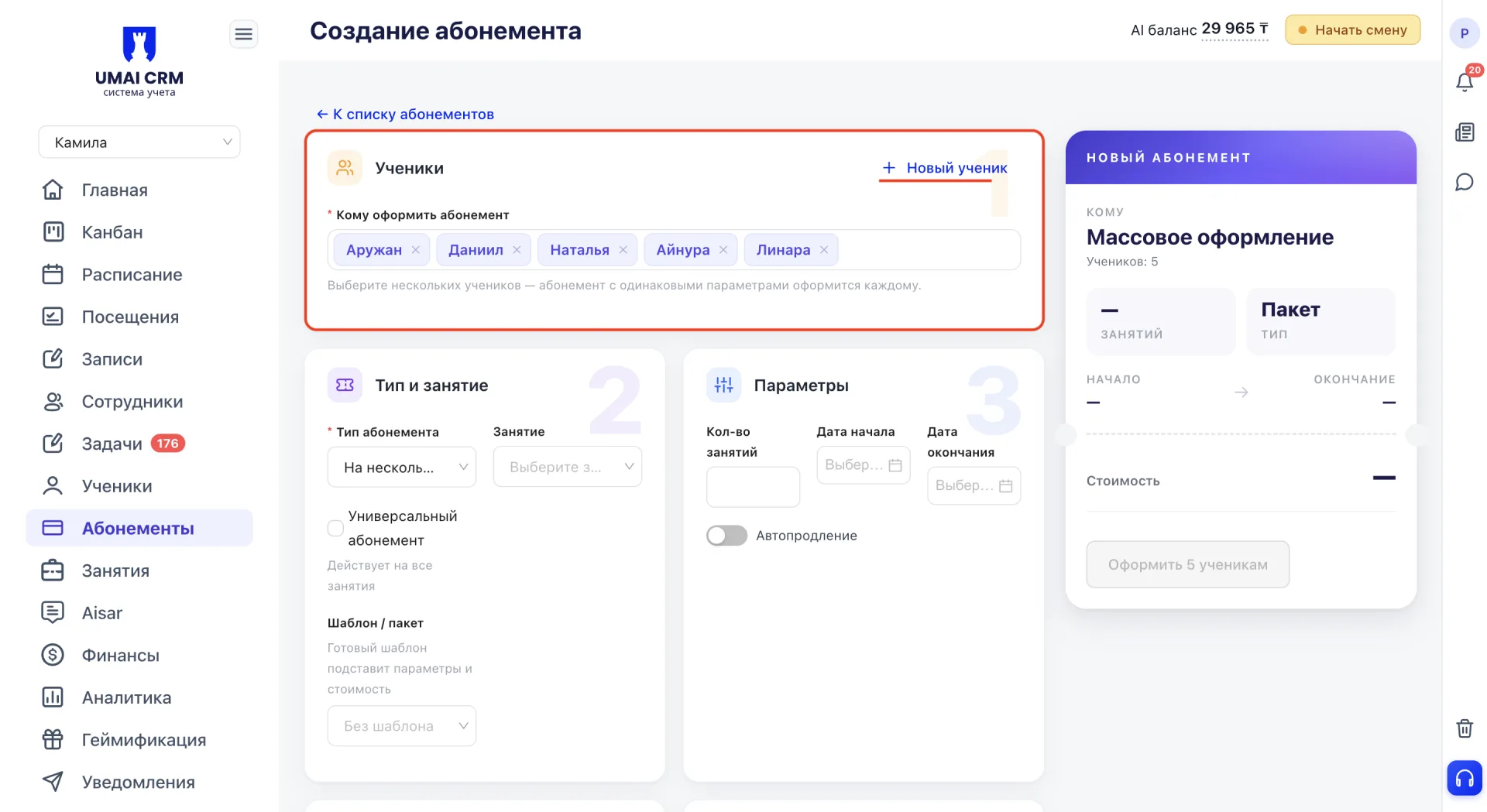
If the required Student is not in the list, you can create them directly from the form: click "+ New Student", fill in the opened card and after saving the Student will immediately appear in the "To whom to issue the Membership" field.
2. Type and Class
The Membership type determines how many visits it is calculated for: single — a one-time visit without a remainder, or multiple — a package with a fixed number of visits.
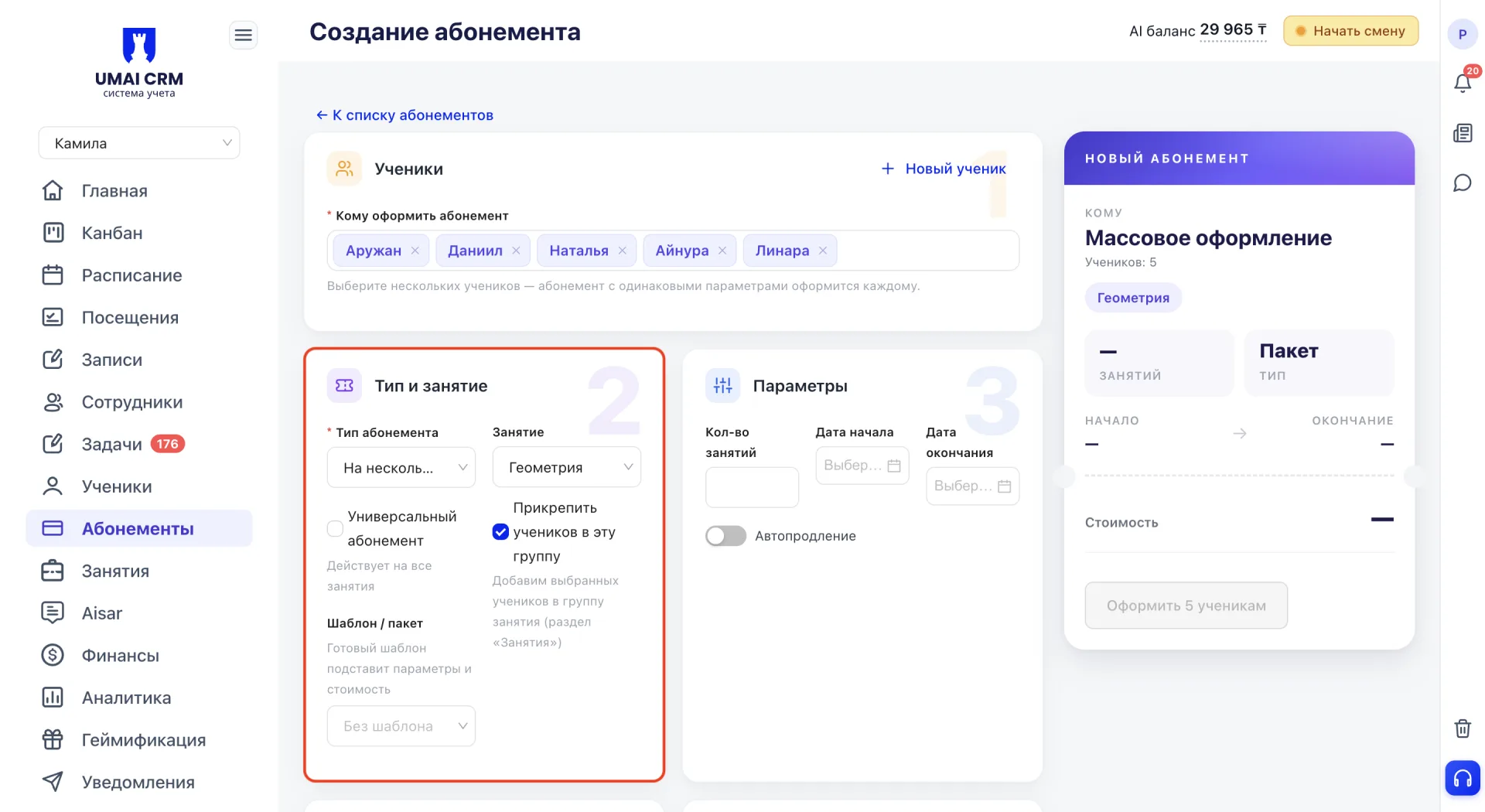
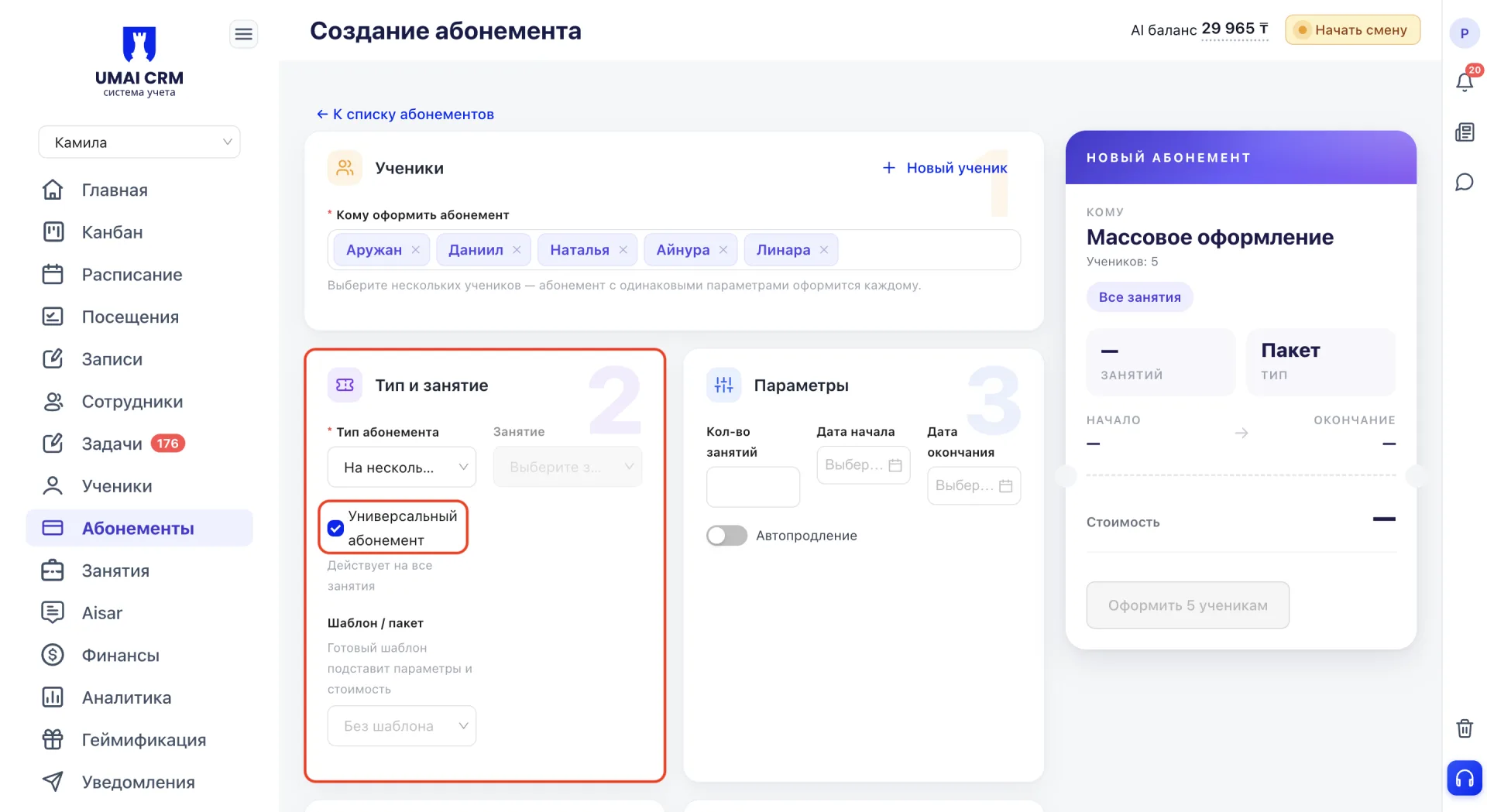
In the "Class" field select the required Class for which the Membership is issued. If you enable the "Universal Membership" checkbox, it will be valid for all Classes without binding to a specific one.
When issuing in bulk, with several Students selected, an additional checkbox "Attach Students to this group" appears. If enabled, all selected Students will be added to the group in the «Classes» section.
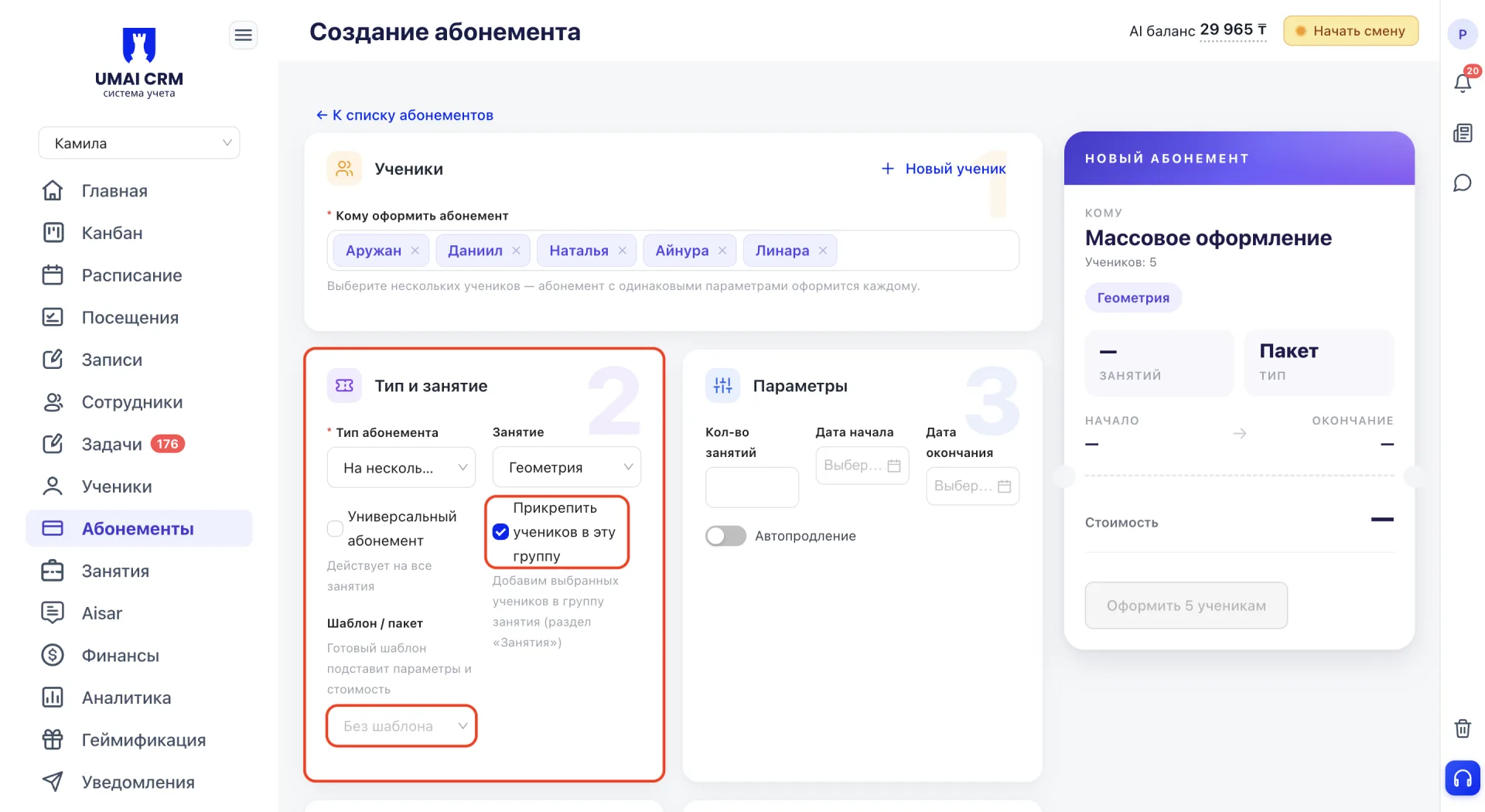
In the "Template / package" field you can select a ready-made package from the «Packages (Пакеты)» tab (see block 9). It will automatically populate the number of visits, validity period and price. Search by name is available in this field.
3. Parameters
- Number of sessions — how many visits the Membership includes. With each counted visit the remaining decreases by one.
- Start date — the date from which the Membership becomes active.
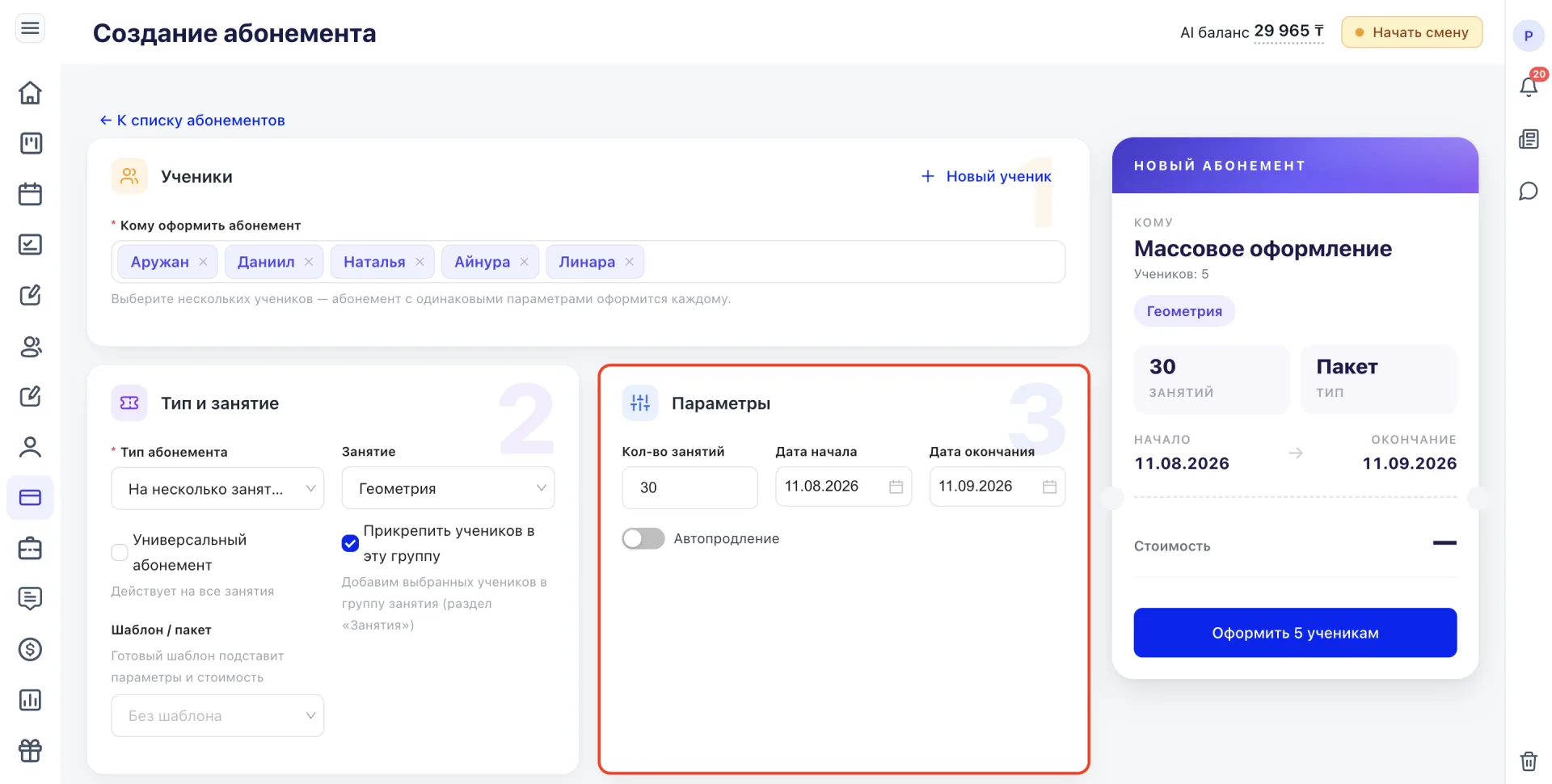
- End date — the date when the Membership expires. If the field is left empty, the Membership will be unlimited and remain active until all sessions are used.
- Auto-renew — a switch that, when enabled, causes the system at expiry to automatically create a new Membership with the same parameters and charge the cost from the Student's balance.
4. Price
- Issue date — the date the Membership was created; the current date is used by default.
- Membership price — the full price of the Membership. To give a discount, do not reduce this field, but reduce the "Charge from balance" field to the actual amount.
- Charge from balance — the amount that will be billed for the Membership and deducted from the Student's balance; the final amount taking into account the discount. If the balance is insufficient and no payment is created, the difference becomes the Student's debt.
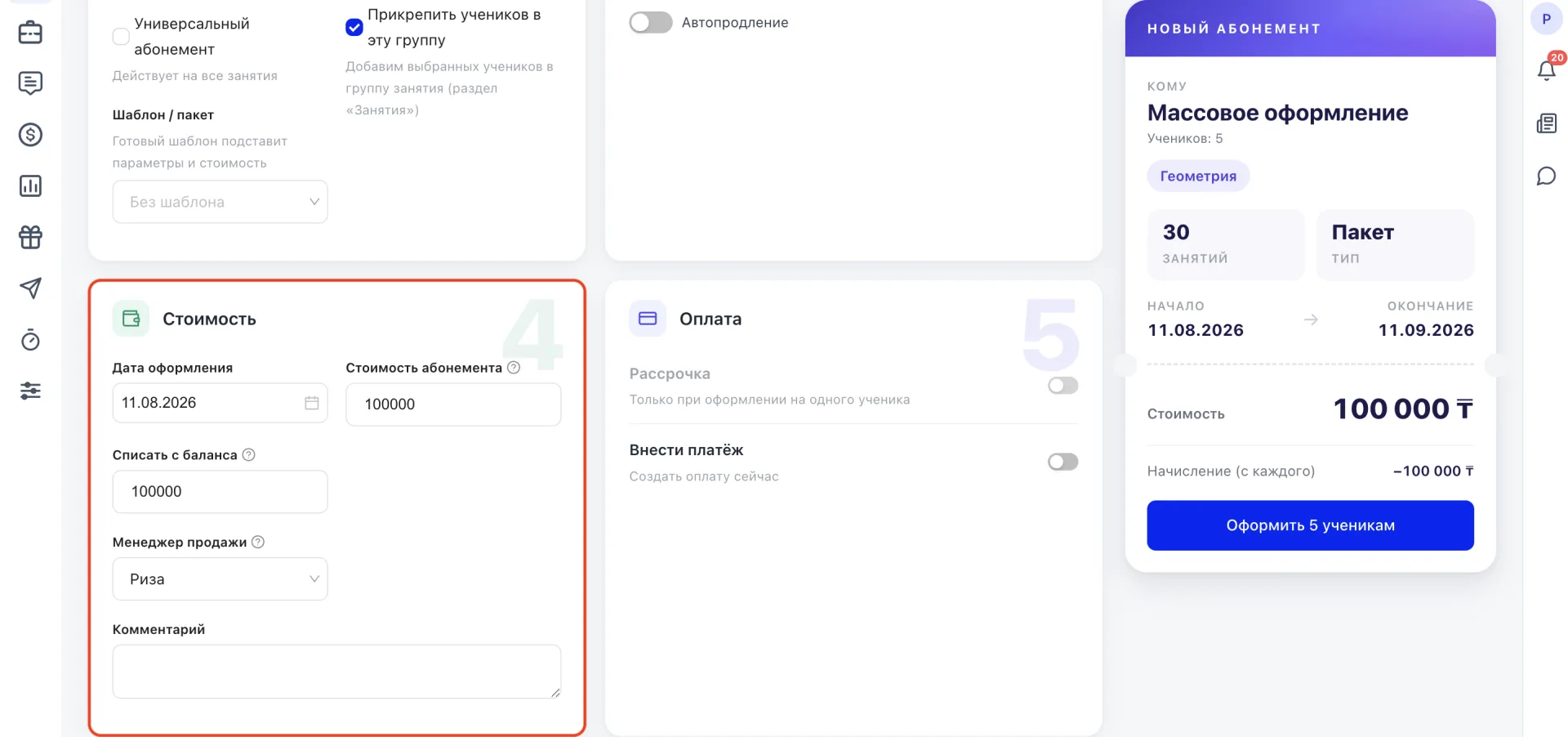
- Available on balance — the Student's current balance at the moment the form is opened. This field is displayed only when issuing a Membership to a single Student. It shows whether the balance will go negative after the deduction.
- Sales manager — the Employee who issued the sale. This data goes into the report "Analytics (Аналитика) → Sales by managers (Продажи менеджеров)".
- Comment — free text that is saved with the Membership and visible in its card.
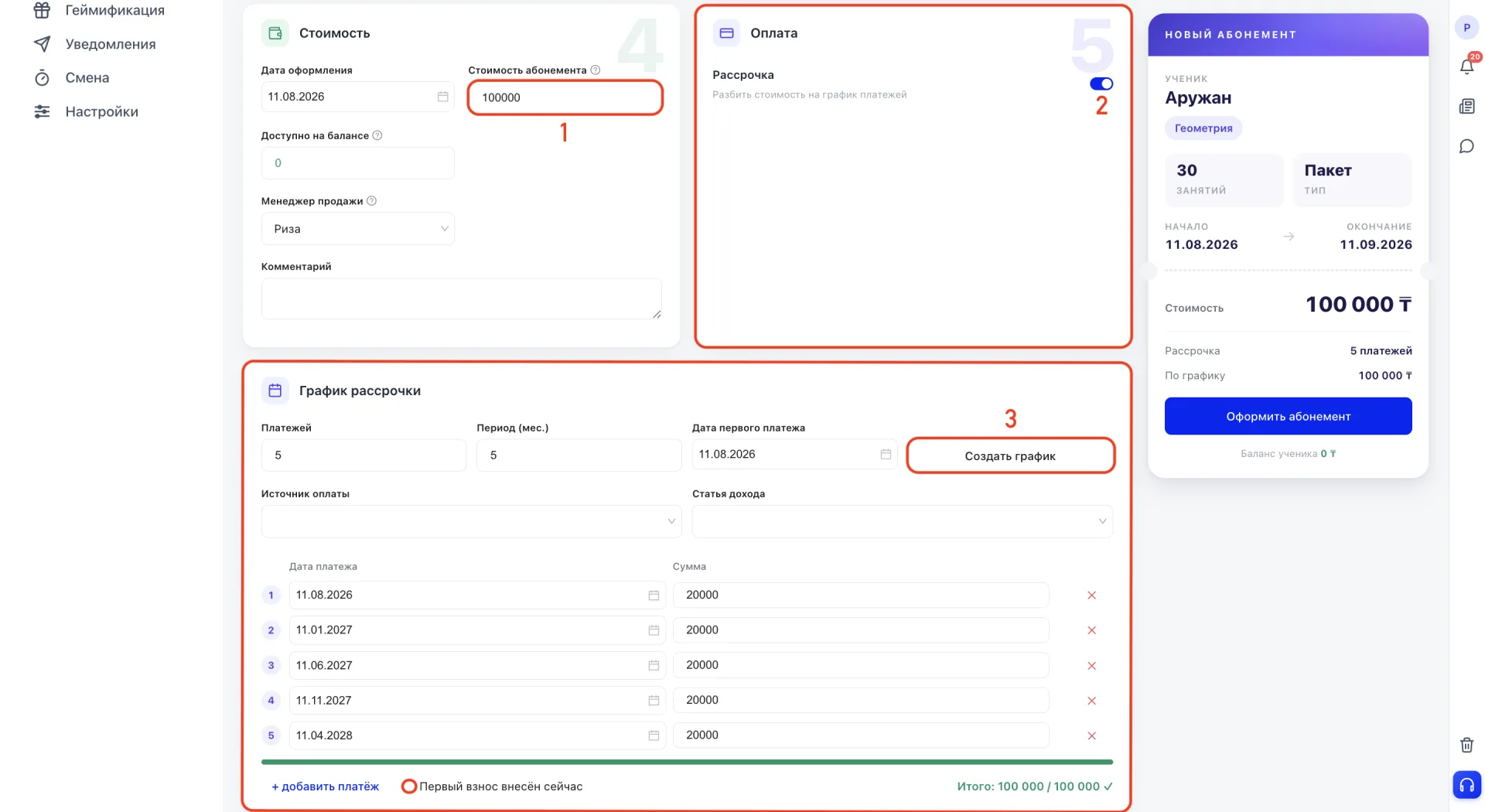
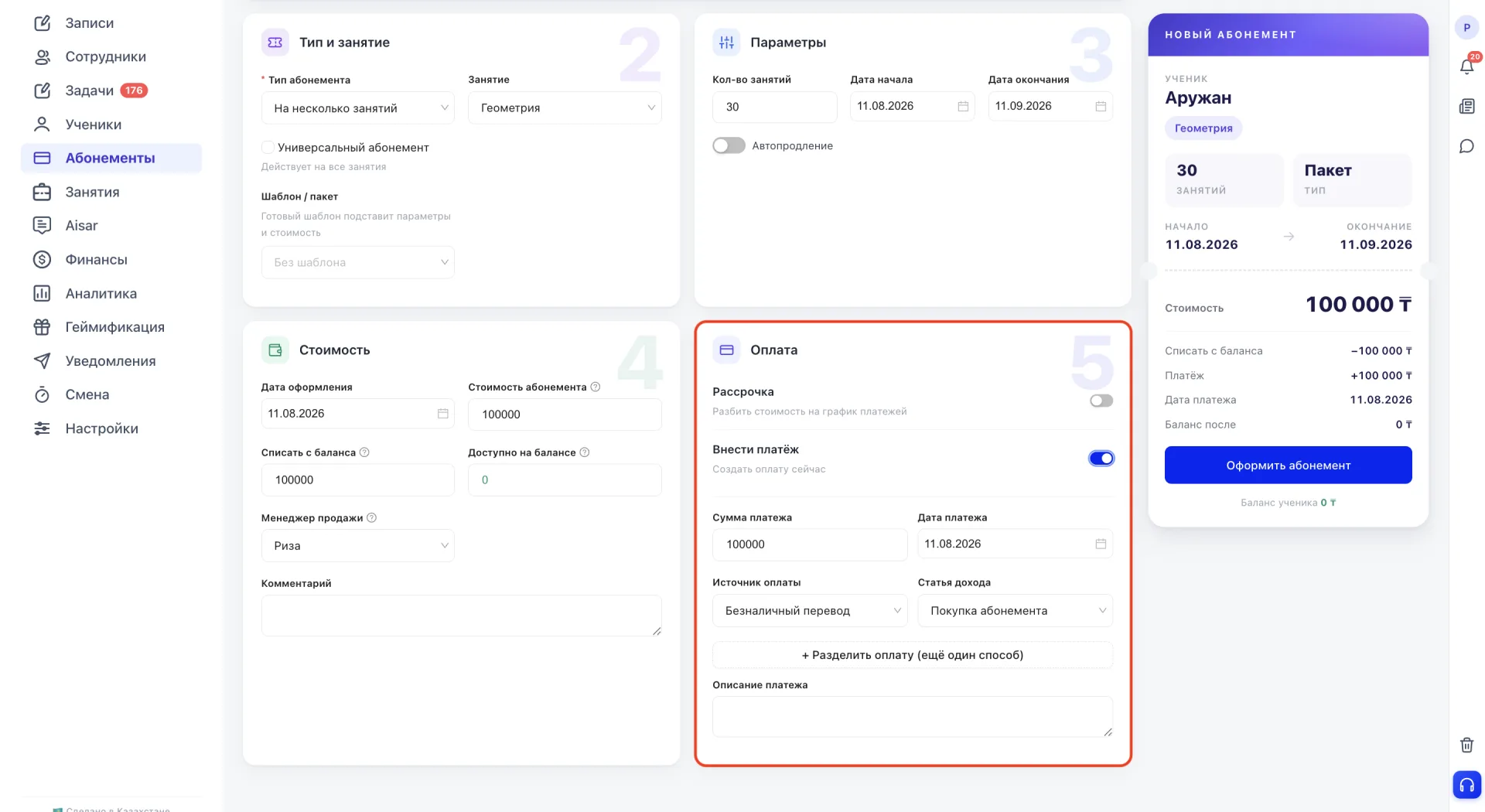
5. Payment
The "Installment" switch is available only when issuing a Membership to one Student and splits the Membership price into a payment schedule. To create a schedule, first specify the Membership price, then the number of payments and the period in months, and click "Create schedule." The system will evenly distribute the total amount across the specified number of payments at the given interval. The schedule is displayed as a table with the date and amount of each payment; dates and amounts can be edited manually, individual payments can be deleted with the "add payment" button or the cross. The "First payment made now" checkbox marks that the first payment in the schedule has already been paid.
The "Make payment" switch allows recording a payment immediately when issuing the Membership without installment. When enabled, fields appear: Payment amount, Payment date, Payment source (bank transfer, cash, card payment via terminal, Kaspi QR or Halyk), Income item (Membership purchase, single session, trial lesson or product purchase) and an optional Payment description.
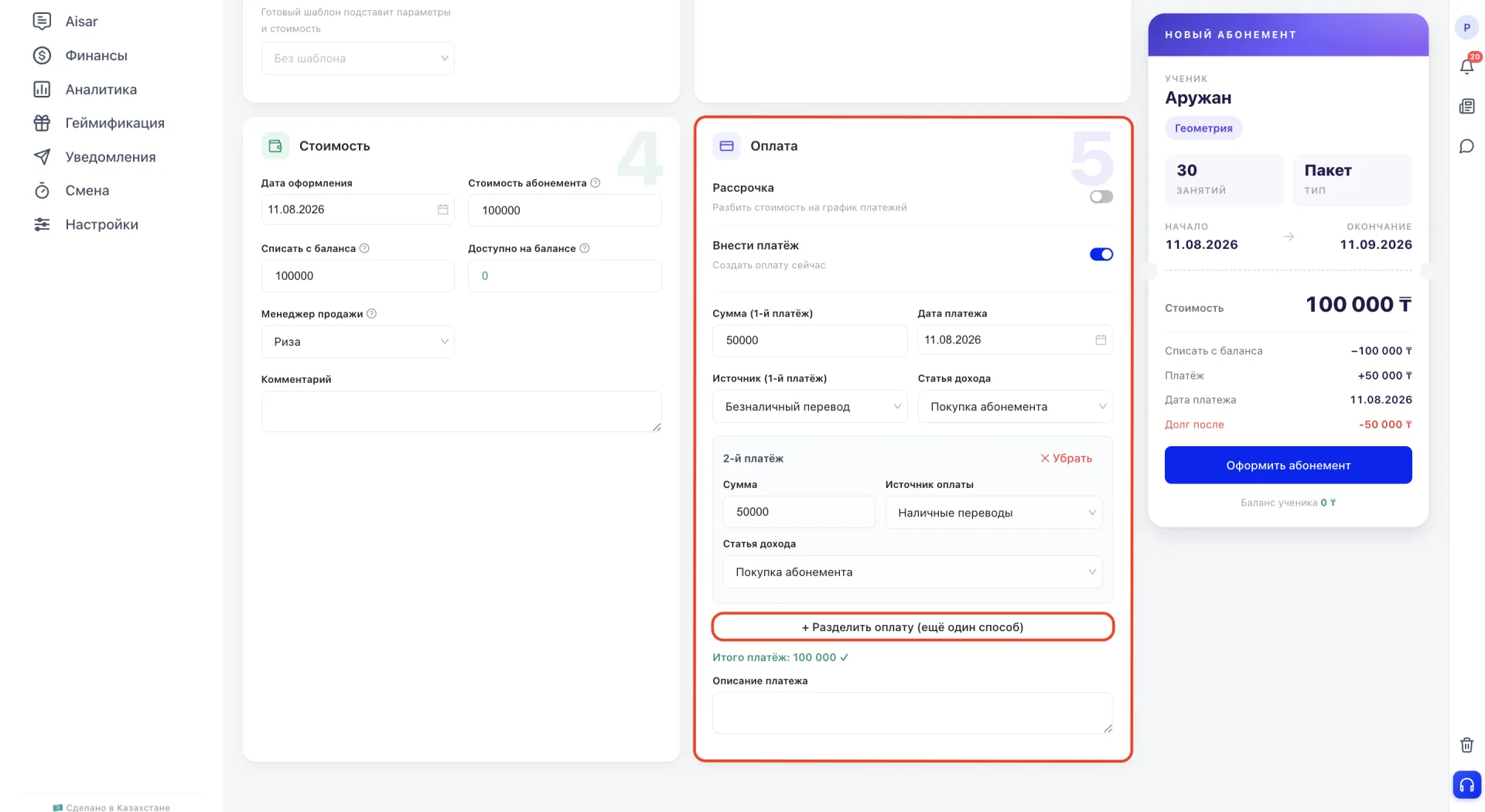
The "+ Split payment (another method)" button allows splitting one payment across several payment sources simultaneously by specifying the amount and source for each part.
After filling out the form click "Issue Membership" (or "Issue to N Students" when issuing in bulk). The Membership will appear in the general «Memberships» section and on the «Memberships» tab of each Student.
11. Membership card
Clicking on a row in the table opens the detailed Membership card. It displays all information: ID, Class, status, validity period, remaining sessions, purchase date, price, amount charged from balance, auto-renew setting, linkage to Class, comment, sales manager and freeze history.
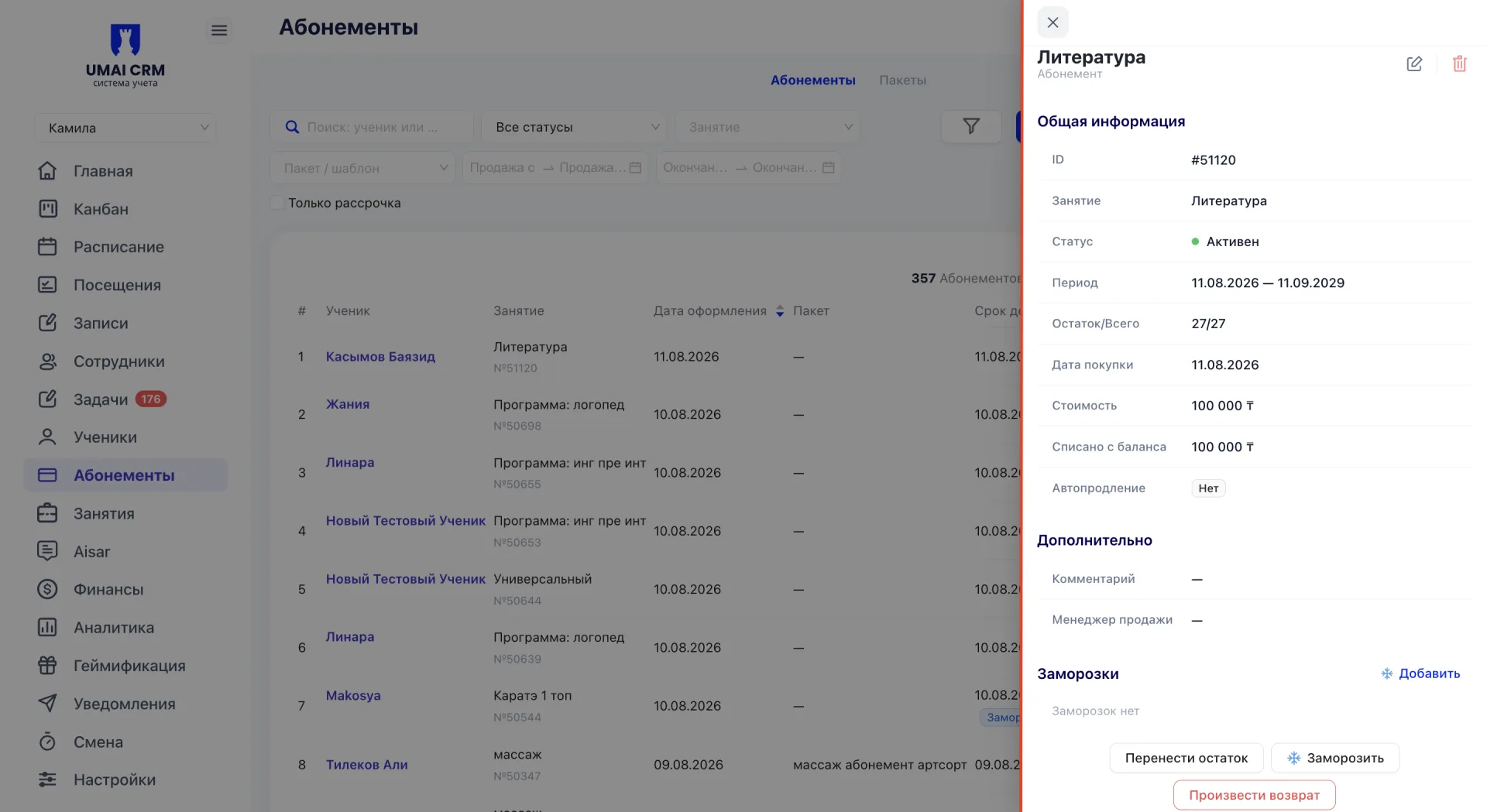
From the card you can edit the Membership, freeze it or issue a refund.
Edit Membership
To change Membership parameters click the edit icon at the top of the card. The same form as during creation will open. After making changes click "Save".
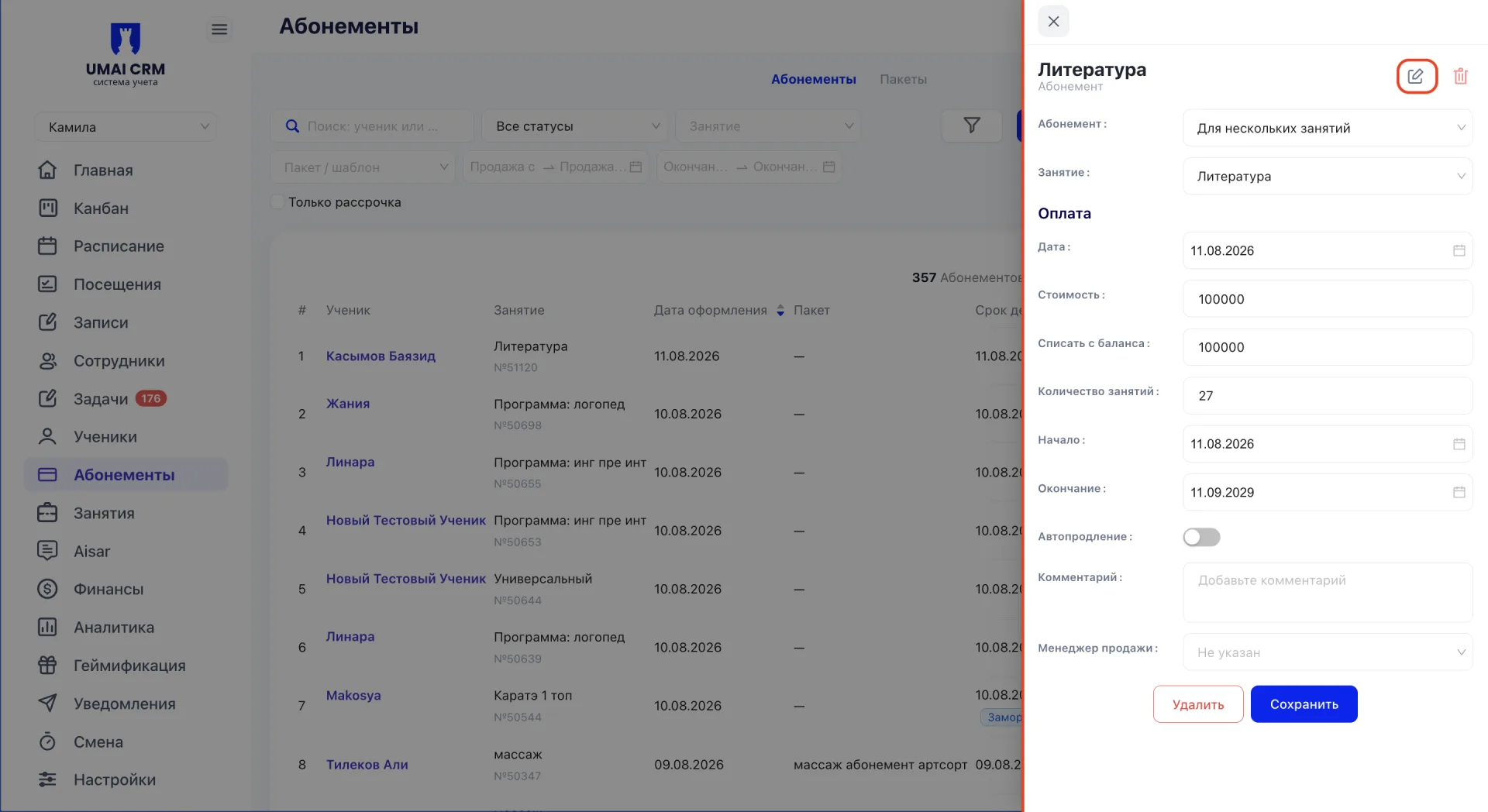
Editing changes only the current settings and does not affect already recorded visits.
Transfer remaining
The "Transfer remaining" button allows transferring a Student from the current Membership to a new group Class together with the remaining sessions.
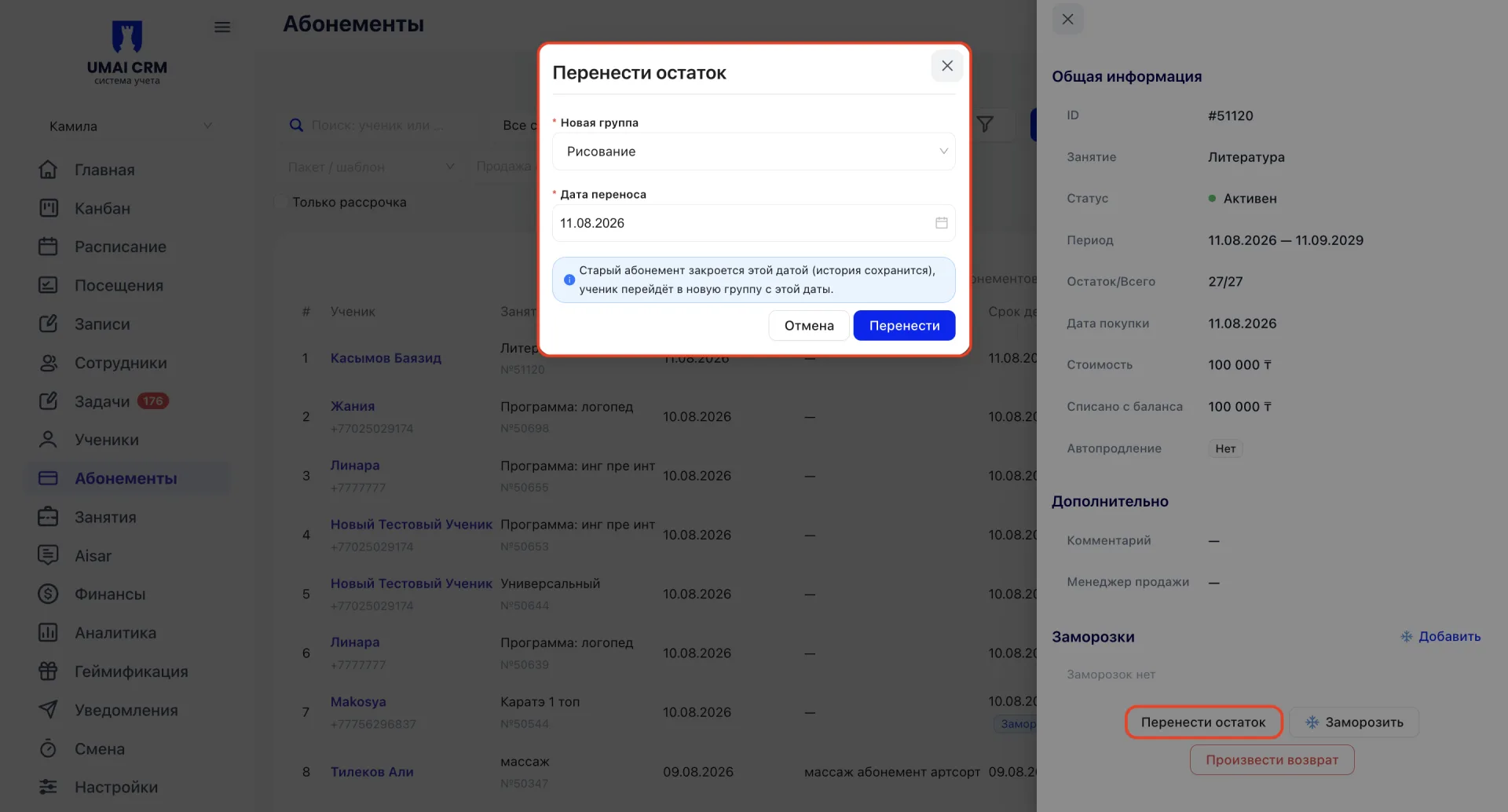
In the opened "Transfer remaining" window select the new group (the required field "New group") and the transfer date. The system warns: the old Membership will be closed on the specified date while the history is preserved, and the Student will move to the new group from that date.
Freeze
Freezing suspends the Membership: while it is active, visits are not deducted. This is useful if a Student temporarily cannot attend classes, for example, if they are on vacation or ill.
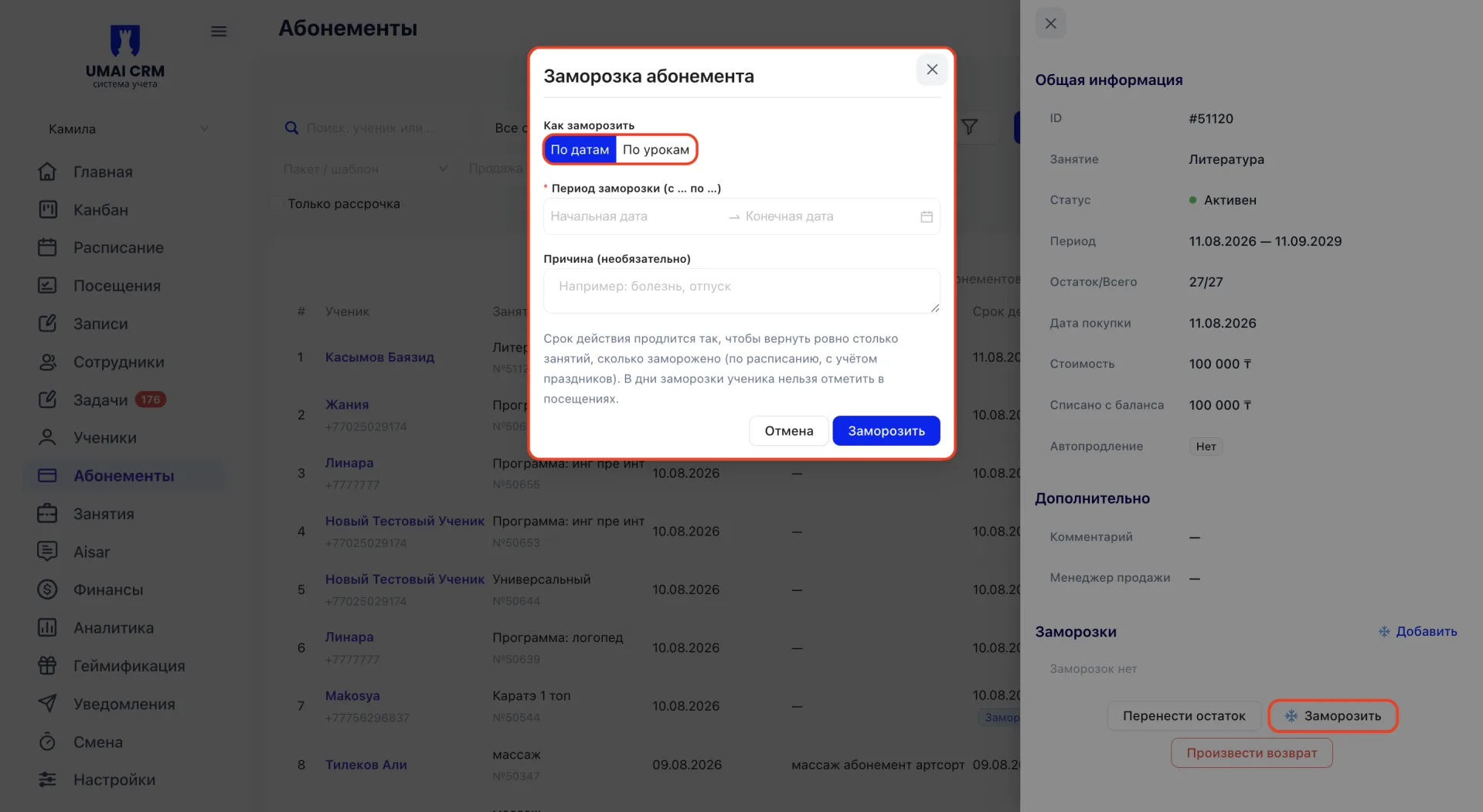
To freeze a Membership click the "Freeze" button at the bottom of the card. In the opened "Freeze Membership" window two freeze methods are available:
- "By dates" — specify the freeze period (start and end dates) and the reason.
- "By sessions" — specify how many sessions to freeze, and optionally from which session to start (default is from the next session), and the reason.
The system shows how many sessions will be included in the freeze.
The history of all freezes is saved in the "Freezes" block inside the Membership card. When the freeze ends, the validity period of the Membership is automatically extended by the number of days the Membership was frozen. This means the Student does not lose paid time because the end date is shifted forward.
Refund
If a Student refuses the Membership and a refund is required, click "Issue refund" at the bottom of the Membership card. The system will open the Student card. To complete the refund processing you need to find the relevant Class or Membership in the list again and select "Issue refund" once more, after which the "Process refund" form will open.
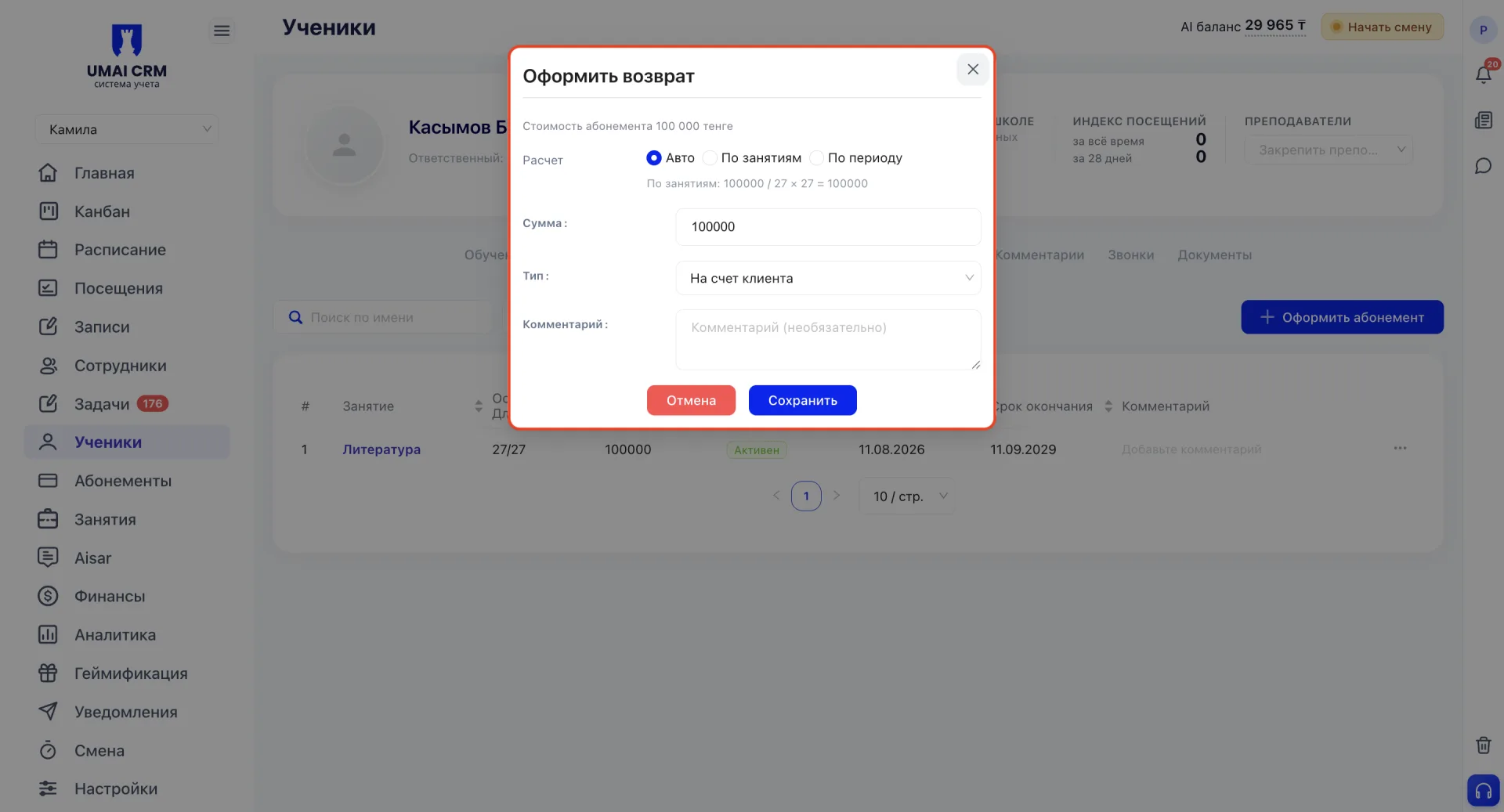
The form shows the Membership price and the method of calculating the refund amount:
- Auto — the system chooses the calculation method itself.
- By sessions — the amount is calculated by the formula: Membership price divided by the total number of sessions multiplied by the remaining sessions.
- By period — the amount is calculated by days: Membership price divided by the total number of days in the validity period multiplied by the remaining days.
Form fields:
- Amount — the calculated refund amount. It can be adjusted manually if necessary.
- Type — refund method. Two options are available: "To the client's account" means funds are credited to the Student's balance in the system, and "Return money" means an actual cash refund is issued.
- Comment — an optional field to note the reason for the refund.
Important to consider:
- Auto-renew extends the Membership at expiry regardless of the Student's balance; if funds are insufficient, the balance will go negative.
- An unlimited Membership remains active until all sessions are used or until manually completed.
- During a freeze the Membership validity is suspended; paid days do not expire.
- A refund changes the Membership status and returns funds to the Student's balance or records an actual payout, but the visit history for that Membership is retained.
- The "Available on balance" field at issuance shows the balance at the moment the form was opened and is not recalculated automatically when the Membership price changes.
- Filters and search only change the table display and do not remove data from the system.