The tab displays Membership templates that are used for this Class.
Memberships define the conditions for attending Classes, for example:
- number of Classes;
- validity period;
- cost.
If necessary, you can add a Membership template for the Class. A template is used to configure attendance conditions: number of Classes, duration, and cost. After creation it can be used when selling Memberships to Students.
To do this, you need to fill out the form, specifying the following parameters:
- Title — the name of the Membership.
- Membership type — the format of the Membership.
- Number of Classes — how many Classes the Membership includes.
- Duration (months) — the validity period of the Membership in months.
- Cost — the cost of the Membership.
- Payment source — the payment method that will be used at purchase.
- Income category — the category to which this payment will be assigned in financial analytics.
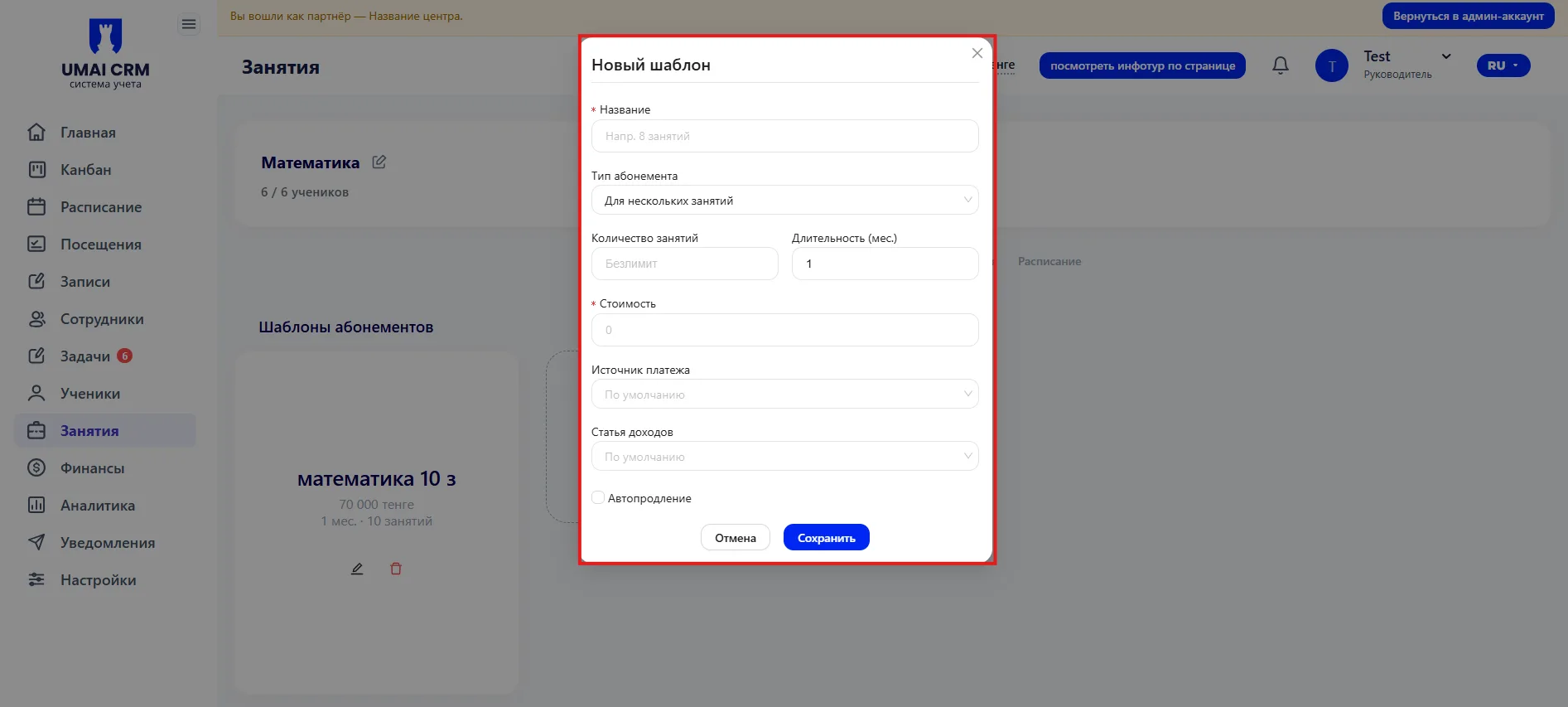
The "Auto-renewal" setting is also available.
If you scroll the page to the bottom, two tables will be displayed in the class card: "Active Memberships" and "All Memberships".
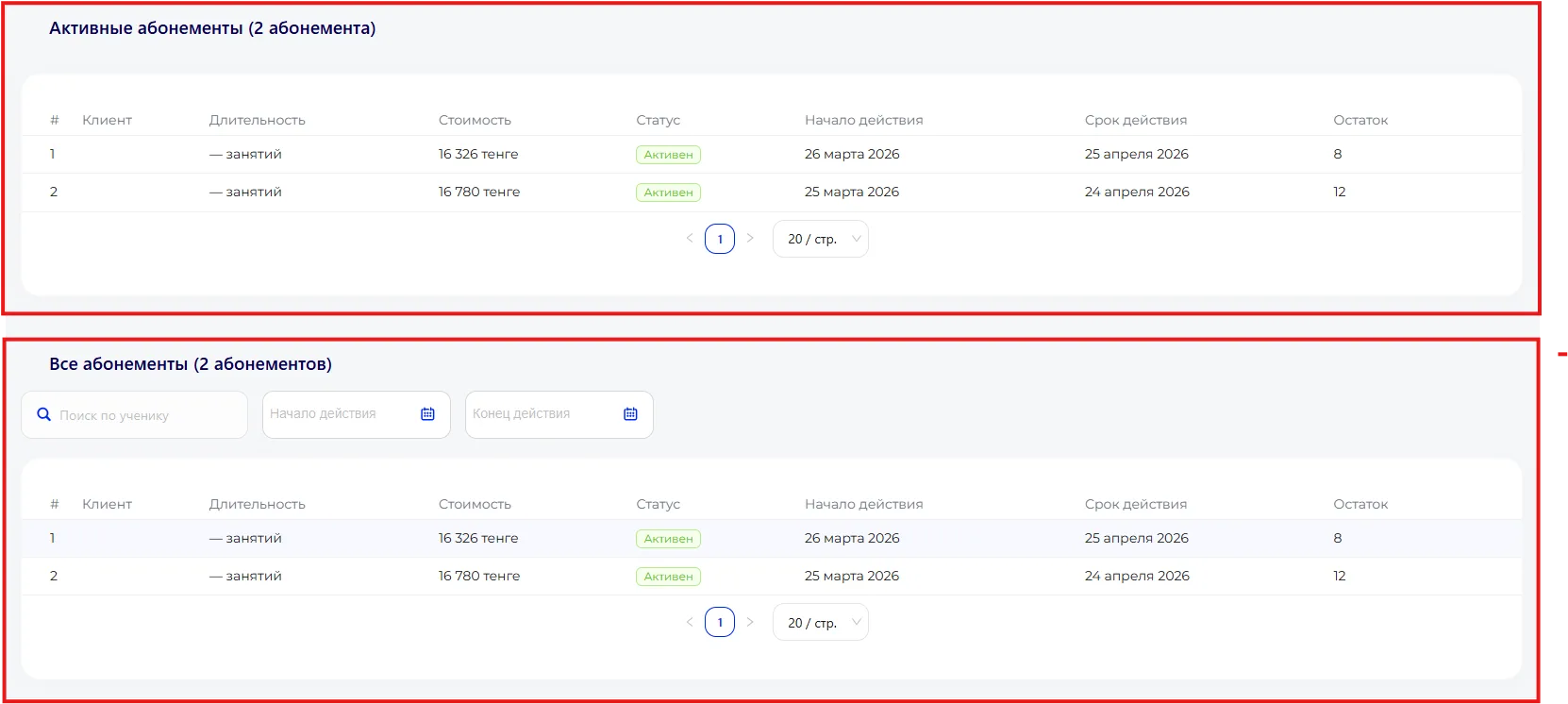
The first one shows Memberships that are currently active.
The second one is the full list of Memberships associated with this Class.
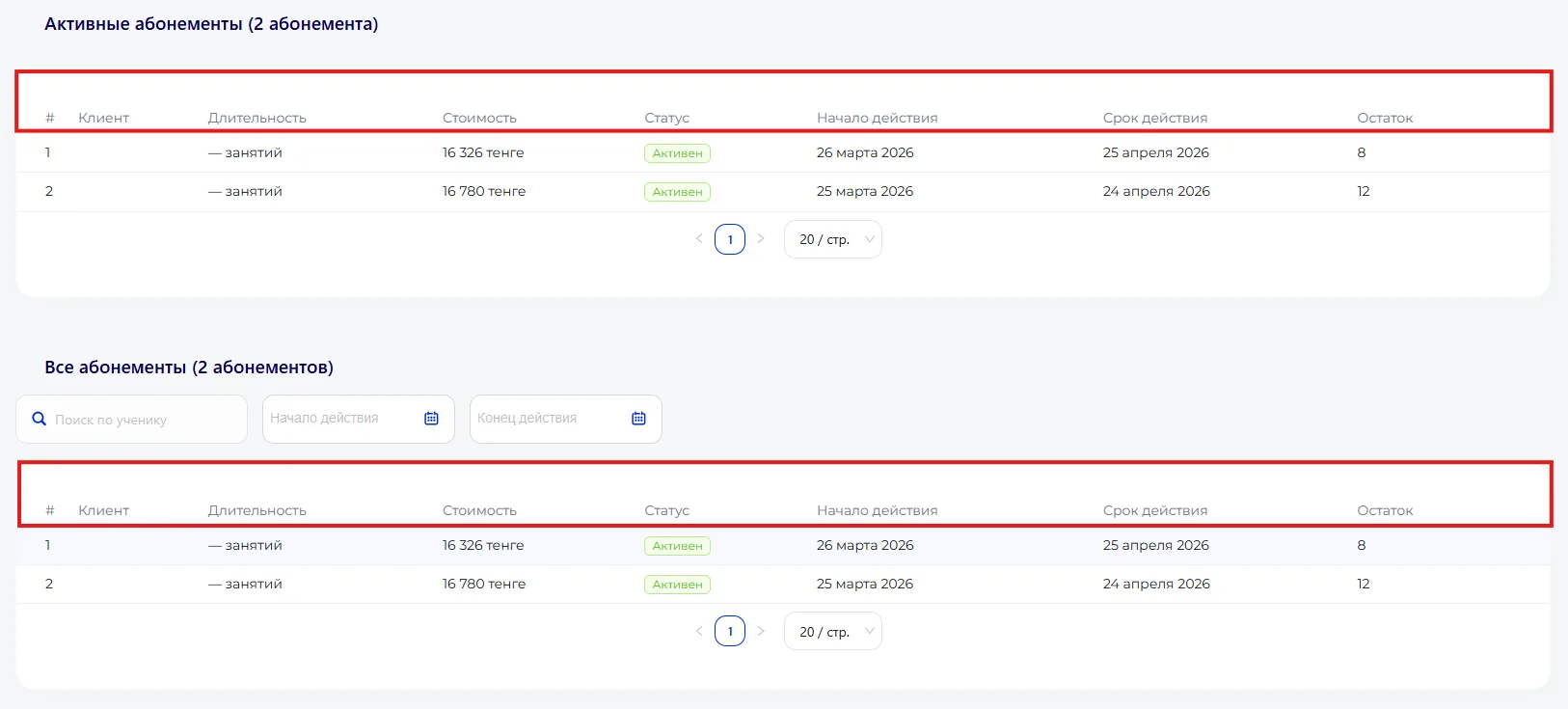
The tables display the following data:
- # — sequential record number.
- Client — Student for whom the Membership is issued.
- Number of Classes — the number of Classes included in the Membership.
- Cost — the cost of the Membership.
- Status — the current status of the Membership.
- Start date — the date from which the Membership becomes active.
- End date — the expiration date of the Membership.
- Remaining — the number of Classes still available to attend.
At the top of the "All Memberships" table there are search and filter tools.
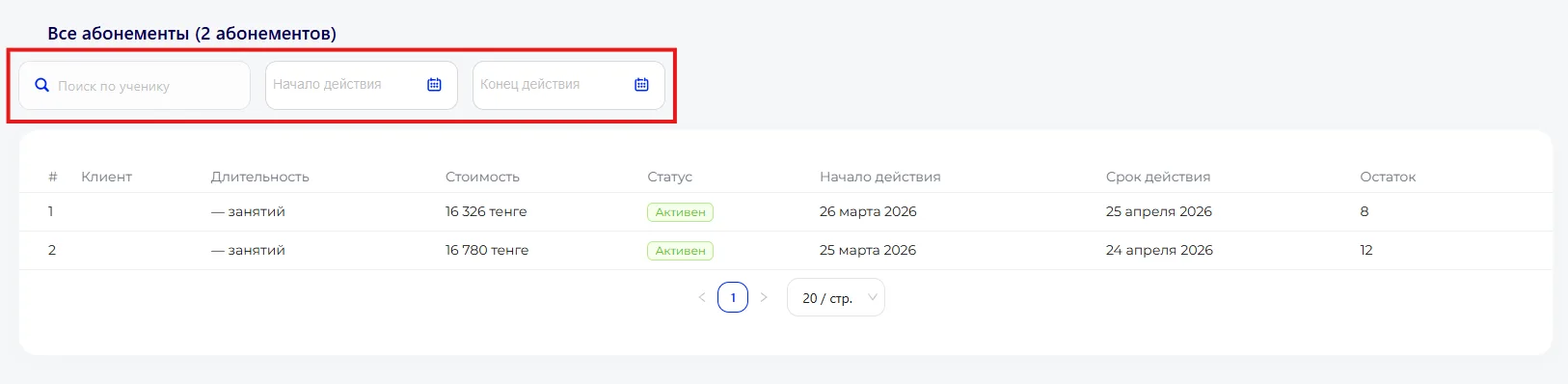
Here you can find a Membership by Student, as well as set a period by start and end dates.
The "Memberships" tab allows you to view active and all Memberships for the Class, create new templates with the required parameters, and manage auto-renewal. A user can quickly check who attends Classes and under what conditions, as well as prepare Memberships for sale or use in the Schedule.
Important to note
- The tables display only Memberships related to the current Class.
- Filters and search change the display of the list and do not affect data in the system.
- The "Auto-renewal" option automatically renews a Membership after its expiration, so it is important to verify the correctness of the date and cost.
- Changes to a template do not affect already issued Memberships — they apply only to new ones.
- Check the Membership status to understand which Classes the Student can attend right now.