Вкладка предназначена для управления программами обучения ученика. Здесь можно создать программу на основе ступени обучения, настроить её состав и условия, назначить преподавателя, оформить оплату и расписание, а также отслеживать прогресс ученика.
Основные блоки:
- Ступени обучения
- Создание программы обучения
- Карточка программы
- Действия над программой
- Категории программ
1. Ступени обучения
Перед созданием программы необходимо заранее настроить ступени обучения, на основе которых она формируется.
Раздел «Ступени обучения» открывается по одноимённой кнопке во вкладке «Обучение» карточки ученика или через настройки системы. В обоих случаях открывается один общий справочник ступеней, который используется для всей организации и не привязан к конкретному ученику.
Ступени объединяются по уровням. Уровень — это категория, в которую можно объединить несколько ступеней по смыслу.
В правом верхнем углу панели «Ступени обучения» расположены две кнопки: «+ Уровень» и «+ Создание ступени».
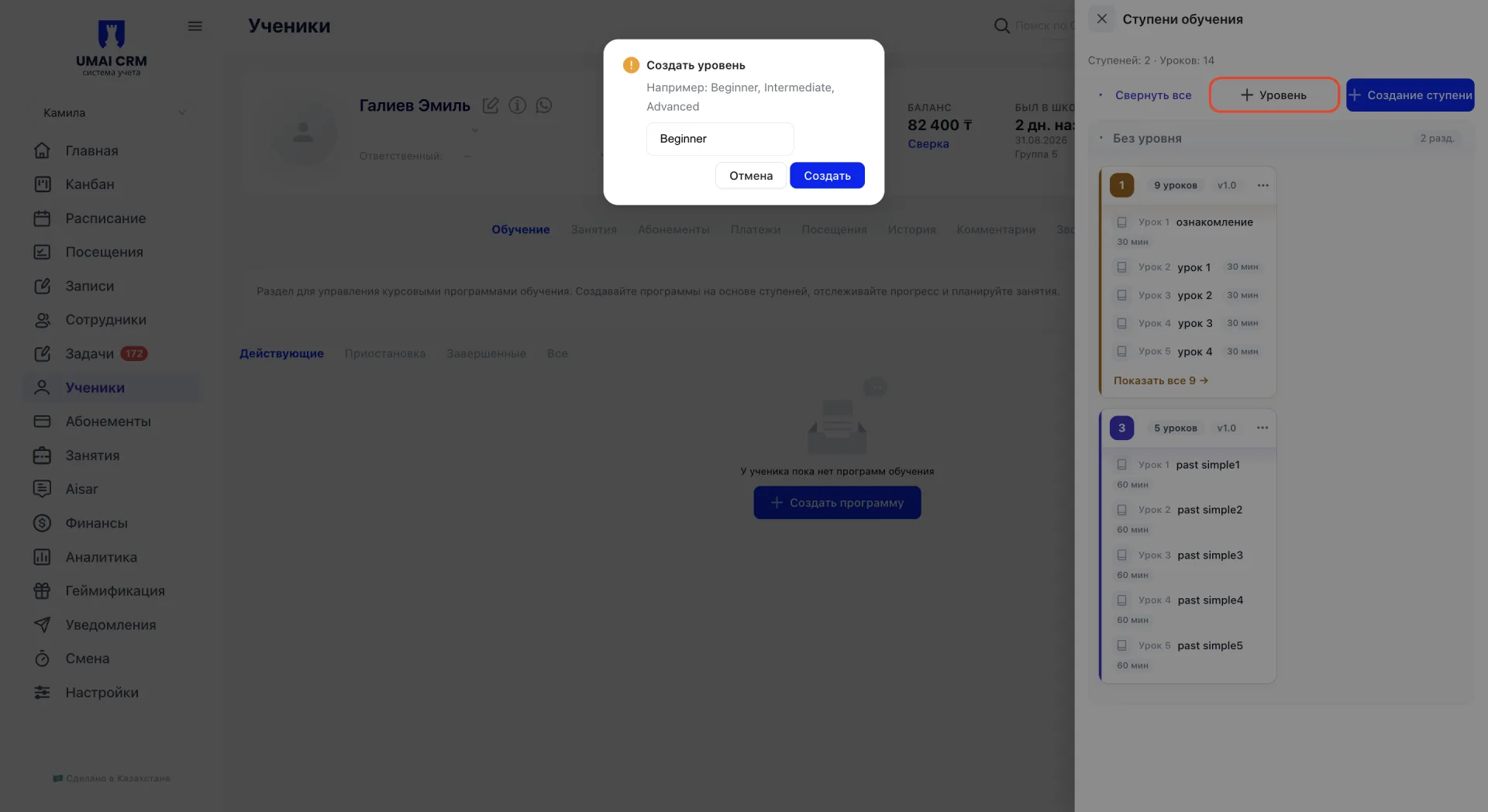
Уровень создаётся первым и служит родительской категорией для будущих ступеней: кнопкой «+ Уровень» задаётся только его название, а сами ступени заполняются уже внутри него.
Если ступень нужна без привязки к уровню, она создаётся отдельно кнопкой «+ Создание ступени» и отображается в системной группе «Без уровня».
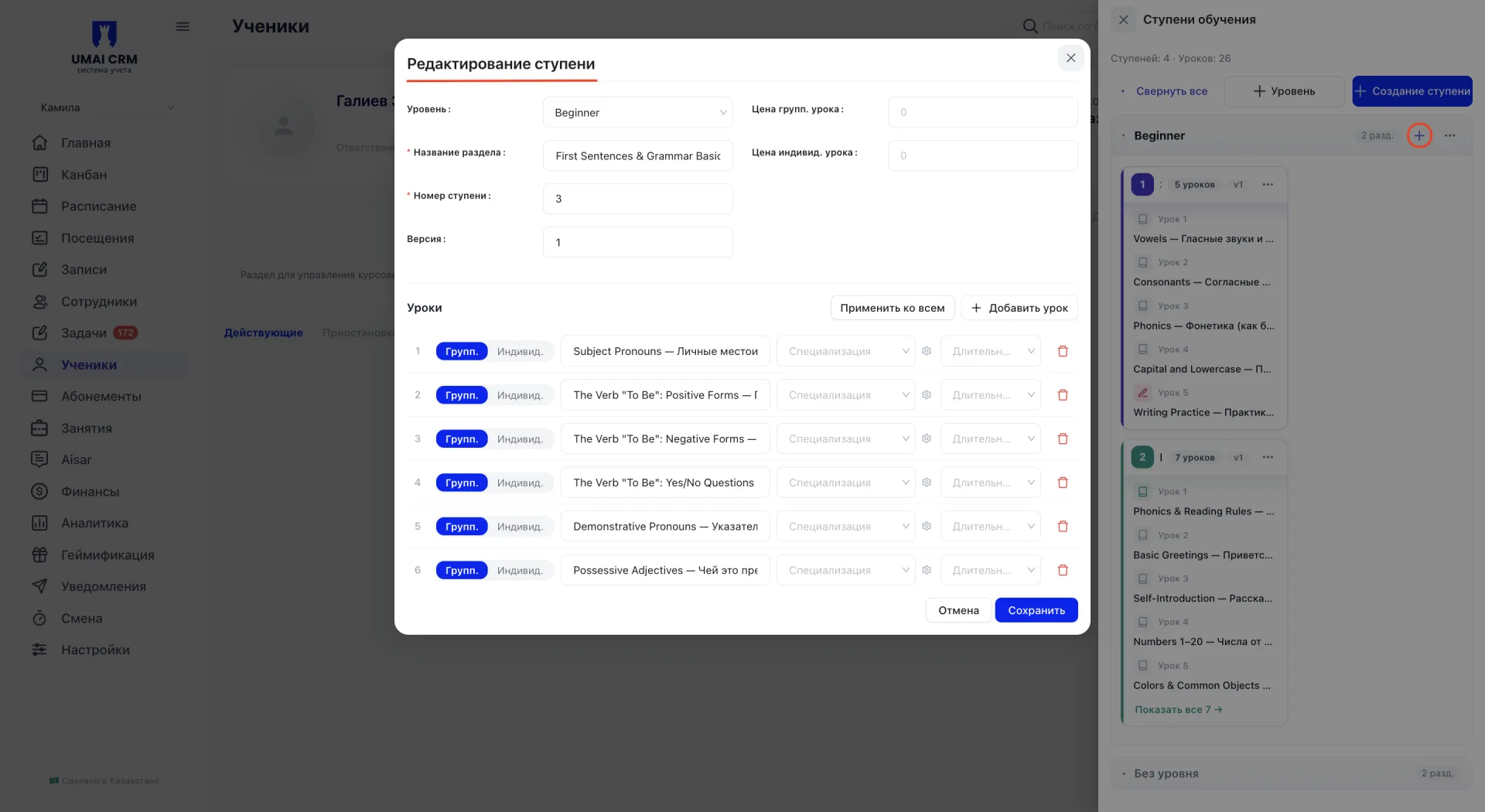
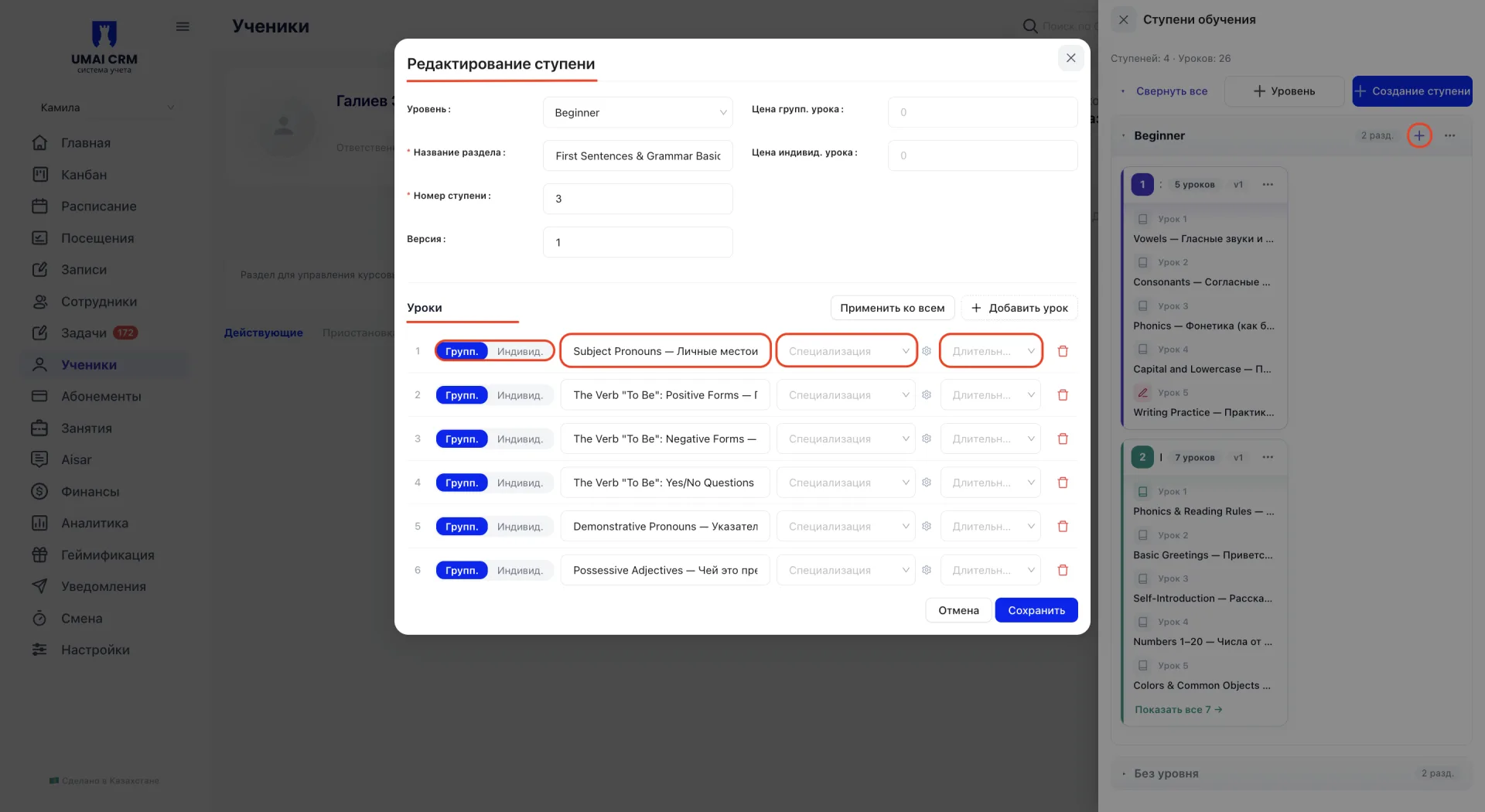
Например, можно создать уровень «Beginner», а внутри него несколько ступеней с последовательными темами уроков: ступень «Знакомство с алфавитом» с уроками про звуки и правила чтения, и следующую ступень «Первые предложения и основы грамматики» с уроками про местоимения, глагол to be и притяжательные прилагательные.
Чтобы добавить ступень внутри уже созданного уровня, используется кнопка «+» рядом с его названием. При создании или редактировании ступени указываются:
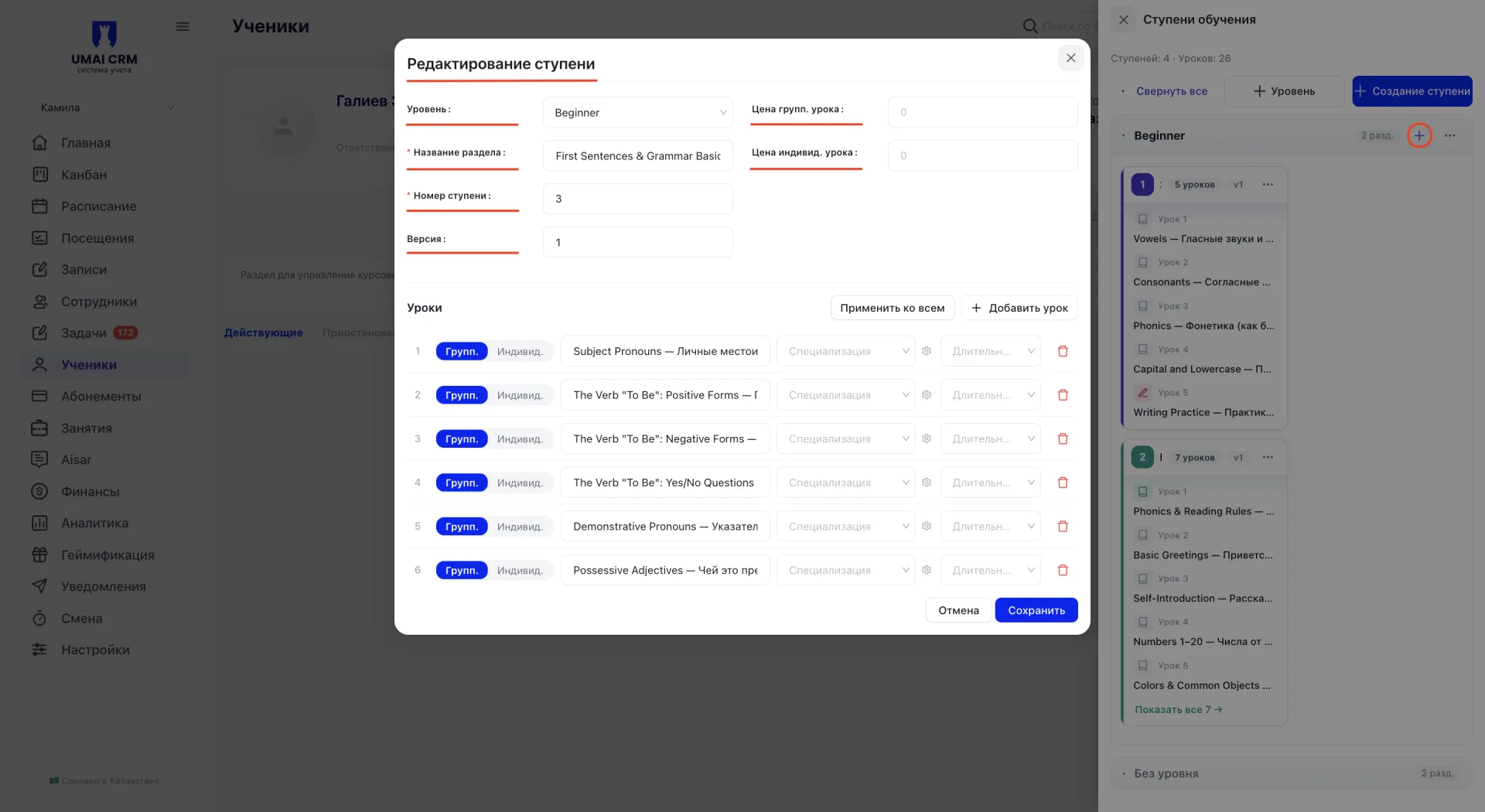
- Уровень — уровень, к которому относится ступень. Поле необязательно.
- Название раздела — название ступени.
- Номер ступени — порядковый номер, который определяет её место в общей нумерации уроков программы.
- Версия — версия ступени, которая используется при изменении состава уроков.
- Цена групп. урока и Цена индивид. урока — стоимость одного урока для группового и индивидуального формата.
В блоке «Уроки» добавляются уроки, которые входят в ступень. Для этого используется кнопка «+ Добавить урок».
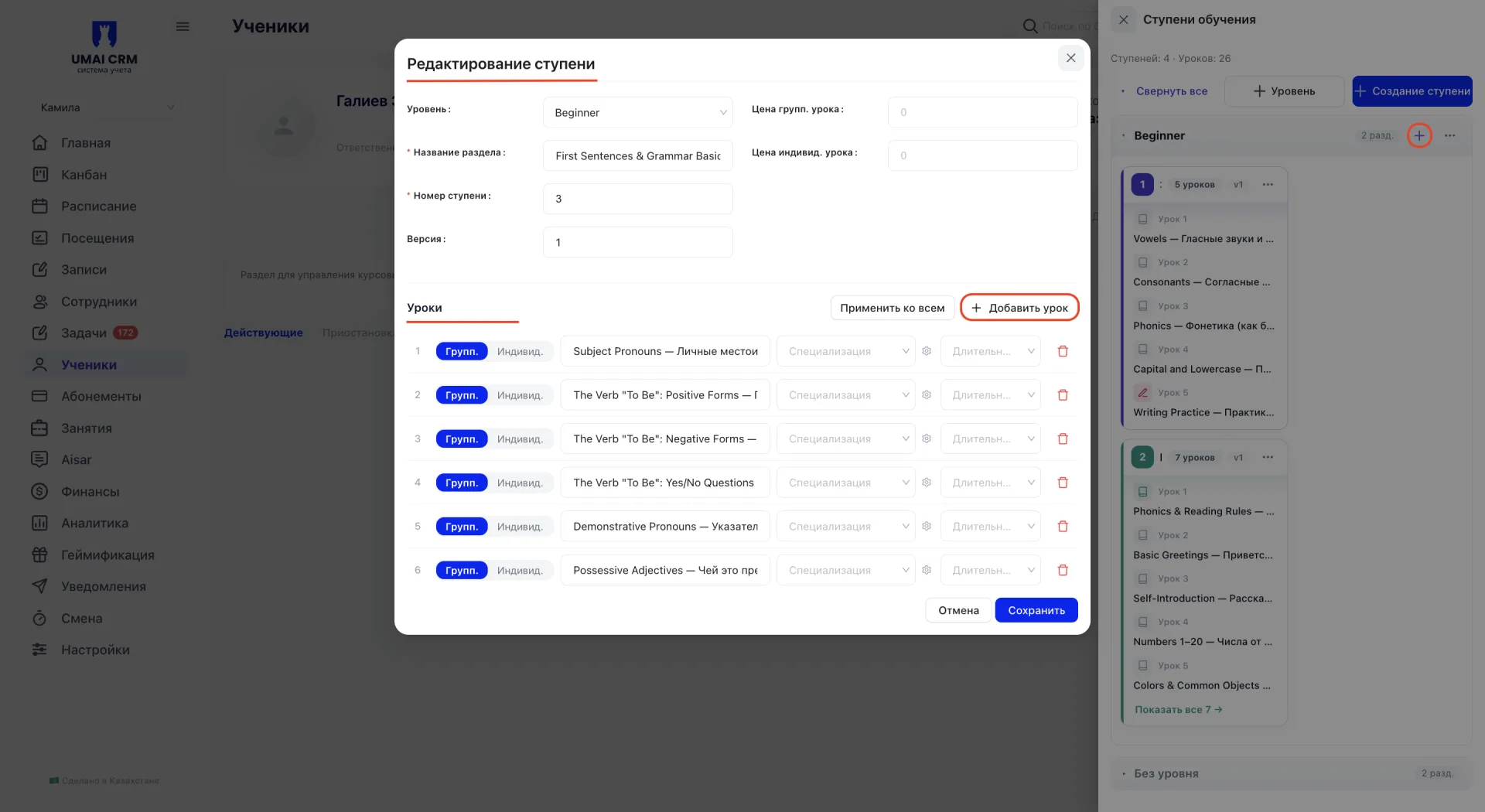
Для каждого урока указываются:
- формат — «Групп.» или «Индивид.»;
- тема урока;
- специализация;
- длительность.
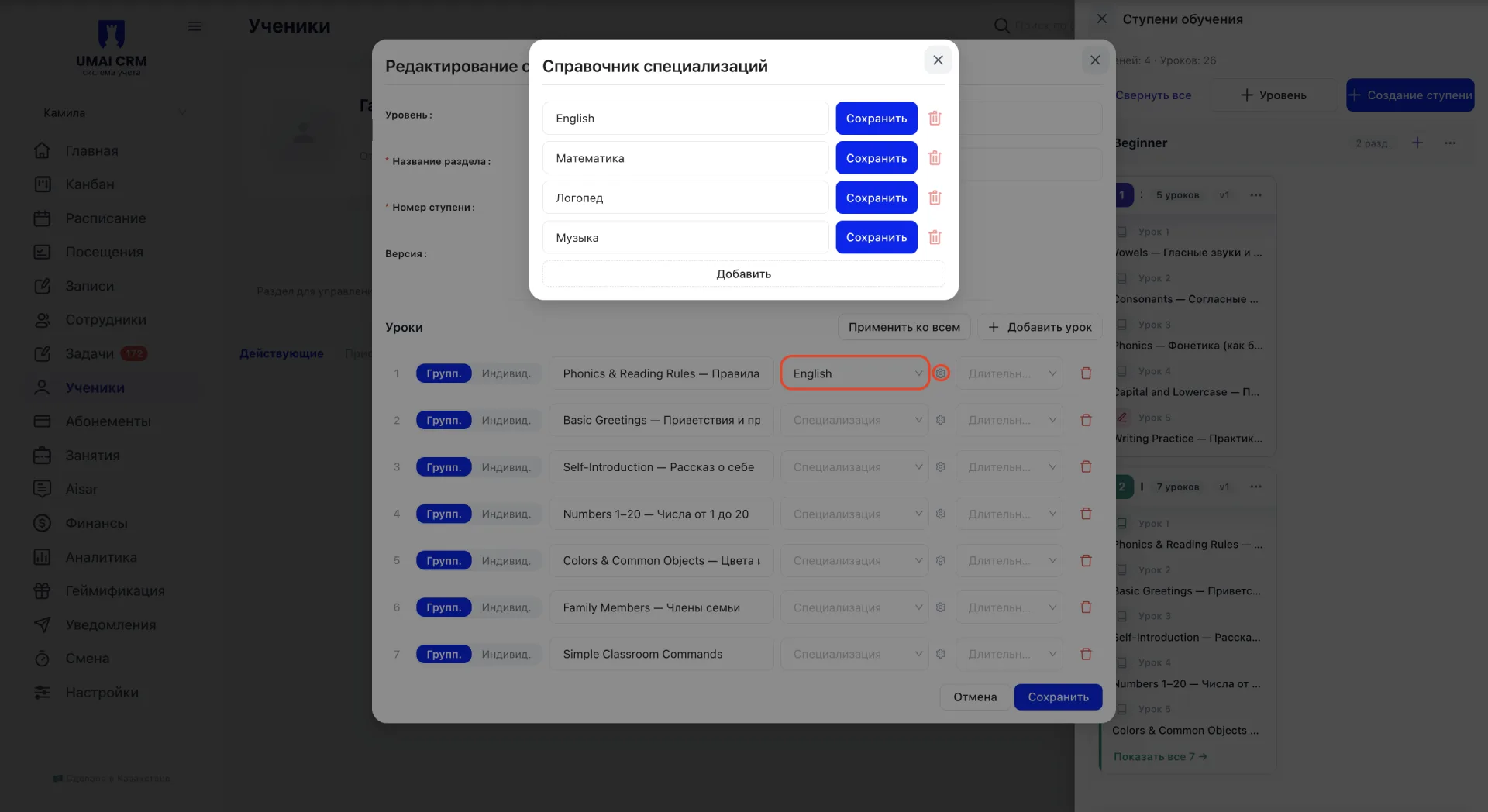
Специализация выбирается из отдельного справочника, который открывается по значку настроек рядом с полем. Она используется для тегирования и группировки уроков по теме и не влияет на стоимость программы.
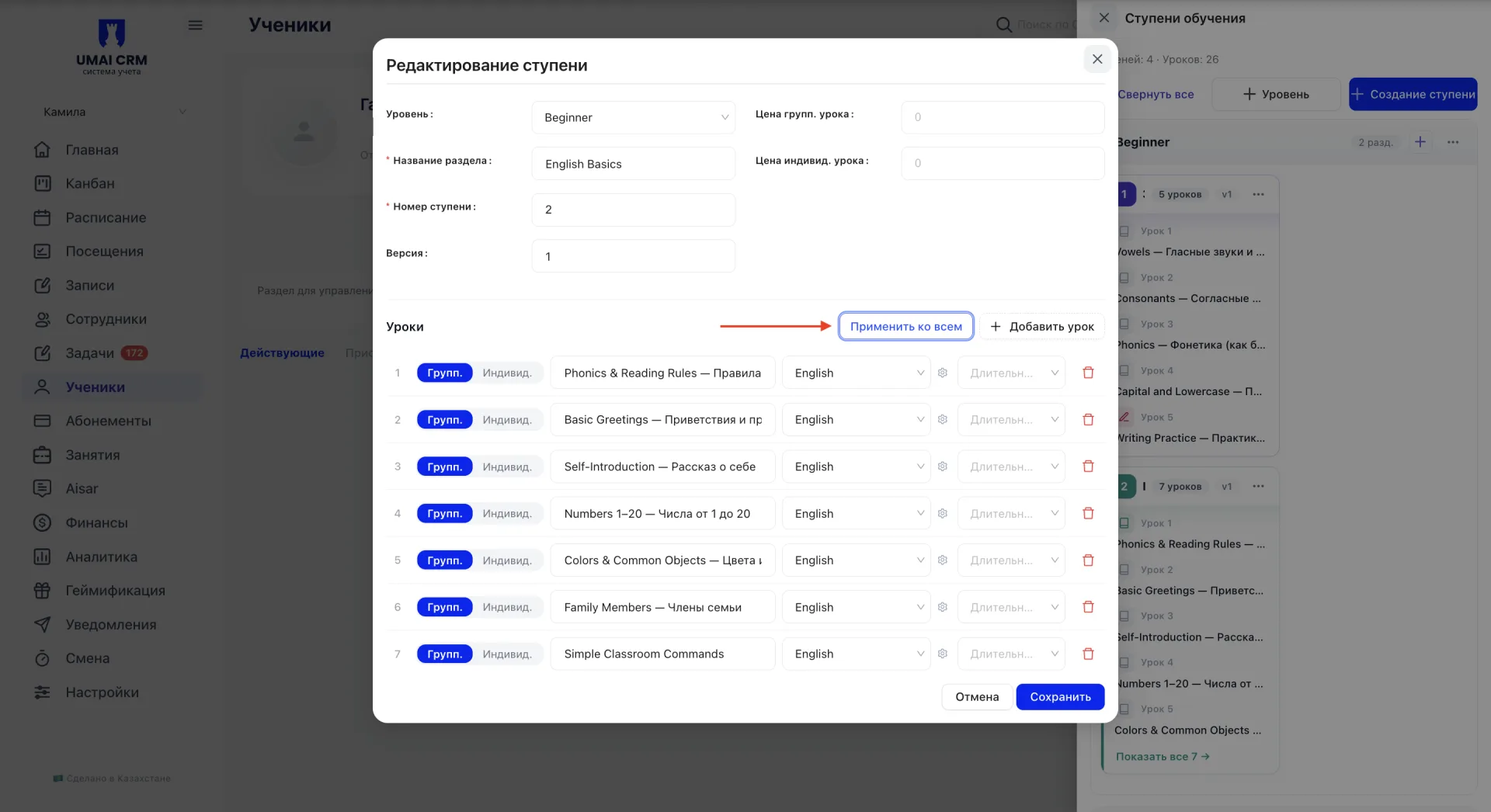
Кнопка «Применить ко всем» позволяет перенести настройки текущего урока на остальные уроки ступени.
2. Создание программы обучения
Создать программу обучения ученику можно двумя способами.
Способ 1. Кнопка «+ Новая программа» расположена в верхней части вкладки «Обучение», рядом с описанием раздела, и доступна всегда, независимо от того, есть ли у ученика уже созданные программы.
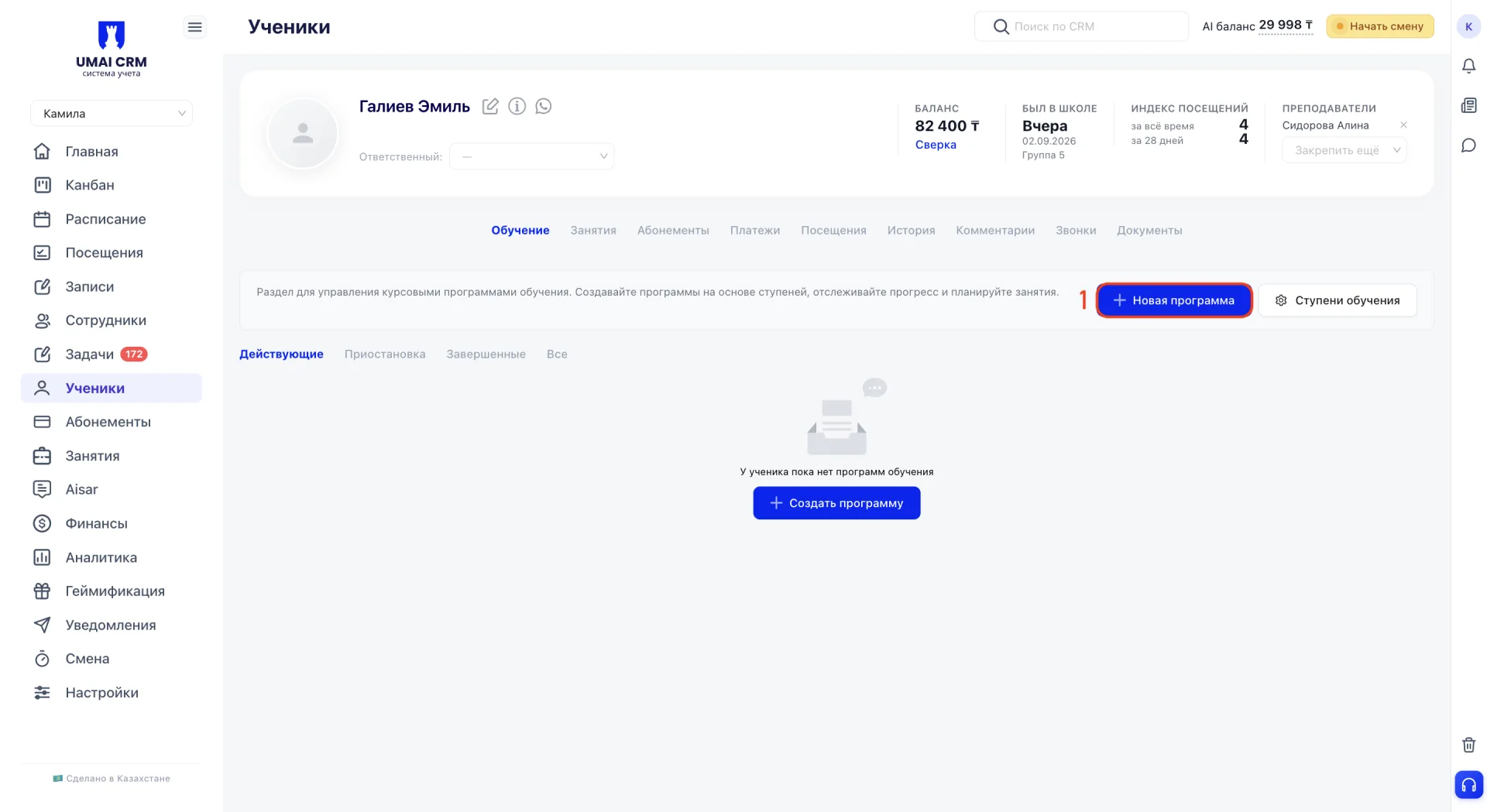
Способ 2. Кнопка «+ Создать программу» отображается по центру вкладки «Обучение» вместо списка программ, если у ученика ещё нет ни одной программы обучения.
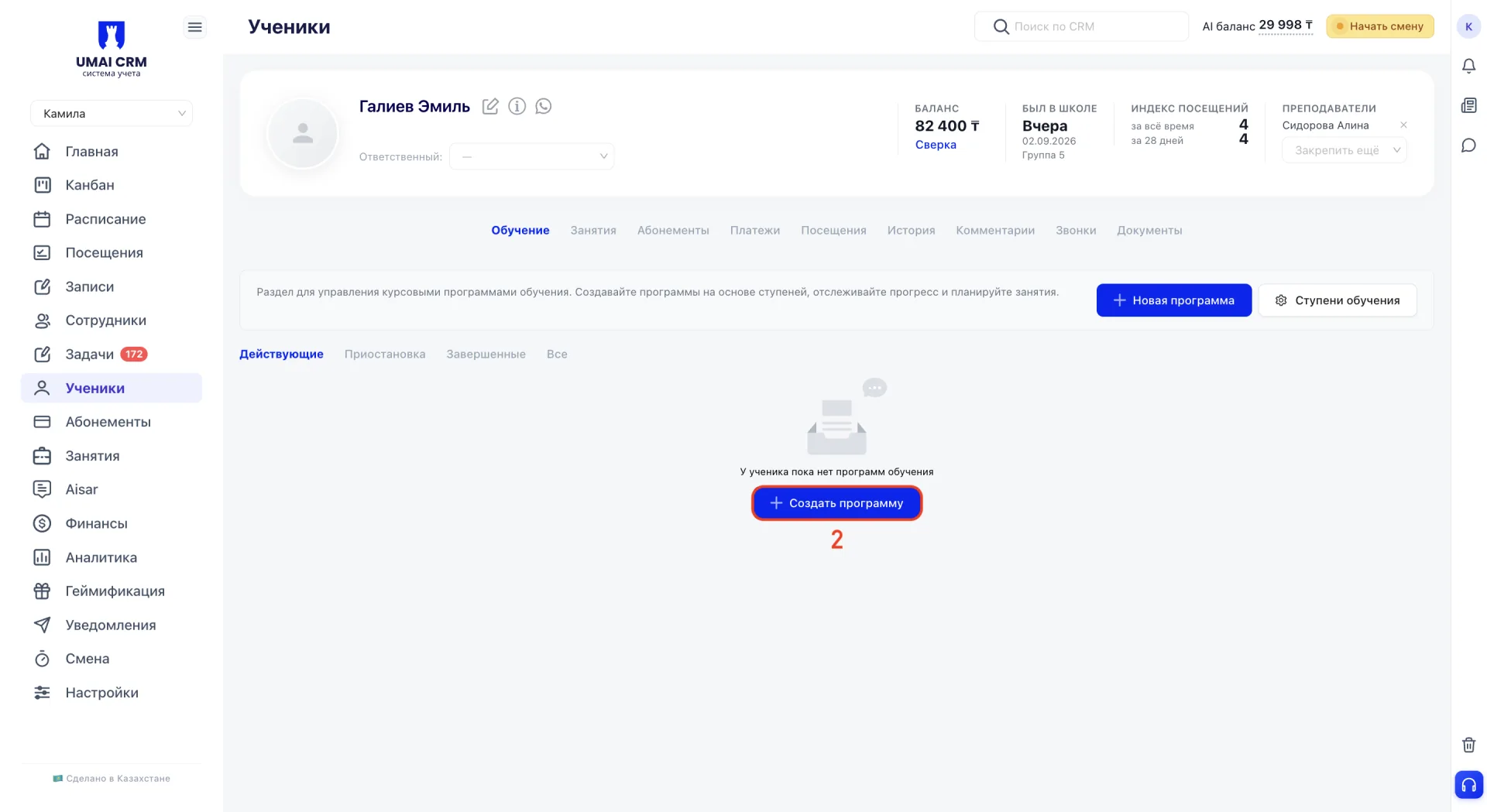
Оба способа открывают одну и ту же форму создания программы, разделённую на шесть пронумерованных блоков.
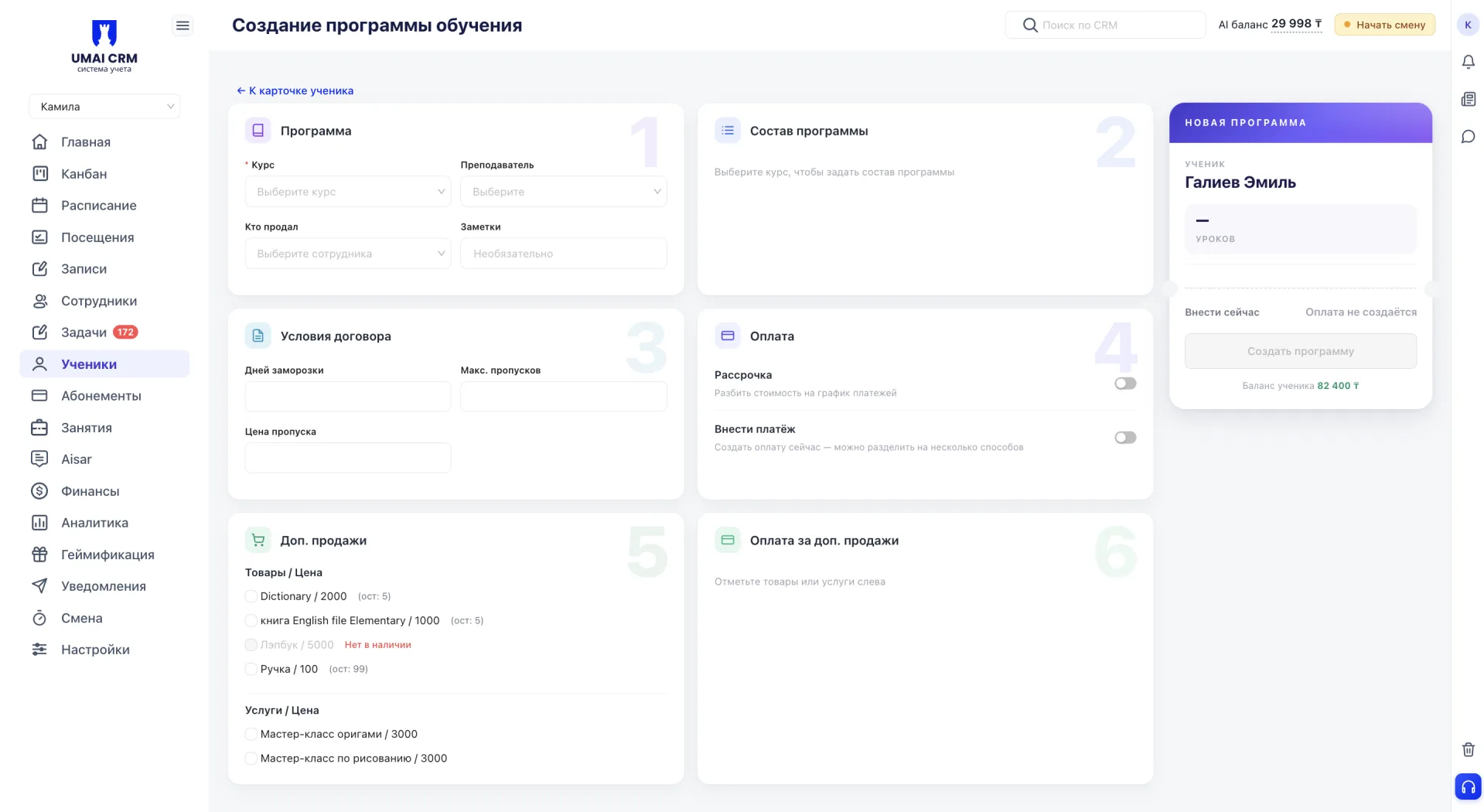
Форма создания программы разделена на шесть пронумерованных блоков.
1) Программа
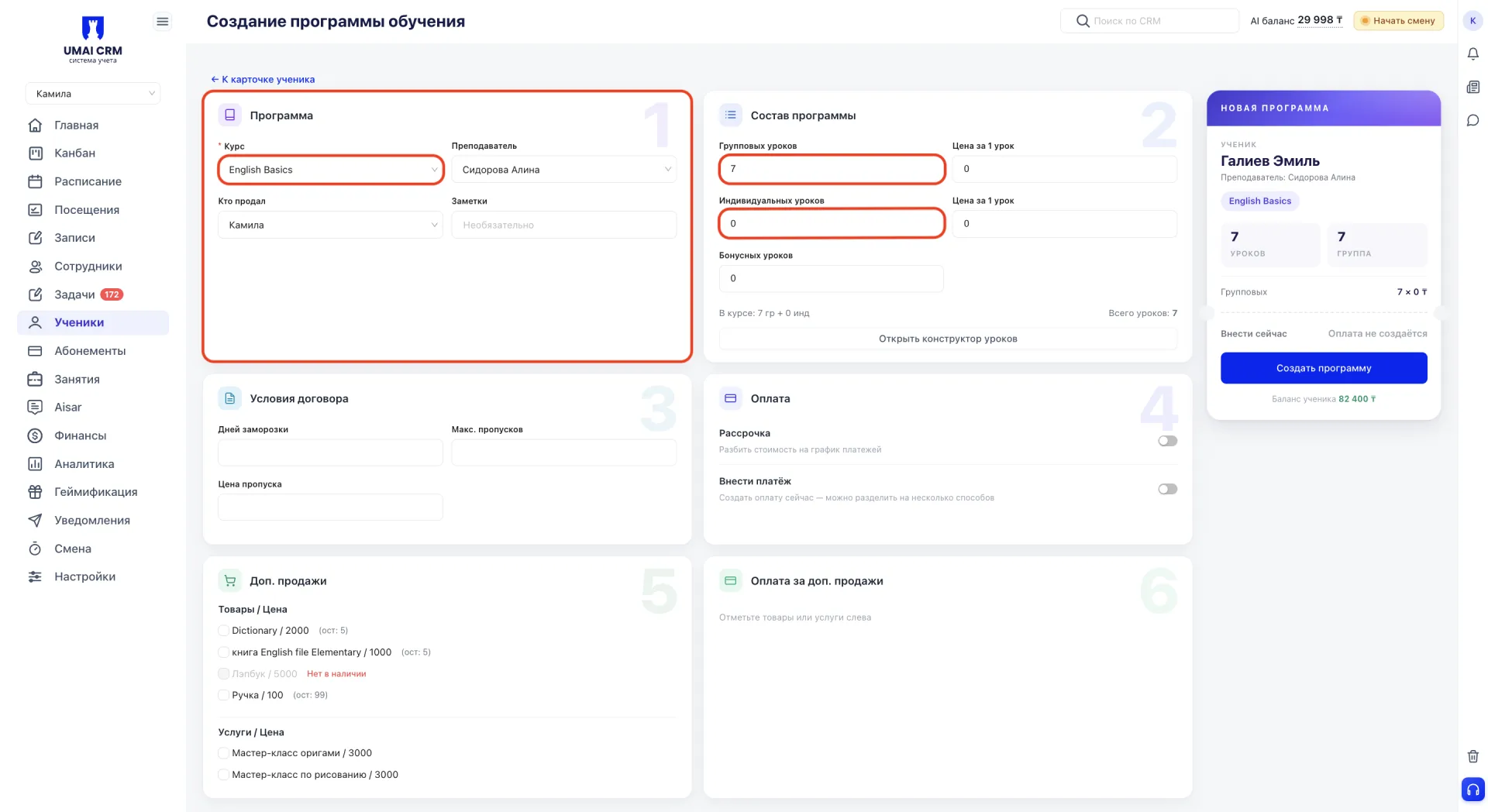
Содержит поле «Курс», в котором выбирается ранее созданная ступень. После выбора курса автоматически указывается количество групповых и индивидуальных занятий в соответствии с выбранной ступенью. Остальные параметры программы необходимо заполнить вручную.
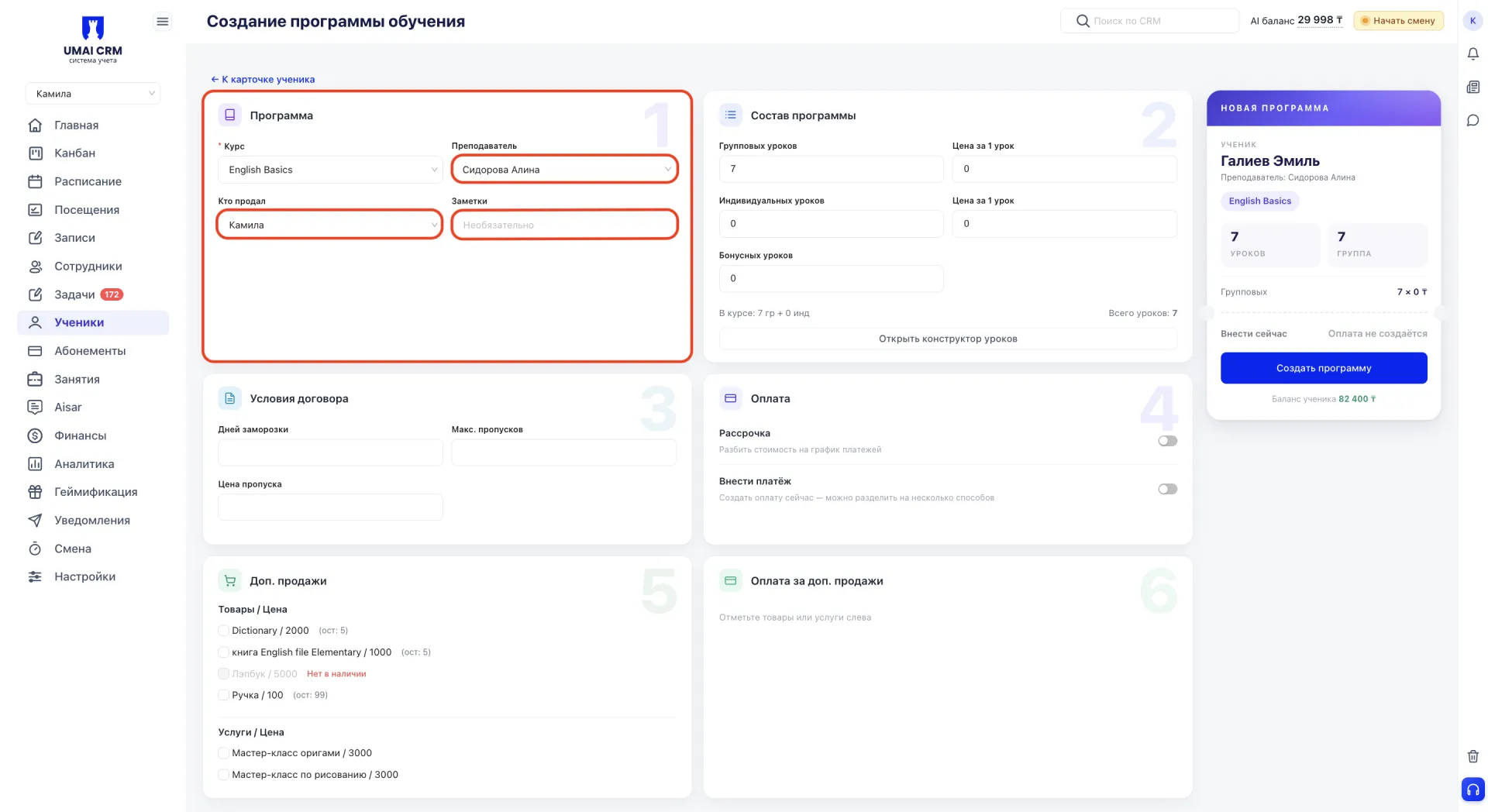
Также указываются преподаватель, сотрудник, оформивший продажу («Кто продал»), и заметки.
2) Состав программы
После выбора курса автоматически отображается количество групповых и индивидуальных уроков. Остальные параметры указываются вручную и при необходимости могут быть изменены.
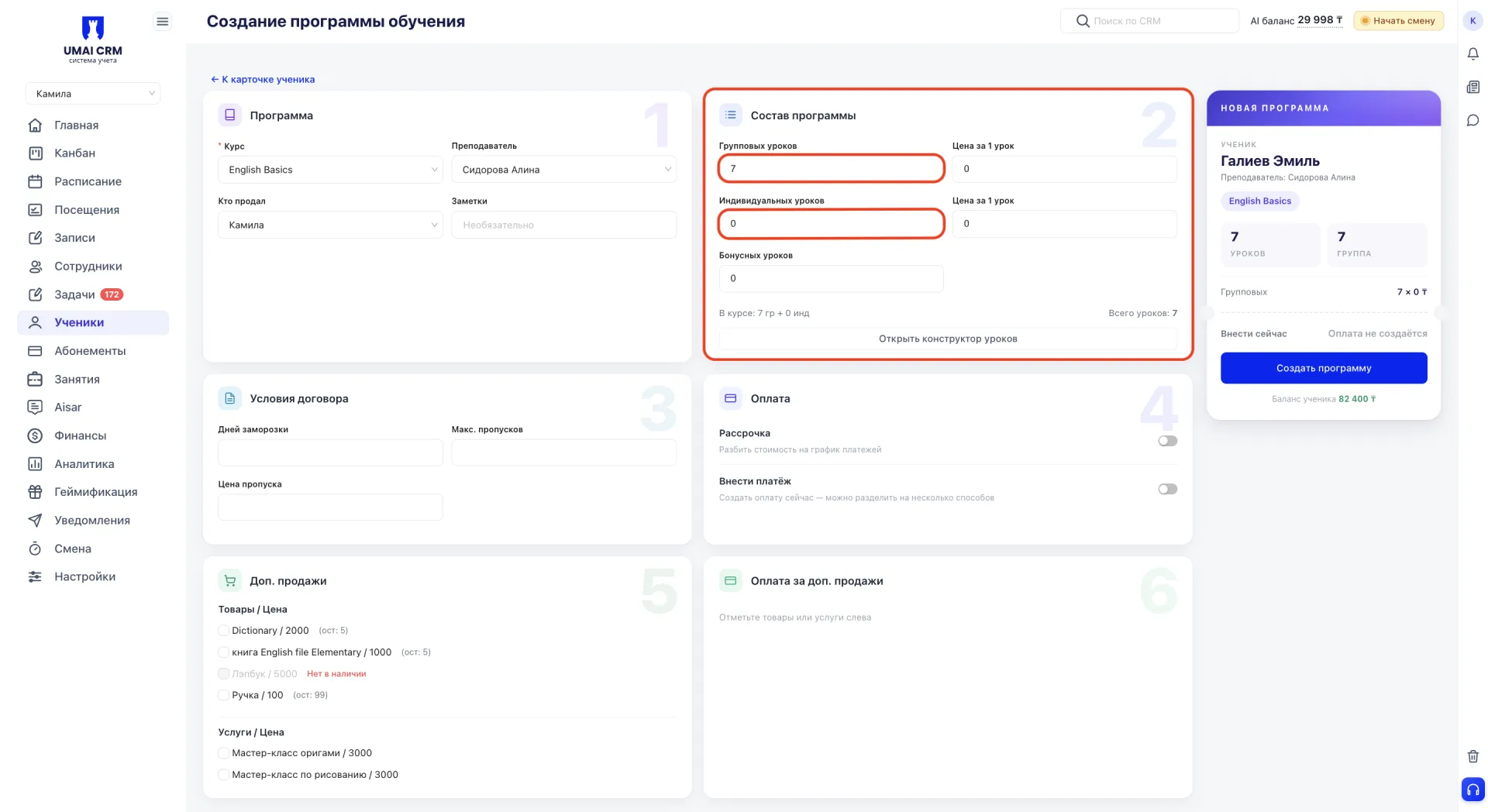
Кнопка «Открыть конструктор уроков» открывает список всех уроков ступени. В нём можно выбрать конкретные уроки для программы ученика и изменить формат каждого урока отдельно, независимо от настроек ступени.
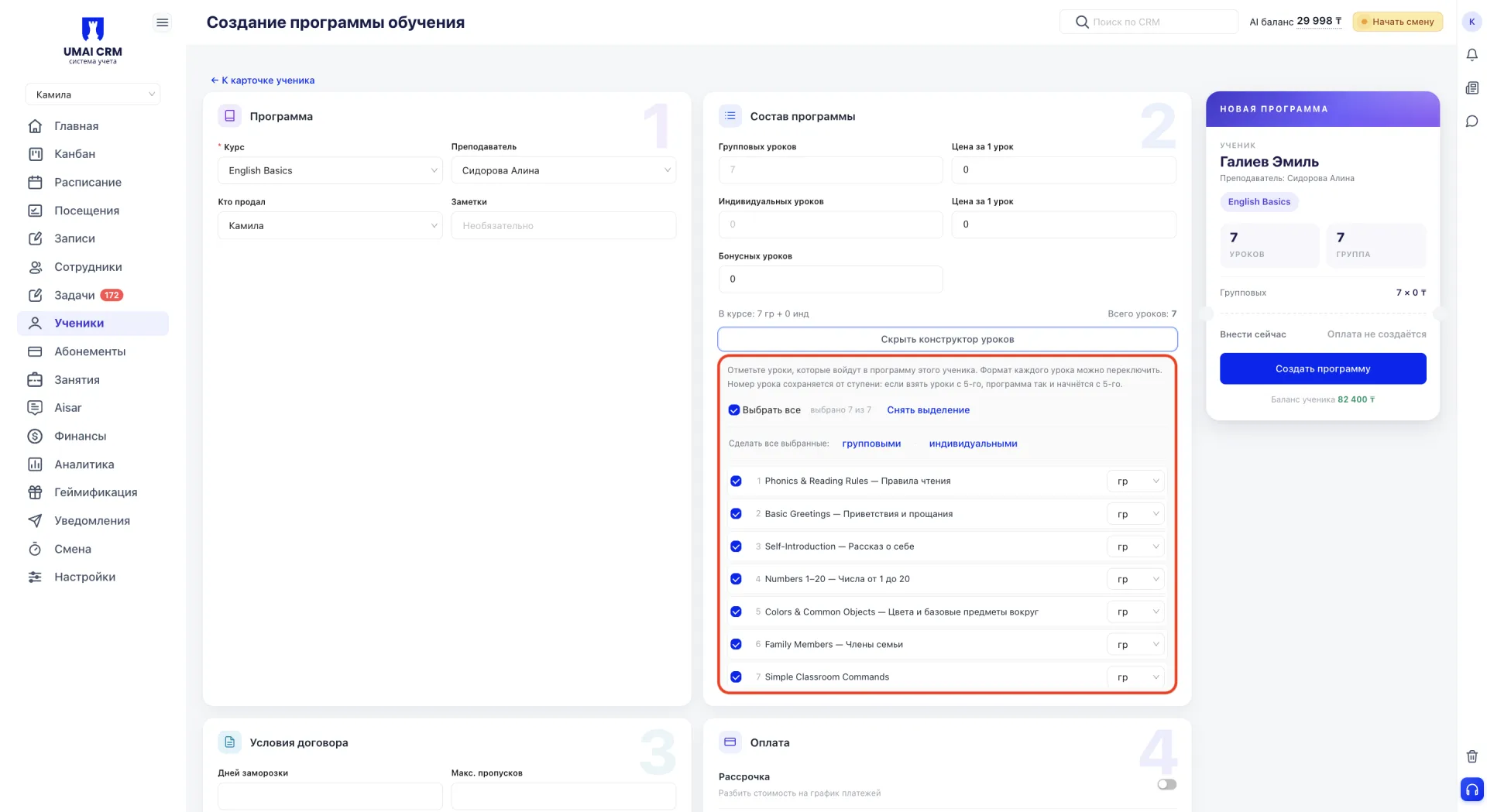
Номер урока в программе сохраняется таким же, как в ступени. Например, если выбрать уроки начиная с пятого, программа также начнётся с пятого урока.
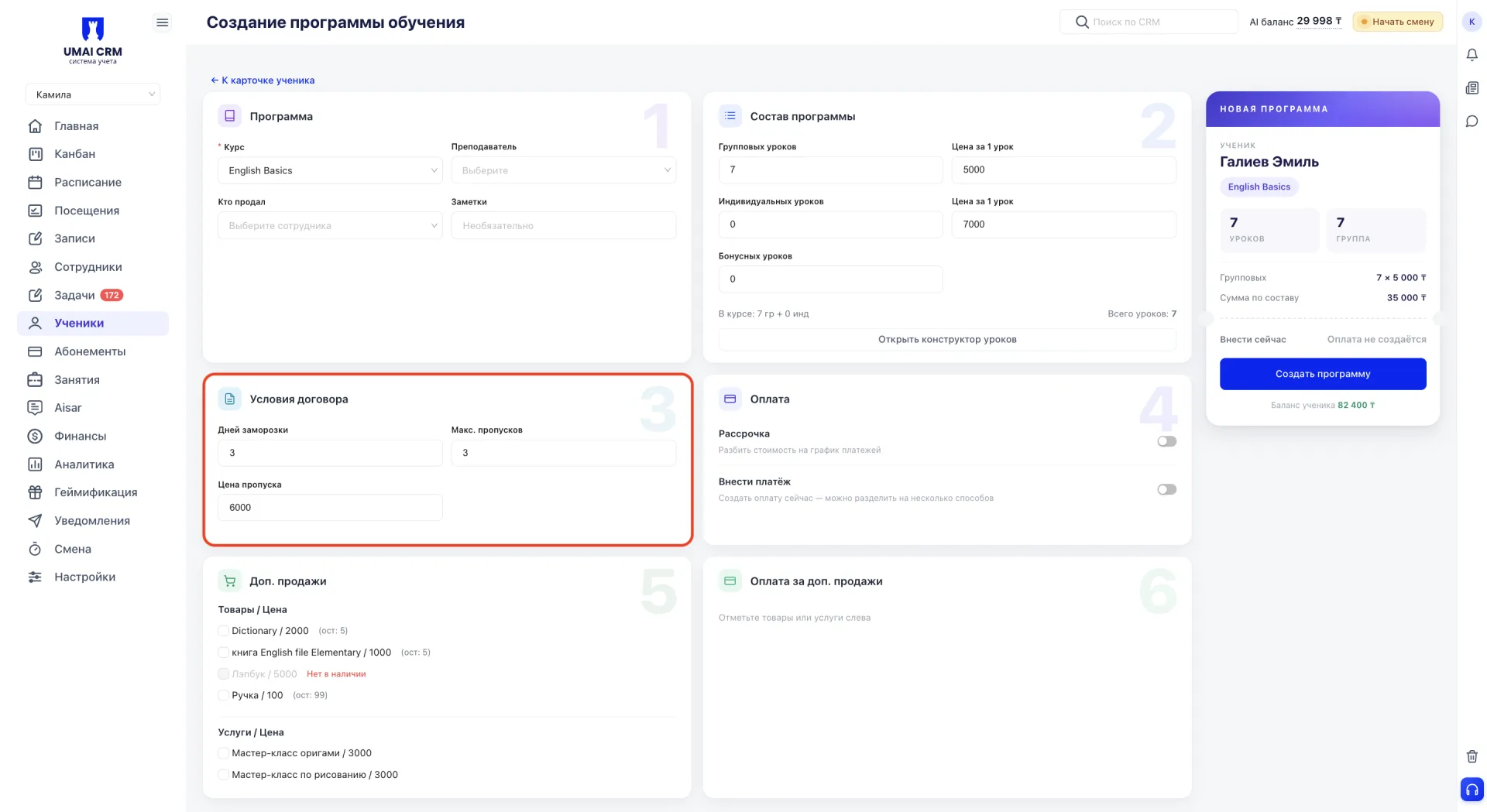
3) Условия договора
В блоке задаются индивидуальные для программы значения максимального количества дней заморозки, максимального количества пропусков и цены пропуска.
4) Оплата
В блоке доступны два способа оформления оплаты. Они взаимоисключающие, поэтому одновременно можно выбрать только один.
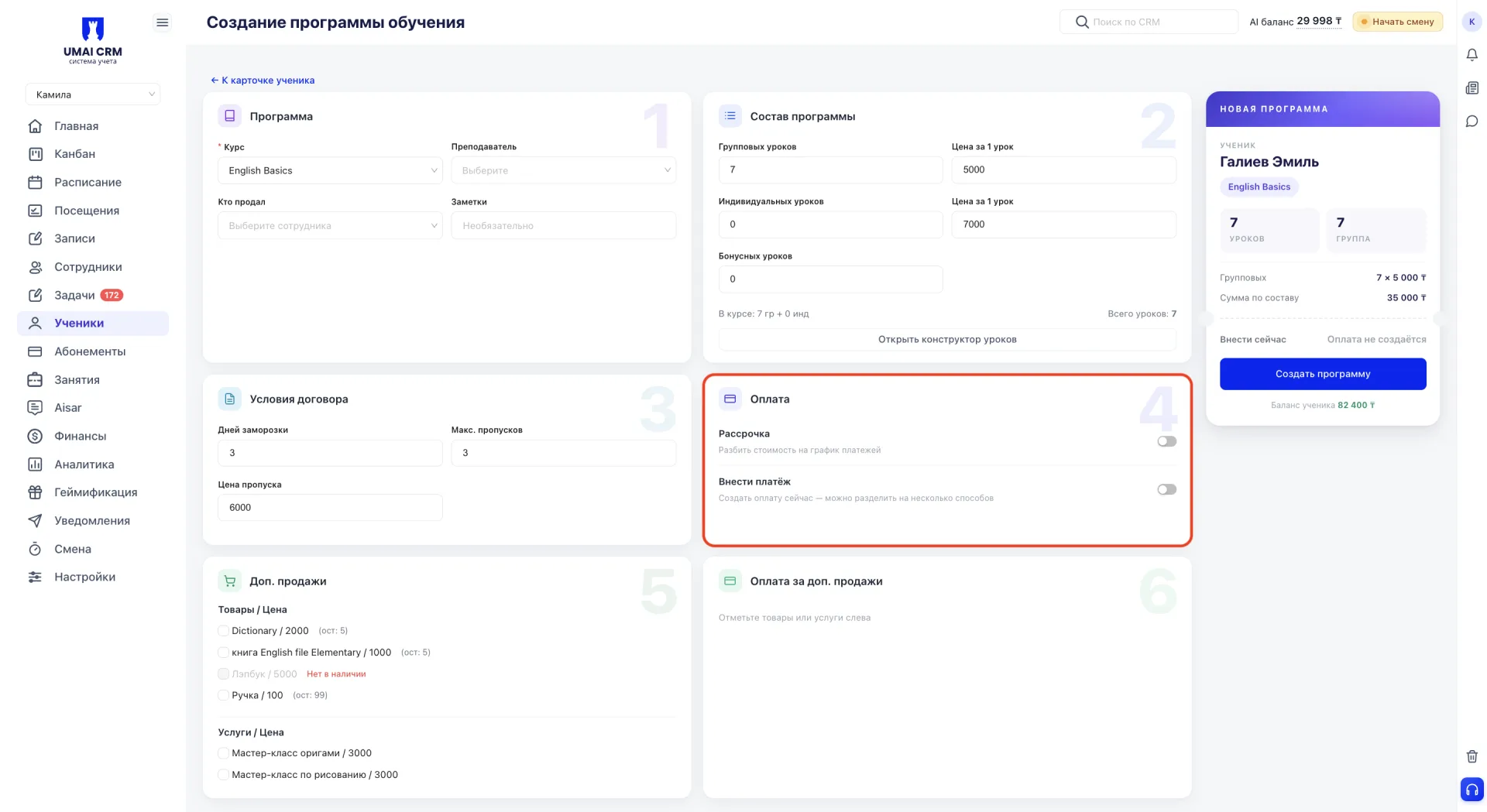
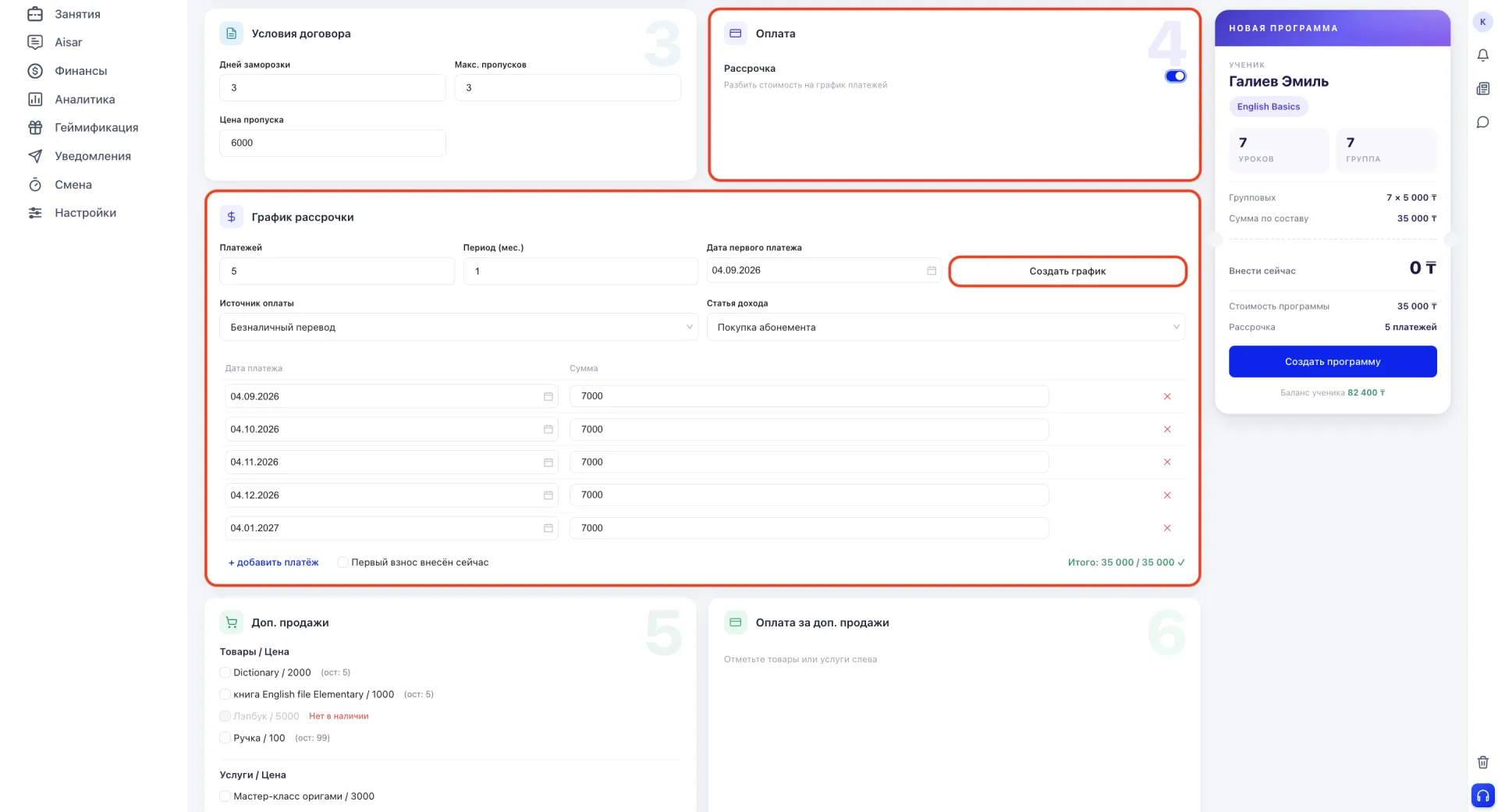
Рассрочка разбивает стоимость программы на несколько платежей. Для этого указываются количество платежей, период между ними в месяцах и дата первого платежа. После этого график можно сформировать автоматически кнопкой «Создать график» и при необходимости скорректировать вручную.
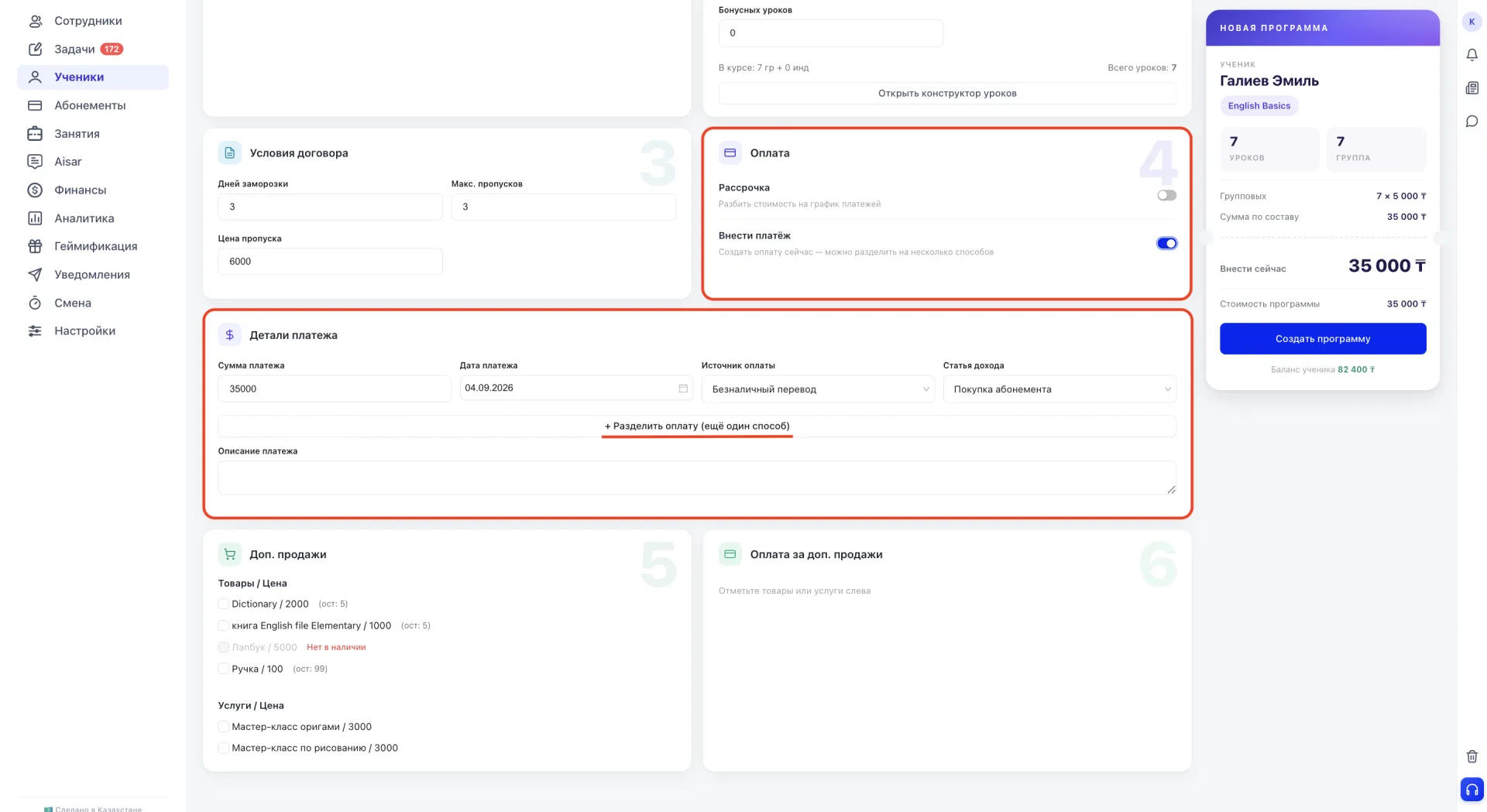
Внести платёж создаёт один платёж сразу. Сумму можно разделить между несколькими источниками оплаты с помощью кнопки «Разделить оплату».
5) Доп. продажи
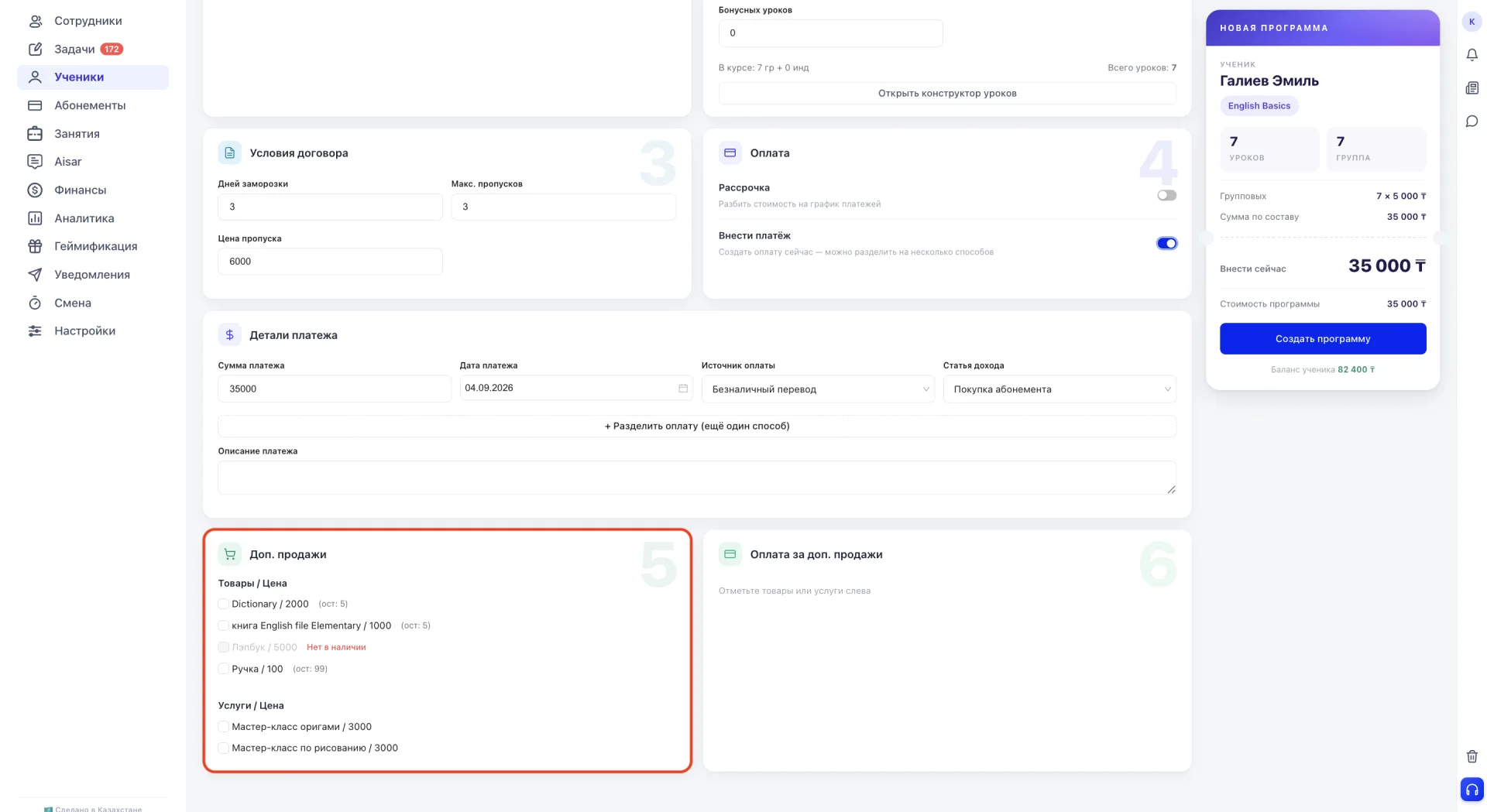
Позволяет добавить товары или услуги, которые входят в программу вместе с обучением. Для каждой позиции указывается отдельная цена.
6) Оплата за доп. продажи
Если добавлена хотя бы одна позиция, появляется блок «Оплата за доп. продажи». В нём можно отдельно оформить оплату добавленных товаров и услуг.
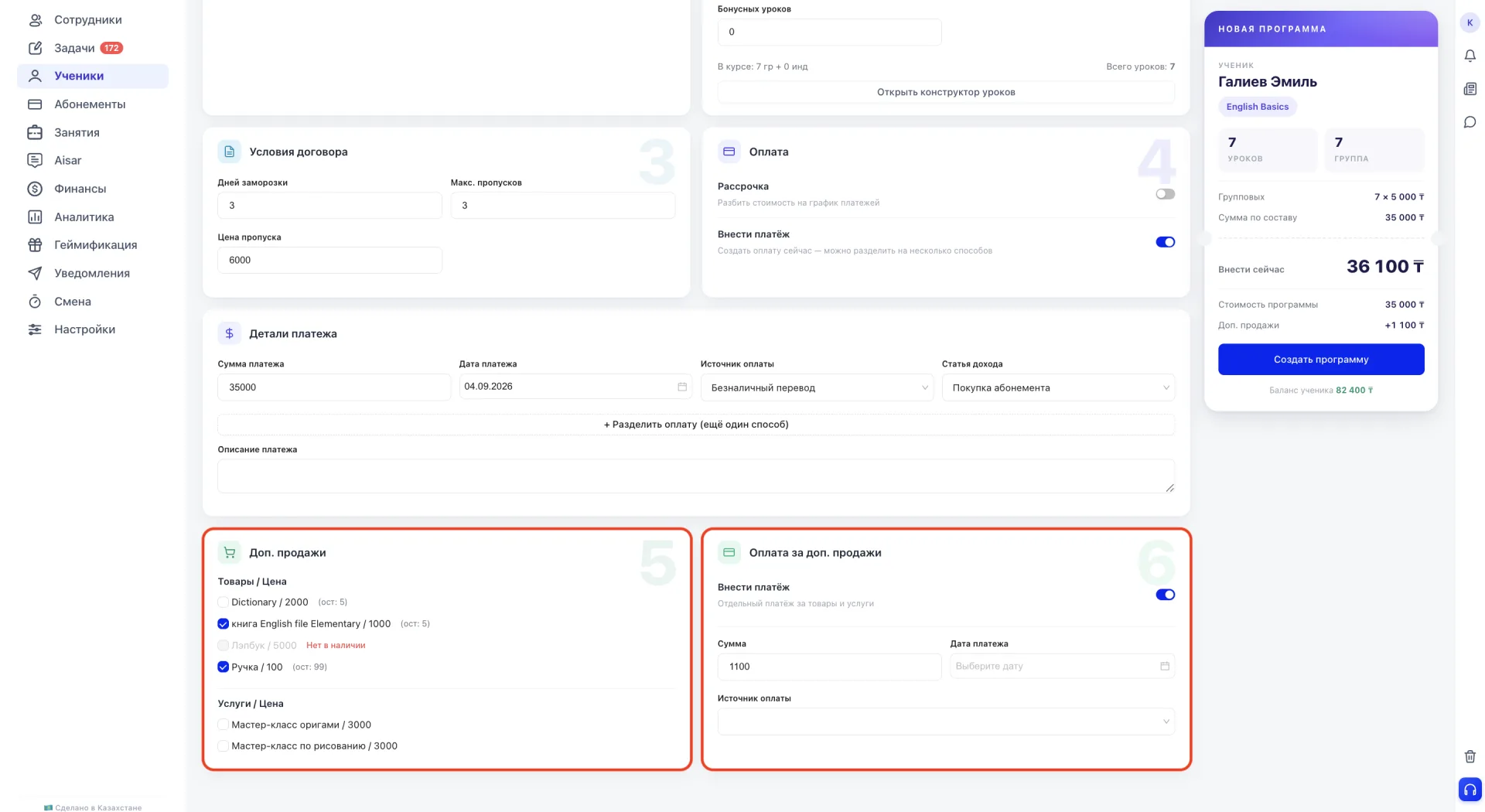
Справа от формы отображается сводка по создаваемой программе. В ней указаны ученик, преподаватель, курс, количество уроков каждого формата и итоговая сумма.
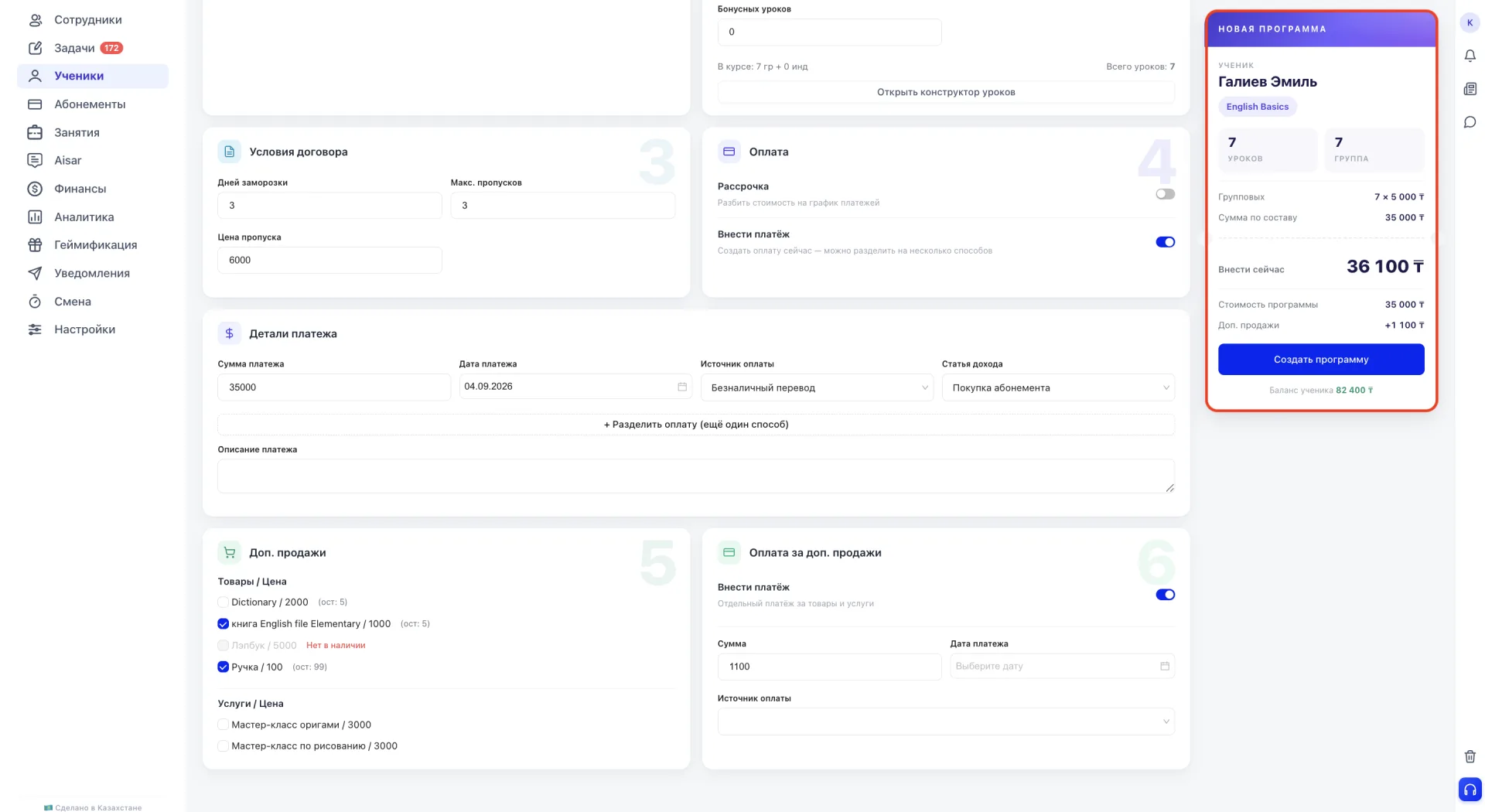
После заполнения формы нажмите «Создать программу».
3. Карточка программы
После создания программа отображается в списке программ ученика в виде карточки с названием курса и статусом. Внутри карточки показаны все уроки программы в виде отдельных плашек с номером и форматом, а под ними расположена статистика: количество уроков в программе, посещённых, не посещённых, пропущенных и сгоревших.
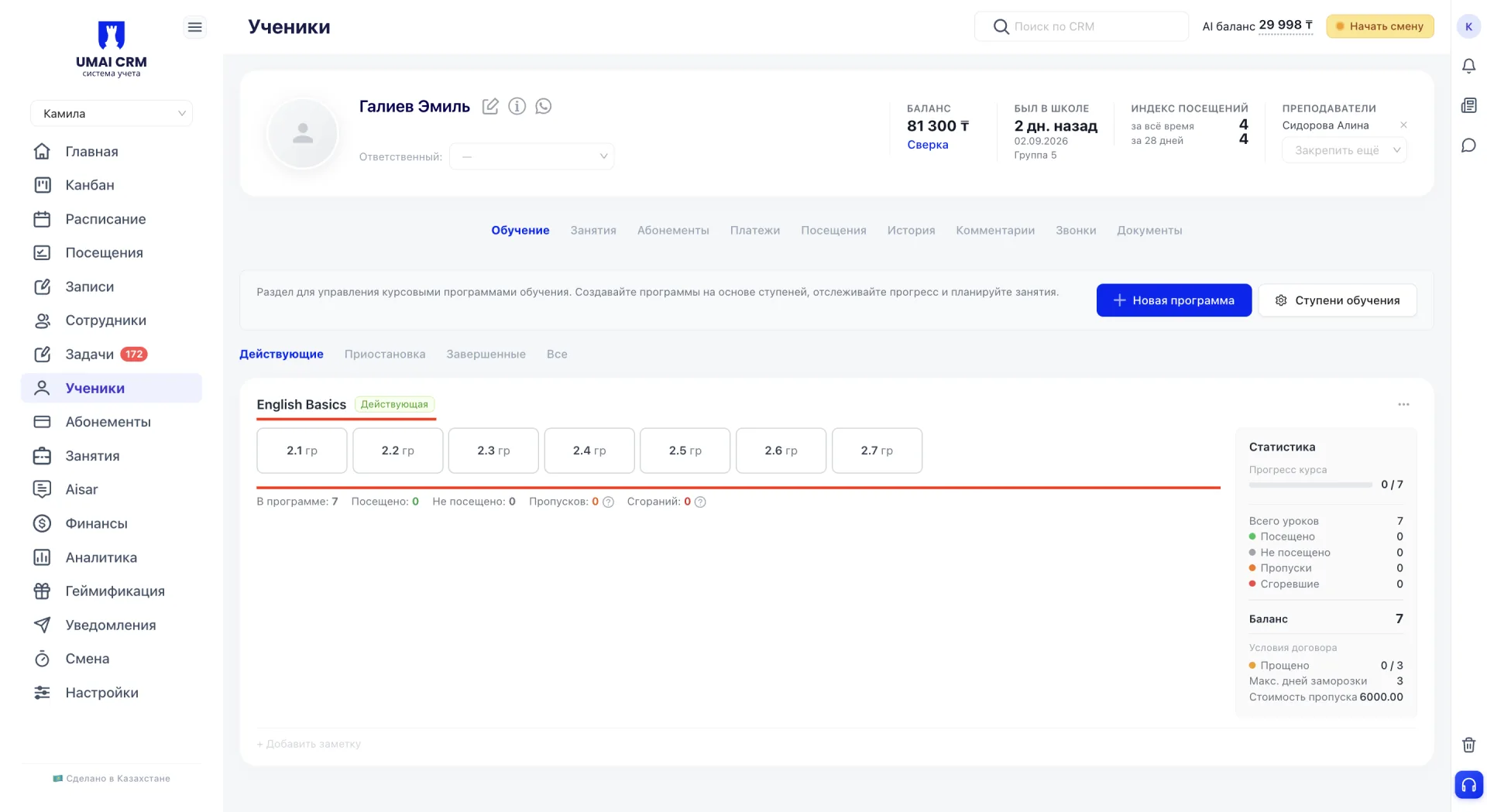
Справа от списка уроков отображается блок «Статистика» с прогрессом прохождения курса, детализацией по урокам (посещено, не посещено, пропуски, сгоревшие), балансом уроков и условиями договора по этой программе (прощено пропусков, максимум дней заморозки, стоимость пропуска).
4. Действия над программой
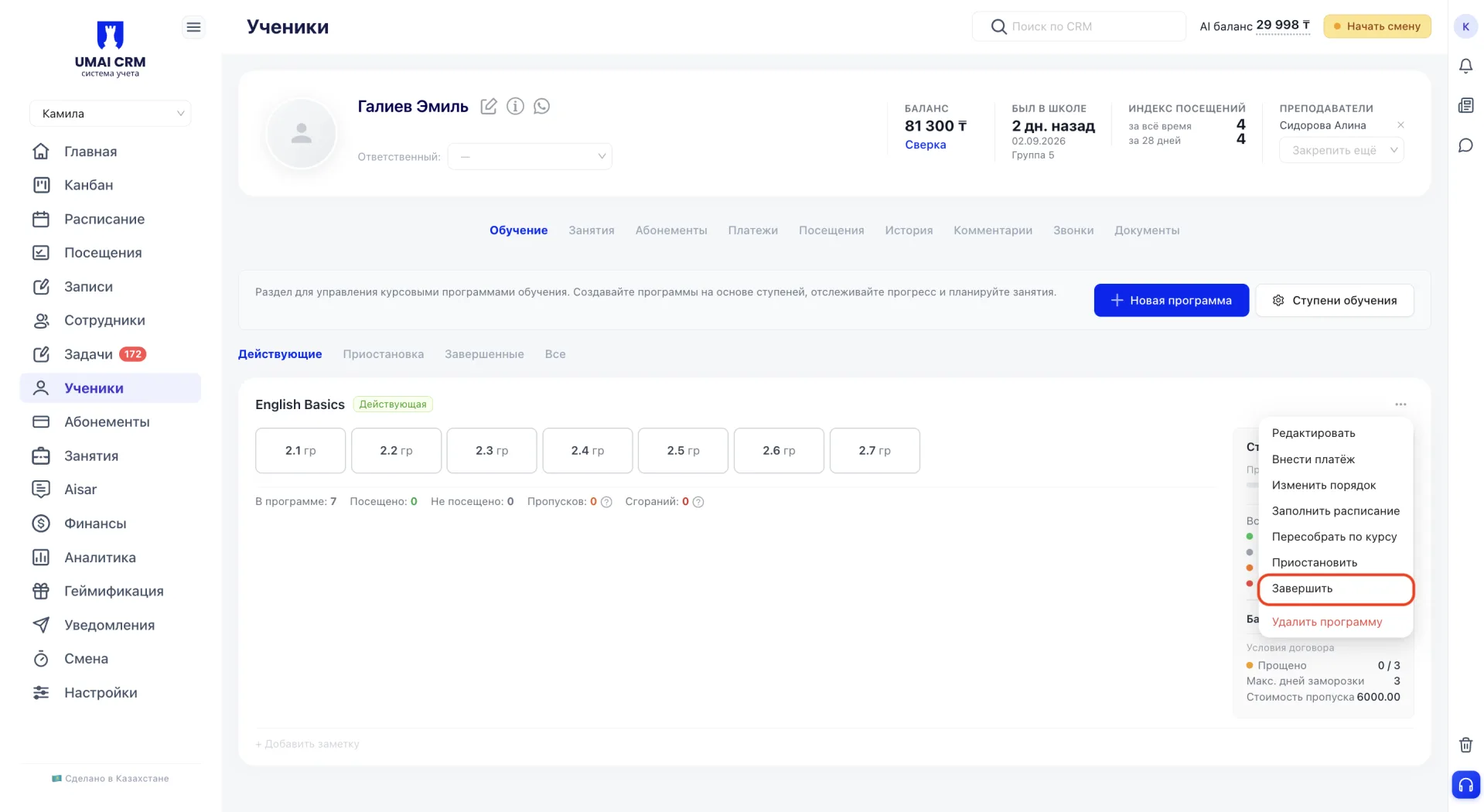
Меню действий над программой открывается значком «...» в карточке программы и относится ко всей программе целиком, а не к отдельному уроку.
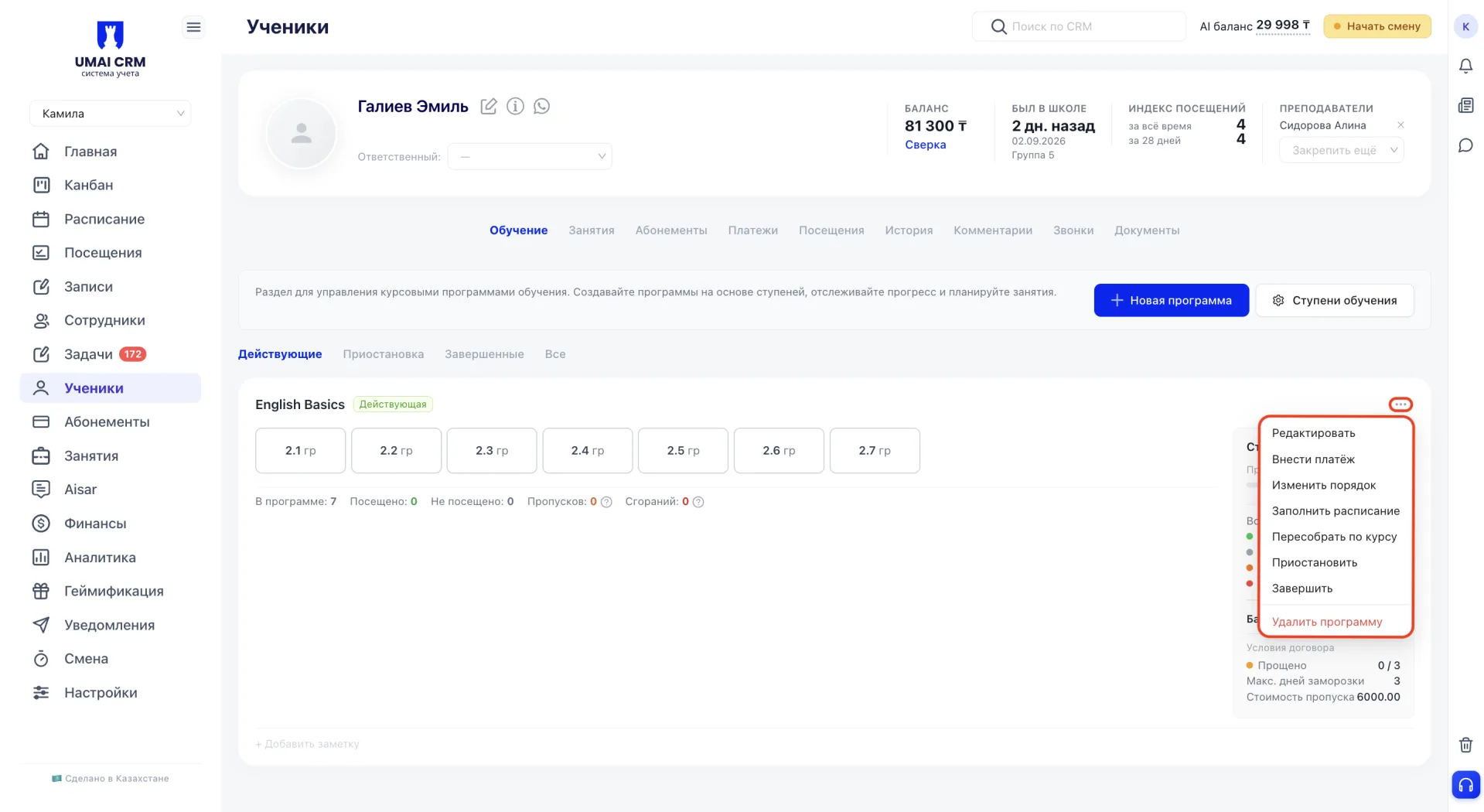
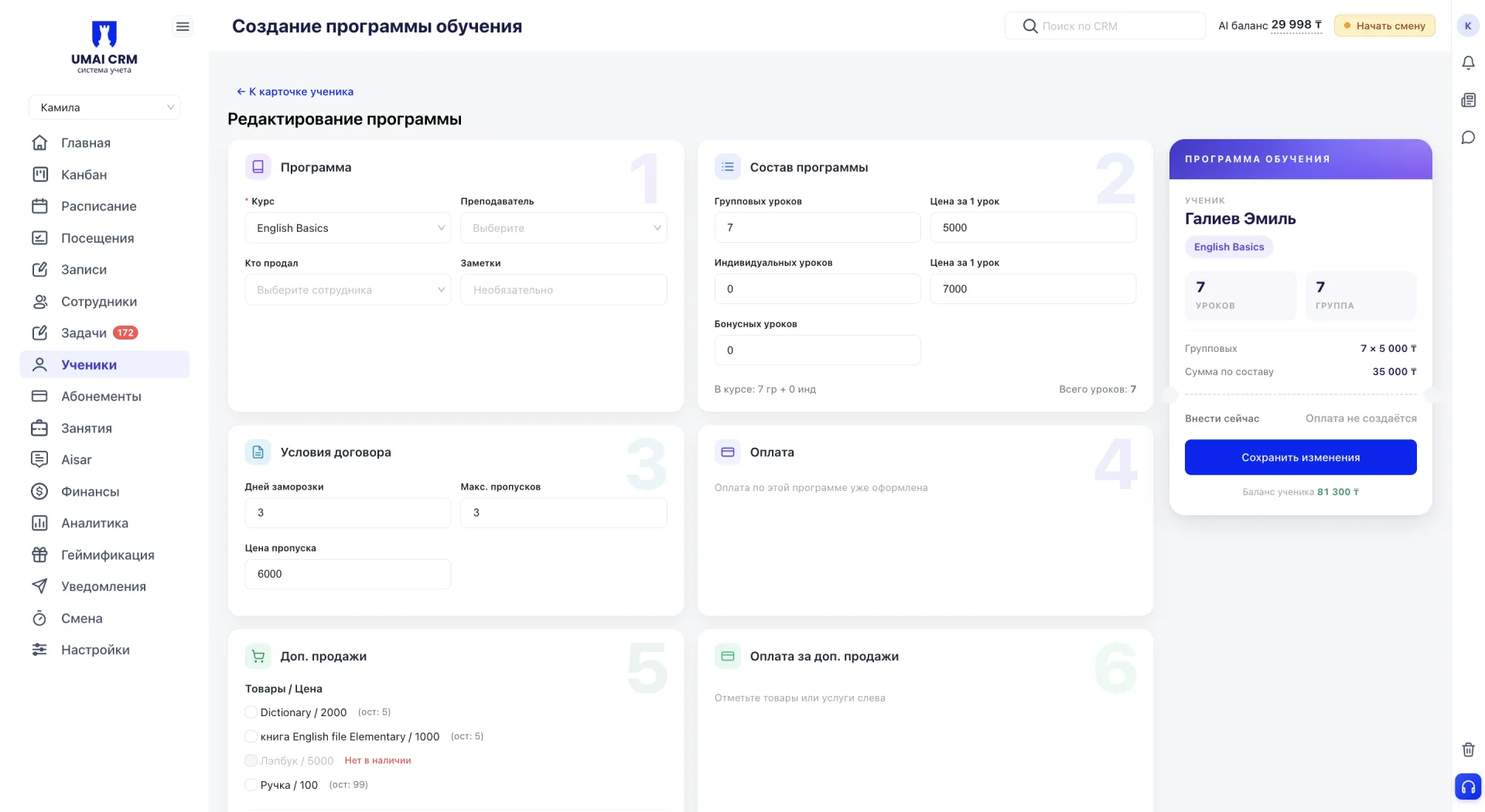
Редактировать
Открывает форму программы для изменения состава, условий договора и остальных параметров. Блок «Оплата» в этой форме недоступен для повторного оформления и показывает статус «Оплата по этой программе уже оформлена», поскольку оплата при создании программы уже была внесена или запланирована.
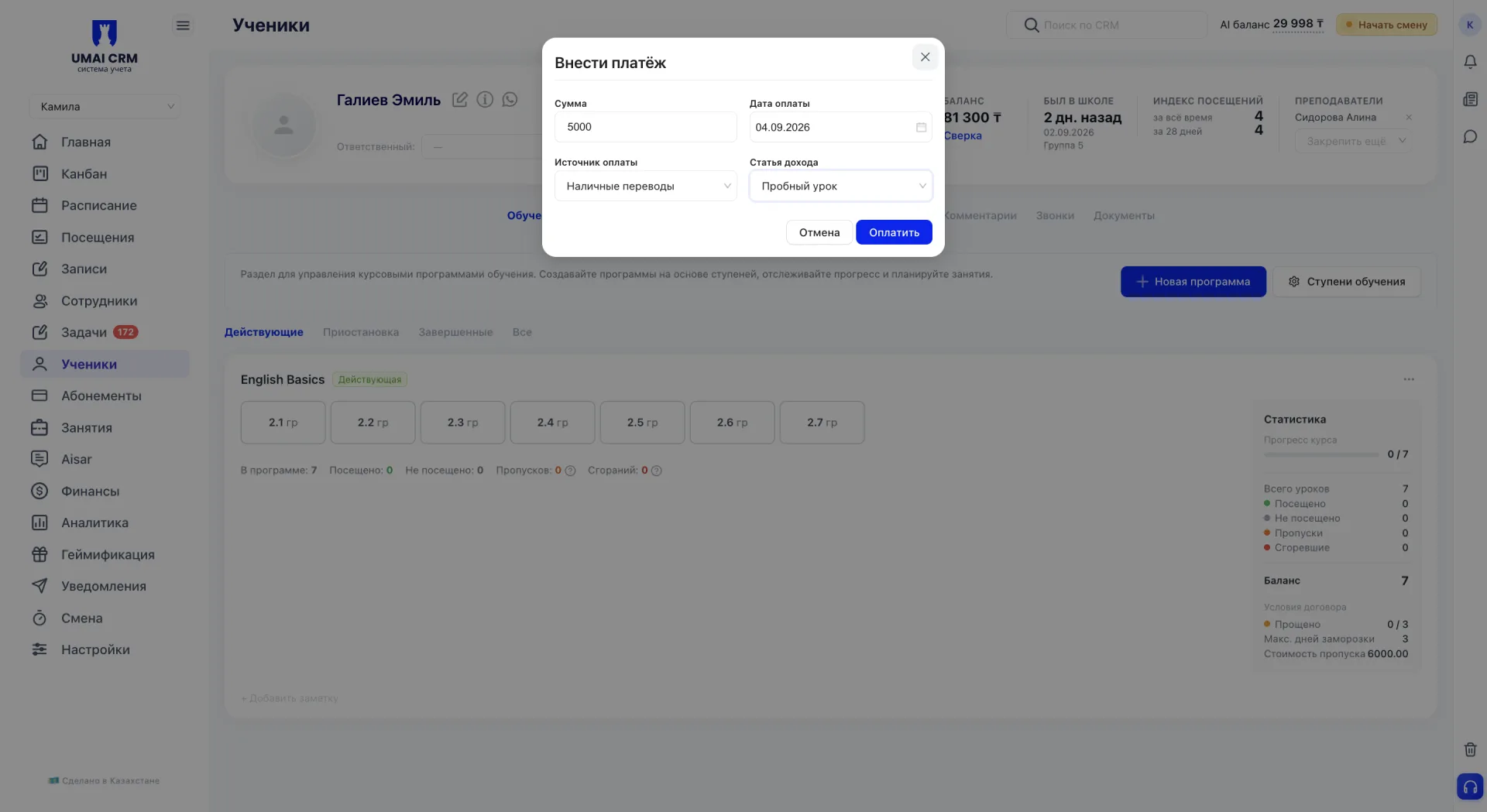
Внести платёж
Открывает отдельную форму для внесения дополнительного платежа по программе: указываются сумма, дата оплаты, источник оплаты и статья дохода. Этим пунктом оформляются платежи, не предусмотренные при создании программы.
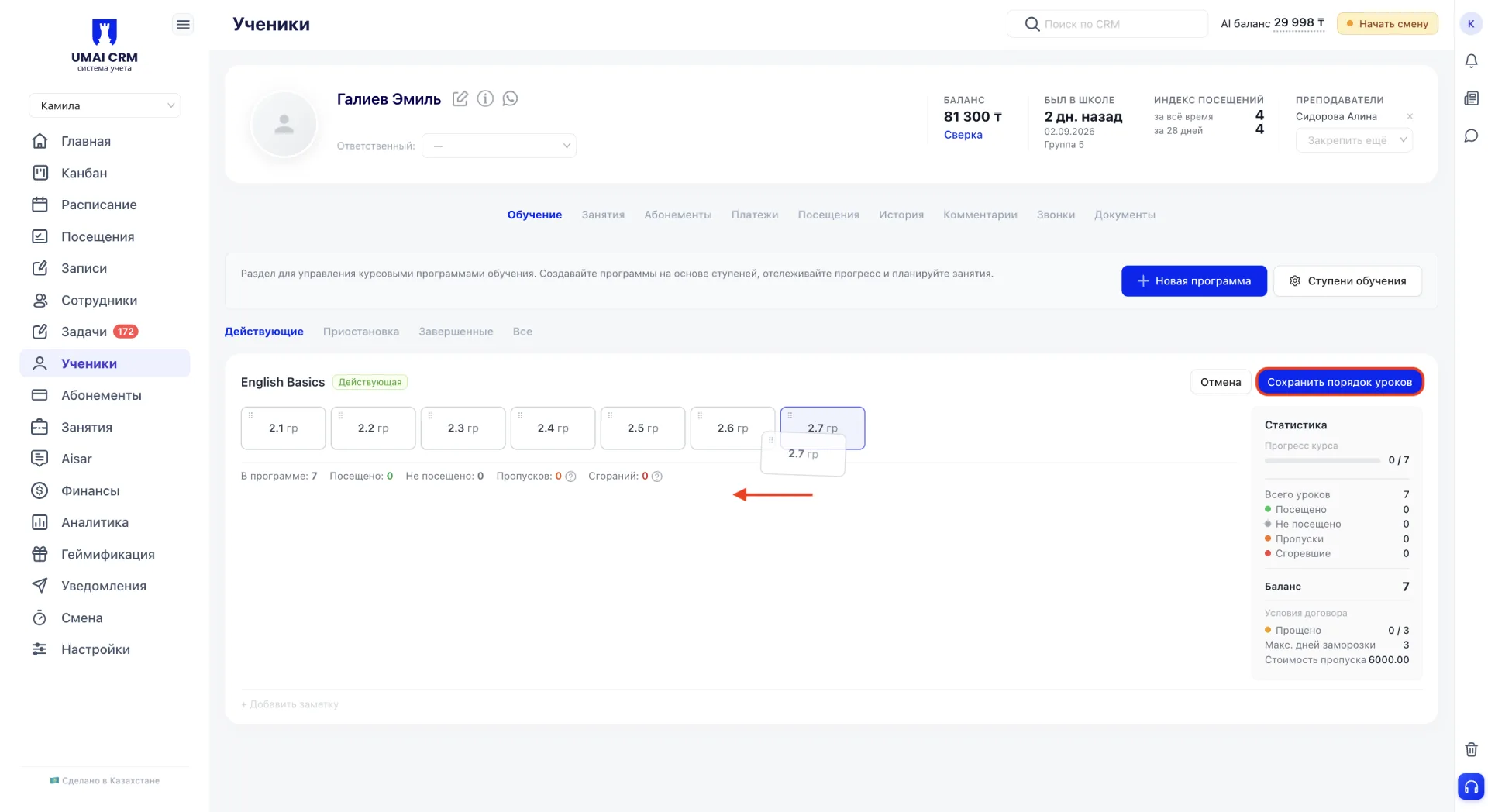
Изменить порядок
Позволяет перетаскивать плашки уроков, меняя их последовательность внутри программы. Кнопка «Сохранить порядок уроков» фиксирует новый порядок.
Заполнить расписание
Открывает форму планирования занятий по программе с тремя способами заполнения.
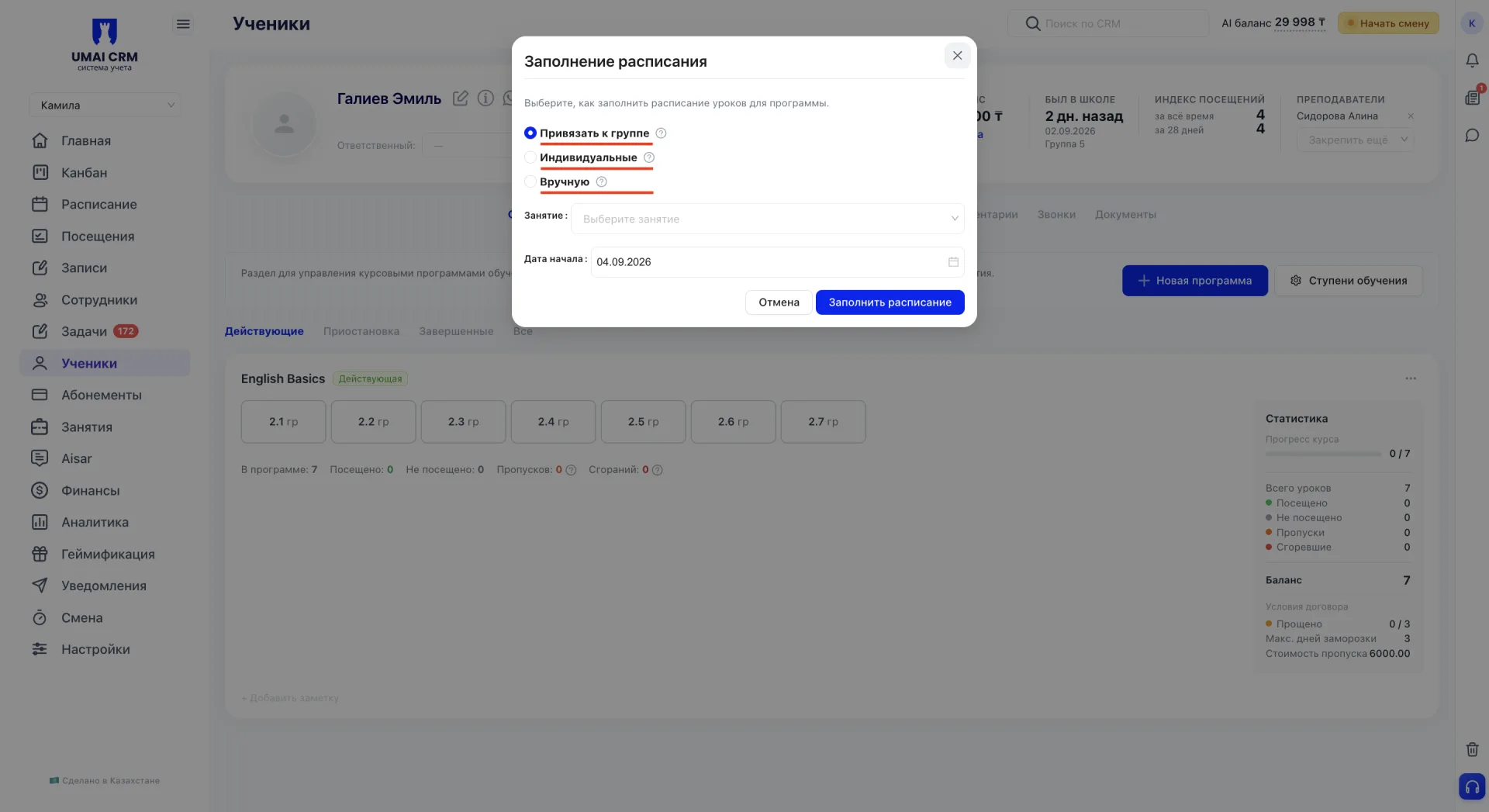
- «Привязать к группе» подходит, если подходящая группа уже существует, и записывает ученика в её готовое расписание.
- «Индивидуальные» создаёт расписание под индивидуальные занятия: указываются преподаватель, время начала и окончания, дни недели и дата начала.
- «Вручную» оставляет расписание пустым, чтобы дата для каждого урока программы была назначена отдельно позже.
Пересобрать по курсу
Используется, если состав уроков в исходной ступени обучения изменился после того, как программа уже была создана у ученика.
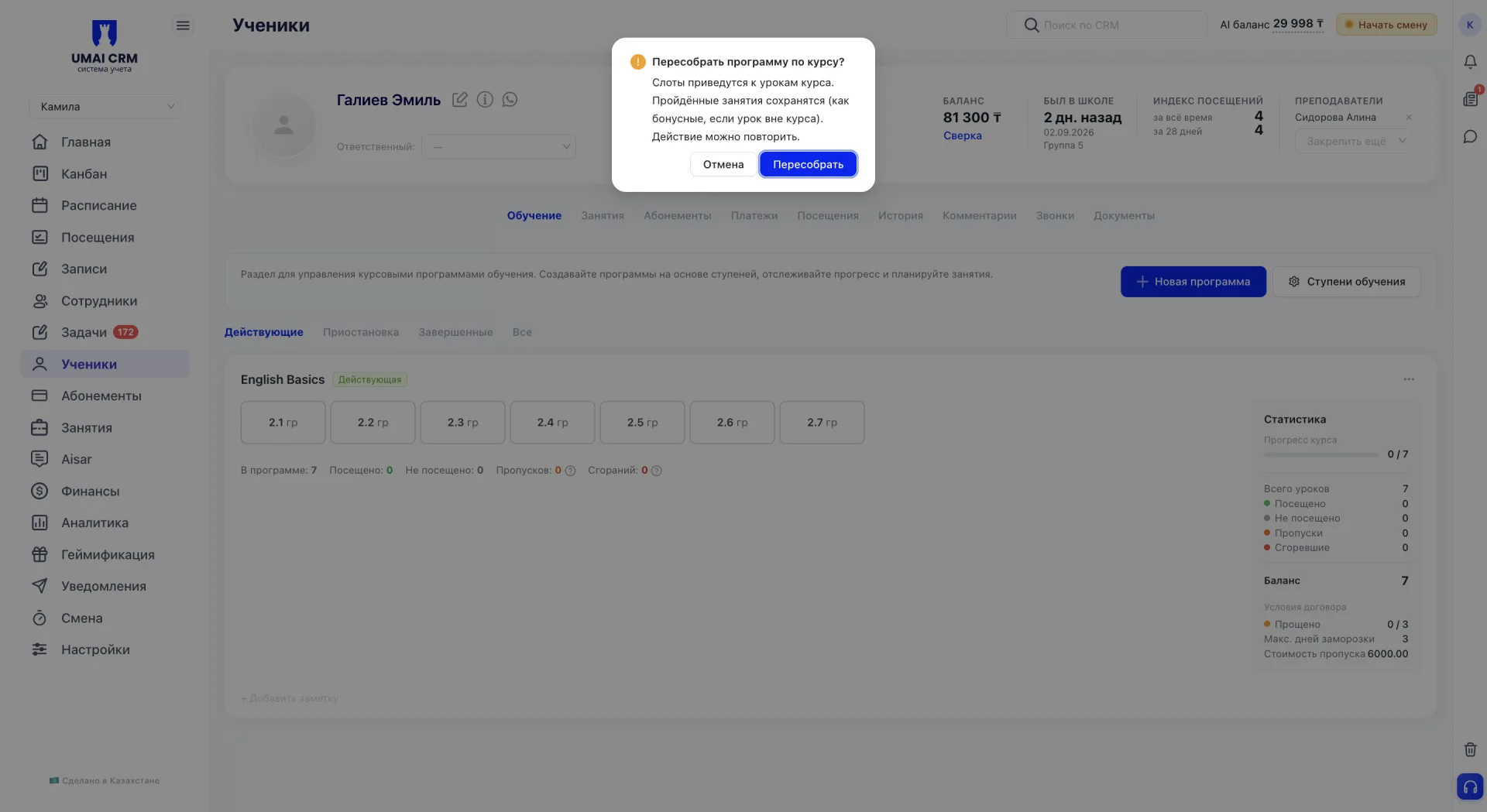
Действие приводит уроки и расписание программы в соответствие с актуальной версией ступени: уже пройденные учеником уроки сохраняются, а если такого урока больше нет в обновлённом курсе, он засчитывается как бонусный.
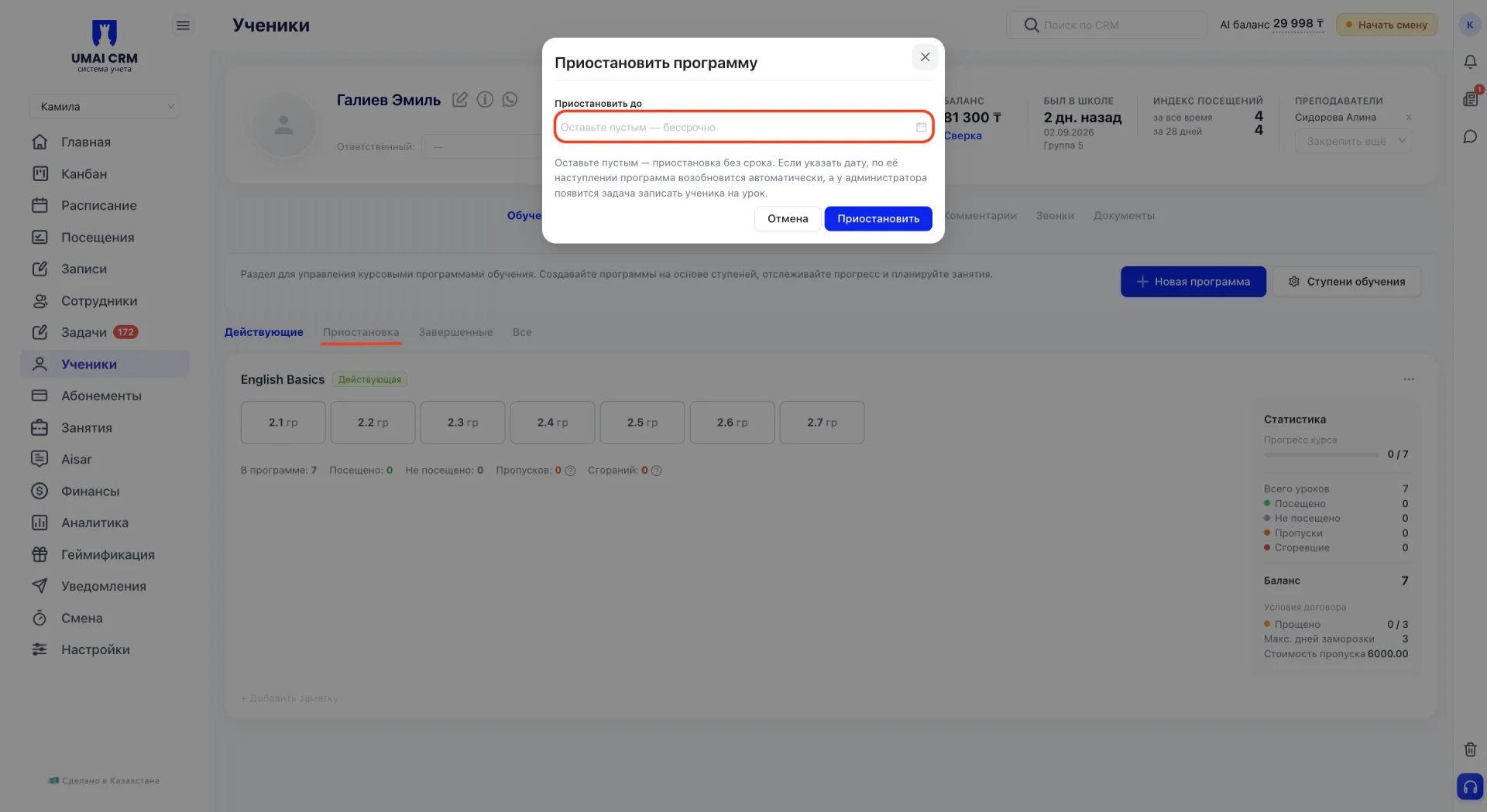
Приостановить
Временно останавливает программу с возможностью указать дату, до которой действует приостановка. Если дату не указывать, приостановка действует бессрочно, до отмены вручную. Если дата указана, программа возобновляется автоматически по её наступлении, а у администратора появляется задача записать ученика на урок. Приостановленная программа отображается в категории «Приостановка» и может быть возобновлена.
Завершить
Переводит программу в категорию «Завершенные». В отличие от приостановки, это финальное состояние программы без автоматического возобновления.
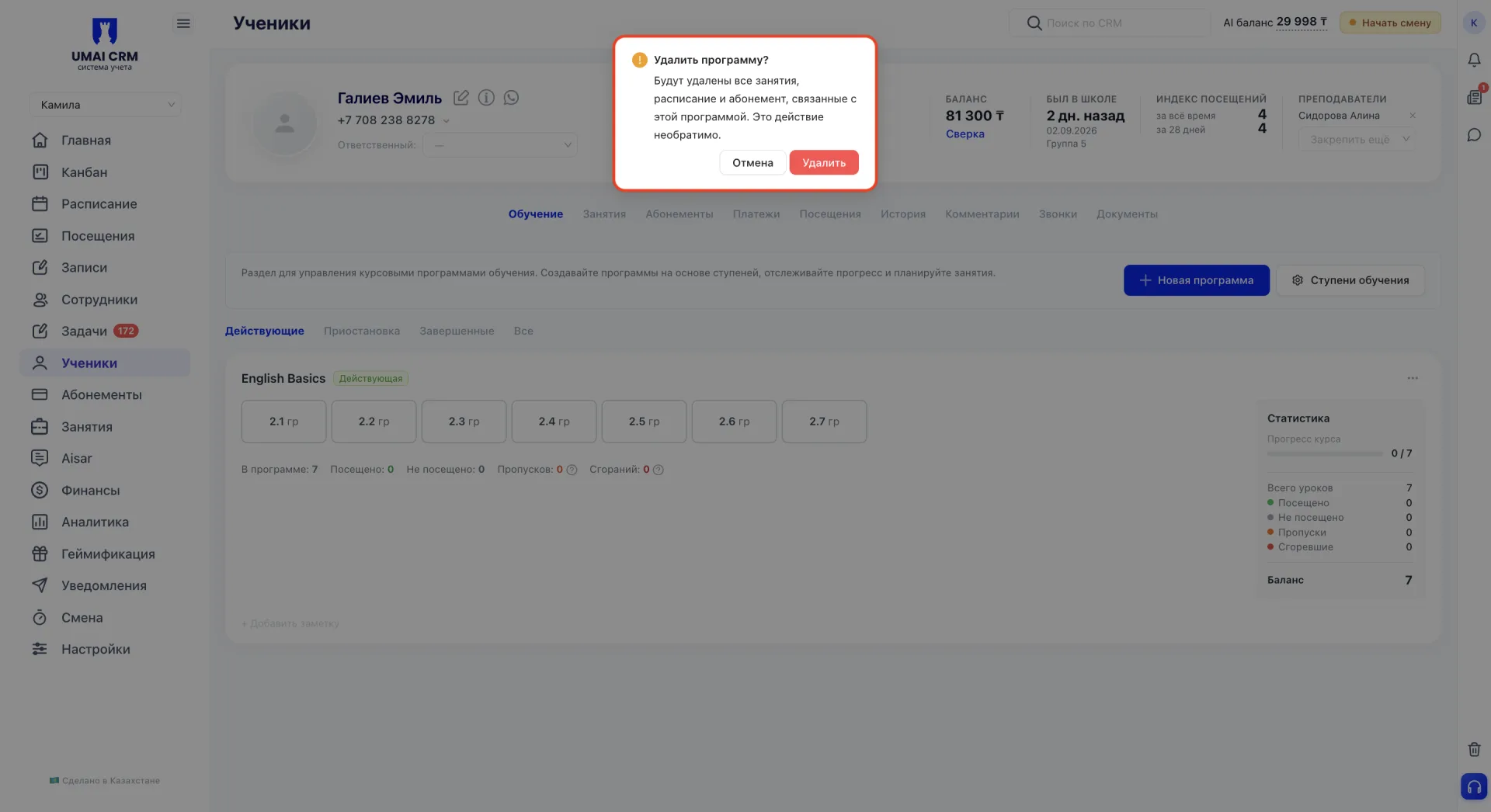
Удалить программу
Пункт «Удалить программу» стоит использовать с осторожностью: вместе с программой удаляются все связанные с ней занятия, расписание и абонемент, а само действие необратимо.
Программы группируются по категориям в зависимости от их текущего статуса. Полный список категорий приведён в следующем блоке.
5. Категории программ
Программы ученика разбиты на категории для удобства просмотра: Действующие, Приостановка, Завершенные и Все.
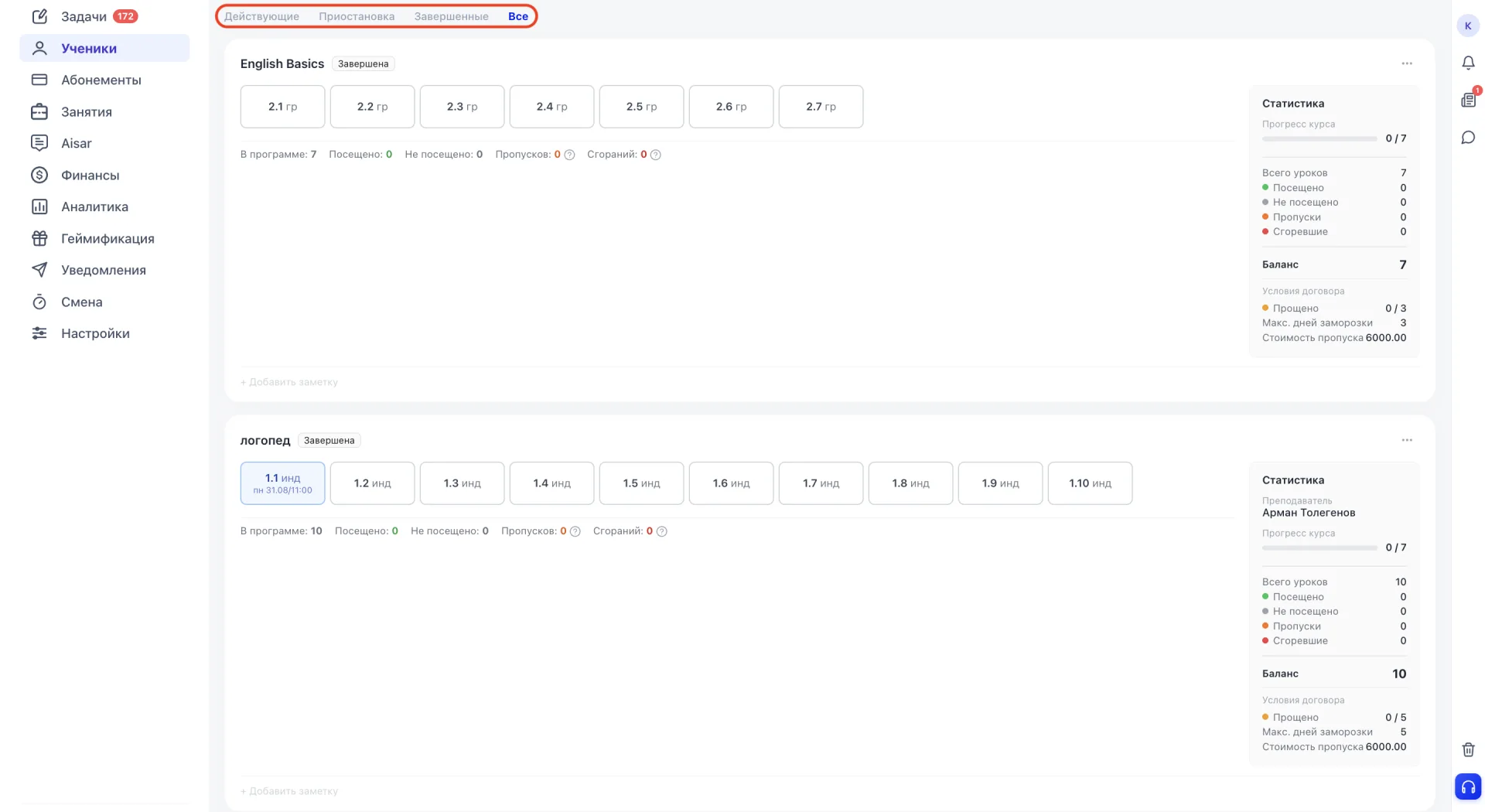
Переключение между категориями влияет только на отображение списка и не изменяет сами данные программ.
Важно учитывать:
- Прежде чем создавать программу обучения, ступень, на основе которой она будет собрана, должна быть заранее настроена в разделе «Ступени обучения». Этот раздел общий для всей организации и одинаково открывается как из настроек системы, так и из карточки любого ученика.
- Уровень объединяет несколько ступеней по смыслу, а сама ступень представляет собой конкретный набор уроков с ценами. Ступени без указанного уровня отображаются в группе «Без уровня».
- При выборе курса в форме создания программы состав, цены и формат уроков автоматически подставляются из настроек выбранной ступени, а конструктор уроков позволяет донастроить состав индивидуально для конкретного ученика.
- Переключатели «Рассрочка» и «Внести платёж» в блоке «Оплата» взаимоисключающие: включён может быть только один из них.
- После создания программы повторно оформить оплату через форму редактирования нельзя. Дополнительные платежи вносятся отдельным действием «Внести платёж» в меню программы.
- Действие «Пересобрать по курсу» стоит использовать только после изменения состава уроков в исходной ступени, чтобы синхронизировать уже созданную программу ученика с актуальной версией курса.
- Приостановка программы без указанной даты действует до отмены вручную, а с указанной датой возобновляется автоматически и создаёт задачу для администратора записать ученика на урок.
- Завершение программы, в отличие от приостановки, является финальным действием без автоматического возобновления.