
This section is intended for creating, assigning, and monitoring the completion of work tasks within the system. Here you can assign performers, set deadlines, track completion status, and link tasks to clients or Leads.
Основные блоки:- Access to the section
- Display formats
- Creating a task
- Editing a task
1. Access to the section
The section is located in the left sidebar menu under “Tasks”.
After navigating, a list of all tasks in the system is displayed.
The top of the page provides:
- name search - allows you to quickly find a task by keyword.;
- status filter - displays tasks with the selected status (for example, New or Completed);
- type filter - sorts tasks by their category;
- deadline filter - shows tasks within the selected date range;
- "Only mine" toggle - displays tasks where the current user is assigned as a performer;
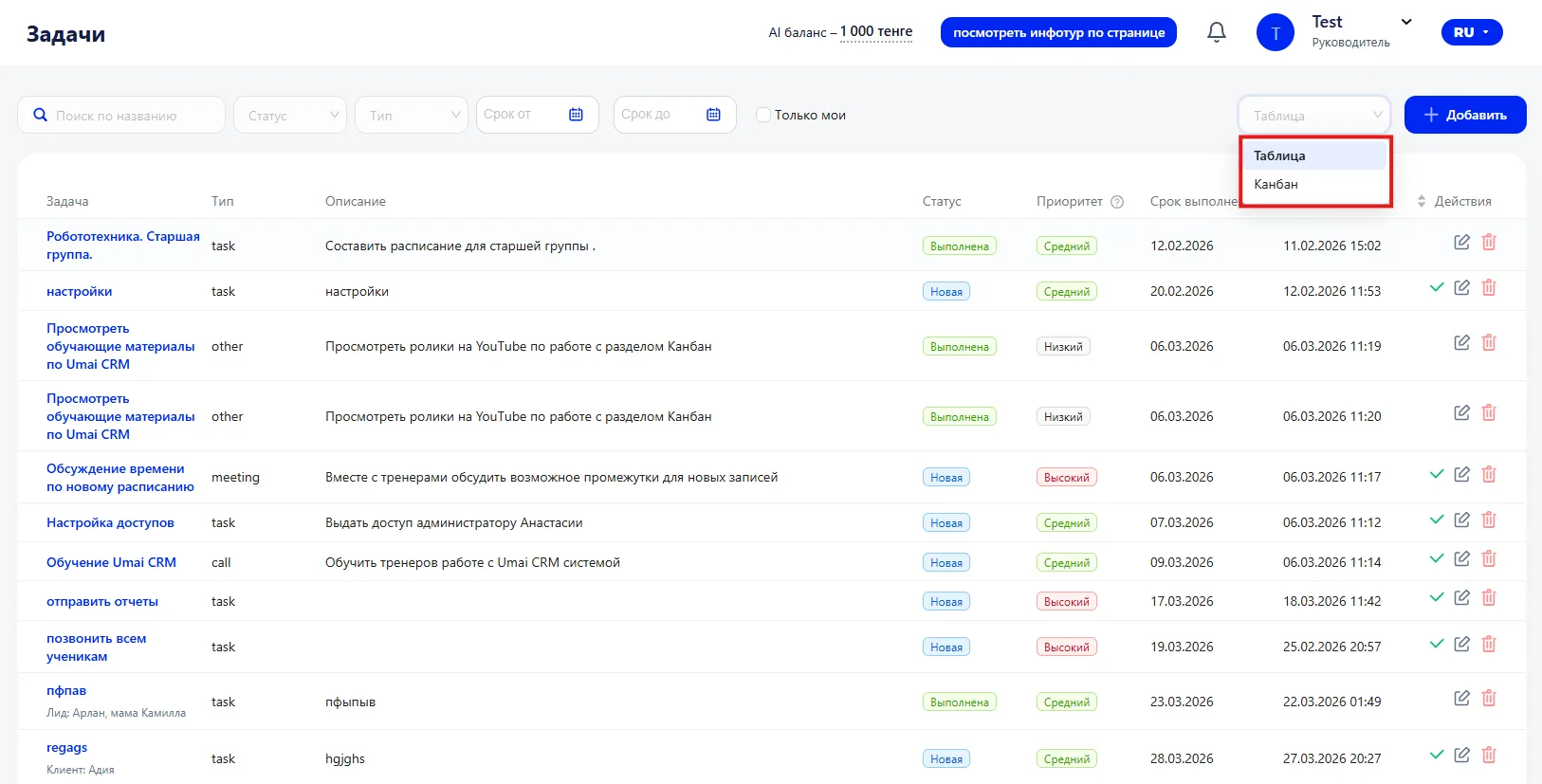
- display format selector - allows switching between Kanban and Table modes;
- "+ Add" button - opens the form to create a new task.
2. Display formats
The section provides two ways to display tasks: Kanban for visual deadline control and Table for a structured list view.
The task card contains the title, status, priority, status and deadline. This layout helps quickly assess priorities and see where there is a risk of overdue.
Table
In Table mode tasks are displayed as a list with main parameters: title, type, description, status, priority, deadline, and creation date.
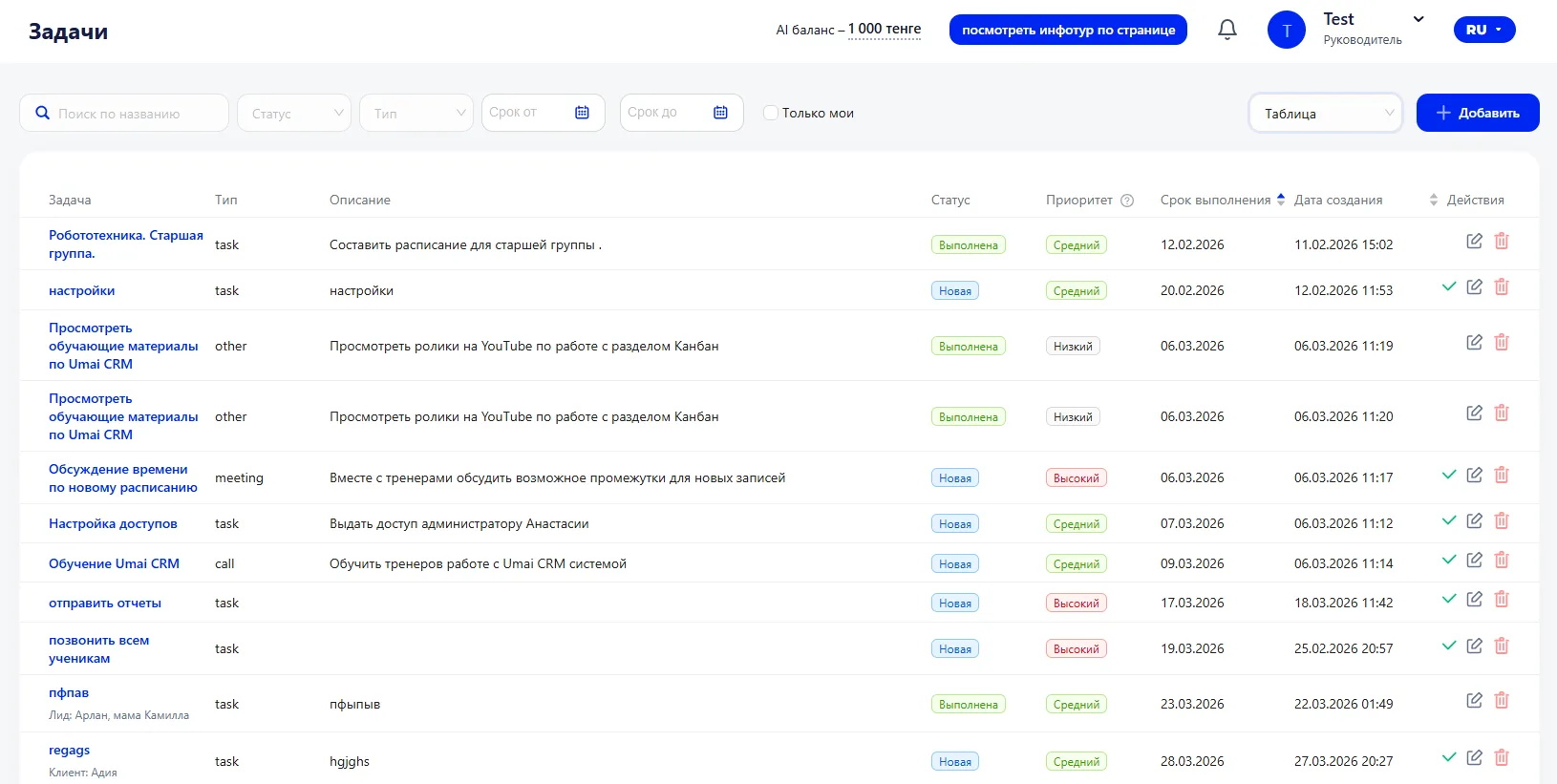
In the "Actions" column there are buttons for working with a task:
- Checkmark — mark the task as completed.
- Pencil — open the task for editing.
- Trash — delete the task.
With these controls you can quickly change the task status, edit it, or delete it directly from the list.
This format is convenient when you need to work with a large volume of tasks, quickly review information, and tidy up the list.
Kanban
In Kanban mode tasks are automatically distributed across columns depending on the deadline:
- Overdue — tasks whose deadline has already passed.
- Today — tasks with a deadline on the current date.
- This week — tasks that must be completed by the end of the current week.
- Next week — tasks with a deadline in the next week.
- No date — tasks without a set deadline.
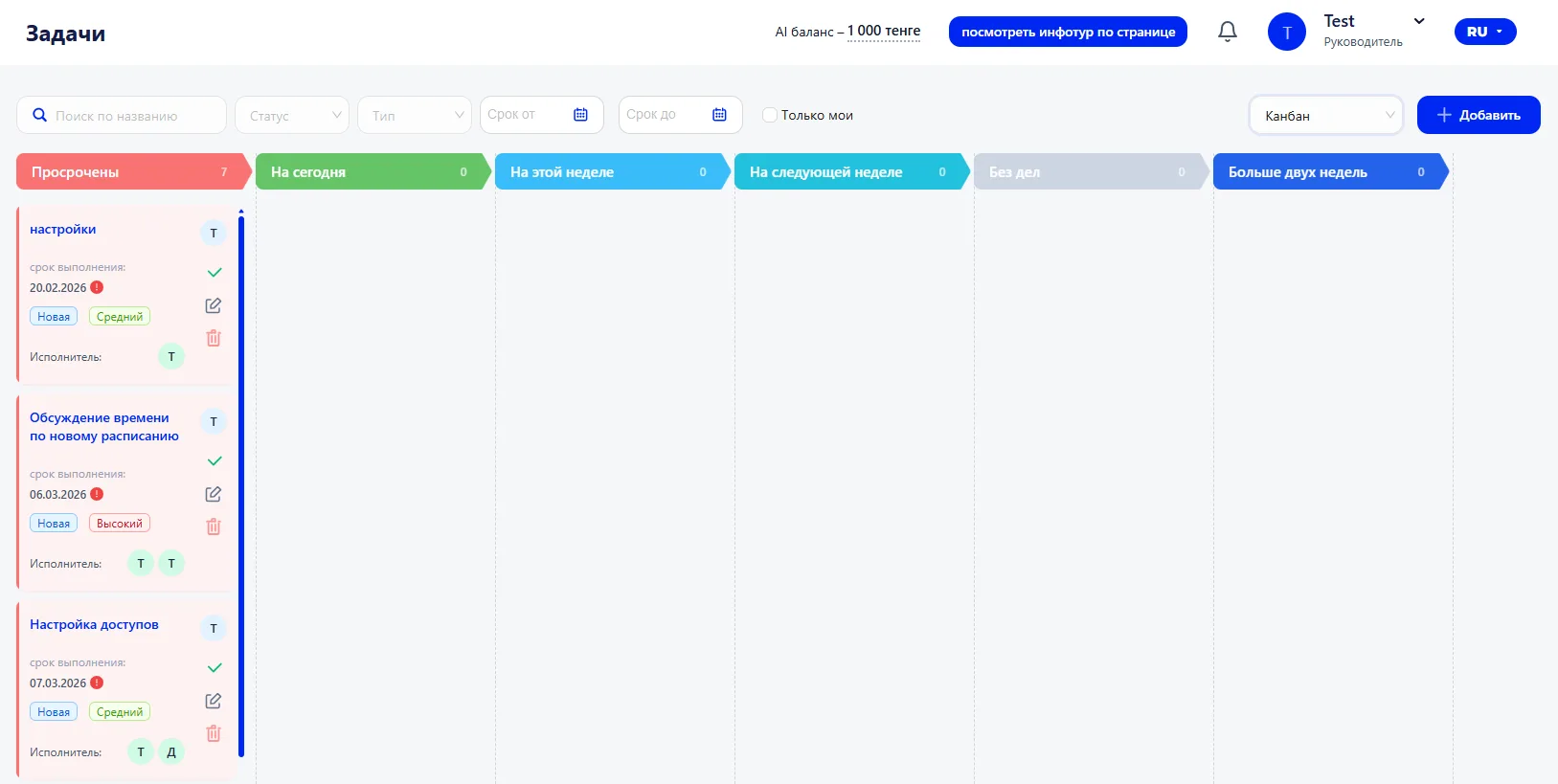
The task card contains the title, deadline, priority, status and performer. This layout helps quickly assess priorities and see where there is a risk of overdue.
3. Creating a task
To create a task, click the "+ Add" button.
The creation form will open, where the following are specified:
Main data:
- type - defines the category of the task. The default type is “Task”, but if other types are available you can choose the required option;
- title - a brief description of the task. This is the text that will be displayed in the list and on the task card;
- deadline - the date by which the task must be completed. This parameter affects display in Kanban and determines whether the task falls into the "Overdue", "Today" or another category;
- description - details of the task. Agreements, comments and clarifications are recorded here so that the performer understands the context.
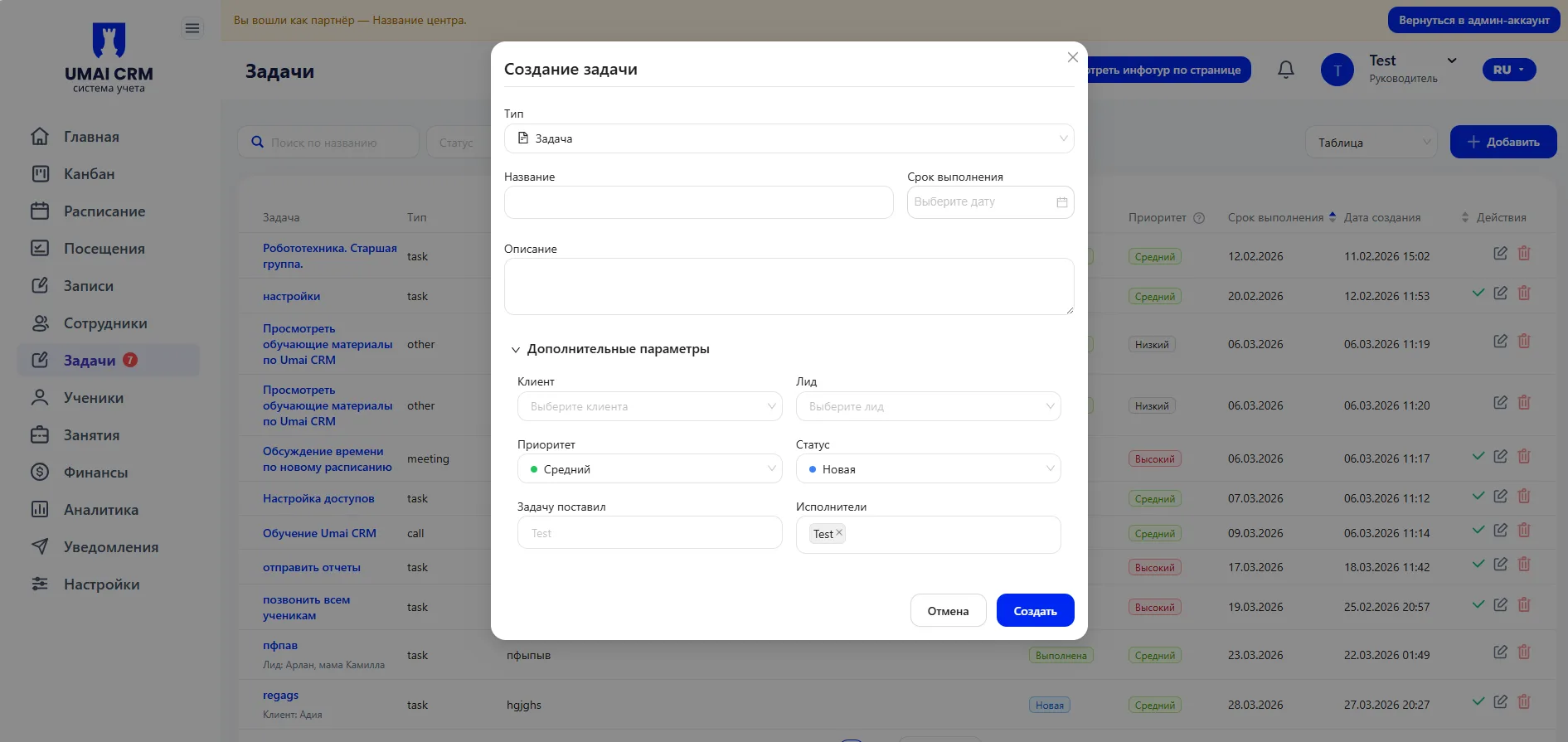
Additional parameters:
- client - allows you to link the task to a specific client. In this case the task will be associated with their card;
- Lead - used if the task relates to a stage of work in the Sales funnel. Linking helps to see the task within the Lead card;
- priority - determines the importance level of the task. Used to set priorities in work;
- status - reflects the current state of the task (for example, new or completed);
- who created the task - records the initiator. This is important for team transparency;
- performers - employees responsible for completion. You can assign one or several.
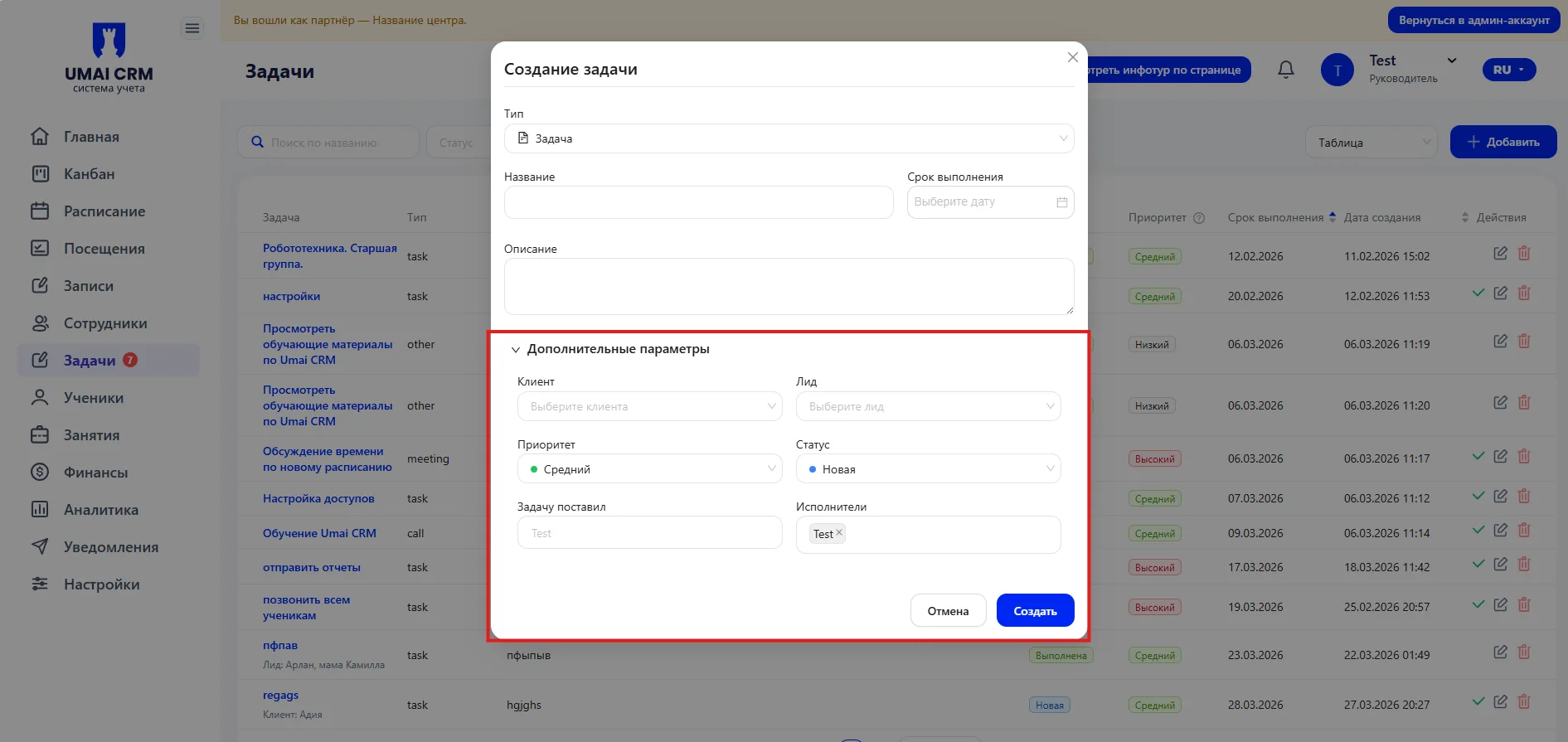
After saving the task appears in the general list and is displayed in the selected format.
4. Editing a task
When opening a task the editing form
becomes available.
You can change the title, deadline, description, priority, status, performers and link to a client or Lead.
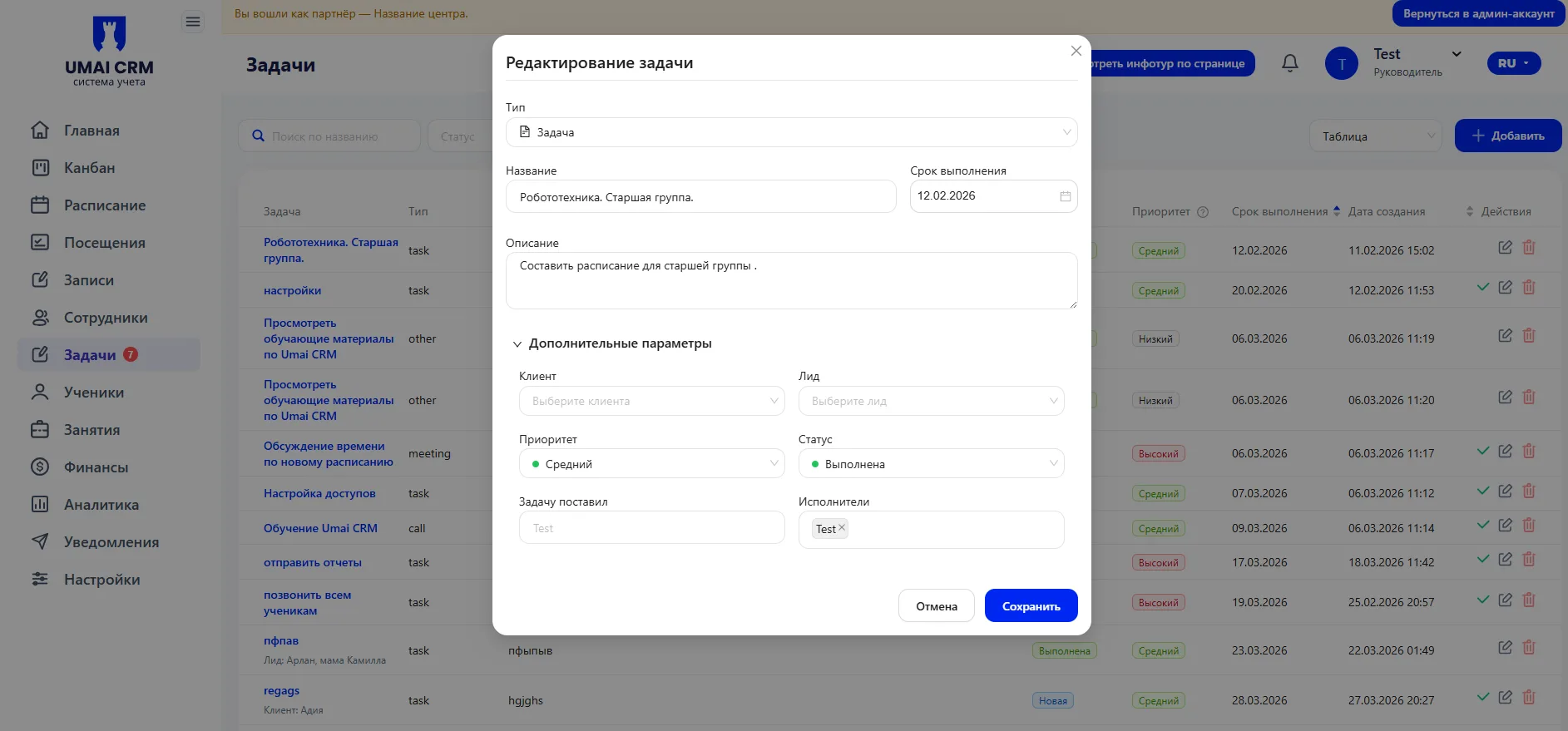
Changes take effect after saving.
Important to note
- The deadline affects how the task is displayed in Kanban.
- Overdue tasks automatically appear in the corresponding column.
- The "Only mine" filter shows tasks where the user is assigned as a performer.
- Linking to a client or Lead helps work with tasks in the context of a specific process.