This feature is used to mark a period when classes are not held: for example, during public holidays, an unscheduled center closure, or a teacher's vacation.
Main blocks:
- Access to features
- Declare a day off (Объявление выходного дня)
- Teacher vacation (Отпуск преподавателя)
1. Access to features
In the Schedule, in the top right corner next to the schedule display options, there is a button "Non-working days (Нерабочие дни)".
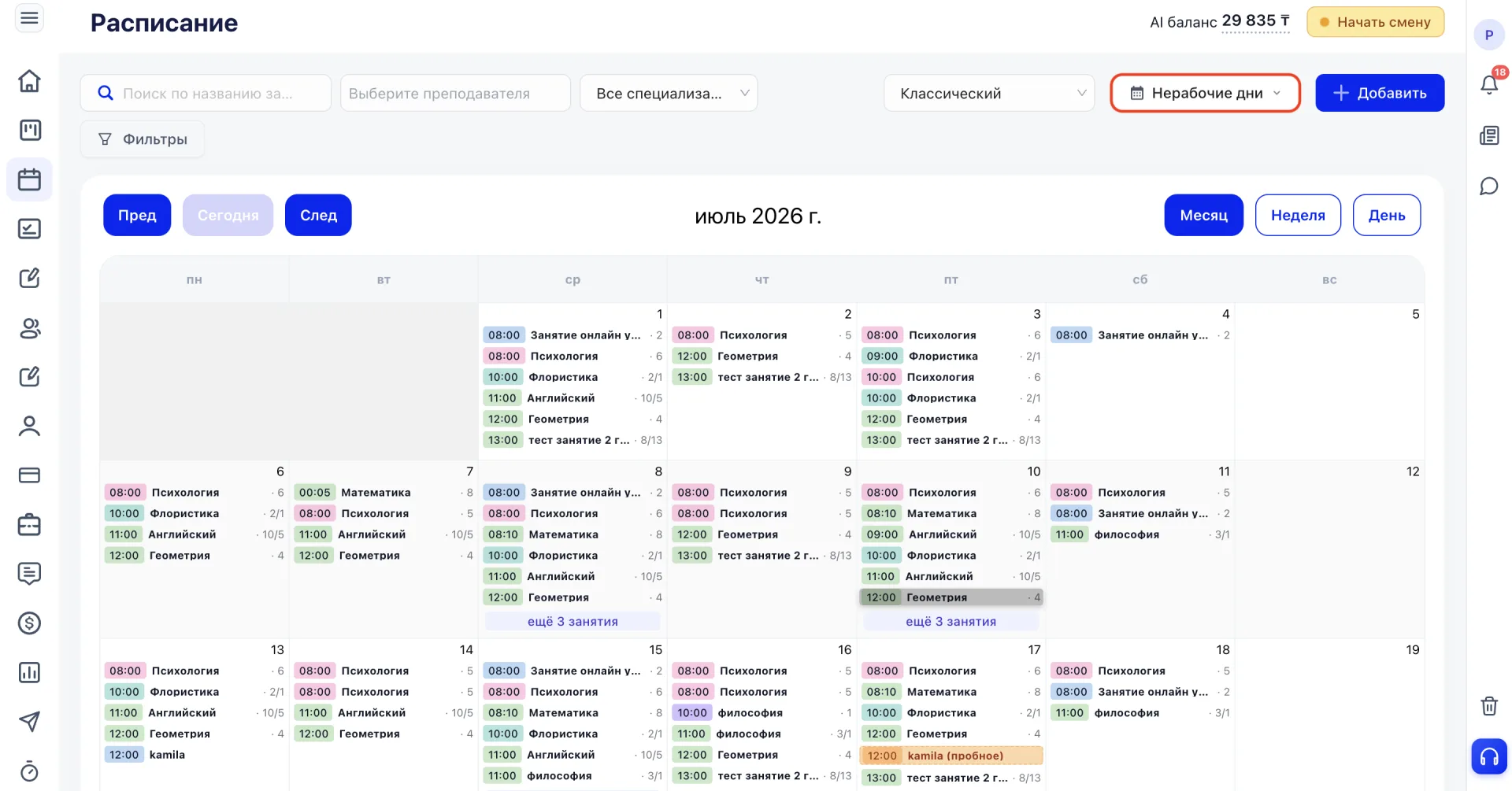
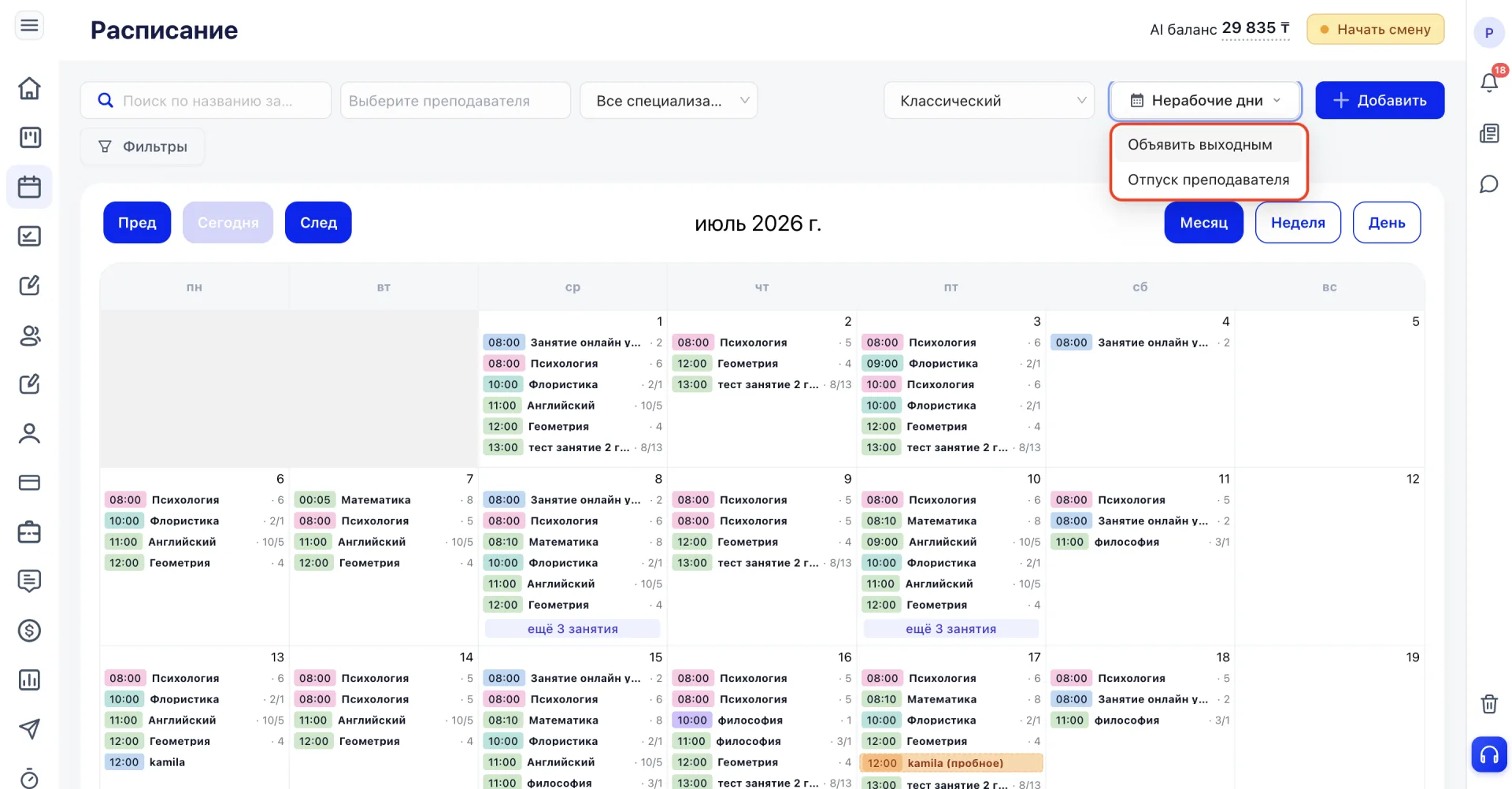
Clicking it opens a dropdown list with two functions:
- Declare day off (Объявить выходным) — cancels all classes on the selected date for the entire center, regardless of teacher or group.
- Teacher vacation (Отпуск преподавателя) — marks a period during which only one selected teacher does not hold classes, without affecting other teachers' schedules.
2. Declaring a day off (Объявление выходного дня)
You can open the declare day off window in two ways.
First way. Click the "Non-working days (Нерабочие дни)" button in the top right corner of the Schedule and select "Declare day off (Объявить выходным)".
The second way is available in Classic (Классический) display mode. In this mode you can simply click an empty cell of the desired day directly in the calendar.
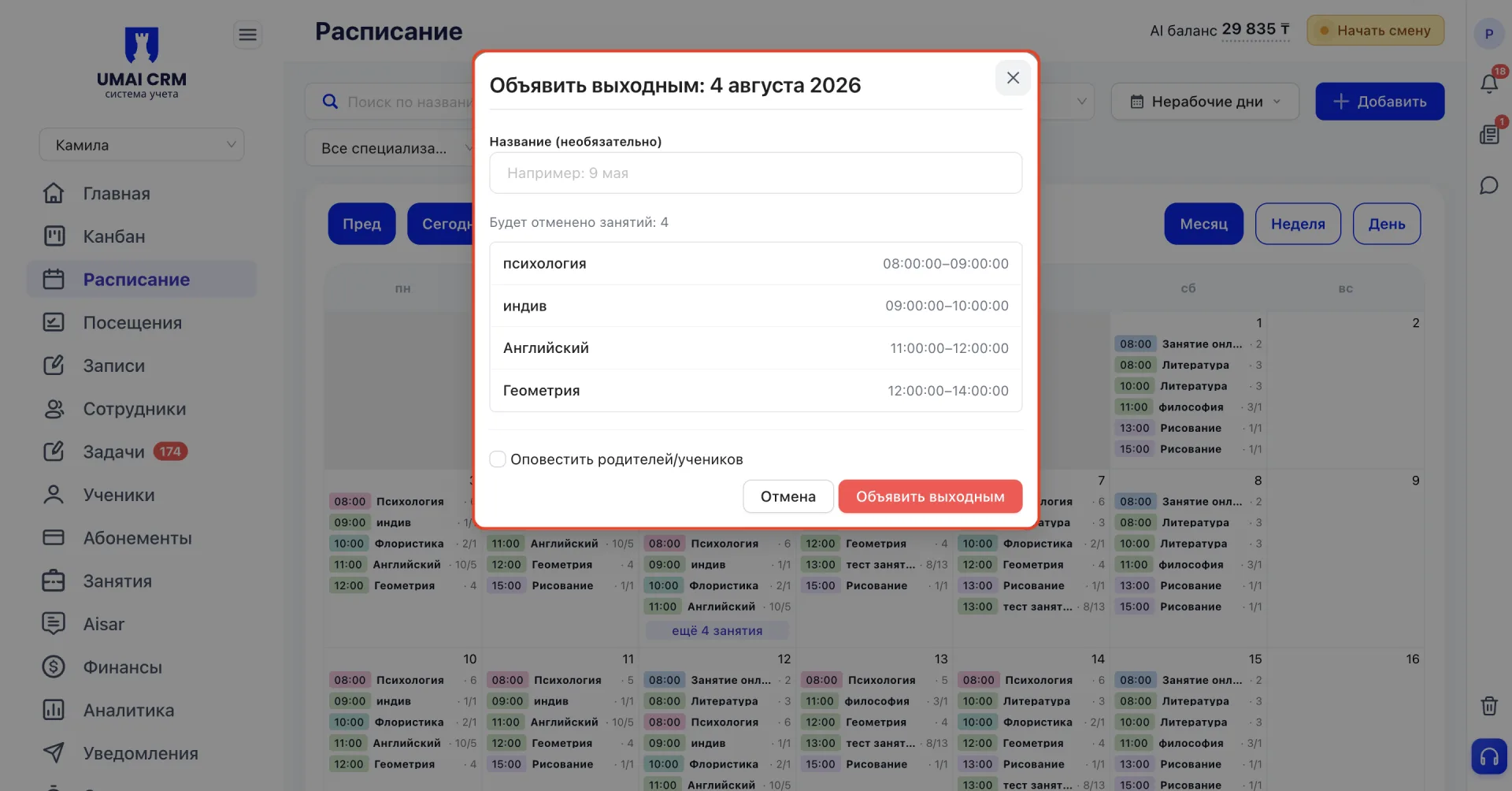
Both methods open the same confirmation window.
Window to fill out.
After selecting a date, the "Declare day off: [date]" window opens.
- Title - you can specify the reason for the day off, for example, "May 9" or "Technical break." This field is optional.
- List of canceled classes - the system automatically generates a list of all classes scheduled for that date, indicating the name and time of each. A total counter is shown here: "Classes to be canceled: N."
If visits have already been recorded for the selected day, the system additionally warns:
Visits have already been recorded for this day. Visits (N) will be deleted, and the deducted classes will be returned to Memberships. This action is irreversible.
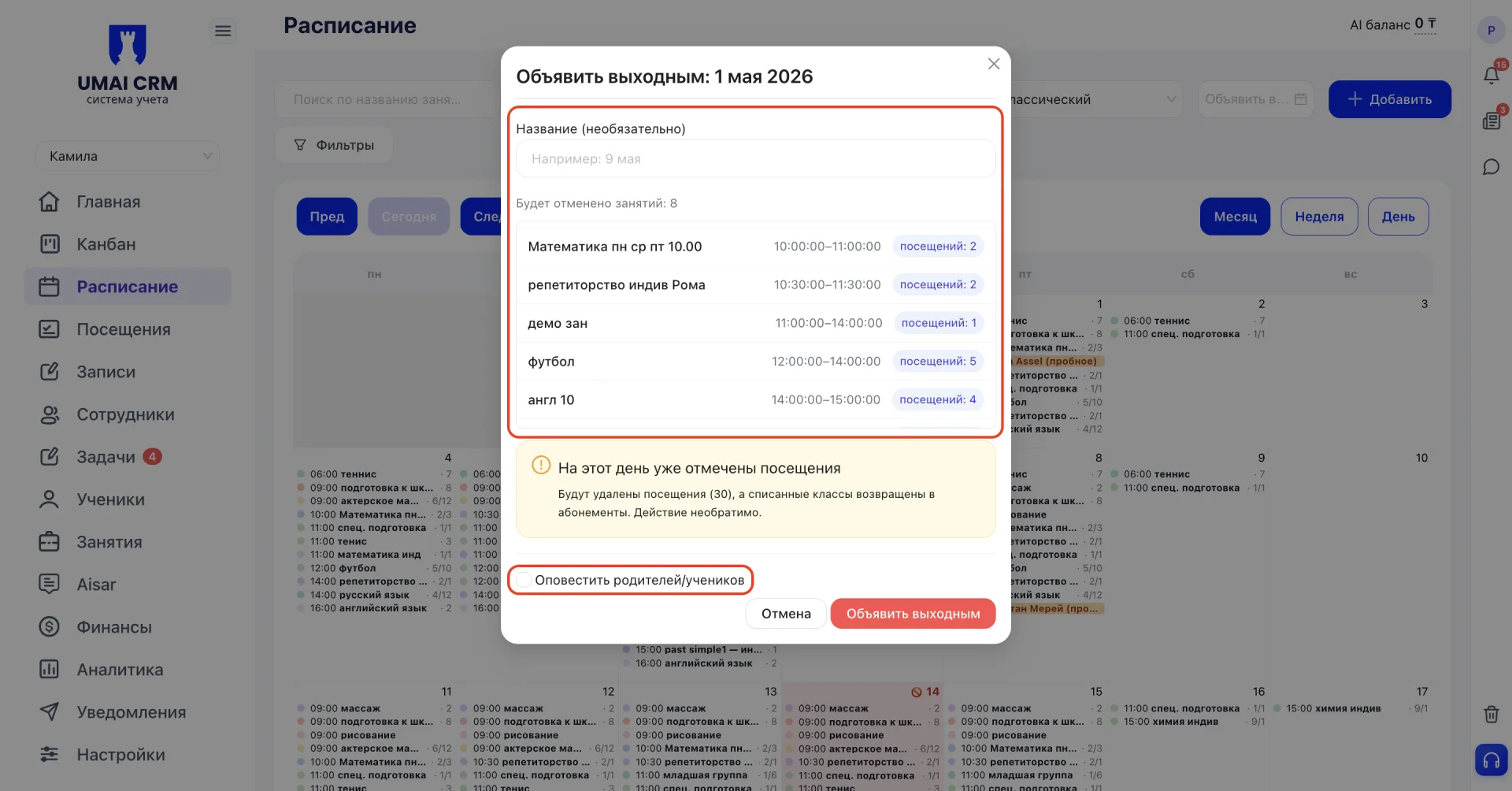
- Notification - checkbox "Notify parents/students." If enabled, the system will send a notification about the class cancellation to all involved.
- Confirmation - to complete, click "Declare day off." To cancel - "Cancel."
After confirmation, all classes on that date are canceled and disappear from the calendar.
Removing the day off status
If a day off was declared by mistake, the status can be removed. When clicked, the system displays a warning:
The day off record will be deleted. Previously canceled classes and deleted visits cannot be restored automatically — they must be recreated manually.
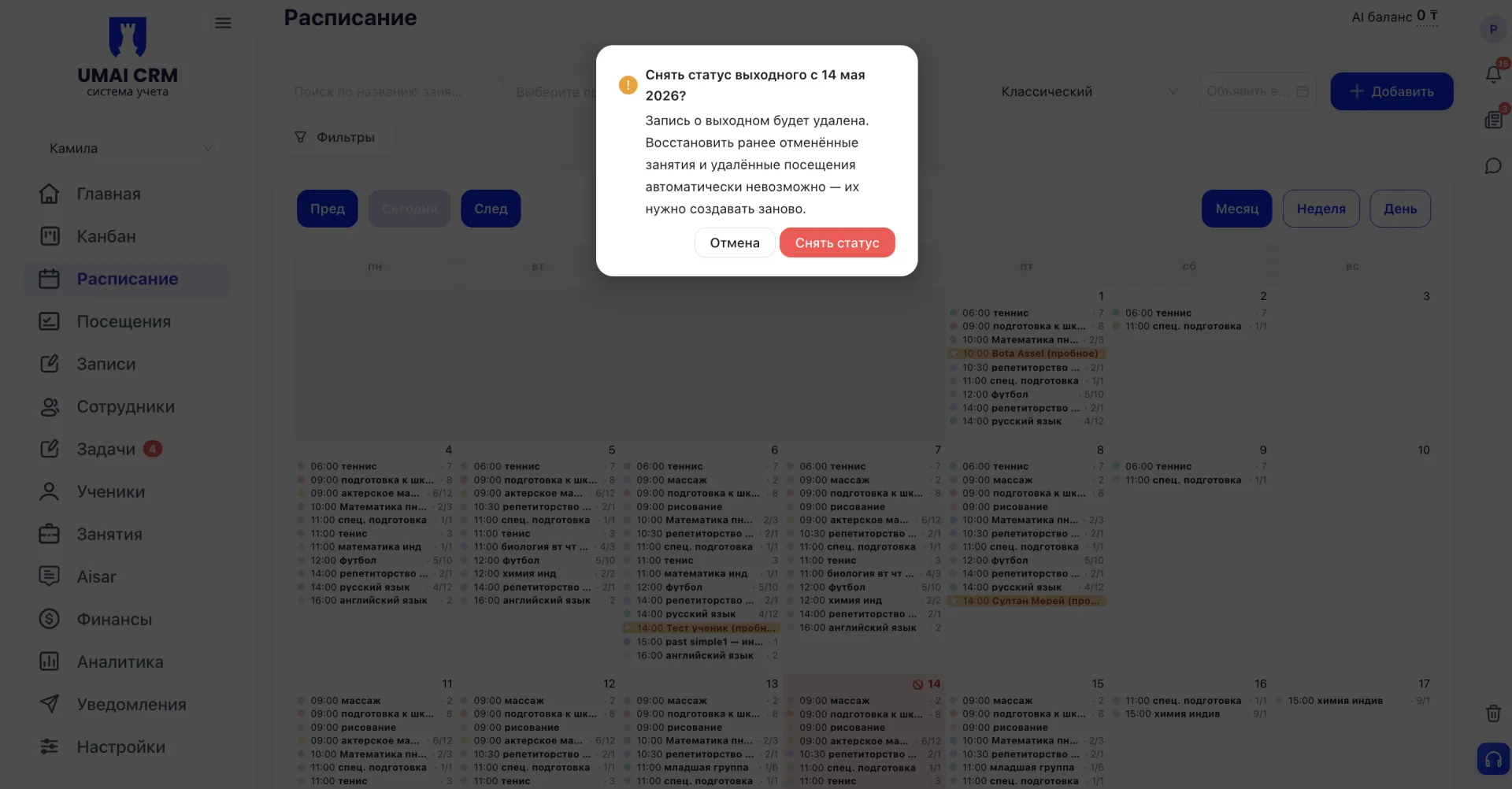
That is, removing the status only deletes the day off record; the schedule for that day is not restored automatically. All classes must be added again manually.
3. Teacher vacation (Отпуск преподавателя)
After selecting "Teacher vacation (Отпуск преподавателя)", the "Cancel teacher's lessons for a period" window opens.
In the window you first select the Teacher from a dropdown list. In the "Period (vacation)" field specify the start and end dates of the vacation. Only future lessons starting from today are canceled; past lessons are not affected.
Below you can specify the reason for the vacation, for example "teacher vacation." This field is optional.
There is a separate checkbox "Extend students' Memberships for the vacation period", which is enabled by default. If the toggle is checked, the Memberships of students whose classes are canceled will be extended by the number of missed lessons — the same as when a Membership is frozen.
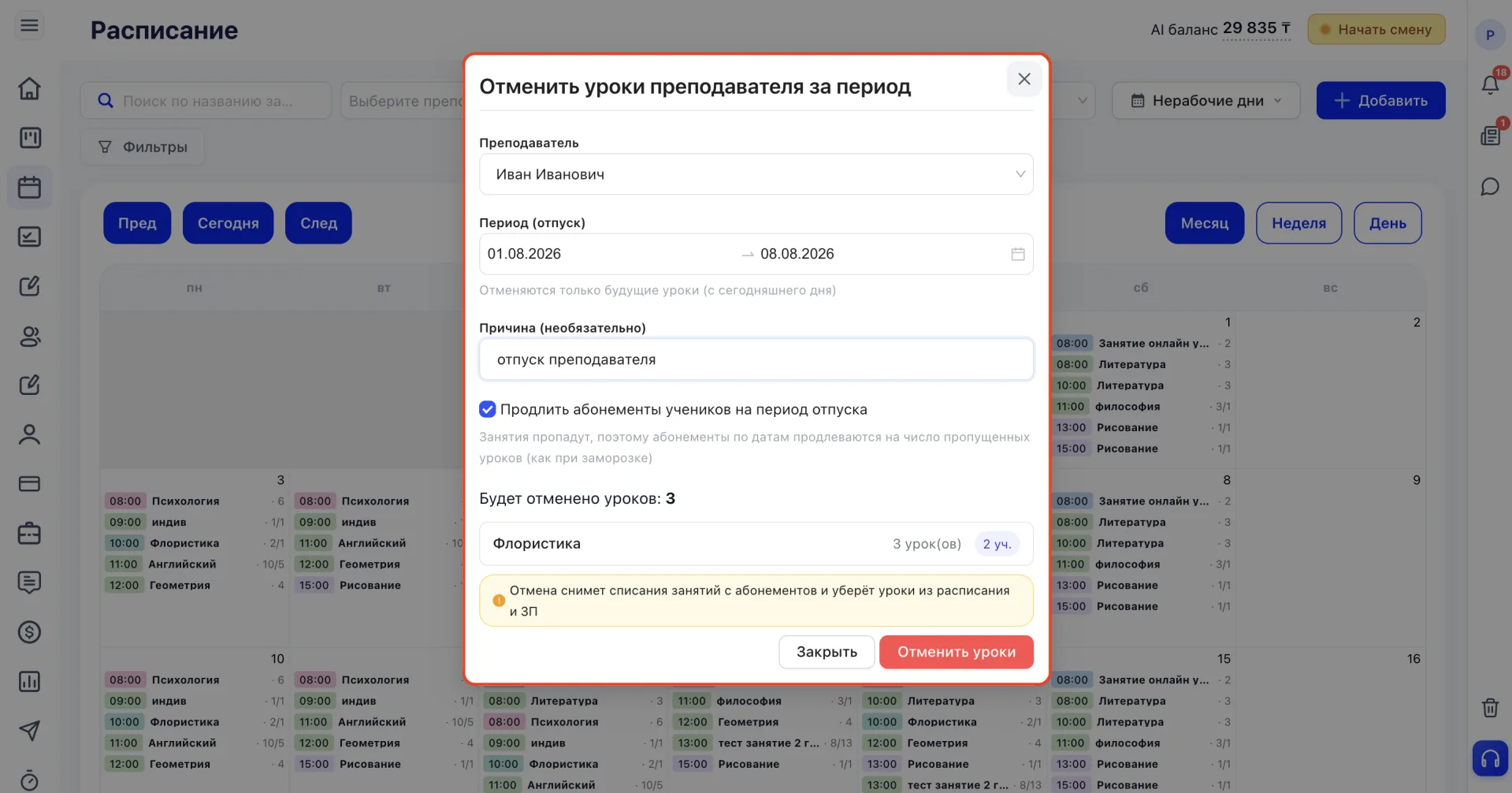
After selecting the teacher and period, the system displays a total counter of lessons to be canceled "Lessons to be canceled: N", and below a list of affected classes indicating the name, number of lessons, and number of students for each.
The system also warns that canceling will reverse class deductions from Memberships and remove lessons from the schedule and payroll (ЗП) calculation.
To complete the action click "Cancel lessons." To cancel — "Close."
Important to note:
- Declaring a day off cancels all classes on the selected date for the entire center, without the possibility of automatic restoration.
- If visits were already recorded on the day declared as a day off, they are deleted and the deducted classes are returned to students' Memberships.
- Removing the day off status only deletes the day off record. The schedule is not restored automatically; all classes will need to be recreated manually.
- Before confirming a day off, check the list of canceled classes and, if necessary, enable notifications for students and parents.
- Unlike declaring a day off, a teacher vacation affects only the lessons of the selected employee and does not influence the schedules of other teachers and groups.
- When arranging a teacher's vacation, only future lessons starting from today are canceled. Past lessons are not affected.
- The "Extend students' Memberships for the vacation period" toggle is enabled by default. If left enabled, students' Memberships are automatically extended by the number of missed lessons, the same as when freezing a Membership.
- Canceling lessons when arranging a vacation reverses class deductions from Memberships and removes lessons from the schedule and from payroll (ЗП).