For an employee to sign in to the system, you must first provide their email and send an invitation.
How to send an invitation to an employee?
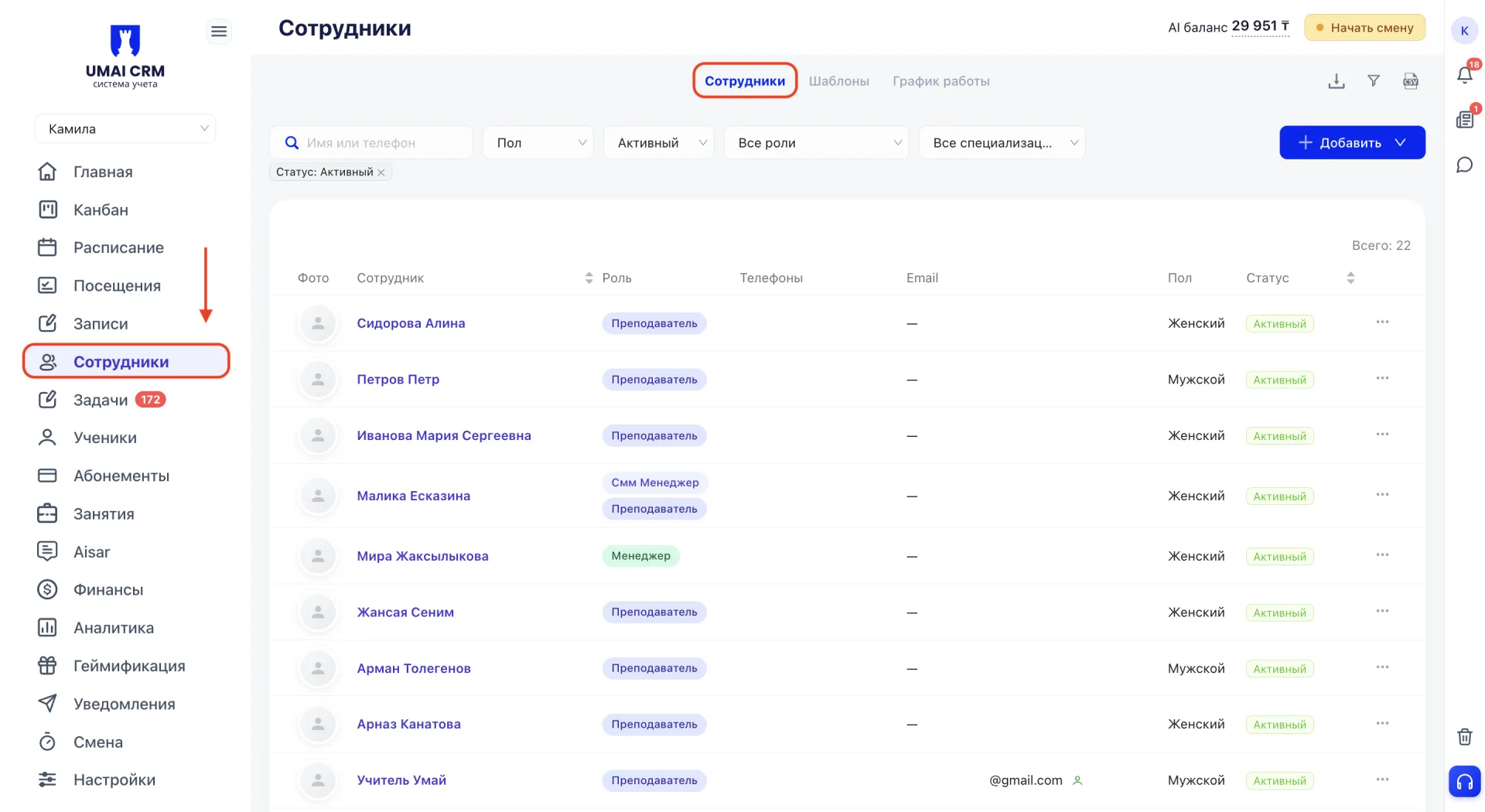
2. Click the name of the desired employee. Their profile card will open.
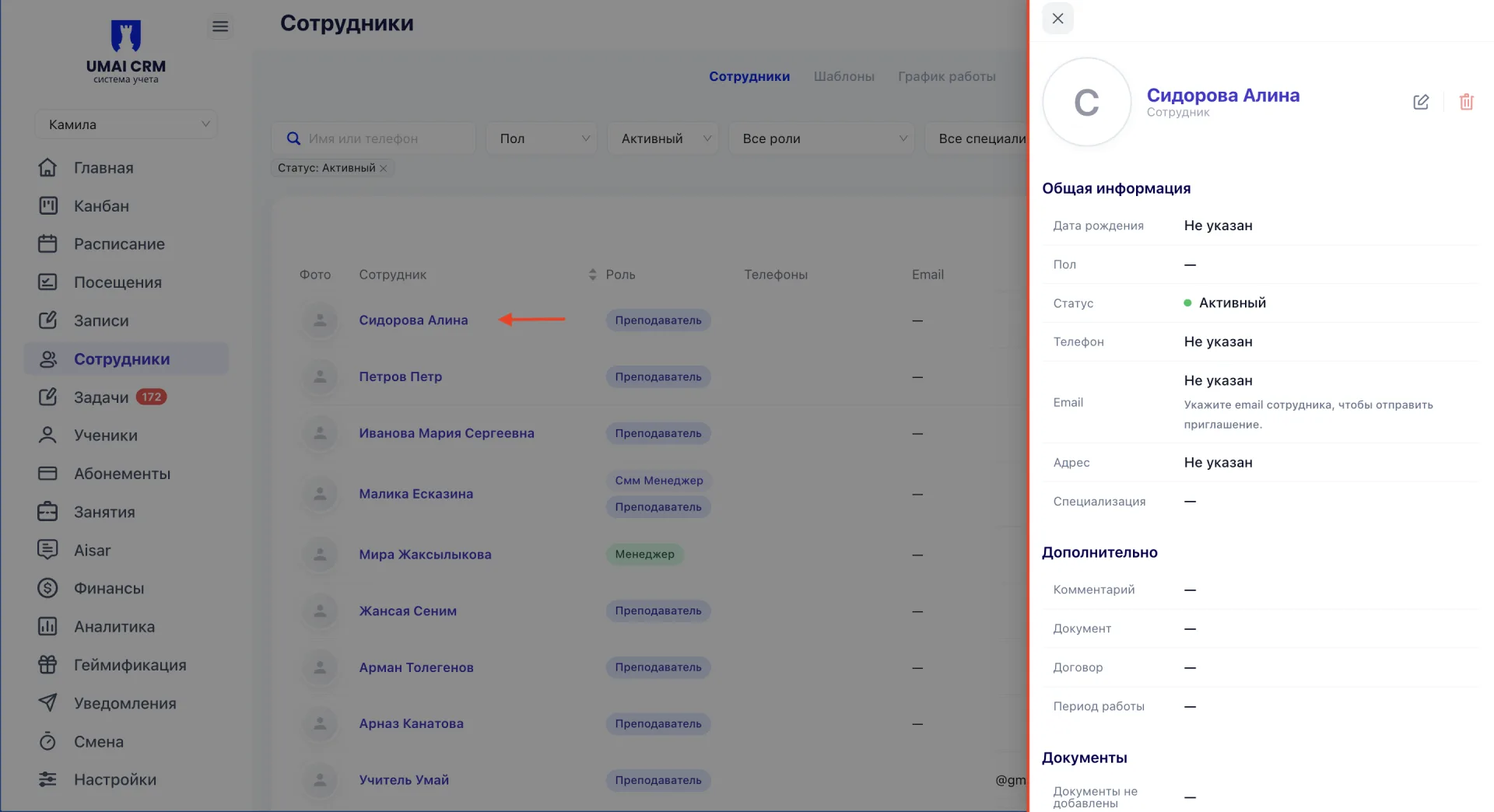
3. Click "Edit" in the top right corner, next to the delete button.
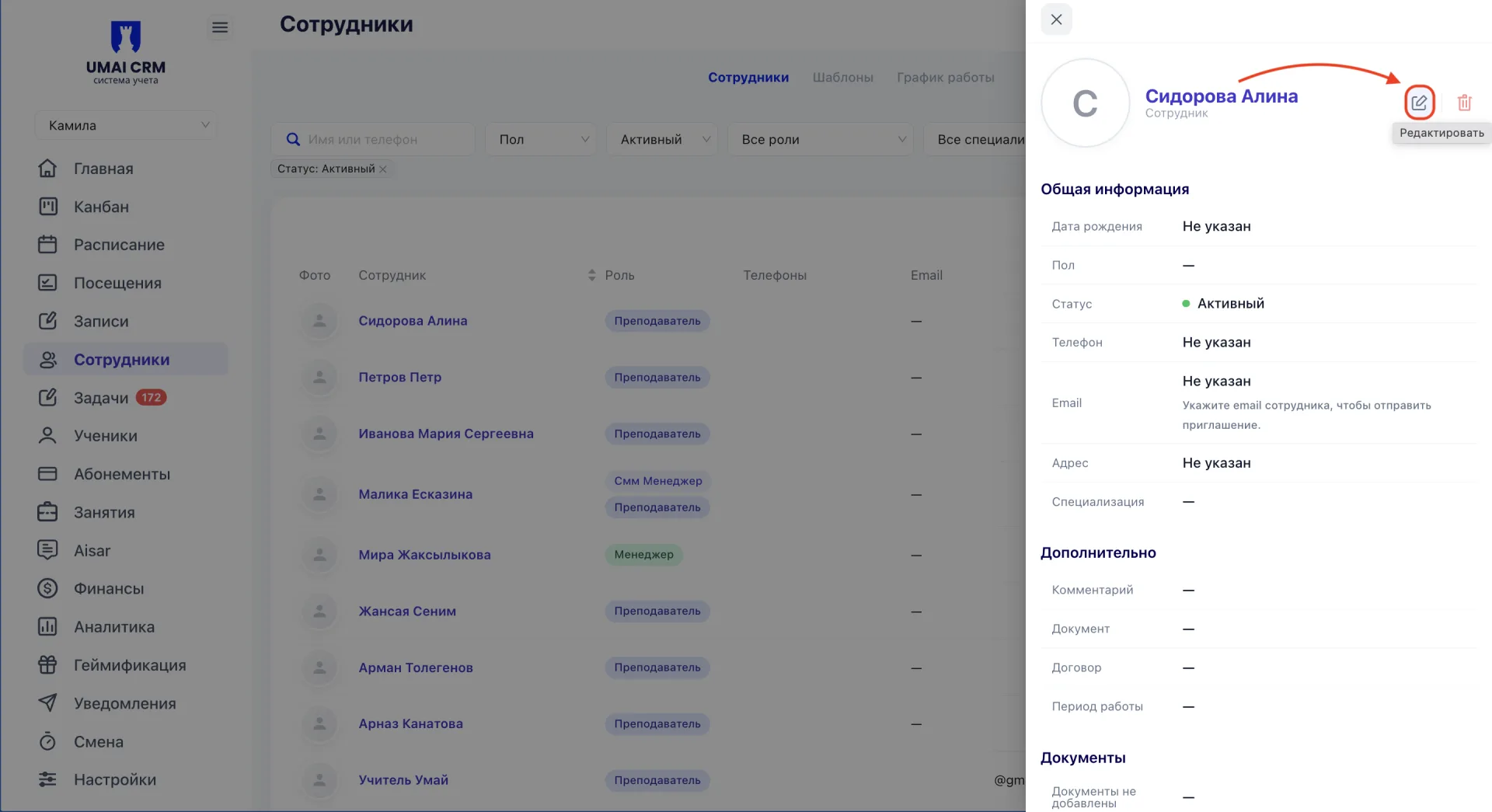
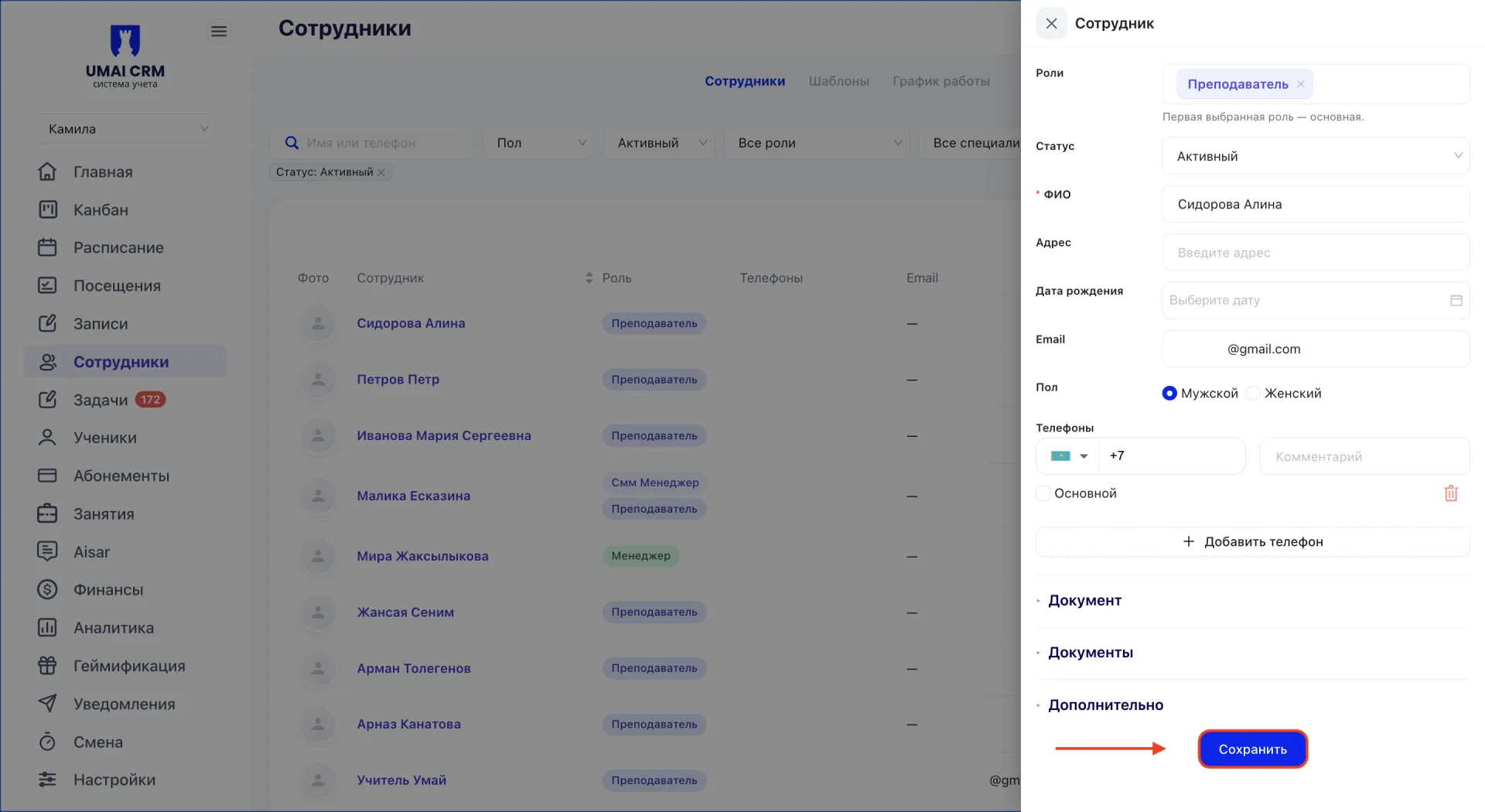
4. Specify the employee's current email. For the invitation, use a work or personal address that the employee can access.
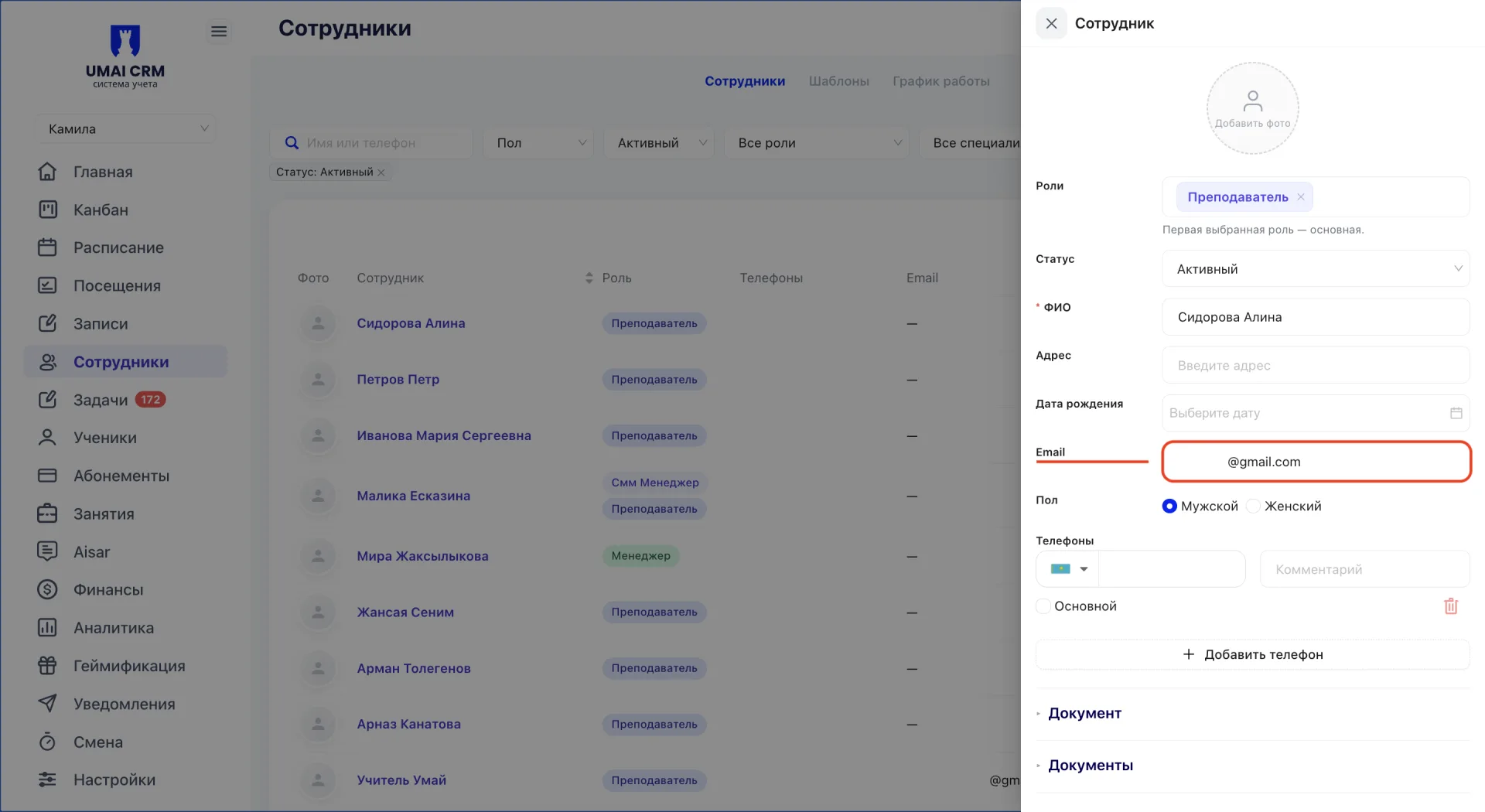
5. Click "Save".
6. In the employee list, click the blue button to the right of the email.
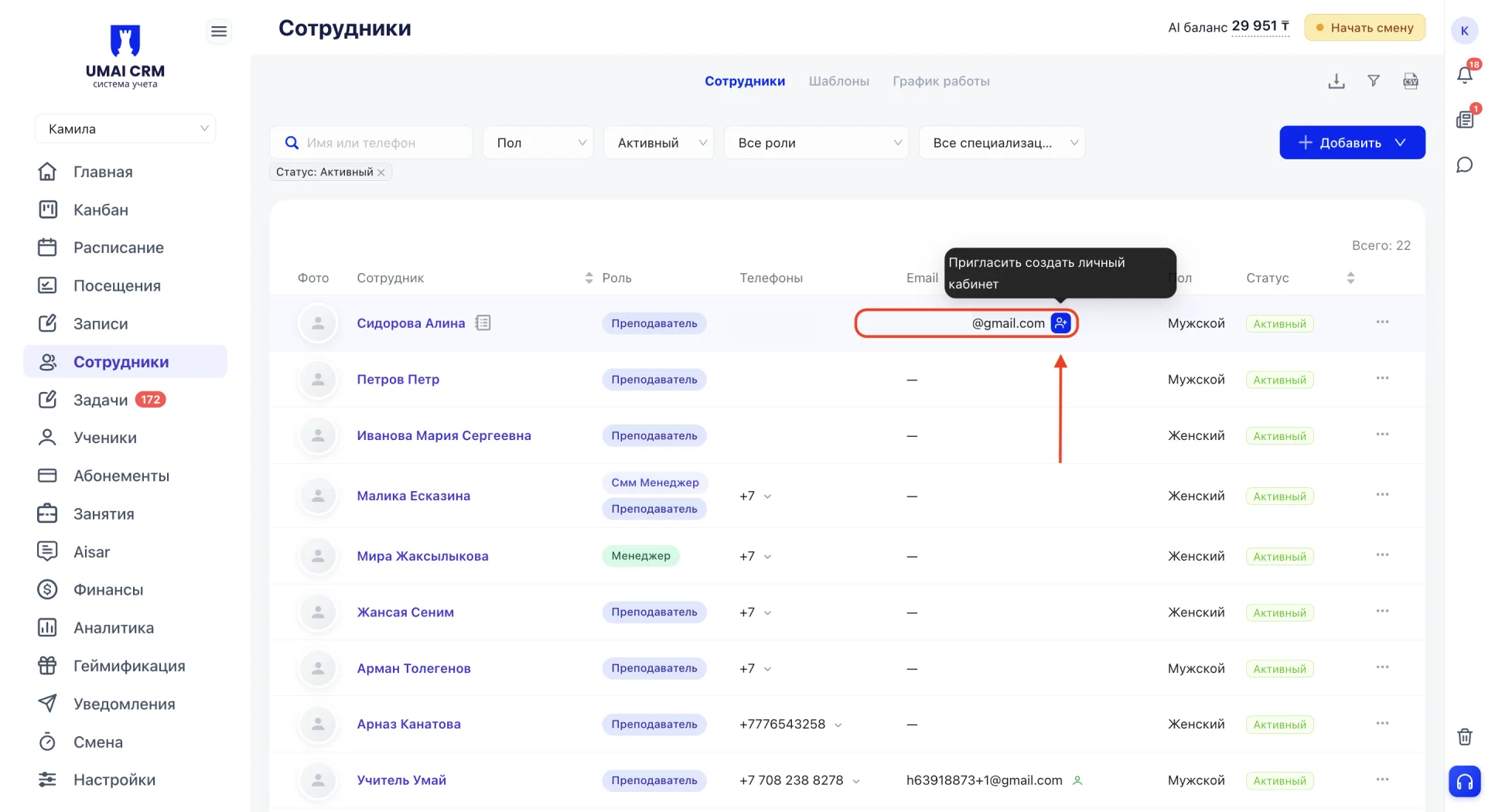
An invitation to sign in to UMAI CRM will be sent to the specified email.
After the invitation is sent, the blue button will change to orange.
The email may not arrive immediately. Wait a few minutes and ask the employee to check the Spam folder.
Do not resend the invitation immediately. If the email has not arrived after some time, click the orange button to resend.
Important to note:
- Provide an email the employee can access. The invitation to sign in to UMAI CRM will be sent to it.
- The email may not arrive immediately. If it is not in the Inbox, check the Spam folder.
- After sending the invitation, the blue button changes to orange. Do not click it again immediately.
- If the email has not arrived after a few minutes, use the orange button to resend.
- After receiving the invitation, the employee must follow the link in the email and complete the sign-in process.